

Excel Keyboard Shortcuts: Complete List + Free PDF Cheat Sheet (200+)
Knowing and using Keyboard Shortcuts is one of those Excel Skills that can help you save a ton of time every day. If you spend a lot of time working in Excel, learning keyboard shortcuts is a game-changer.
What are the most powerful shortcuts you can use to save time in Excel? That’s exactly what this cheat sheet is all about.
I’ve compiled a complete list of essential Excel shortcuts, from everyday copy and paste to advanced navigation, editing, formula tricks, ribbon commands, cell formatting, and even those hidden gems using the function keys.
Whether you're a beginner or a pro, this guide is your shortcut to working faster and smarter in Excel.
Most Amazing Keyboard Shortcuts for Excel
Shortcut |
Description |
Category |
|---|---|---|
Ctrl+N | Opens a new workbook. | Manage Workbook |
Ctrl+O | Opens the open workbook dialog box. | Manage Workbook |
Ctrl+S | Save changes in the workbook, or open Save As if not yet saved. | Manage Workbook |
Ctrl+Shift+S | Open Save As dialog box. | Manage Workbook |
F12 | Open Save As dialog box. | Manage Workbook |
Ctrl+P | Open the print preview. | Manage Workbook |
Ctrl+W | Close the active workbook. | Manage Workbook |
Alt+F4 | Close the Excel application. | Manage Workbook |
Ctrl+F1 | Expand or collapse the ribbon. | Manage Workbook |
Ctrl+Home | Go to cell A1. | Navigation |
Ctrl+End | Go to the last used cell. | Navigation |
Ctrl+G | Open the Go To dialog box. | Navigation |
Ctrl+F | Open the Find dialog box. | Navigation |
Ctrl+H | Open the Find and Replace dialog box. | Navigation |
Ctrl+↑/↓/←/→ | Move to the edge of the data region in the pressed arrow direction. | Navigation |
Page Up/Page Down | Move one screen up or down. | Navigation |
Ctrl+Page Up | Move to the previous worksheet. | Navigation |
Ctrl+Page Down | Move to the next worksheet. | Navigation |
Alt+Page Up | Move one screen to the left. | Navigation |
Alt+Page Down | Move one screen to the right. | Navigation |
Ctrl+Backspace | Scroll back to the active cell. | Navigation |
Ctrl+Tab | Navigate between open workbooks. | Navigation |
Ctrl+Shift+F4 | Find the previous match. | Navigation |
Shift+F4 | Find the next matching value (works after closing Find dialog). | Navigation |
End+↑/↓/←/→ | Move to the edge of the data region (End mode). | Navigation |
F5→Alt+S | Open the Go To Special dialog. | Navigation |
Shift+↑/↓/←/→ | Extend the selection one cell at a time. | Selection |
Ctrl+Shift+↑/↓/←/→ | Extend the selection to the end of data in that direction. | Selection |
Ctrl+Shift+Home | Select from the current cell to A1. | Selection |
Ctrl+Shift+End | Select from the current cell to the last used cell. | Selection |
Ctrl+A | Select all cells, or the current data region if inside a table. | Selection |
Ctrl+Space | Select the entire column. | Selection |
Shift+Space | Select the entire row. | Selection |
Ctrl+Shift+Space | Select the entire worksheet. | Selection |
Alt+; | Select visible cells only (skips hidden rows/columns). | Selection |
Ctrl+Shift+O | Select all cells that contain comments. | Selection |
F8 | Toggle Extend Selection mode. | Selection |
Shift+F8 | Add a non-contiguous range to the selection. | Selection |
F2 | Edit the active cell (cursor moves to end of content). | Data Entry |
Alt+Enter | Insert a new line within the same cell. | Data Entry |
Ctrl+Enter | Fill all selected cells with the current entry. | Data Entry |
Shift+Enter | Complete entry and move up. | Data Entry |
Tab | Complete entry and move right. | Data Entry |
Shift+Tab | Complete entry and move left. | Data Entry |
Esc | Cancel the current cell entry. | Data Entry |
Delete | Clear cell contents without deleting the cell. | Data Entry |
Ctrl+D | Fill down — copy the top cell into selected cells below. | Data Entry |
Ctrl+R | Fill right — copy the leftmost cell into selected cells to the right. | Data Entry |
Ctrl+Shift++ | Insert cells, rows, or columns. | Data Entry |
Ctrl+- | Delete selected cells, rows, or columns. | Data Entry |
Ctrl+; | Insert the current date. | Data Entry |
Ctrl+Shift+; | Insert the current time. | Data Entry |
Ctrl+X | Cut the selected cells. | Data Entry |
Ctrl+C | Copy the selected cells. | Data Entry |
Ctrl+V | Paste from the clipboard. | Data Entry |
Ctrl+K | Insert a hyperlink. | Data Entry |
Ctrl+1 | Open the Format Cells dialog box. | Formatting |
Ctrl+B | Apply or remove bold formatting. | Formatting |
Ctrl+I | Apply or remove italic formatting. | Formatting |
Ctrl+U | Apply or remove underline. Note: some references also list this as Fill Up — Underline is the standard behavior. | Formatting |
Ctrl+5 | Apply or remove strikethrough formatting. | Formatting |
Ctrl+Shift+$ | Apply currency format. | Formatting |
Ctrl+Shift+% | Apply percentage format. | Formatting |
Ctrl+Shift+# | Apply date format (DD-MMM-YY). | Formatting |
Ctrl+Shift+@ | Apply time format. | Formatting |
Ctrl+Shift+! | Apply number format with 2 decimal places. | Formatting |
Ctrl+Shift+~ | Apply general number format. | Formatting |
Ctrl+Shift+P | Open the Font tab in the Format Cells dialog. | Formatting |
Alt+H+H | Open the fill color picker. | Formatting |
Alt+H+B | Open the borders menu. | Formatting |
Ctrl+Z | Undo the last action. | View |
Ctrl+Y | Redo the last undone action. | View |
Ctrl+9 | Hide selected rows. | View |
Ctrl+Shift+9 | Unhide rows in the selection. | View |
Ctrl+0 | Hide selected columns. | View |
Ctrl+Shift+0 | Unhide columns in the selection. | View |
Ctrl+Scroll Wheel | Zoom in or out on the worksheet. | View |
Alt+W+F+F | Freeze panes at the current position. | View |
Alt+W+F+R | Freeze the top row. | View |
Alt+W+F+C | Freeze the first column. | View |
Shift+F11 | Insert a new worksheet. | Worksheet Management |
Alt+H+O+R | Rename the active worksheet. | Worksheet Management |
Alt+H+O+M | Move or copy the active worksheet. | Worksheet Management |
Ctrl+Alt+V | Open the Paste Special dialog box. | Paste Special |
Ctrl+Shift+V | Paste values only (Microsoft 365 / Excel 2024). | Paste Special |
Alt+E+S+V | Paste values only — legacy, all Excel versions. Press Enter to confirm. | Paste Special |
Alt+E+S+F | Paste formulas only from the copied cell. | Paste Special |
Alt+E+S+T | Paste formatting only from the copied cell. | Paste Special |
= | Start entering a formula in the active cell. | Formulas |
F4 | Toggle absolute/mixed/relative references ($A$1 → A$1 → $A1 → A1). | Formulas |
Ctrl+Shift+Enter | Enter an array formula (legacy — use dynamic arrays in Excel 365 instead). | Formulas |
Shift+F3 | Open the Insert Function dialog box. | Formulas |
Ctrl+F3 | Open the Name Manager to create or edit named ranges. | Formulas |
F9 | Recalculate all open workbooks (or a selected formula part). | Formulas |
Alt+= | Insert an AutoSum formula for the selected range. | Formulas |
Ctrl+` | Toggle between formula results and formula text in all cells. | Formulas |
Ctrl+Shift+L | Toggle AutoFilter on or off for the selected range. | Data Analysis |
Ctrl+T | Convert the selected range into an Excel Table. | Data Analysis |
Alt+N+V | Insert a PivotTable. | Data Analysis |
Alt+↓ | Open the AutoFilter dropdown or AutoComplete list. | Data Analysis |
Ctrl+Q | Open the Quick Analysis tool for the selected range (Excel 2013+). | Data Analysis |
F11 | Create a chart on a new sheet from the selected data. | Data Analysis |
Alt+F1 | Create an embedded chart in the current worksheet. | Data Analysis |
F7 | Run spell check on the active worksheet. | Data Analysis |
Shift+Alt+→ | Group selected rows or columns. | Grid |
Shift+Alt+← | Ungroup selected rows or columns. | Grid |
Alt+F8 | Open the Macro dialog to run, edit, or delete macros. | Advanced |
Alt+F11 | Open the Visual Basic Editor (VBE). | Advanced |
Ctrl+F11 | Insert a new macro sheet. | Advanced |
F4 | Repeat the last action performed (outside formula editing). | General |
Alt | Show ribbon shortcut key badges (KeyTips) on each tab. | Ribbon Navigation |
Alt+H | Open the Home tab. | Ribbon Navigation |
Alt+N | Open the Insert tab. | Ribbon Navigation |
Alt+M | Open the Formulas tab. | Ribbon Navigation |
Alt+A | Open the Data tab. | Ribbon Navigation |
Alt+W | Open the View tab. | Ribbon Navigation |
F1 | Open the Excel Help pane. | Function Keys |
F2 | Edit the active cell. | Function Keys |
F3 | Open the Paste Name dialog (when named ranges exist). | Function Keys |
F5 | Open the Go To dialog box. | Function Keys |
F6 | Move to the next pane in a split worksheet. | Function Keys |
F10 | Activate the menu bar (same as pressing Alt). | Function Keys |
F12 | Open the Save As dialog box. | Function Keys |
Shift+F2 | Add or edit a comment in the active cell. | Function Keys |
Ctrl+F4 | Close the active workbook (prompts to save if unsaved). | Function Keys |
Ctrl+F12 | Open the file Open dialog. | Function Keys |
Helpful Note
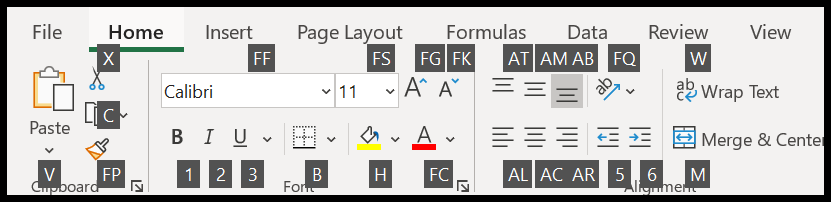
When you press the ALT key Excel shows you the keys that you can use to open the tab from the ribbon.

And when you press a key for a particular tab to open it further shows you the keys to open the options that you have on that tab, so one for further dropdowns.
Some Less Known Excel Shortcuts
Using keyboard shortcuts can speed up your workflow and make you more efficient. Here are some amazing keyboard shortcuts that I have learned throughout the years.
- Quick Analysis Tool - After selecting a range of cells, press Ctrl + Q to open the Quick Analysis tool. This tool offers options for formatting charts, totals, tables, and sparklines tailored to the selected data.
- Toggle Formulas View - Press Ctrl + ` to toggle between displaying formulas and their results in cells. It is handy for quickly reviewing the formulas in a worksheet.
- Insert Current Date and Time - Ctrl + ; (semicolon) inserts the current date into a cell, and Ctrl + Shift + ; inserts the current time. This is especially entertaining for timestamps in a cell.
- Open Insert Function Dialog - Press Shift + F3 to open the Insert Function dialog box. This box allows you to search for and insert functions without typing them manually or remembering syntax.
- Select All Cells with Comments - Press Ctrl + Shift + O (the letter O) to select all cells that have comments. This is handy when quickly navigating through or editing comments in a worksheet.
More Excel Keyboard Shortcuts
More Tutorials for You
Written by Puneet for Excel 2007, Excel 2010, Excel 2013, Excel 2016, Excel 2019, Excel 2021, and Excel 365