

Press Ctrl + S to save. The first time, Excel asks for a name and a location; after that, Ctrl + S saves over the same file. Press F12 to open the Save As dialog when you want a new name, folder or file type.
Choose the type from Save as type in that dialog. Excel Workbook (*.xlsx) is the default. Use Excel Macro-Enabled Workbook (*.xlsm) if the file has macros, PDF to share a read-only copy, and CSV for importing into other systems.
CSV saves only the active sheet, as plain values. Formulas, formatting and the other sheets are dropped, and leading zeros are lost when you reopen the file in Excel. Keep the .xlsx as your working copy and save the CSV separately.
Files stored in OneDrive or SharePoint save automatically when AutoSave is on (top left of the window). Use File → Save a Copy rather than Save As to start a separate version. If Excel closes without saving, check File → Info → Manage Workbook → Recover Unsaved Workbooks.
If you are an Excel user, it is important to know to save a file in it. In Excel, you might need to save a file for making records. And the default format of files in Excel is XLSX. It allows you to save your data in any local drive, folder (like desktop, my document), hard disk, or USB as well.
In this tutorial, we will learn the different methods to save Excel documents.
Save a File using the File Tab on the Ribbon
It is one of the simple and easiest ways to save an Excel file in your drive or any folder. Here, are the steps for this:
- First, open the Excel worksheet and you can see the default name is Book1. Now, enter the data that you want to save.

- Click on the File Tab and it gives you a backstage view of the list of options.

- Now, click on the Save As option and it will open the save as dialog box.

- Next, you need to browse the location where you would like to save your worksheet.
Suppose you would like to save your file in the Excel Files folder which is on the desktop.
- Once you select the location, enter the file name in the box and click on the Save button at the bottom.

- Last, you can see the file name has changed on the sheet also.

Keyboard Shortcut to Save Excel File
You can also save the file by using the keyboard shortcut in XLSX format.
- Again, you need to prepare the sheet that you want to save for the future.
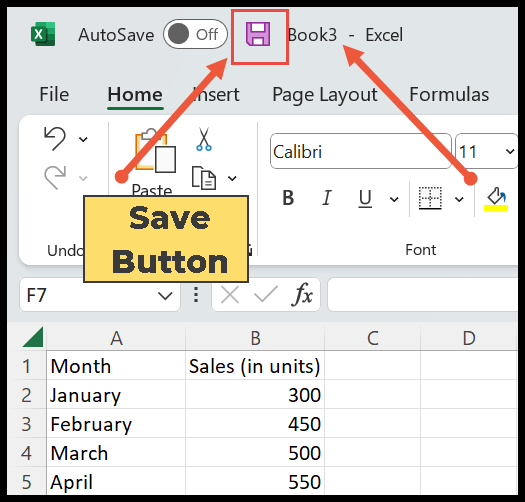
- Press the Ctrl + S keys or click on the top save icon and it will show you the Save the file dialog box like below.
- Now, give a name to the workbook and select “Excel Workbook” in the save as type box.

- Choose the location where you want to save your file and click the Save button.

Save Excel File in Other Formats
In general, Excel saves its files in Excel workbooks, but with this, you can also save the files in other formats as well. For example, you may want to save your existing file as PDF. The following are steps to do this:
Note: You can save the new as well as any existing Excel file in other formats.
- You need to open an existing file that you want to save in PDF format.

- Now, click on the file tab and select the Save As option.
- Click browse and it will open the same save as the dialog box.

- Now, select the location where you want to save your Excel file.
- Next, you can change the name of the file if you want to, and from the file type drop-down, select PDF and then save it.

Related Tutorials
- Fill Justify in Excel
- Formula Bar in Excel
- Add a Header and Footer in Excel
- Show Ruler in Excel
- Fill Handle in Excel
- Format Painter in Excel
- Quick Access Toolbar in Excel
- Status Bar in Excel
- Insert Text Box in Excel
- Open Backstage View in Excel
- Activating the Dark Mode in Excel
- Get the Scroll Bar Back in Excel

Written by
Puneet Gogia
Microsoft MVP — Excel · Founder, Excel Champs
Twelve years of teaching Excel, and a decade before that using it as a data analyst. Every tutorial here is written from a file I actually built.