

=SUMIF(B2:B11,">0",C2:C11) adds up column C for every row where column B is above zero. The operator and the zero sit together inside one pair of double quotes. When the range you’re testing is also the range you’re summing, drop the third argument: =SUMIF(B2:B11,">0") sums the positive values in that column and ignores the negatives.
To take the threshold from a cell so you can change it without editing the formula, join with &: =SUMIF(B2:B11,">"&D1,C2:C11). SUMIFS does the same job with the sum range first: =SUMIFS(C2:C11,B2:B11,">0"), and that’s the one to use when you need a second condition.
Two things worth knowing. ">0" excludes zero itself — use ">=0" if zeros should count.
And SUMIF only considers numbers, so a value stored as text is skipped silently, which is the usual reason a total comes out lower than expected.
Let’s say you manage a store’s inventory with a workbook where each row represents a different product. You have columns for product names, quantities, and weeks passed since each product was sold. To monitor your stock, you should sum up the quantities of products in inventory for over zero weeks.
To sum values that are greater than zero, you can use the SUMIF to specify a condition. In SUMIF, the criteria argument, allow you to write a condition where you can use the greater than operator and enter a zero (0). You can use the same range for testing conditions and calculating the sum.
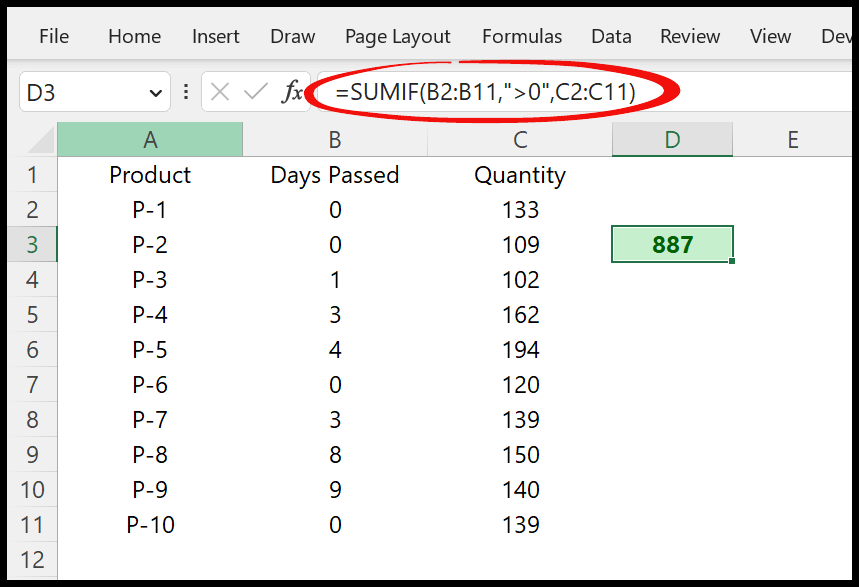
Or you can also use two different ranges, one for testing the condition and one to get the sum.
Steps to Write Formula: SUMIF Greater than Zero
You can use the below steps:
- First, in a cell enter the SUMIF function.
- After that, in the criteria_range refer to the Days Passed column.
- Next, in the criteria argument, use “>0”.
- Now, in the sum_range refer to the Quantity column.
- In the end, hit enter to get the result.
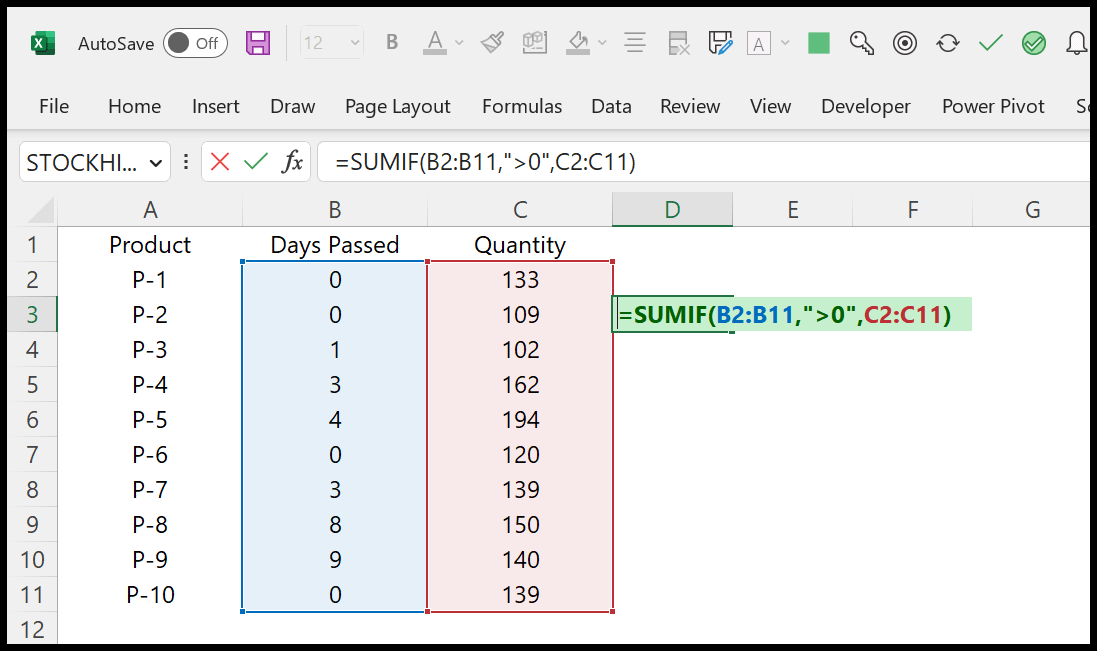
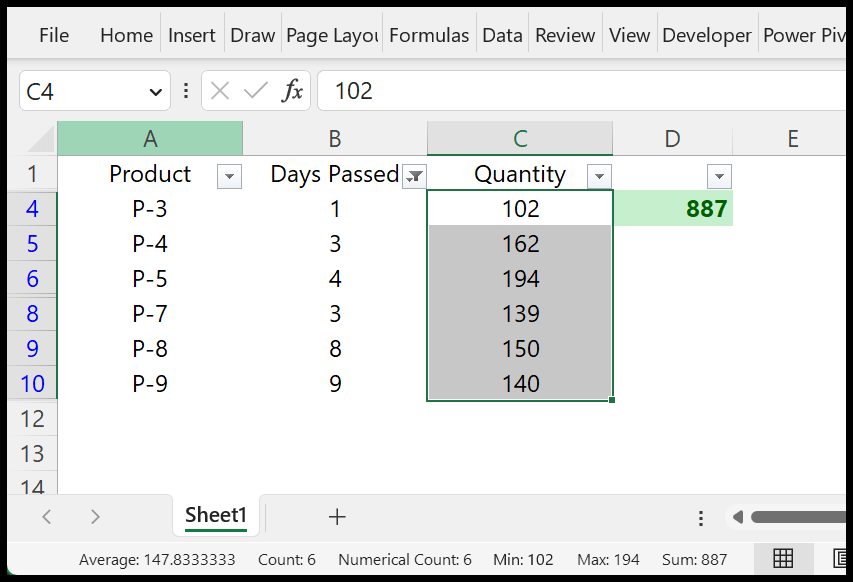
=SUMIF(B2:B11,">0",C2:C11)As you can see, it only returns the sum for the values from the Quantity column, where you have a value above zero in the days passed column. You can see the same result on the status bar.
Using a Cell Reference to Specify Zero
While writing the formula, you can refer to a cell to specify the zero in it.
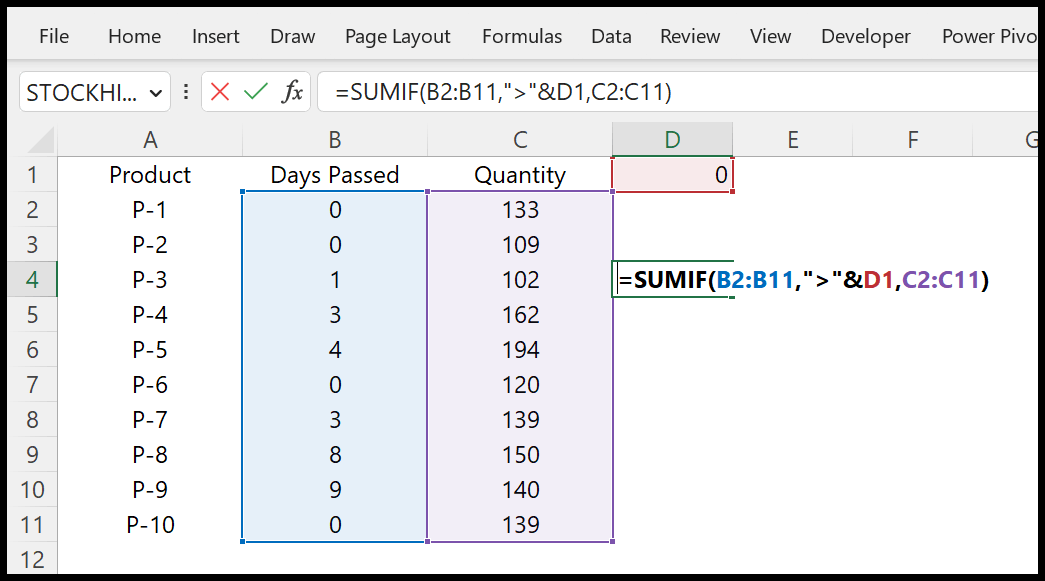
=SUMIF(B2:B11,">"&D1,C2:C11)In the above formula, in the criteria, we have used an ampersand and then referred to cell D1 where we have the zero. This gives a dynamic formula where you can change the condition of the cell instead of editing it from the formula.
What If I Want to use SUMIFS Instead of SUMIF?
Yes, you can use it.
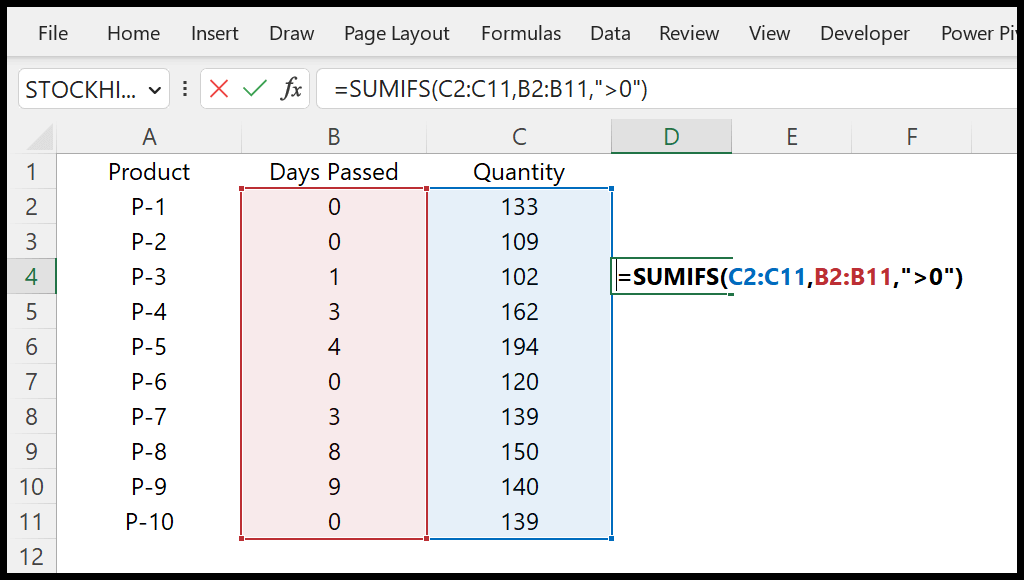
In SUMIFS, you need to specify the sum_range first. After that, you need to specify the criteria range, and in the end, you need to enter the criteria to test.
=SUMIFS(C2:C11,B2:B11,">0")
Written by
Puneet Gogia
Microsoft MVP — Excel · Founder, Excel Champs
Twelve years of teaching Excel, and a decade before that using it as a data analyst. Every tutorial here is written from a file I actually built.