

To get the difference between two times, subtract the start from the end: =B2-A2. Then format the result cell so it reads as elapsed time rather than a clock time — press Ctrl+1, choose Custom, and enter [h]:mm. The square brackets are what matter: without them anything over 24 hours wraps around and 27 hours shows as 3:00.
For a number you can calculate with, multiply by 24: =(B2-A2)*24 gives 4.5 for four and a half hours, *1440 gives total minutes, and *86400 gives seconds — format those cells as Number, not Time. For completed hours only, =INT((B2-A2)*24).
When a shift runs past midnight the end time is smaller than the start, and plain subtraction gives a negative result that displays as ######. The shortest fix is =MOD(B2-A2,1), which wraps the calculation around the day automatically; =IF(B2>A2,B2-A2,1-A2+B2) does the same thing more explicitly.
And if a result you expect to be a number shows as ###### too, the cell is still formatted as time — change it to Number or Currency.
Last Updated: 07-Aug-2026
To get the difference between two time values in Excel, you need to subtract the start time from the end time (end_time – start_time) and then use the custom formatting to show them as Minutes, Hours, or in Hours & Minutes.
- Hours and minutes: Enter
=B2-A2, then pressCtrl + 1, pick Time → the 37:30:55-style format so it shows the actual gap instead of a clock time. - Hours as a decimal number: Enter
=((B2-A2)*24)to convert the difference to plain hours, where 4 hours 30 minutes shows as 4.5. - Completed hours only: Enter
=INT((B2-A2)*24)so the decimal part is dropped, leaving only fully finished hours. - Total minutes: Enter
=(B2-A2)*1440since a day has 1440 minutes, giving the whole difference expressed in minutes. - Total seconds: Enter
=(B2-A2)*86400since a day has 86,400 seconds, giving the difference in seconds. - Overnight / end time earlier than start: Enter
=IF(B2>A2, B2-A2, 1-A2+B2)so instead of the ###### error, it adds the leftover time of day 1 to day 2’s time.
1. Get the Difference in Hours and Minutes
This is one of the most common ways to calculate the difference between two times. Let’s suppose you have start and end times (as shown below) and need to calculate the difference between them.
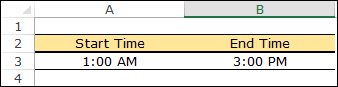
- First of all, you can simply deduct the end time from the start time and you’ll get something like below.
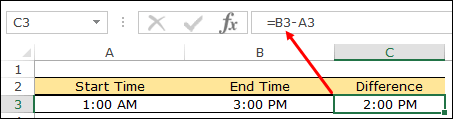
- Now next you need to convert this time into hours and minutes.
- For this, select the cell and open format options (Ctrl + 1).
- After that, select the “Time” category and select the second time format.

- In the end, click OK.

Once you do this, it will convert (Format) that time difference into hours and minutes instead of the normal time format.
2. Get the Difference in Hours in Numbers
This is not a common way to calculate a time difference, but it is still useful and important. Let’s say you want to calculate the difference between start and end times in hours, but not as normal numbers.
For example, if the difference between the start and end time is 4 hours and 30 minutes, it should show it as 4.5 hours. Here’s the formula that you need to use.
=(end_time-start_time)*24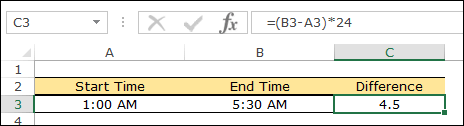
Once you enter this formula, it returns the hours in numbers and minutes (if you have them) in decimals.
How this Formula Works
As I said before, Excel stores date and time in numbers, and when you deduct the end time from the start time it returns a decimal. When you multiply it by 24 (the total number of hours in a day), it converts that decimal into the number of hours and minutes.
3. Get Difference in Completed Hours
You can also calculate the completed hours between two times with this simple formula.
=INT((end_time-start_time)*24)
How this Formula Works
This formula is just like the formula that we have used in the second method; the only difference is that we have wrapped it in INT.
INT function returns the integer part decimal by rounding it down. You can learn more about it here. So when you enter this formula, first of all, it returns a decimal number for the hours, and then INT removes the fractional part and gives you completed hours.
4. Get Difference in Minutes
It happens sometimes that you need to track the time difference in minutes instead of hours, and in this case, the best way is to use the below formula.
=(end_time-start_time)*1440
In this formula, after deducting the start time from the end time we have multiplied it by 1440 which is the total number of minutes we have in 24 hours. And when you enter this formula you’ll get the difference between two values in minutes.
Quick Tip: If somehow you have seconds in your time values then you use the below formula to get the total complete minutes between start and end time.
5. Get Difference in Seconds
Same as minutes we can also get the difference in seconds. All you need to do is use the following formula.
=(end_time-start_time)*86400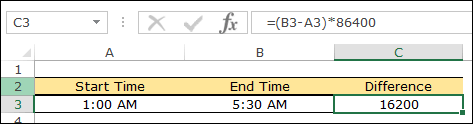
Here 86400 is the total second in 24 hours and when you enter this formula it will return the difference in start and end time in seconds.
6. Calculate the Difference as a Negative Value
In all the above examples, we have the end time which is greater than (later than) the start time.
Let’s suppose you have two time values where the end time is earlier than the start time. In simple words, if the start time is 11:00 PM on day 1, and the end time is 5:00 AM on day 2.
The end time is actually less than the start time, and the simple subtract formula will not work and return a negative value, which will cause Excel to display a string of hash characters (i.e., ########).
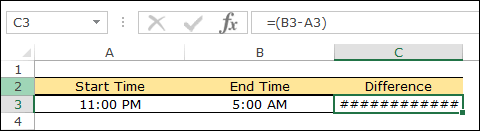
Don’t worry you can use a better formula for this. So the formula will be:
=IF(end>start, end-start, 1-start+end)
How this Formula Works
In this formula, you have a condition if the end time is greater than the start time then it will simply deduct the end time from the start time otherwise, firstly it will deduct the start time from 1 and then add it to the end time. By subtracting the start time from 1, you will get the total time for day 1 and when you add it to the end time, you’ll get the total time of day 1 and day 2 which is the total difference.
Get the Excel File
Conclusion
For Excel users who deal with time data, it’s really important to know various methods to get the difference between two times.
And all the methods we have used above can be applied in different situations, and I’m sure you have found them helpful.
But you need to tell me one thing.
Do you know any other method you can use to get the difference between the start and end times?
Share your views with me in the comment section, I’d love to hear from you, and make sure to share this tip with your friends.

Hi all
great article but I’m still struggling with one aspect of this and can’t make it work in one particular use case. For most of the time calculations I’ve tried it on, it’s perfect but when I try to find previous time, I can’t get the formula to comply.
For example, if I put 16:40-(5.5/24) to get 5.5 hours prior to the time on the left (16:40) – I correctly get 11:10. However, if I apply the same formula to the time of 04:05am [04:05-(5.5/24)] it gives me an error instead of the expected result of 22:35 (i.e. 5.5 hours earlier the day before).
Does anyone have any ideas on what I’m doing wrong? Thanks and much appreciative of any help provided.
Excel stores time as a decimal.
https://excelchamps.com/formulas/add-hours-into-time/
https://excelchamps.com/formulas/add-minutes-to-time/
https://excelchamps.com/formulas/separate-date-time/
With time, you are actually still dealing with dates as well. This means both 16:40 and 04:05 actually get stored as a serial number which ends up being 00/01/1900 16:40 and 00/01/1900 04:05 – you’ll see that if you update the cell format to dd/mm/yy hh:mm format (or other date format you might choose).
It’s just that Excel has sensed you entered a time so defaults to displaying just the time portion of the actual cell value – ie in hh:mm format.
Hence subtracting more then 4 hours and 5 mins from the time in the second example results in a date that is impossible for Excel, 1st Jan 1900 being the earliest date it works with.
..
One way round this could be to add 1 day to the time as it would not affect the time displayed *but* it would mean sorting time field would go weird.
..
Hope this help explain the issue.
……..
PS: The one thing I haven’t been able to explain to myself for a long time .. why does it handle day 0 of the first yr & mth it ‘can’ handle. I have no answer for that. Just knowing that the numeric (‘serial’) value “0” equates to a start date-time stamp means there’ll be a problem if I try to go negative.
Great explanation, Lindsay
THNK YOU!! I have been scouring the net trying to find out how to calculate two times as a number In Excel!!! You’re a lifesaver!
The above method has helped me no other that i know
Thanks
Thank you for your explanations, in 6. Calculate Difference as a Negative Value, you use two time dates. How would you do a negative if I want to do a negative dollar amount divided by a positive time amount.
eg: I trade the market and make $100 profit in 2.00 Hours = $50.00 P/Hour
I trade the market and lose $100 in 2.0 Hours = ##############
How can I fix this?
Do you know how to calculate the difference in a given start date and end date when you want to exempt weekends and certain holidays except not by using the NETWORKDAYS function?