

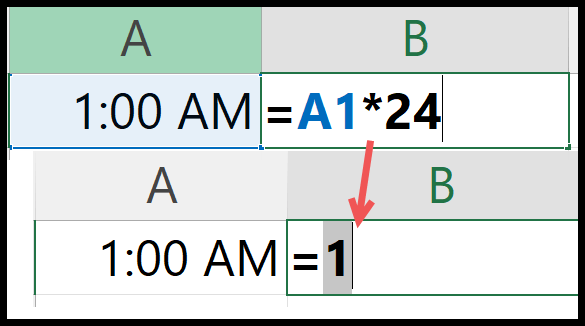
To convert a time into a decimal number of hours, multiply it by 24: =A1*24 turns 6:30 into 6.5. Excel stores time as a fraction of a day, so multiplying by 24 scales it back to hours.
Format the result cell as General or Number, or it inherits the time format and shows something like 6:00 AM instead of 6.5. Use *1440 for total minutes and *86400 for total seconds.
For whole hours only, wrap it in INT: =INT(A1*24). Two things worth knowing.
If the time is a total that exceeds 24 hours, the summed cell must be formatted [h]:mm first, otherwise the display has already wrapped and you’d be converting the wrong value. And to go the other way — decimal back to time — divide by 24 and format the cell as time: =A1/24.
In Excel, when you enter a time value it shows you hours, minutes, and seconds, but in actuality, a time is a decimal value that is formatted as a time.
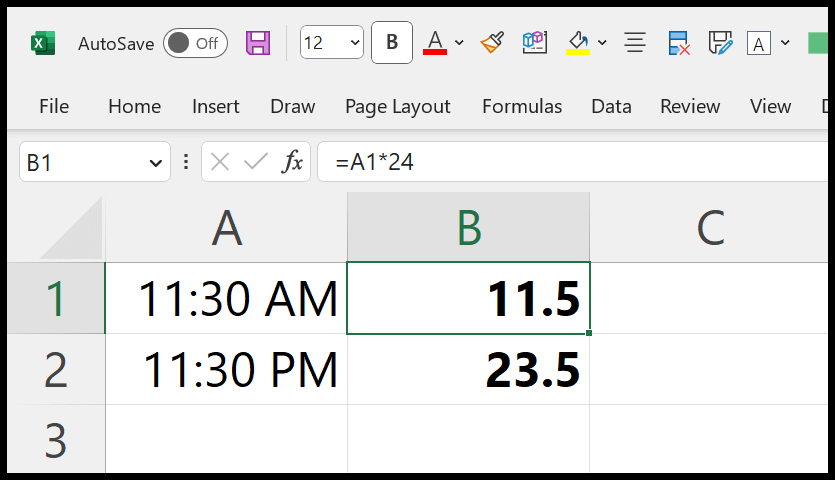
In this tutorial, we will learn to use a quick and short formula to convert time into a number where hours should be in integers and minutes in decimals.
Formula to Convert Time into Decimal Number
- Enter equal operator (=) in a cell.
- Refer to the cell where you have time.
- Type the asterisk (*) for multiplication.
- Enter 24 and hit enter to get the result.
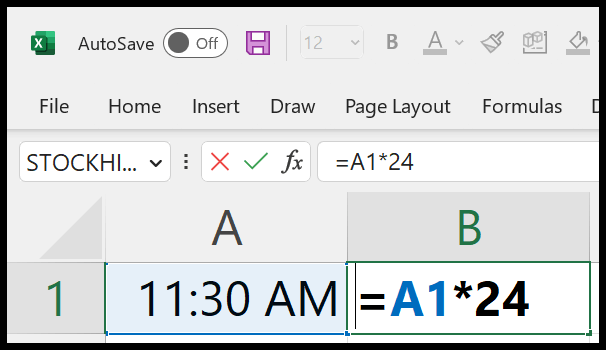
And once you use this formula, make sure to apply “General” formatting to the cell to show it as a number.
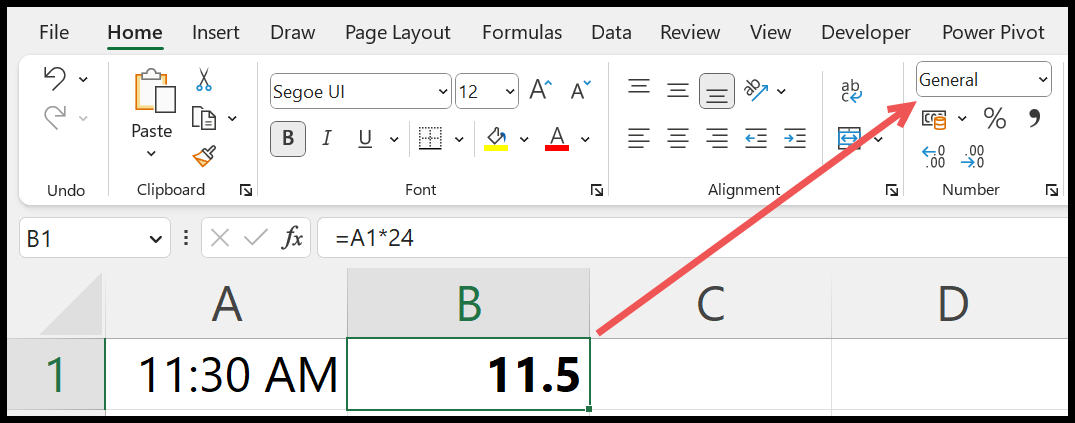
How does this Formula Work?
Excel stores time as a decimal value. 1:00 AM which is one hour in a day equals 0.042, and 11:00 PM equals 0.958.
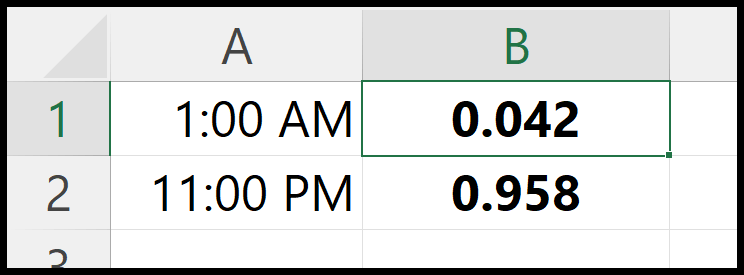
An hour in a day of 24 hours and has a value of 1/24. To convert a time into an hour number, you can multiply it by 24.
Written by
Puneet Gogia
Microsoft MVP — Excel · Founder, Excel Champs
Twelve years of teaching Excel, and a decade before that using it as a data analyst. Every tutorial here is written from a file I actually built.