

To add seconds to a time, divide the seconds by 86400 — the number of seconds in a day — and add: =A1+(34/86400) adds 34 seconds. The TIME function does the same without the arithmetic: =A1+TIME(0,0,34).
To take the number of seconds from a cell rather than typing it in, use =A1+(B1/86400), which lets you drag the formula down a column. To subtract, use a minus sign.
Three things to watch. If the result shows as a decimal rather than a time, the cell needs a time format — press Ctrl+1 and pick one that includes seconds, like h:mm:ss, or you won’t see the change at all.
If the total passes midnight, plain addition rolls into the next day; use =MOD(A1+(34/86400),1) to wrap it, or format as [h]:mm:ss to see the full elapsed total past 24 hours. And TIME’s seconds argument caps at 32767, so for anything larger the division method is the one to use.
To add seconds into a time value in Excel, you can use a simple and short formula where you need to refer to the original time from a cell and the second(s) value that you want to add after dividing it by the 86400 (which are totals seconds that we have in a day).
Below we have a time value in cell A1 (11:30:18 AM). And you need to add 34 seconds into this time.

Excel Formula to Add Seconds to a Time Value
You can use the below steps:
- First, enter the equal operator in a cell and refer to the cell where you have the time.
- After that, enter the addition operator and then enter starting parentheses.
- Now, enter the value of seconds you want to add to the time.
- Next, enter the division operator and enter 86400.
- In the end, enter the closing parentheses and hit enter to get the result.
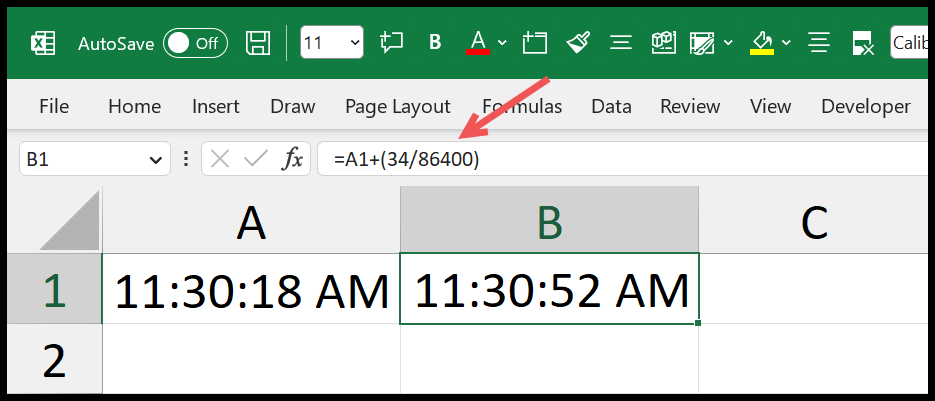
=A1+(34/86400)Use the TIME Function to Add Seconds
In the same way, you can also use Excel’s TIME function to add seconds into a time. See the below example.
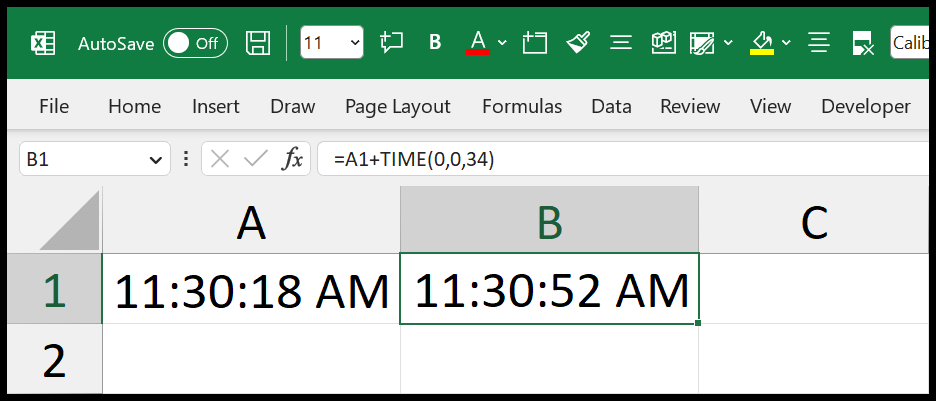
- In this formula, you need to refer to the cell where you have the time.
- After that, use the addition operator and enter the TIME function.
- In the time function, there are three arguments to define: hour, minute, and second. Use zero for hours and minutes; enter the seconds you want to add to the original time.
- In the end, hit enter to get the result.
=A1+TIME(0,0,34)Get the Excel File
More Formulas
- Add Hours to Time in Excel
- Add Minutes to Time in Excel
- Calculate Time Difference Between Two Times in Excel
- Change Time Format in Excel
- Military Time (Get and Subtract) in Excel
- Separate Date and Time in Excel
- Convert an Excel Time Value into a Decimal Number (Hours)
- Convert Minutes into Hours and Minutes (HH:MM)
- Convert Time Value into Minutes (Excel Formula)
- Convert Time Value into Seconds
- Get Current Time (Excel Formula)
- Sum Time in Excel (Excel Formula)
- Convert Seconds to Hours and Minutes
Written by
Puneet Gogia
Microsoft MVP — Excel · Founder, Excel Champs
Twelve years of teaching Excel, and a decade before that using it as a data analyst. Every tutorial here is written from a file I actually built.