

Turn on the Developer tab (File → Options → Customize Ribbon, tick Developer), then go to Developer → Insert → Form Controls → Option Button and draw one button for each view you want to switch between, such as Target vs Achievement, Profit and Market Share.
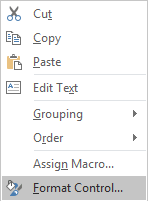
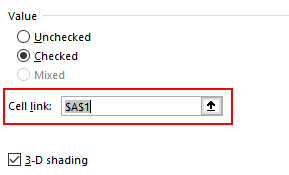
Right-click any button, choose Format Control and set Cell link to an empty cell such as $A$1. All the option buttons on the sheet share that link, so A1 shows 1, 2 or 3 depending on which button is selected.
Copy your data table below the original, clear the numbers and fill the copy with formulas that return a value only when its button is picked: =IF($A$1=1,B3,NA()) for the Target and Achievement rows, =IF($A$1=2,B5,NA()) for Profit and =IF($A$1=3,B6,NA()) for Market Share, adjusting the row references to your layout. Fill each one across the months.
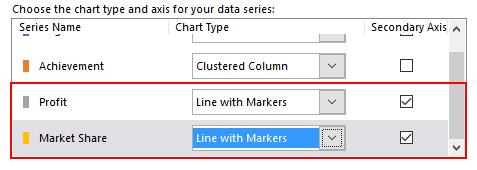
Build the chart from the copy, not the original: insert a column chart, then go to Chart Design → Change Chart Type → Combo (Design in older versions) and set Profit and Market Share to Line with Markers with Secondary Axis ticked. Each click on a button now redraws the chart with only that set of data.
Use NA() rather than "" for the hidden values: a text blank plots as zero and drags a line along the bottom of the chart, while #N/A is left out. The legend still lists every series, because #N/A hides the points but not the series, so delete the legend and let the button labels say what is on show.
If you would rather skip form controls, a drop-down in A1 from Data → Data Validation → List works the same way; test for the text instead of a number, as in =IF($A$1="Profit",B5,NA()).
A chart is a perfect tool to present data in an understandable way. But sometimes it sucks because we overload it with data. Yes, you heard it right.
I believe that when it comes to charts it should be neat and clean and the best solution to this problem is using interactive charts. By using interactive charts in Excel, you can present more data in a single chart, and you don’t even have to worry about all that clutter.
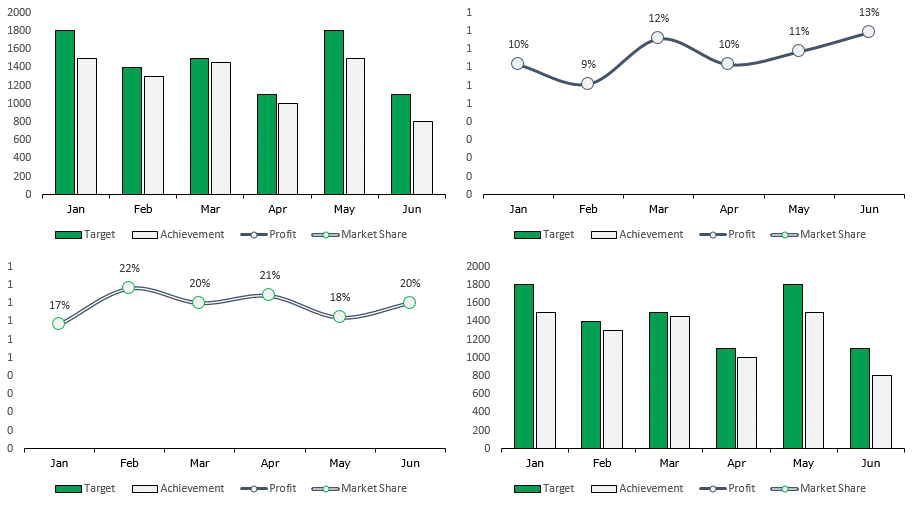
It’s a smart way. Look at the below chart where I am trying to show target vs. achievement, profit, and market share.
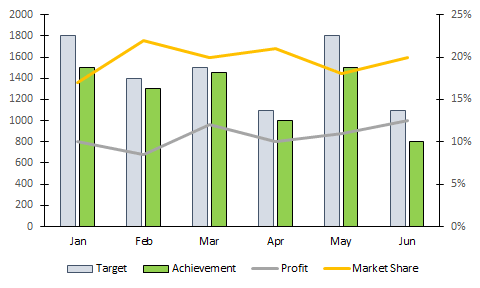
Do you think this is a decent way to present it? Of course not. And now check out this, where have an interactive chart which I can control with option buttons.
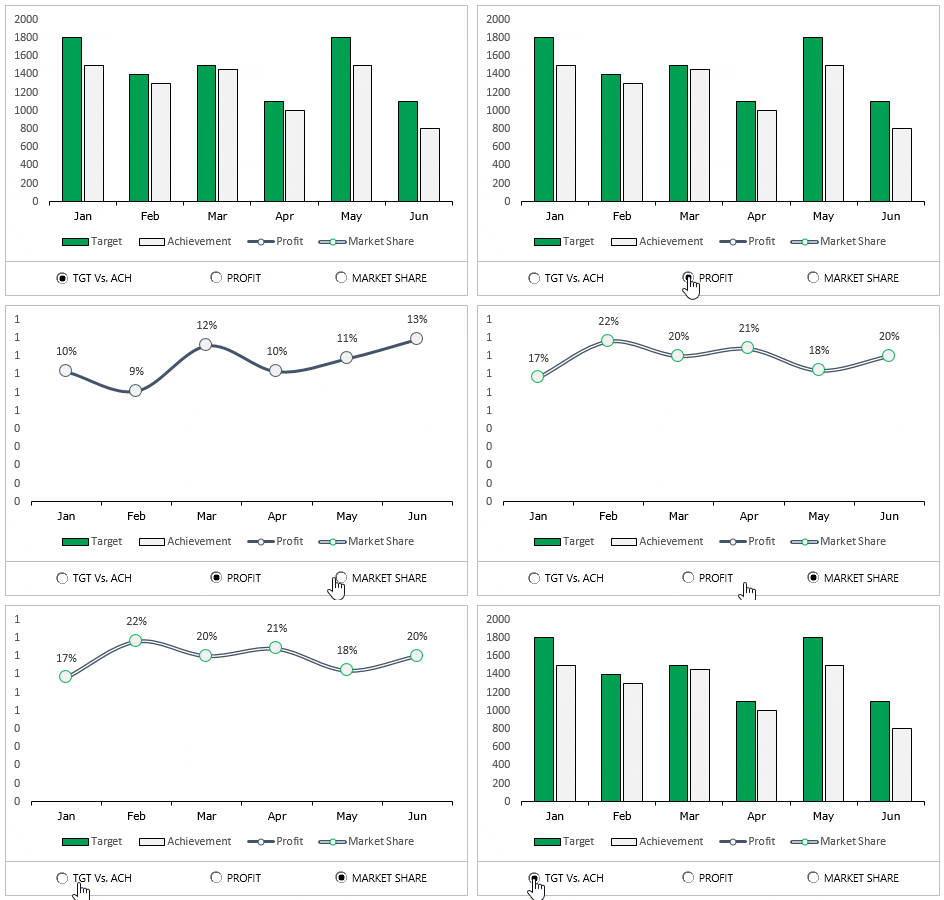
What do you think? Are you ready to create your first interactive chart in Excel?
Steps to Make an Interactive Chart in Excel
In today’s post, I’m going to show you the exact steps which you need to follow to create a simple interactive chart in Excel. Please download this file from here to follow along.
1. Prepare Data
- First of all, copy this table and paste it below the original table.
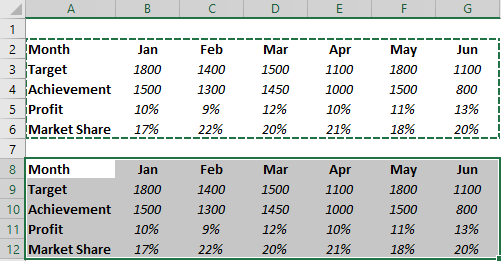
- Now, delete the data from the second table.
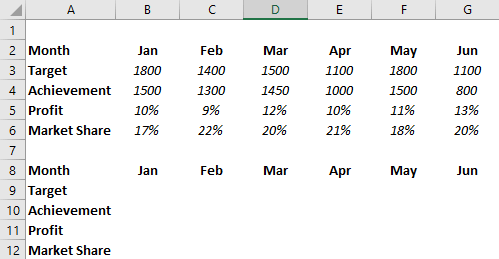
- In the Jan month cell of target and achievement, insert the following formulas and copy those formulas into the entire row (Formula Bar).
=IF($A$1=1,B3,NA())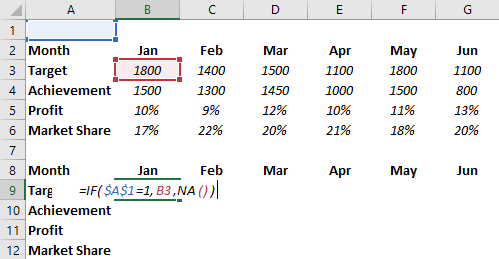
- After that, into the Jan month of profit and copy it into the entire row.
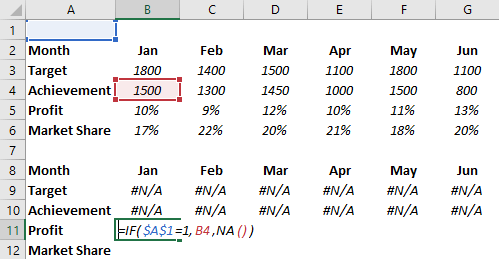
- In the end, Jan month of market share copy it into the entire row.

Your interactive data table is ready.
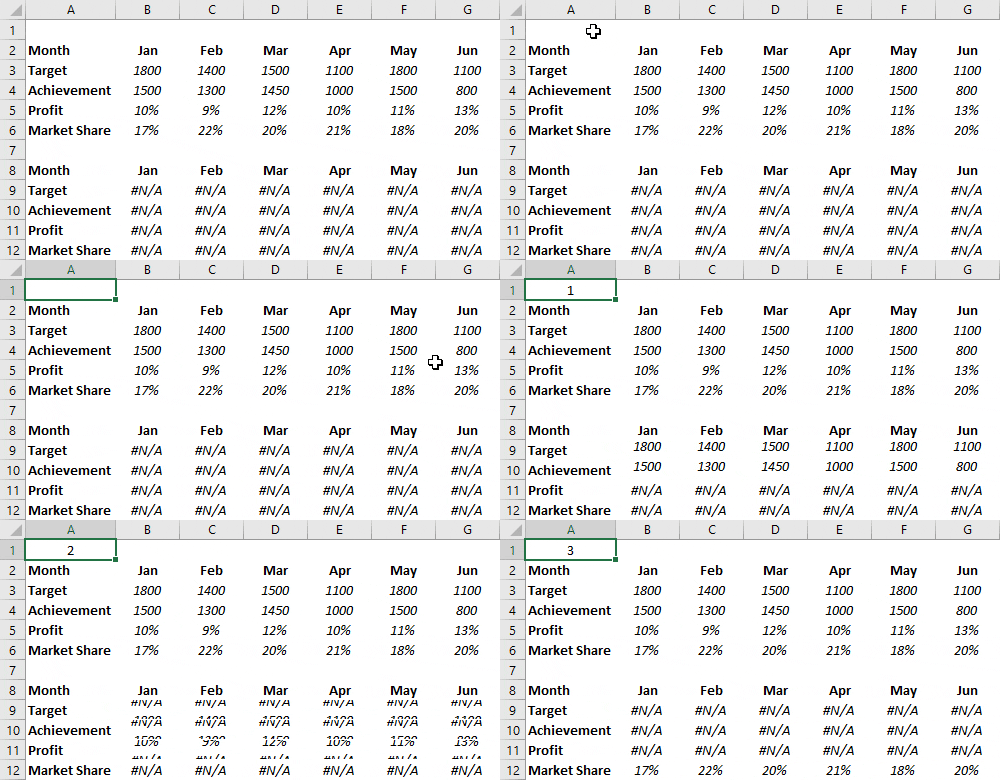
All the cells in this table are linked with A1. And when you enter “1” in the A1 table will show you data for target and achievement only. For “2” it will show profit and market share for “3”.
2. Insert Option Buttons
- Go to developer tab ➜ Control ➜ Insert ➜ Option button.
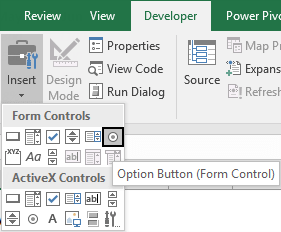
- Insert three option buttons and name them as following.
- Button-1 = TGT Vs. ACH
- Button-2 = Profit
- Button-3 = Market Share

- After that, right-click on any of the buttons and select “format control”.
- In format control options, link it to the cell A1 and click OK.
- Now, you can control your data with these option buttons.

3. Insert Secondary Axis Chart
- First of all, select your table and insert a column chart.
- After that, select your data bars & click on “change chart type”. Go to Design Tab ➜ Design ➜ Change Chart Type.

- Now for profit and market share, change the chart type to the line with markers and tick the secondary axis for both.
Congratulations! your interactive chart is ready to rock. You can also make some formatting changes to your chart if you want.
Sample File
Download this sample file from here to learn more.
Conclusion
In the end, I just want to say that with an interactive chart you can help your user to focus on one thing at a time.
And you can save a lot of space in the dashboards as well. Sometimes you feel that it’s a lengthy process but it’s a one-time setup that can save you a lot of time. I hope this tip will help you to get better at charting, but now, tell me one thing.
What kind of interactive charts do you use? Share with me in the comment section, I’d love to hear from you, and please don’t forget to share this tip with your friends, I’m sure they will appreciate it.
More Charting Tutorials
- How to Add a Horizontal Line in a Chart in Excel
- How to Add a Vertical Line in a Chart in Excel
- How to Create a Bullet Chart in Excel
- How to Create a Dynamic Chart Range in Excel
- How to Create a Dynamic Chart Title in Excel
- How to Create a Sales Funnel Chart in Excel
- How to Create a HEAT MAP in Excel
- How to Create a HISTOGRAM in Excel
- How to Create a Pictograph in Excel
- How to Create a Milestone Chart in Excel
- How to Insert a People Graph in Excel
- How to Create PIVOT CHART in Excel
- How to Create a Population Pyramid Chart in Excel
- How to Create a SPEEDOMETER Chart [Gauge] in Excel
- How to Create a Step Chart in Excel
- How to Create a Thermometer Chart in Excel
- How to Create a Tornado Chart in Excel
- How to Create Waffle Chart in Excel
Hey puneet
How do you change the legend to make it work according to the prompts? Mine still displays with all of them.
Thank you so so much. This is quite comprehensive and really useful.
Thanks for sharing brilliant idea.
So glad I stumbled onto this great tutorial. Now I just need to learn how to embed an interactive chart on a webpage. If anyone has any ideas please feel free to share. Thanks in advance!