

Developer tab is one of the most important and highly useful options in Excel. But, before you use it you need add it on ribbon. When you install Excel, you need to activate it for first time.
So today in this post, you will learn 3 different methods to add developer tab in Excel for windows as well as in Excel 2011 for mac.
Method 1: For Windows
To enable it follow these simple steps.
- Go to File Tab → Options → Customize Ribbon.
- In the main tab list, tick mark check box for the developer.

- Click OK.
Method 2: For Windows
Here is another method to display developer tab.
- Right click on Excel ribbon and select customize ribbon.

- In main tab list, tick mark check box for the developer.
- Click OK.
After following any of the above methods you can activate developer tab in Excel for Windows.

Note: You can use both of the above methods in Windows version of Excel (2007, 2010, 2013 and 2016)
Method 3: Excel 2011 for Mac
Here are the steps to add developer tab in Excel 2011 for Mac.
- Go to Excel Menu → Preferences.
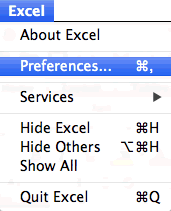
- Click on Ribbon in "Sharing & Privacy Group" and then Click OK.

- Now, you will get a pop-up dialog box. In customization section, select Developer Tab & click OK.

After following any of the above methods you can activate developer tab in Excel 2011 for Mac.

What's Next
[icon name="bell" class="" unprefixed_class=""] VBA is one of the Advanced Excel Skills,
Go to File → Options → Customize Ribbon, tick Developer in the right-hand list under Main Tabs, and click OK. You can also right-click any ribbon tab and choose Customize the Ribbon to reach the same list.
On a Mac, go to Excel → Settings → Ribbon & Toolbar, tick Developer under Main Tabs and click Save.
The tab stays on for every workbook until you untick it. If Developer is missing from the list or greyed out, your organisation may have hidden it through policy, so check with IT. Excel for the web has no Developer tab.
You don’t need the tab to write or run macros: Alt + F11 opens the Visual Basic Editor and Alt + F8 lists macros to run. Save files that contain macros as .xlsm, or the code is removed when you save.
Written by
Puneet Gogia
Microsoft MVP — Excel · Founder, Excel Champs
Twelve years of teaching Excel, and a decade before that using it as a data analyst. Every tutorial here is written from a file I actually built.