

Go to Insert → Symbol, set Subset to Greek and Coptic, select Δ and click Insert. For a formula, use =UNICHAR(916). It returns Δ in any font and needs Excel 2013 or later.
For the triangle arrows used in variance reports, change the code: =UNICHAR(9650) gives ▲ and =UNICHAR(9660) gives ▼. Use 9651 and 9661 for the outlined △ and ▽.
To show Δ beside a number and keep it a number, press Ctrl + 1, choose Custom and enter 0.0%" Δ". For a change column, [Color10]"▲ "0.0%;[Red]"▼ "0.0%;0.0% shows a green ▲ on increases and a red ▼ on decreases. The value still works in sums and charts.
The older tricks are typing D and switching the font to Symbol, or =CHAR(114) in Wingdings 3. Both depend on the font, so the symbol turns back into a letter when the font changes or the cell is copied into another file. UNICHAR doesn’t have that problem.
Anything that adds Δ to the value itself turns the number into text that won’t total or sort as a number. That includes =B2&" "&UNICHAR(916), pasting, AutoCorrect and a macro. Use the custom format whenever the cell still needs to calculate. If UNICHAR returns #NAME?, you’re on Excel 2010 or earlier, so use Insert → Symbol instead.
Change the Font to Symbol to Get Delta
I found this to be the quickest way to add a delta symbol, and it’s pretty simple. All you have to do is:
- First of all, enter “D” in the cell (Capital Letter) where you want to insert the symbol.
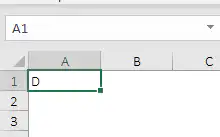
- After that, change the font style to “Symbol” from the Home Tab ➜ Font ➜ Font Name.
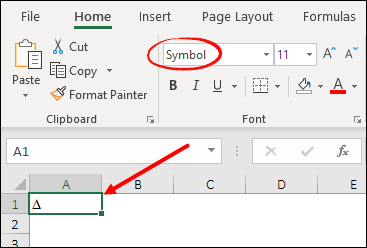
This will instantly convert that “D” into a delta. But one thing you need to take care of is that this will change the font for the entire text in the cell, so any other letters in the cell turn into Greek letters as well.
Simply Insert Delta Symbol from Symbols Option
This is a simple way to insert any symbol you want to add in a cell. All you need to do is open the symbol dialog box, search for the symbol, and insert it. Here’s how to do it in steps.
- First of all, select the cell where you want to add the symbol.
- Then go to Insert Tab ➜ Symbols ➜ Symbol.

- Now, in the Symbol window, select “Greek and Coptic” from the Subset list, and it will take you to the Greek symbols.

- From here, click on the Delta symbol and click on insert.
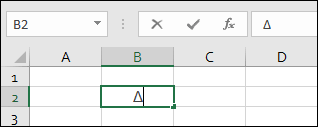
Once you click on Insert, it will add one symbol to the selected cell, which you can copy and add further to other cells.
- Pros: This method is simple and easy to use.
- Cons: It’s not dynamic, and you have to repeat it or copy and paste the symbol into other cells.
Use the UNICHAR Function to Get Delta Symbol in a Cell Using a Formula
The UNICHAR function can insert a specific character by providing its code. You can use it for the delta symbol as well; here’s how.
- In a cell where you need to insert the symbol, enter the formula =UNICHAR(916) in Excel’s formula bar.
- That’s it: UNICHAR(916) returns the Greek capital delta (Δ) in any font, so you don’t need to change the font. The “Wingdings 3” font is only needed for the triangle method below.
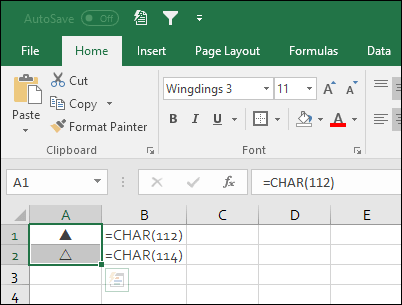
The image above shows the older method, where you use CHAR with a code and then change the font of the cell to “Wingdings 3” to get triangle symbols: one white (outlined) and one black (filled). With UNICHAR, you can get both triangles without changing the font:
=UNICHAR(9651)
=UNICHAR(9650)
The first formula returns a white triangle (△) and the second one a black triangle (▲). UNICHAR is available in Excel 2013 and later.
- Pros: As UNICHAR is a function, you can join the symbol with other values in a formula and choose between different types of symbols.
- Cons: With the older CHAR + Wingdings 3 method, joining the symbol with other text doesn’t work because the font changes the other characters too. UNICHAR doesn’t have this problem.
Use the AutoCorrect Option to Automatically Add a Delta Symbol
This is another useful way to add a delta symbol. In Excel, there is an option called AutoCorrect, which you can use to insert a symbol by typing a simple text. All you need to do is specify a text that you will enter in a cell, and then whenever you use that text, Excel will convert that text into a symbol. Here are the steps.
- First of all, copy this delta symbol from here or you can also do it by inserting the symbol from the symbol options.
- After that, go to File Tab ➜ Options ➜ Proofing ➜ AutoCorrect Options.
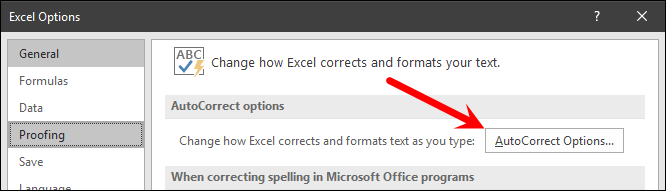
- Now in the AutoCorrect dialog box, in the “Replace” input box, enter “(dlt)”, and in the “With” input box, paste the delta symbol which you have copied.

- In the end, click Add and then OK.
Now, whenever you type “(dlt)” in a cell, Excel will convert that text into a delta symbol. You can even use a different text from the text that we have used here.
- Pros: It makes it super easy to insert a symbol by entering text. Just enter the text, and Excel converts it into a symbol.
- Cons: Again, this isn’t dynamic, so if you need to add the symbol again, you have to enter the text again.
Apply Custom Formatting to Add a Delta Symbol with a Number or Percentage [My Favorite]
This one is the most awesome method and my favorite one. Let’s say you want to add a delta symbol with numbers in a cell; then this is the best method. When we use custom formatting, we just need to specify the format, and Excel applies it to the cell without changing the values in the cell. Follow these simple steps for this:
- First of all, select the cell where you want to apply custom formatting with a delta symbol.
- Now, right-click, open Format Cells (or press Ctrl + 1) and go to the Custom category.
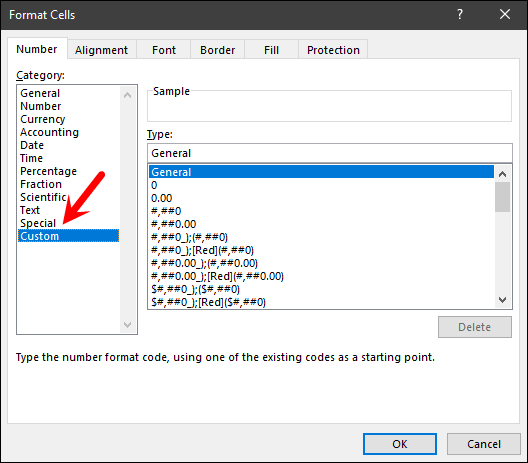
- From here, in the format input bar enter the below format and click OK. General Δ

- Once you apply this custom format, it will show a delta sign with all the numbers in the cells.

In this method, the idea is simple: no matter which format you have, just combine that format with a delta sign in the custom formatting category, and you’ll get the symbol. Look at the below percentage format with a delta sign.
0% Δ
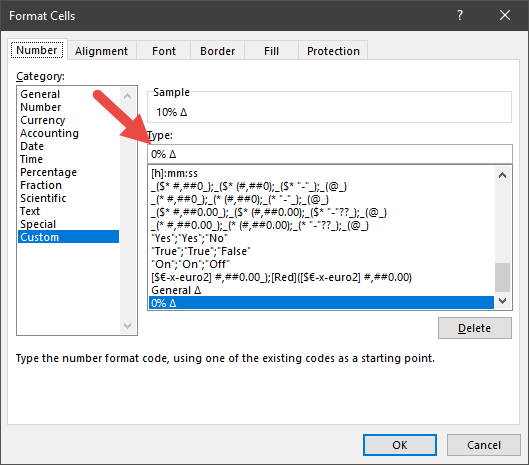
- Pros: This is the best method of all the methods we have here because it doesn’t affect the values of the cell.
- Cons: If you want to add a delta symbol to a cell for real then this method is not for you.
VBA Code to Insert Delta Symbol into Multiple Cells
Macro code is a big-time saver, and if a code can insert a delta symbol in a cell for you, then there is nothing like that. And below we have this code:
Sub AddDeltaAsText()

    Dim cell As Range
    Dim workArea As Range
    Dim delta As String
    Dim shown As String

    'Stop if a shape or chart is selected instead of cells
    If TypeName(Selection) <> "Range" Then
        MsgBox "Select the cells first.", vbExclamation
        Exit Sub
    End If

    'Only loop through the used part of the selection
    Set workArea = Intersect(Selection, Selection.Parent.UsedRange)
    If workArea Is Nothing Then Exit Sub

    delta = ChrW(916)

    For Each cell In workArea.Cells
        shown = cell.Text   'the displayed value, so 25% stays 25%

        If IsEmpty(cell.Value) Then
            'skip blank cells
        ElseIf cell.HasFormula Then
            'skip formulas so they aren't overwritten
        ElseIf IsError(cell.Value) Then
            'skip error values
        ElseIf Right(shown, 1) = delta Then
            'skip cells that already have the symbol
        ElseIf Left(shown, 2) = "##" Then
            'skip cells too narrow to show their value
        Else
            cell.Value = shown & " " & delta
        End If
    Next cell

End Sub
To use this code, first enter it in the VB editor (open it from the Developer tab or with Alt + F11).
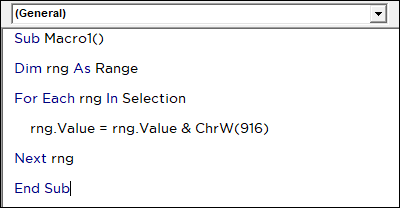
And then, select the cell and run the code. If a cell has a value, it adds the symbol after that value. If you have more than one cell, it loops through each cell and inserts the symbol. It skips blank cells, formulas, errors and cells that already have the symbol.
- VBA code can save you time, and you can use it with just a single click.
- When it adds a symbol to a cell, and if that cell has a number or a percentage, it becomes a text string after that and can’t be used further in calculations.
Copy – Paste the Delta Symbol into the Cell
This is an unusual method, but it works if you need to insert a delta symbol in a cell just once. The idea is simply to copy the symbol from somewhere, or you can copy it here (Δ) as well, and then simply paste it into the cell.
Show Up and Down Changes with Triangle Symbols
In reports, a delta often shows a change, like the percentage change from last month. You can calculate the change and show an up triangle for an increase and a down triangle for a decrease with one custom format. First, calculate the change with this formula, where A2 has the old value and B2 the new one:
=(B2-A2)/A2
Then apply this custom format to the result: ▲0.0%;▼0.0%. A positive change shows as ▲25.0% and a negative one as ▼20.0%, and the cell still holds a number. And if you need the result as text in a formula, use TEXT with the same format:
=TEXT((B2-A2)/A2,"▲0.0%;▼0.0%")
Frequently Asked Questions
What is the code for the delta symbol in Excel?
The Unicode code for the capital delta (Δ) is 916, so use =UNICHAR(916). For the small delta (δ), use 948.
Why does my custom format not accept the delta symbol?
Put the symbol in double quotes, like General “Δ” or 0% “Δ”. Excel then treats it as text that’s shown with the number.
Which method should I use for numbers?
Use custom formatting. It shows the symbol and keeps the value a number, so you can still use it in calculations and charts. The formula and VBA methods turn the value into text.

Hi,
When we take formula =CHAR(112)/=CHAR(114) —-> then it is giving result as #VALUE! because excel wants to take formula =CHAR(112)/CHAR(114) instead of =CHAR(112)/=CHAR(114)
Sir,
Another method to add delta symbol can be a short cut and or assign it to the qat through a macro recording.
Hi
great blog. thank you .
another choice is insert> forms>triangle
have a nice day.
mrsimlaoui
Hi,
If you right lower “r” and change theme Font to “Wingdings 3” you get the same effect.
Rui
Thanks for sharing.