

Sometimes you need some symbols to use as a quick indicator within the Excel data, and for this, Excel has the option to insert an arrow and many other predefined symbols or shapes within the cells.
It is a quick process with only three or four steps to insert an arrow and other symbols in Excel.
Insert an Arrow in a Cell as a Symbol
- First, select and edit the cell in which you want to insert an arrow as a symbol.
- After that, go to the “Insert” tab, click on the “Symbols” group (or icon) on the ribbon, and click on the “Symbol” option.

- Once you click on the “Symbol” option, it will display a dialog box with multiple symbols to choose from. Choose “Arrows” in the Subset drop-down to jump straight to the arrows.
- Now, select an arrow that you want to insert in the selected cell and click “Insert” and then “Close”.

- At this point, the selected arrow is inserted in the selected cell.

You can select and insert multiple arrows and symbol options in one cell, but you cannot insert the symbol in more than one cell in one go.
For this, you need to insert the symbol in a single cell and then copy that symbol from the cell and paste it into multiple cells.
Insert an Arrow in a Cell as a Shape
- First, go to the “Insert” tab, click on the “Illustrations” group (or icon) on the ribbon, and click on the “Shapes” option.

- Once you click on the “Shapes” option, it will display multiple shape types with multiple arrow shapes.

- Now click the arrow that you want to insert, then go anywhere in the sheet with the mouse cursor, click and hold the mouse button, and drag to draw the arrow where it is required.
- At this point, the selected arrow is inserted as a shape. Note that a shape floats over the cells; it isn’t inside a cell’s value.
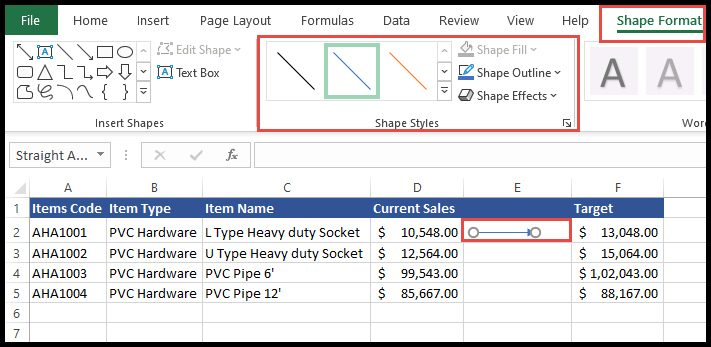
- From the “Shape Format” tab, under the “Shape Styles” group, you can change the arrow’s color and effects (and its size from the Size group).
Insert Upward and Downward Arrow Using Conditional Formatting
- First, select the cells where you need to insert the upward and downward arrows, and then click on the “Conditional Formatting” icon on the Home tab.
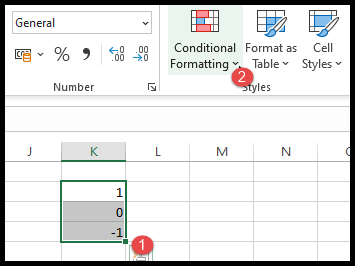
- Now select “Icon Sets” and then click on the arrows you want to insert (in the Directional group).
- At this point, upward and downward “Red, Yellow, and Green” arrows are inserted in the selected cells.

Insert an Arrow Using the Wingdings 3 Font
To insert an arrow using the Wingdings 3 font, you need to know which characters are converted to an arrow and other symbols within Excel.
- First, enter the character in the cell where you need to insert an arrow.

- After that, go to the “Font” group in the ribbon and click on the font drop-down icon and select the “Wingdings 3” font.

- At this point, your character is converted to an arrow symbol based on the character which you had entered in the cell.

Just remember that the cell still holds the letter. If someone changes the font back, they see the letter again, and other people need the same font to see the arrow.
Insert an Arrow with a Formula
In Excel 2013 and later, the UNICHAR function returns an arrow from its Unicode number, and it works with any font. Use 8593 for an up arrow, 8595 for down, 8594 for right and 8592 for left:
=UNICHAR(8593)
And to show an up or down arrow based on a value, like a change in sales in A1, combine it with IF:
=IF(A1>0,UNICHAR(9650),IF(A1<0,UNICHAR(9660),""))
Show Arrows with a Custom Number Format
If you want the arrow next to the number and still keep the cell as a number, use a custom number format. Press Ctrl + 1, go to Number ➜ Custom, and enter the following format. Positive numbers get ▲, negative numbers get ▼ (without the minus sign), and zero shows as 0:
▲0;▼0;0
Frequently Asked Questions
How do I make a shape arrow move with the cell?
Right-click the arrow ➜ Format Shape ➜ Size & Properties ➜ Properties, and choose “Move and size with cells”.
How do I show only the arrows without the numbers?
In the icon set rule, go to Conditional Formatting ➜ Manage Rules ➜ Edit Rule and tick “Show Icon Only”.
Can I change the color of a symbol arrow?
Yes. A symbol arrow is text, so change its font color like any other text. With a custom number format, you can also add colors, like [Color10]▲0;[Red]▼0;0 for green up arrows and red down arrows.
Written by
Puneet Gogia
Microsoft MVP — Excel · Founder, Excel Champs
Twelve years of teaching Excel, and a decade before that using it as a data analyst. Every tutorial here is written from a file I actually built.