

To change how a time displays, select the cells, press Ctrl+1, choose Time, and pick a format — the underlying value doesn’t change, so it still works in calculations. For a formatted copy in another cell, use =TEXT(A1,"hh:mm AM/PM"), but that returns text and can’t be used in further time maths.
For elapsed time over 24 hours, use a custom format of [h]:mm — without the square brackets, 27 hours displays as 3:00.
Excel stores time as a decimal number. (0.412) represents one hour, which is 1/24. There are two different ways to format a decimal value as a time.
- Apply Time Format on the same cell.
- Create a new time value in the different cells.
Change Time Format using Custom Formatting
In the following example, you have a decimal value in cell A1, and now you need to apply the time format to this cell.

You can use the following steps to change the time format.
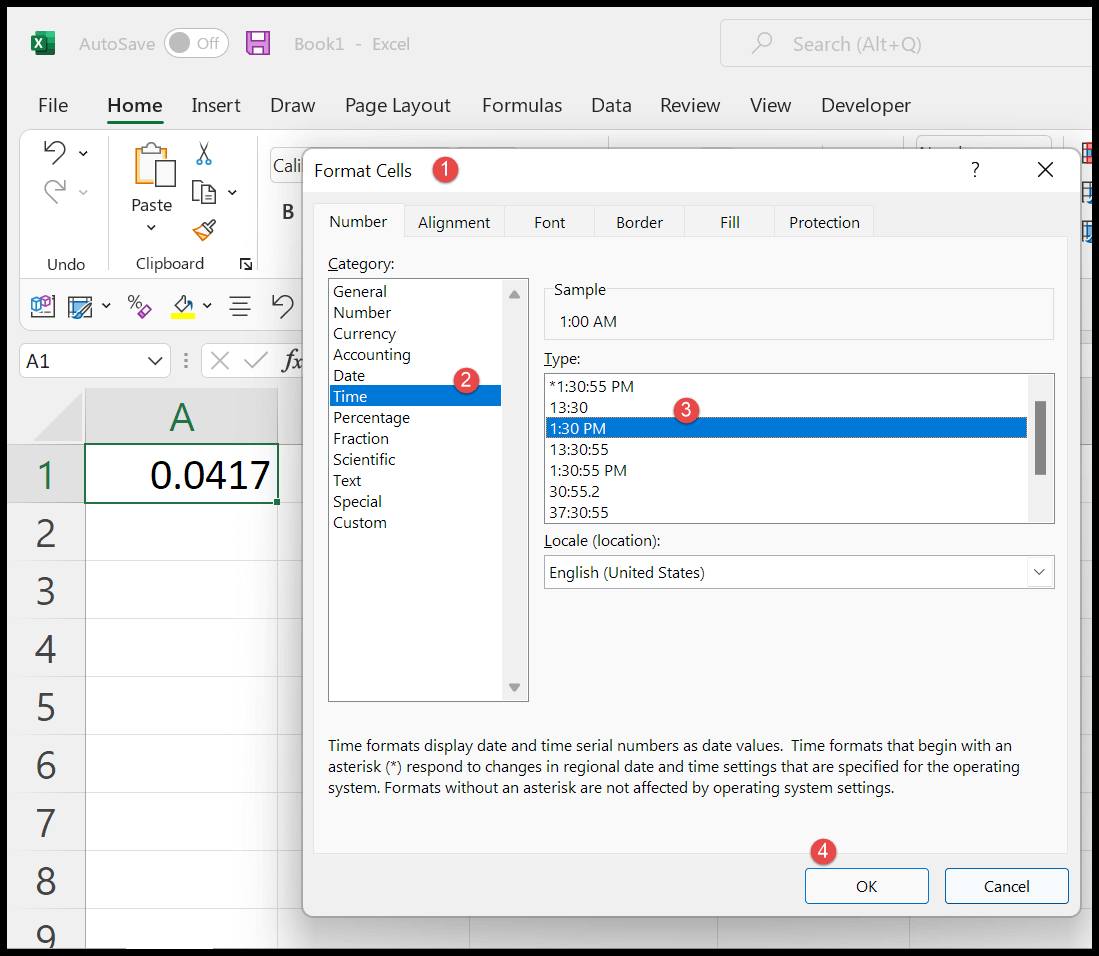
- First, use the keyboard shortcut Ctrl + 1 to open the format option.
- After that, click on the time option from the list.
- Now, at the right side of the dialog box, select the time format you want to apply.
- In the end, click OK to apply the format.
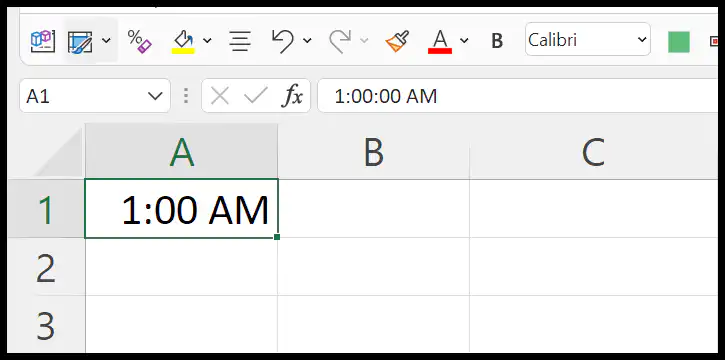
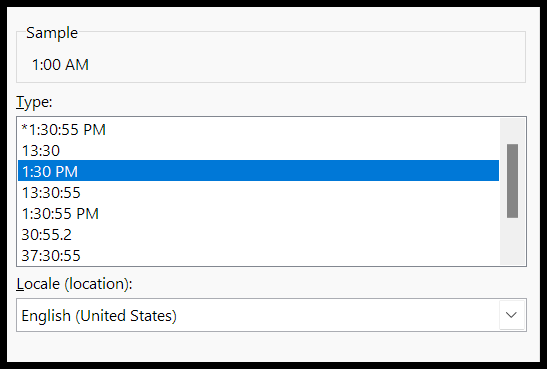
You can use any of the formats in the list in the format option dialog box.
Use TEXT Function to Change the Time Format
In Excel, there’s a TEXT function that you can use to change the format of time to get it in a new cell with a new format. In the following example, you have a decimal value in cell A1. To change the time format, you need to use the TEXT function. You can use the following steps:
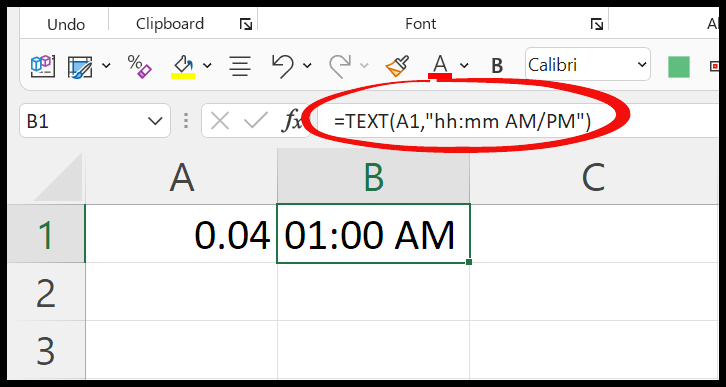
- First, in cell B1, enter the text function (=TEXT).
- After that, refer to cell A1.
- Next, in the second argument, specify the time format you want to use. Here, we are using (hh:mm AM/PM).
- Ultimately, enter the closing parenthesis and hit enter to get the result.
Written by
Puneet Gogia
Microsoft MVP — Excel · Founder, Excel Champs
Twelve years of teaching Excel, and a decade before that using it as a data analyst. Every tutorial here is written from a file I actually built.