

The Workbook object is one open Excel file, and the Workbooks collection holds every open file. Store the one you need in a variable with Set:
Dim wb As Workbook
Set wb = Workbooks("Sales.xlsx")                    ' an open file, by name
Set wb = ThisWorkbook                               ' the file holding the macro
Set wb = ActiveWorkbook                             ' the file on screen
Set wb = Workbooks.Open("C:\Reports\Sales.xlsx")    ' open a file and refer to it
Set wb = Workbooks.Add                              ' a new, unsaved file
Refer to a saved file by its name with the extension, such as "Sales.xlsx", and to a file that has never been saved by its name alone, such as "Book2". Workbooks(1) refers by position, which follows the order the files were opened and counts hidden files such as PERSONAL.XLSB.
Type a dot after the variable to reach its properties and methods. The ones you use most are the properties wb.Name, wb.Path, wb.FullName, wb.Worksheets and wb.Saved, and the methods wb.Save, wb.SaveAs, wb.Close and wb.Activate.
Use a With wb block to run several lines against the same file without repeating its name, for example .Worksheets(1).Range("A1").Value = Date followed by .Save, closed with End With.
The usual error is “Subscript out of range” (error 9) from Workbooks("Sales.xlsx"). Either the file is not open, or the name does not match exactly, often because the extension is missing or wrong. Open the file first with Workbooks.Open, or test for it with On Error Resume Next and If wb Is Nothing Then before using it.
In Excel, a workbook is one of the most important of all the Excel Objects, and it is also essential to understand how to use and refer to workbooks while writing VBA codes.
In this tutorial, we will explore all the things that you need to know. But the first things you need to understand are the objects that are involved in using workbooks in VBA.
Objects you need to know:
- Workbooks Object
- Workbook Object
Both of these objects sound the same, but there’s a core difference between both of them.
Workbooks Object
In VBA, the Workbooks object represents the collection of the workbooks that are open in Microsoft Excel. Imagine you have ten workbooks open at the same time. And you want to refer to one workbook out of them. In that case, you need to use the Workbook object to refer to that one workbook using its name.

Workbook Object
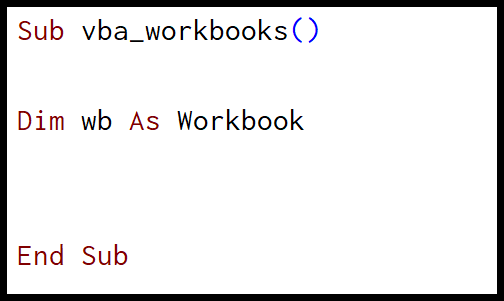
In VBA, the Workbook object represents one single workbook from the entire collection of workbooks open at present in Microsoft Excel. The best way to understand this is to think about declaring a variable as a workbook that you want to use to refer to a particular workbook in the code.
Useful Links: Add Developer Tab | Visual Basic Editor | Run a Macro | Personal Macro Workbook
Refer to a Workbook in VBA
To work with workbooks in VBA, the first thing that you need to know is how to refer to a workbook in a macro. Here’s the good thing: there are multiple ways to refer to a workbook. Ahead, we will explore each one of them.
1. By Name
The easiest way to refer to a workbook is to use its name. Let’s say you want to activate the workbook Book1.xlsx. In that case, the code that you need to use should be like the following:
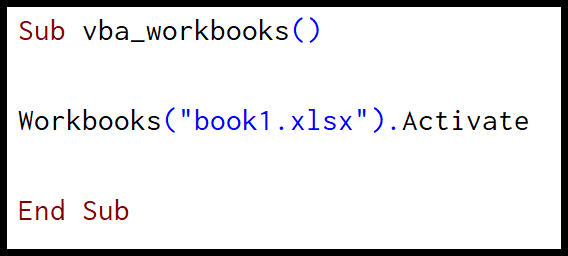
Referring to a workbook with its name is quite simple; you need to specify the name, and that’s it. But here’s one thing that you need to take care of: if a workbook is not saved, then you need to use only the name. And if saved, then you need to use the name along with the extension.
2. By Number
When you open a workbook, Excel gives an index number to that workbook, and you can use that number to refer to a workbook. The workbook that you opened first will have the index number “1”, the second will have “2”, and so on. Keep in mind that hidden workbooks, like your Personal Macro Workbook (PERSONAL.XLSB), also get an index number.
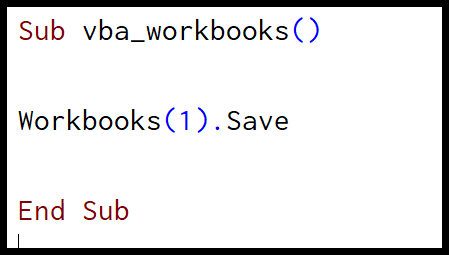
This method might seem less useful to you, as it’s hard to know which workbook is on which index number. But there’s one situation where this method is quite useful to use, and that’s looping through all the open workbooks.
3. By ThisWorkbook
ThisWorkbook is a property that helps you refer to the workbook where you are writing the code. Let’s say you are writing the code in “Book1” and use ThisWorkbook to refer to it. Now, even when you change the name of the workbook, you won’t need to change the code.

The above code counts the number of sheets in the workbook where this code is written and shows a message box with the result.
4. By ActiveWorkbook
If you want to refer to a workbook that is active, then you need to use the “ActiveWorkbook” property. The best use of this property is when you are sure which workbook is active now, or when you have already activated the workbook that you want to work with.
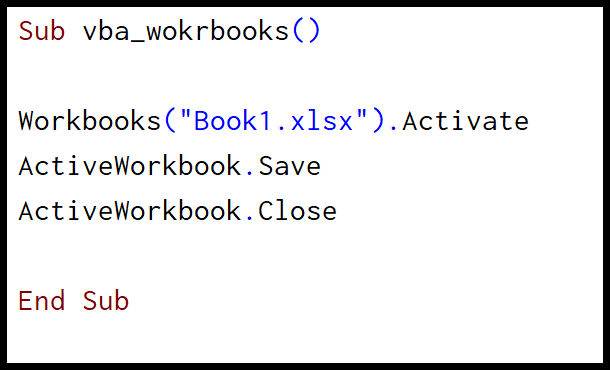
The above code activates the workbook “Book1” first and then uses the ActiveWorkbook property to save and close the active workbook.
Access all the Methods and Properties
In VBA, whenever you refer to an object, VBA allows you to access the properties and methods that come with that object. In the same way, the workbook object comes with properties and methods. To access them, you need to define the workbook first and then enter a dot.
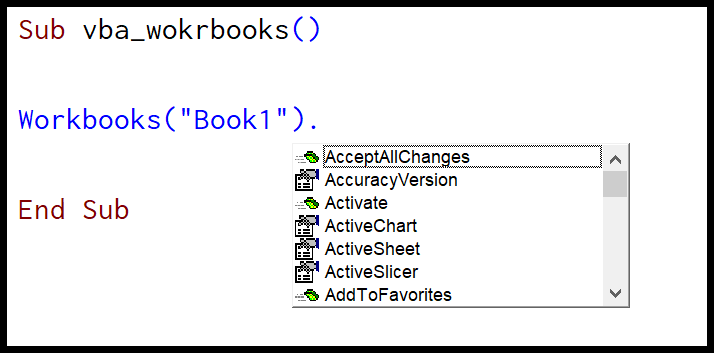
The moment you type a dot (.), it shows the list of properties and methods. Now, you must have a question in your mind about how to identify which one is a property and which one is a method.
Here’s the trick. If you look closely, you can identify a moving green brick and grey hand before each name on the list. So, all the properties have that grey hand before the name and methods have a moving green brick.
For example to use a Method with Workbook
Imagine you want to close a workbook (which is a method), you need to type or select “Close” from the list.
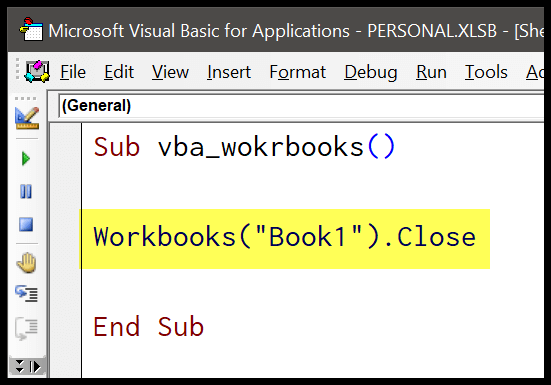
After that, you need to enter an opening parenthesis to get IntelliSense to know the arguments you need to define.
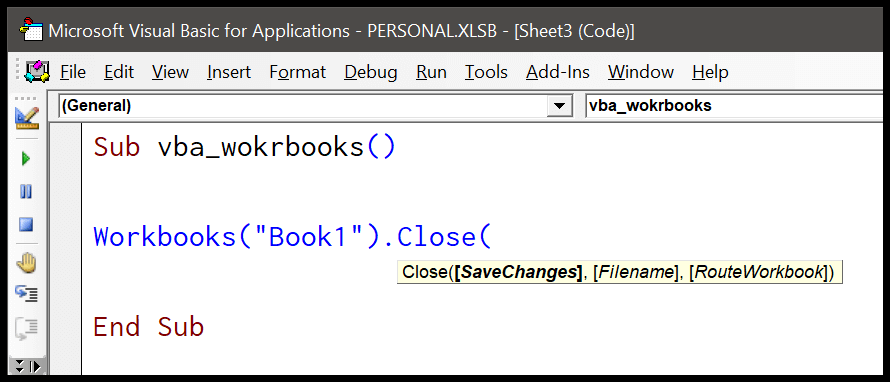
With the Close method, there are three arguments that you can define, and as you can see, all these arguments are optional, and you can skip them if you want. But some methods don’t have arguments (for example, Activate).
For example to use a Property with Workbook
Imagine you want to count the sheets in the workbook “book1”. In that case, you need to use the “Sheets” property and then its Count property.
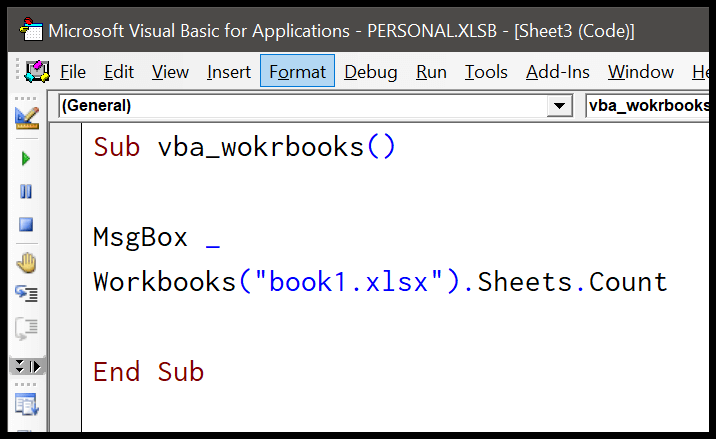
In the above code, as I said, you have book1 defined, and then the Sheets property refers to all the sheets, and the Count property counts them. And when you run this code, it shows you a message box with the result.
Using “WITH” Statement with Workbook
In VBA, there’s a “With” statement that can help you work with a workbook while writing a macro efficiently. Let’s see the below example where you have three different code lines with the same workbook, i.e., ActiveWorkbook.
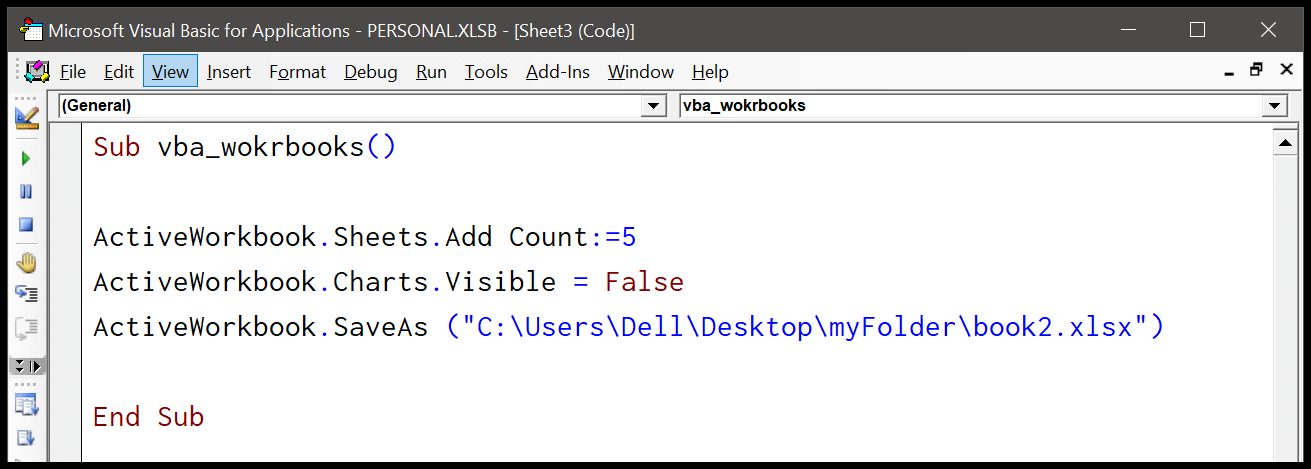
With the “WITH statement”, you can refer to the active workbook a single time, and use all the properties and methods that you have in the code.
- First of all, you need to start with the starting statement “With ActiveWorkbook” and end the statement with “End With”.
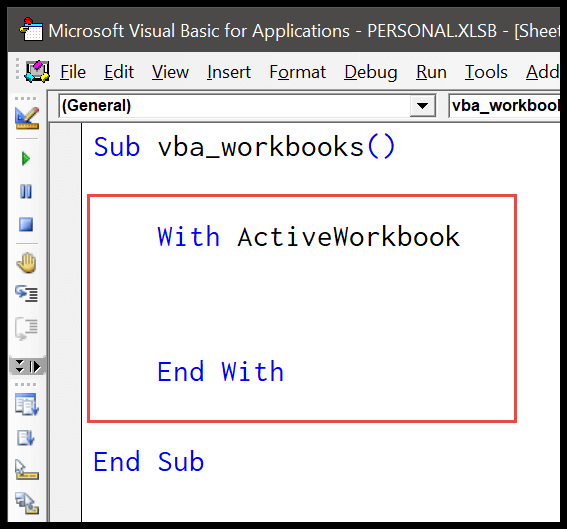
- After that, you need to write the code between this statement that you have in the above example.
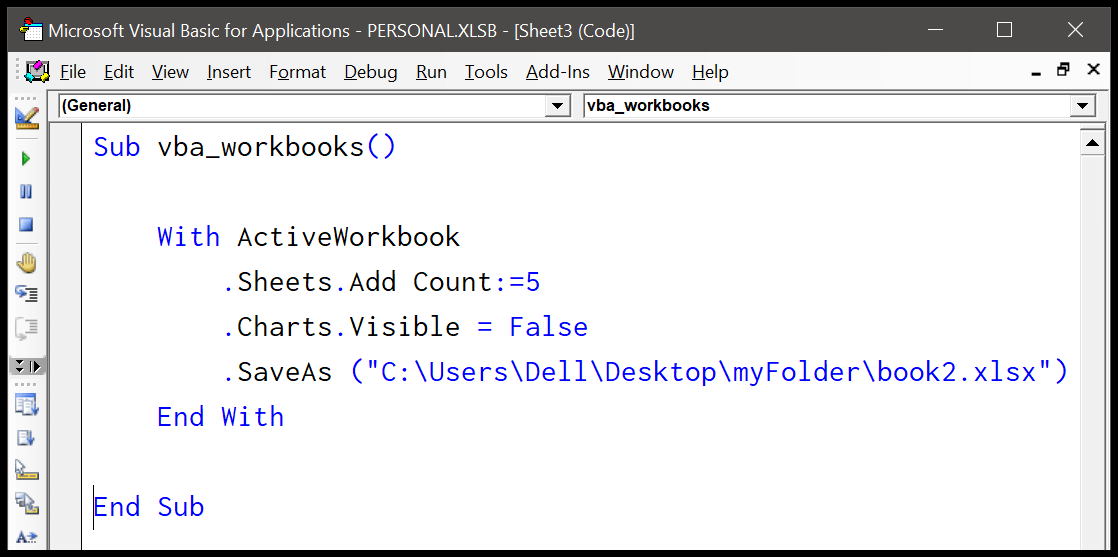
As you can see in the above code, we have referred to the ActiveWorkbook only once using the WITH statement, and then used all the properties and methods we need.
Sub vba_activeworkbook_with_statement()
With ActiveWorkbook
    .Sheets.Add Count:=5
    .Charts.Visible = False
    .SaveAs ("C:\Users\Dell\Desktop\myFolder\book2.xlsx")
End With
End Sub
Let me tell you a simple real-life example to make you understand everything. Imagine you ask me to go to room 215 to get the water bottle, and when I come back, you again send me to room 215 to get a pen, and then again send me back to get a laptop. Now here’s the thing: All the things that you told me to get are in room 215. So, it’s better if you send me to room 215 and tell me to get all three things at once.
Read: With – End With
Declaring a Variable as a Workbook
Sometimes you need to declare a variable as a workbook to use it further in the code. Well, this doesn’t require anything special for you to do.
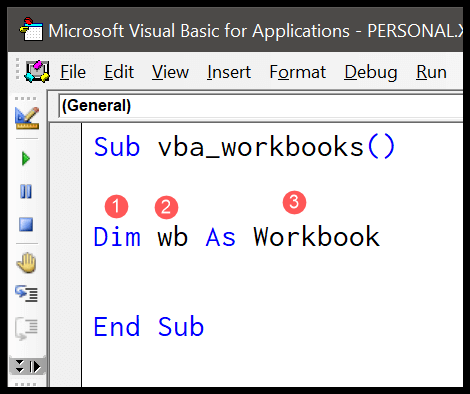
- Use the DIM Statement (Declare).
- Write the name of the Variable.
- Define the type of the variable as Workbook.
After that, use Set to assign a workbook to the variable, and you can use the variable instead of the workbook name in the rest of the code:
Sub workbook_variable()
    Dim wb As Workbook
    Set wb = Workbooks.Add
    wb.Sheets(1).Range("A1").Value = "Hello"
    MsgBox wb.Name
End Sub
In this code, Workbooks.Add creates a new workbook and the variable wb refers to it, so you can work with the new workbook even if another workbook becomes active.
Loop Through All the Open Workbooks
With the Workbooks collection and a For Each loop, you can work with every open workbook. The following code prints the name and full path of each open workbook in the Immediate Window:
Sub list_open_workbooks()
    Dim wb As Workbook
    For Each wb In Workbooks
        Debug.Print wb.Name, wb.FullName
    Next wb
End Sub
Dealing with Errors
When you work with a workbook(s) object in VBA, there are chances that you need to deal with errors as well. Take an example of the “Run-time Error 9: Subscript out of Range” error. This error can occur for various reasons.
- The workbook that you are trying to refer to is not opened.
- Might be you have misspelled the name.
- The workbook you are referring to is not yet saved and you are using the extension along with the name.
- If you are using the index number to refer to a workbook and the number you have used is greater than the total number of workbooks open.
Frequently Asked Questions
What is the difference between ThisWorkbook and ActiveWorkbook?
ThisWorkbook is always the workbook that has the code. ActiveWorkbook is the workbook that is active on the screen at the moment, which can be a different one.
How do I check if a workbook is open?
Loop through the Workbooks collection and compare each name with the one you are looking for, or try to set a Workbook variable to Workbooks(“Book1.xlsx”) with On Error Resume Next and check if it’s Nothing.
How do I get the path of a workbook?
Use the Path property for the folder and FullName for the folder with the file name, like ThisWorkbook.FullName. A workbook that has never been saved has an empty path.

I love your tutorial on MS Excel VBA programming. I am writing from Cameroon.
I am aspiring to be an expert in VBA. Please can you be my coach? What do you
recommend?
Free VBA Course: