

=AVERAGEIF(A1:A9,"<>") averages only the cells that aren’t empty. Worth knowing before you use it, though: plain =AVERAGE(A1:A9) already skips blank cells, and text cells too — it only divides by the count of actual numbers. So for a straightforward range with gaps in it, both formulas return the same answer and AVERAGE is simpler.
The AVERAGEIF version earns its place when you need to add a second condition, for example =AVERAGEIFS(B1:B9,B1:B9,"<>",A1:A9,"North"). What AVERAGE does not skip is a zero, so if the blanks in your data were filled with zeros at some point, use =AVERAGEIF(A1:A9,"<>0") instead — that’s usually the real problem behind this search.
And if every cell in the range is empty, there’s nothing to average and both formulas return #DIV/0!; wrap it in =IFERROR(AVERAGE(A1:A9),0) if that can happen.
To average only non-blank cells in Excel, you need to use the AVERAGEIF function. And in the criteria, you need to use does not equal operator to refer to only non-blank cells. In this tutorial, we will look at this formula in depth.
Average Only Cells which are Not Blank
You can use the following steps:
- First, in cell C1, enter the AVERAGEIF function.
- After that, in the first argument (range) refer to the range A1:A9.
- Now, in the second argument, enter does not equal the operator using double quotation marks.
- In the end, enter the closing parentheses and hit enter to get the result.

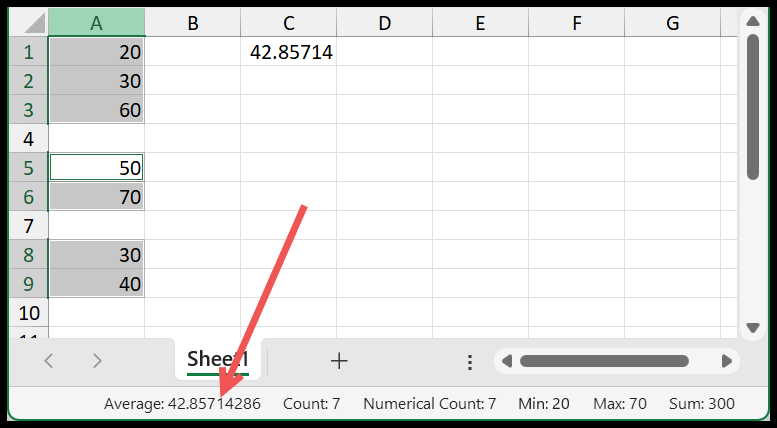
=AVERAGEIF(A1:A9,"<>")When you use it, AVERAGEIF only considers cells that are non-blank and averages only those cells. You can see when I select the cells where we have value it shows the same average on the status bar.
A Problem You Might Face
There’s might be a situation where you have a blank cell in the range and that blank cell have an invisible space. In this case, your formula won’t consider that cell as a blank and calculate the average including it as well.
Well, you can use the below formula where we have used AVERAGEIF to specify two criteria, one is to include non-blank cells and the other is to ignore cells with a space.
=AVERAGEIFS(A1:A9,A1:A9,"<>",A1:A9,"<>"&" ")
This does not work if all cells in the range are blank.