

If you know the password, right-click the sheet tab and choose Unprotect Sheet, or go to Review → Unprotect Sheet, type the password and click OK.
If you have forgotten the password on your own .xlsx file, work on a copy. Rename it from .xlsx to .zip, extract it and open the protected sheet’s file in xl/worksheets (such as sheet1.xml) in Notepad. Delete the whole <sheetProtection … /> tag, save, zip the extracted files back up and rename the result to .xlsx. The sheet opens unprotected.
If Excel then says the file is corrupt, you zipped the folder rather than its contents. Open the extracted folder, select everything inside it and zip that. A file with a password to open can’t be unzipped at all, because its contents are encrypted, and that password can’t be removed or recovered.
The VBA macro on this page only works on sheets protected in Excel 2010 or earlier, or saved as .xls, which use a weak hash. Sheets protected in Excel 2013 or later use SHA-512, so on those the macro runs for a long time and finds nothing.
Sheet protection stops accidental edits; it doesn’t keep data private, as the steps above show. Re-protect the sheet with a password you’ve saved somewhere once you’ve made your changes, and use File → Info → Protect Workbook → Encrypt with Password when the file itself must stay private.
If a sheet or a worksheet is protected, you can unprotect it with the password applied to it. In this tutorial, we will learn to unprotect the sheet, and we will also learn to use a VBA code when you don’t remember the password to unlock the sheet.
Unprotect or Unlock a Sheet with a Password
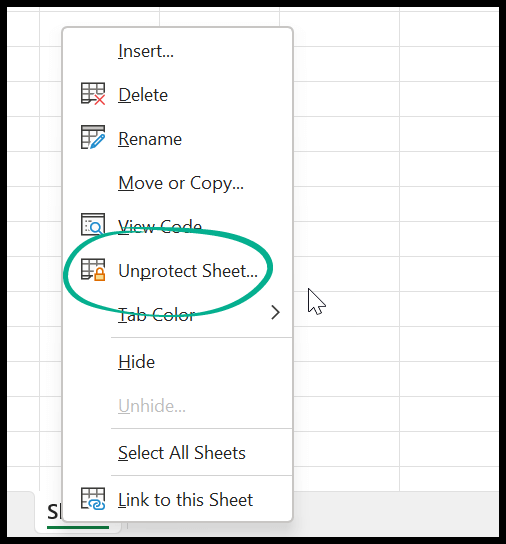
- First, right-click on the Sheet Tab.

- After that, click on the “Unprotect Sheet” Option.
- Now, enter the password in the input bar.

- In the end, click OK to unprotect the sheet.
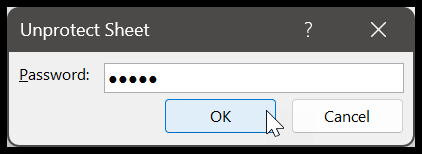
You can also do the same thing from the Ribbon. Go to the Review tab, click the “Unprotect Sheet” button, and then enter the password and click OK.
You need to follow these simple steps to unprotect a sheet or a worksheet. But if you don’t have the password, or you have forgotten it, you need to use a different method.
Unlock a Sheet without a Password
As I said, you need to use a VBA code for this, and below is the code that you need to use. Only use it on a workbook that you own or are authorized to unlock.
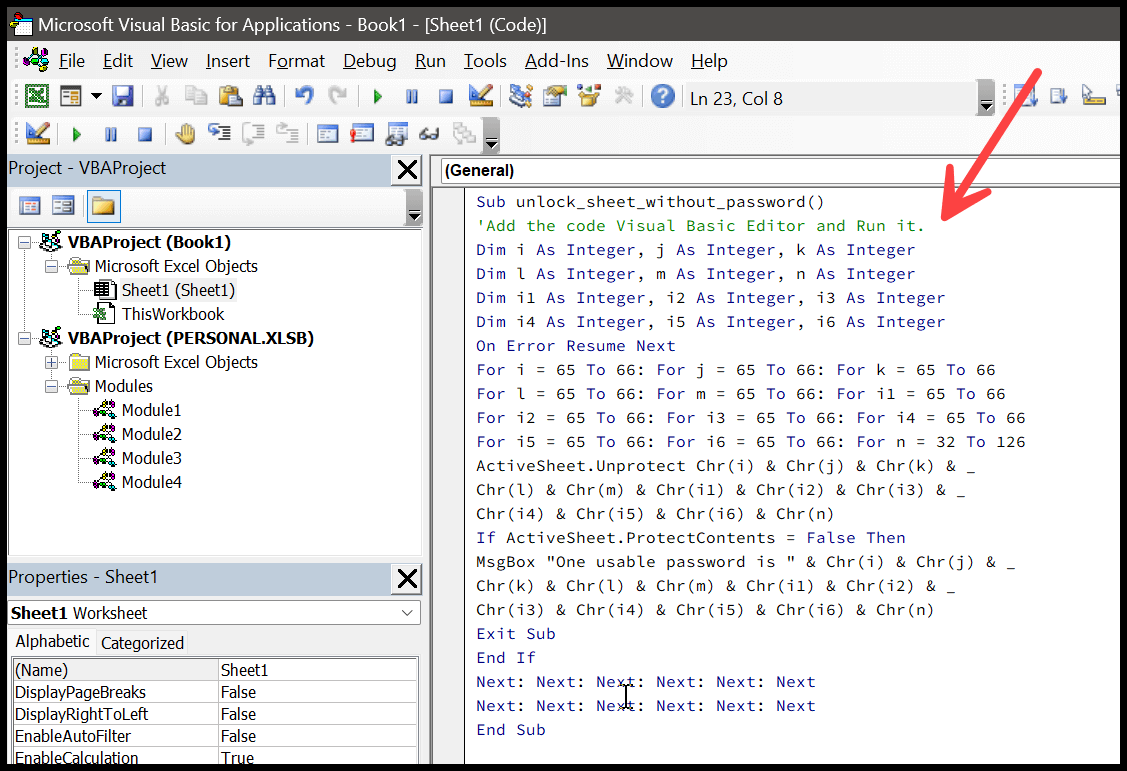
Sub unlock_sheet_without_password()
'Add the code Visual Basic Editor and Run it.
Dim i As Integer, j As Integer, k As Integer
Dim l As Integer, m As Integer, n As Integer
Dim i1 As Integer, i2 As Integer, i3 As Integer
Dim i4 As Integer, i5 As Integer, i6 As Integer
On Error Resume Next
For i = 65 To 66: For j = 65 To 66: For k = 65 To 66
For l = 65 To 66: For m = 65 To 66: For i1 = 65 To 66
For i2 = 65 To 66: For i3 = 65 To 66: For i4 = 65 To 66
For i5 = 65 To 66: For i6 = 65 To 66: For n = 32 To 126
ActiveSheet.Unprotect Chr(i) & Chr(j) & Chr(k) & _
Chr(l) & Chr(m) & Chr(i1) & Chr(i2) & Chr(i3) & _
Chr(i4) & Chr(i5) & Chr(i6) & Chr(n)
If ActiveSheet.ProtectContents = False Then
MsgBox "One usable password is " & Chr(i) & Chr(j) & _
Chr(k) & Chr(l) & Chr(m) & Chr(i1) & Chr(i2) & _
Chr(i3) & Chr(i4) & Chr(i5) & Chr(i6) & Chr(n)
Exit Sub
End If
Next: Next: Next: Next: Next: Next
Next: Next: Next: Next: Next: Next
End Sub
Note: Before using this code, save a file backup. It sometimes takes time to get executed and break the password.
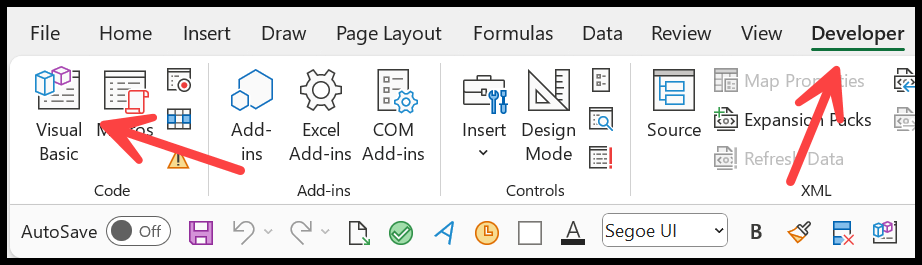
- Go to the Developer tab and click on Visual Basic. And if you don’t have the Developer tab, you must activate it first.
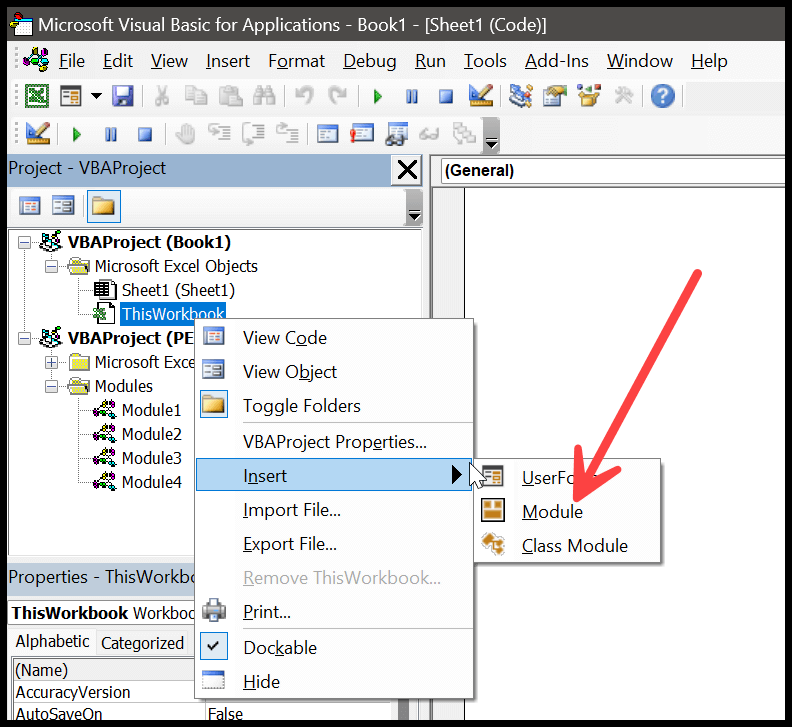
- On the right side of the Window, click on the sheet name and insert a new module from there.
- You have the code window on the right side of your Window. Paste the code there.
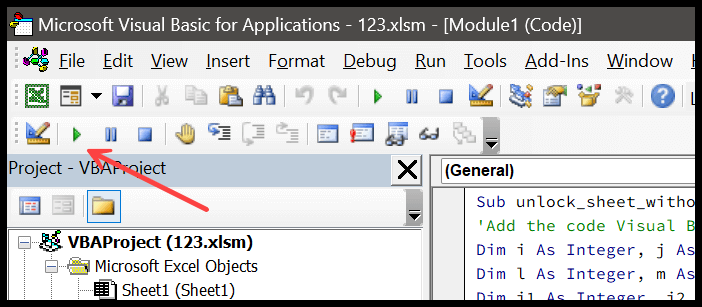
- After that, click on the run button to run the code.
- Ultimately, when you run the code, it shows you a usable password in the message box, which you can use to unprotect the sheet.
Points to Remember
- Before using this code, save a file backup. It’s possible to get an Excel crash if you run this code.
- If you are using Excel 365, or any version from 2013 to 2021, you may first need to save the file in the XLS format, because this code was written for the protection used in older Excel files.
- It works for a single sheet at a time. If you have multiple sheets, you need to run the code that many times.
Unprotect All the Sheets at Once
If every sheet in the workbook is protected with the same password that you know, you don’t need to unprotect them one by one. Instead, you can use the VBA code below to unprotect all of them at once.
Sub unprotect_all_sheets()
    Dim ws As Worksheet
    For Each ws In ActiveWorkbook.Worksheets
        ws.Unprotect Password:="your_password"
    Next ws
End Sub
Replace “your_password” with the password that you applied to the sheets, and then run the code. If a sheet is protected without a password, you can leave the Password argument out, and the code will still unprotect it.
Frequently Asked Questions
How do I unprotect a workbook instead of a worksheet?
Worksheet protection and workbook structure protection are two different things. To remove workbook structure protection, go to the Review tab, click “Protect Workbook”, enter the password, and the protection turns off. This does not change the protection on any individual sheet.
What should I do if I have forgotten my own password?
First, check whether you have an earlier copy or a backup of the file, or the password saved in your password manager. If someone else protected the file, the safest option is to ask the person who protected it for the password. Use the VBA method on this page only on a workbook that you own or are authorized to unlock.
What is the difference between a protected sheet and a password-protected file?
A protected sheet only stops edits to the cells on that sheet, and the file still opens normally. A password-protected file is encrypted and won’t even open without the password (File > Info > Protect Workbook > Encrypt with Password). The method on this page removes sheet protection, not a file-open password.
Written by
Puneet Gogia
Microsoft MVP — Excel · Founder, Excel Champs
Twelve years of teaching Excel, and a decade before that using it as a data analyst. Every tutorial here is written from a file I actually built.