

Hold Ctrl and click each sheet tab you want to group. For a run of neighbouring sheets, click the first tab, hold Shift and click the last one. To group every sheet, right-click any tab and choose Select All Sheets.
From the keyboard, Ctrl + Shift + Page Down adds the next sheet to the group and Ctrl + Shift + Page Up adds the previous one. To drop a single sheet from the group, hold Ctrl and click its tab.
To ungroup, right-click any grouped tab and choose Ungroup Sheets, or click a tab outside the group. When every sheet is grouped, clicking any tab other than the active one ungroups them.
While sheets are grouped, Excel shows Group next to the workbook name in the title bar. Anything you type, delete or format on the active sheet happens in the same cells on every grouped sheet, which is how you set up identical layouts, or enter a total such as =SUM(B2:B13), on all of them in one go.
The usual mistake is forgetting to ungroup: the next value you type overwrites that cell on every sheet in the group. Press Ctrl + Z straight away if it happens, check the title bar for Group before you type, and ungroup before you save, because the grouping is saved with the workbook.
Grouping worksheets in Excel is often used when you have a set of identically structured sheets, and you want to edit those sheets at the same time. For this, the best option is to group those worksheets.
When you group worksheets and edit, delete, add, or do anything in one sheet, the same thing happens in the other grouped sheets at the same time. This saves you a lot of time.

Let’s assume that you have a company that manufactures car interior accessories, and its variable cost varies slightly every month. In this case, if your data set format is the same for each month and, after some months, you want to see the overall cost for each month, you simply need to group those sheets. Once you enter the formula in any of the sheets to find the overall cost, the formula is entered in all the grouped sheets at the same time. This saves you the time of entering or copying the formula in every sheet one by one.
You can also use the grouping worksheets option for hiding multiple sheets at once instead of hiding them one by one.
Steps to Group Worksheets in Excel
- First, hold down the Ctrl key on your keyboard (Command on a Mac).
- After that, click the sheet tabs (one by one to select) you want to group.
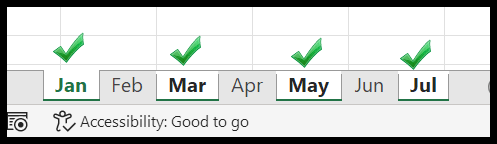
- Now, you need to release the Ctrl key.
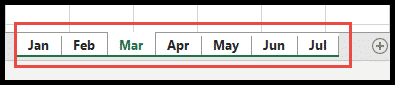
- At this point, all the selected sheets are grouped.

If the worksheets you want to group are adjacent, click the first sheet tab, hold down the Shift key, and click the last sheet tab.
Group All Worksheets
- First, right-click on any sheet tab within the workbook.
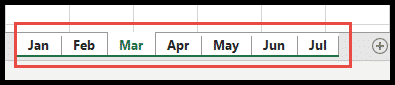
- After that, you will get a pop-up with multiple options.
- Now, choose the “Select All Sheets” option.
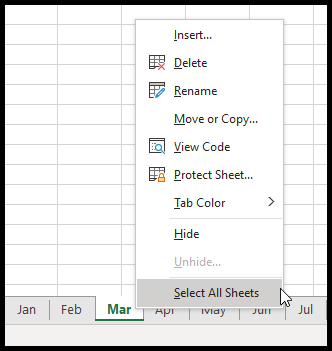
- At this point, all your sheets within the workbook are grouped.
Ungroup Worksheets
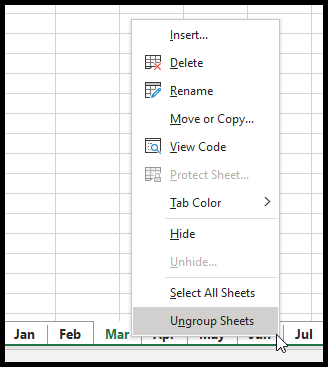
- First, right-click on any sheet tab in the group.
- After that, you will get a pop-up with multiple options.
- Now, choose the “Ungroup Sheets” option.
- Finally, your workbook is ungrouped.
You can also just click any sheet tab outside the group, and the grouped tabs become ungrouped. When all the sheets are grouped, clicking any other sheet tab ungroups them.
If you want to take only one sheet out of the group and keep the rest grouped, hold the Ctrl key and click that sheet’s tab.
How to Find If Worksheets Are Grouped in Excel
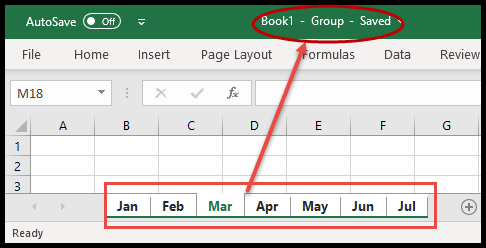
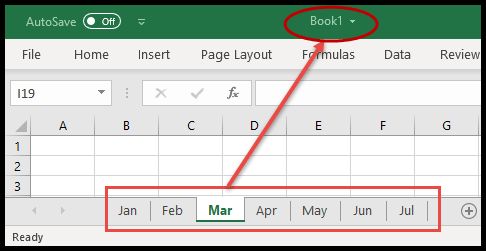
- You will always find the word “Group” after the file name in the title bar (like Book1 [Group]) if the sheets are grouped in that workbook.
- You will find a white background color on all the grouped tabs, unless someone has changed the tab color of a worksheet tab.
Copy Data to Grouped Sheets with Fill Across Worksheets
When the data is already in one sheet and you want the same data in the other sheets, you don’t need to type it again. Excel’s Fill Across Worksheets option copies it for you.
- First of all, group the sheets, with the sheet that has the data as the active sheet.
- After that, select the range that you want to copy to the other sheets.
- Now, go to Home > Editing > Fill and click Across Worksheets.
- In the end, select All (contents and formats), Contents or Formats and click OK.
Excel copies the range to the same cells in all the grouped sheets, so make sure those cells are empty in the other sheets.
What Doesn’t Work When Sheets Are Grouped
Grouping is great for typing data, formulas and formatting, but some options are greyed out while the sheets are grouped, like Format as Table, PivotTable, charts and conditional formatting. If a command you need is not available, ungroup the sheets, make the change on one sheet, and group them again.
Be Careful When You Forget to Ungroup
The most common mistake with grouped sheets is forgetting that they are grouped. Whatever you type, delete or format goes into every sheet in the group, and it can overwrite data in the other sheets without you noticing it.
- Always look for [Group] in the title bar before you start editing.
- Ungroup the sheets as soon as you have made the change you need.
- If you have changed something by mistake, press Ctrl + Z straight away to undo it in all the grouped sheets.
Grouping sheets is also handy for printing and page setup. When you change margins, orientation or headers with sheets grouped, Excel applies them to all of them, and you can print all the grouped sheets in one go.
Frequently Asked Questions
Why does my Excel file say [Group] in the title bar?
It means two or more sheets are grouped. Right-click any sheet tab and click Ungroup Sheets to turn it off.
Can I group sheets from different workbooks?
No. You can only group sheets that are in the same workbook. To work on sheets from two workbooks at the same time, you can view them side by side.
Is grouping worksheets the same as the Group option on the Data tab?
No. The Group option on the Data tab groups rows or columns into an outline so you can collapse and expand them. Grouping worksheets selects several sheets so you can edit them together.

Written by
Puneet Gogia
Microsoft MVP — Excel · Founder, Excel Champs
Twelve years of teaching Excel, and a decade before that using it as a data analyst. Every tutorial here is written from a file I actually built.