

In this tutorial, we are going to learn three simple methods to delete sheet in Excel. All these methods are quick and easy to follow. You can use any of these methods which you find convenient to you.
Delete a Sheet using the Keyboard Shortcut
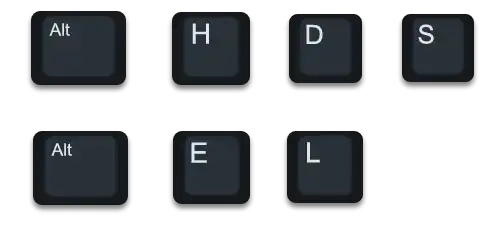
- Alt → H → D → S
- Alt → E → L
You can use a keyboard shortcut to quickly delete a sheet from a workbook.
Delete a Worksheet Using Home Tab
- First, click on the worksheet tab or select the multiple worksheet tabs in case to delete multiple worksheets.
- After that, go to the “Home” tab and click on the “Delete” icon drop-down under the “Cells” group on the ribbon.
- Now, select the “Delete Sheet” option from the drop-down list.
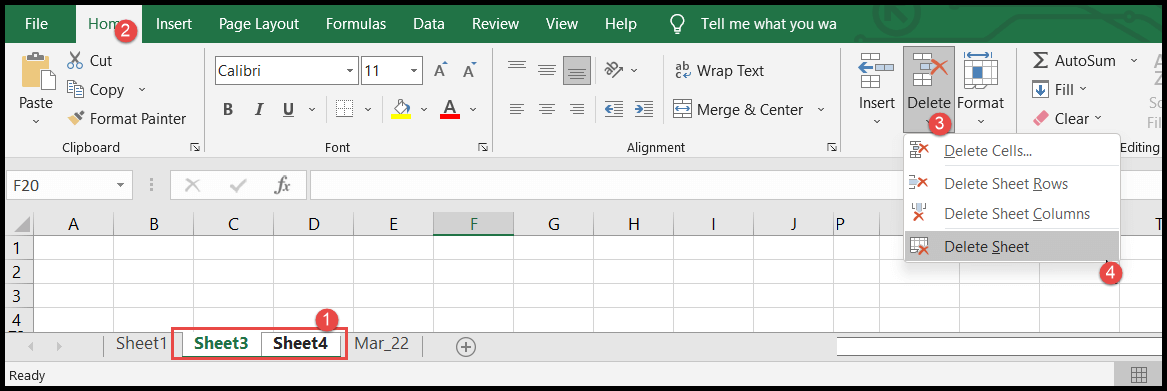
- At this point, you will find your selected worksheet(s) deleted from the current workbook.

Delete a Sheet using Right Click Option
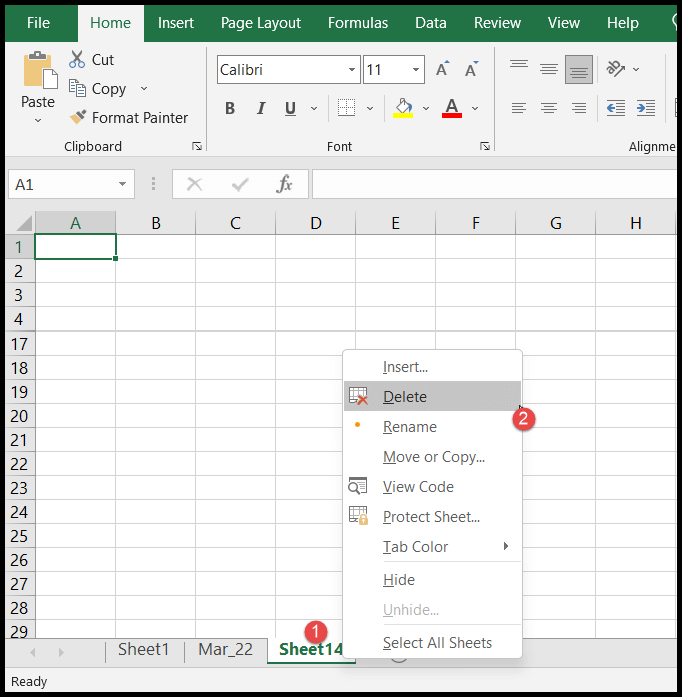
- First, right-click on the worksheet tab and click on the “Delete” option from the list.
- To delete multiple worksheets, select the multiple worksheets and then right-click and click on the “Delete” option
Written by
Puneet Gogia
Microsoft MVP — Excel · Founder, Excel Champs
Twelve years of teaching Excel, and a decade before that using it as a data analyst. Every tutorial here is written from a file I actually built.