

Right-click any sheet tab and choose Select All Sheets. Every visible sheet in the workbook is now selected and grouped.
From the keyboard and mouse, click the first sheet tab, hold Shift and click the last tab. To pick only some sheets, hold Ctrl and click each tab you want, or press Ctrl + Shift + Page Down to add the next sheet to the selection each time you press it.
While sheets are grouped, Excel shows Group in the title bar, and anything you type, format or delete on the active sheet happens in the same cells on every selected sheet. That is useful for setting up identical headers, and easy to forget.
To ungroup, right-click any tab and choose Ungroup Sheets. When every sheet is selected, clicking any other tab also ungroups them.
Hidden sheets are never included. In VBA, Sheets.Select stops with a run-time error when the workbook has a hidden sheet, so select only the visible ones instead:
Sub Select_Visible_Sheets()
    Dim sh As Object
    For Each sh In ActiveWorkbook.Sheets
        If sh.Visible = xlSheetVisible Then sh.Select Replace:=False
    Next sh
End SubIn Excel, if you want to select all the sheets in a workbook, there are a few simple and quick ways to do that. And in this tutorial, we will learn these methods in detail.
Use the Shift Key + Mouse to Select All Sheets
- Activate the first sheet that you have in the workbook.
- Press the SHIFT key.
- By holding the SHIFT key, hover to the last sheet of the workbook.
- Click on the last sheet to select all the sheets.
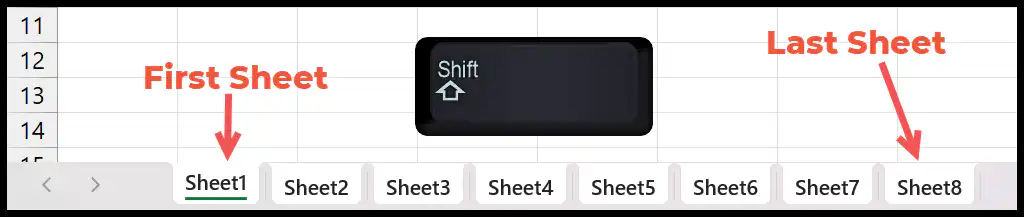
And the moment you click on the last sheet’s tab, it will select all the sheets between the first and the last.
Use the Select All Sheets Option
Now there’s also an option in Excel to select all the sheets. So, when right-clicking on any of the sheet’s tabs, the option says, “Select All Sheets”.
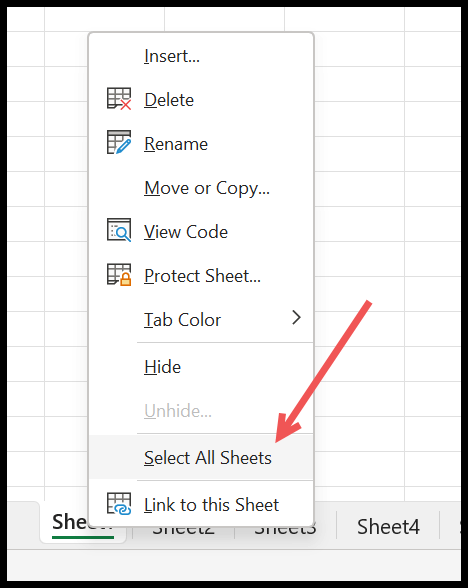
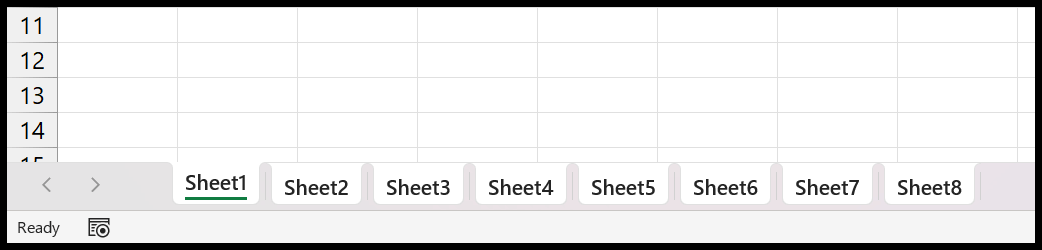
And when you click on the option, it selects all sheets you have in the current workbook in one go.
VBA Code
And you can also use a VBA code to select all the sheets from the current workbook. Go to the Developer Tab > Visual Basic > Insert a Module > Paste the Code.
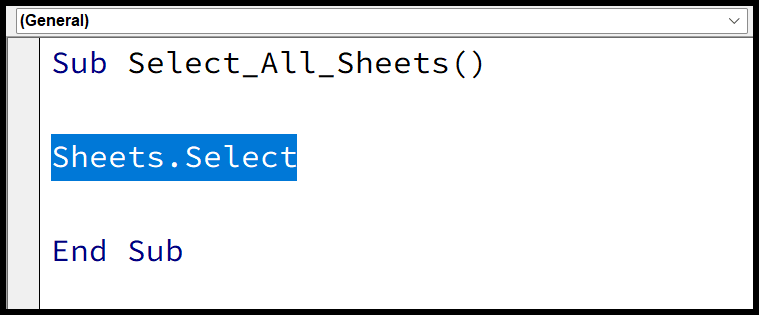
Sub Select_All_Sheets()
Sheets.Select
End Sub
If you want to select only a few specific sheets instead of all of them, you can pass their names as an array, like in the code below:
Sheets(Array("Sheet1", "Sheet2", "Sheet3")).Select
Select a Few Sheets, Not All
Sometimes you don’t want every sheet, just a handful. For sheets that sit next to each other, click the first tab, hold the Shift key, and click the last one, the same as selecting all but ending before the final tab. For sheets scattered around, hold the Ctrl key and click each tab you want one by one. In both cases, the tabs you pick turn white to show they are selected.
What Happens When You Select All Sheets
When you select more than one sheet, Excel puts them into a group, and you will see the word [Group] next to the file name at the top of the window. This is handy, because anything you now type, format or delete on the active sheet happens on every selected sheet at the same time. It’s the quickest way to set up the same header or formatting across all your sheets in one go.
But it’s also easy to forget you are in a group and change all your sheets by accident. So the moment you are done, ungroup them. Right-click any sheet tab and click “Ungroup Sheets”, or simply click on any single sheet tab that wasn’t part of the selection, and Excel goes back to normal.
Frequently Asked Questions
How do I deselect or ungroup the sheets?
Right-click any sheet tab and choose “Ungroup Sheets”. If one of your sheets wasn’t selected, you can also just click its tab, and the group breaks straight away. Always do this before you start editing again, so you don’t change all the sheets by mistake.
Why is my typing going into all the sheets?
Because the sheets are still grouped. When you see [Group] at the top of the window, every edit lands on all the selected sheets. Ungroup them (right-click a tab and choose “Ungroup Sheets”) and the editing goes back to one sheet at a time.
Is there a single keyboard shortcut to select all sheets?
Excel doesn’t have one dedicated shortcut key for “select all sheets”. The fastest ways are the two in this tutorial: right-click a tab and choose “Select All Sheets”, or click the first tab and Shift-click the last one.
Written by
Puneet Gogia
Microsoft MVP — Excel · Founder, Excel Champs
Twelve years of teaching Excel, and a decade before that using it as a data analyst. Every tutorial here is written from a file I actually built.