

You can quickly unhide the single or multiple sheets in Excel. And this tutorial, we will learn to do this with simple steps.
Unhide a Single Sheet in Excel
- First, hover on any of the sheet tabs in your workbook.
- Now, right-click and then click on the “Unhide” option.

- After that, from the dialog box, click on the sheet name you want to unhide.
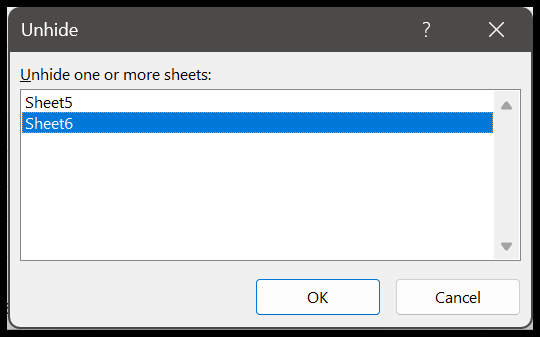
- In the end, click OK to unhide the sheet.
When you click OK, it will unhide the sheet you selected from the dialog box.
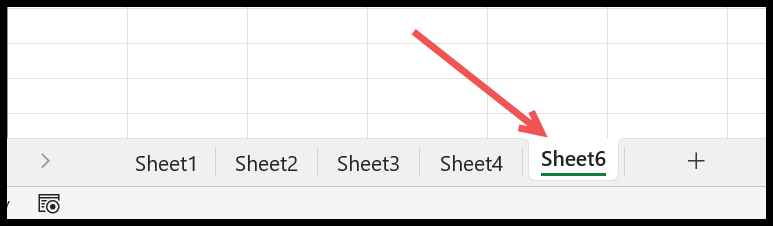
Note: You can also use the same “Unhide…” option from Home > Format > Hide & Unhide > Unhide Sheet.

Unhide All the Hidden Sheets in Excel
Recently, Microsoft updated the option to select multiple sheets from the dialog box to unhide them in one go.
- First, right-click on the sheet tab.
- Now, in the dialog box, press and hold the Ctrl key.
- Next, select multiple sheets or all from the list.
- In the end, click OK to unhide the select sheets.
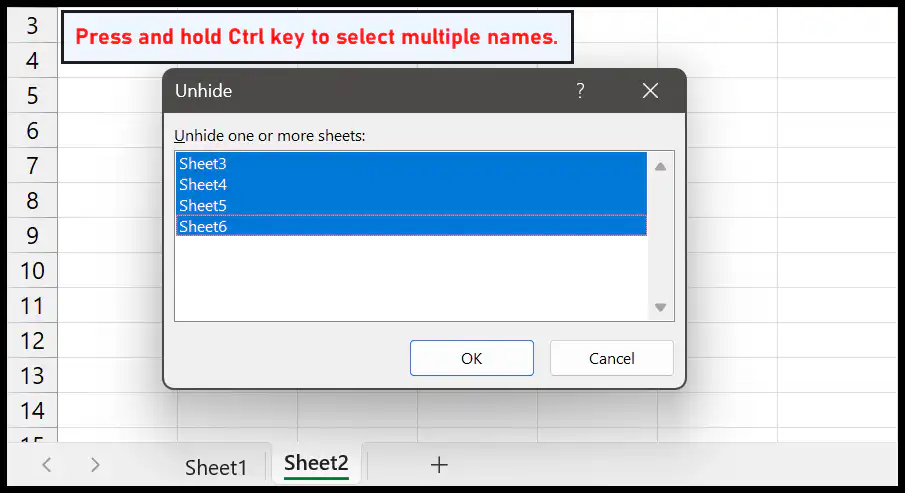
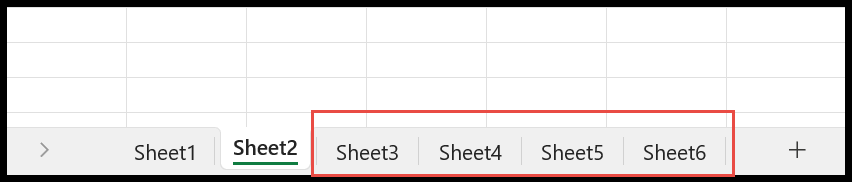
Once you click OK, it unhides all the sheets you have selected from the dialog box in one go.
Written by
Puneet Gogia
Microsoft MVP — Excel · Founder, Excel Champs
Twelve years of teaching Excel, and a decade before that using it as a data analyst. Every tutorial here is written from a file I actually built.