

To remove a line break, replace the line-feed character with nothing or with a space: =SUBSTITUTE(A2,CHAR(10),"") joins the lines together, and =SUBSTITUTE(A2,CHAR(10)," ") puts a space where each break was — usually the one you want, or words run together.
CHAR(10) is the break character on Windows; text pasted from a Mac, a web page or a database may use CHAR(13) instead, so wrap both when the first formula appears to do nothing: =TRIM(SUBSTITUTE(SUBSTITUTE(A2,CHAR(10)," "),CHAR(13)," ")). =TRIM(CLEAN(A2)) is the catch-all — CLEAN strips every non-printing character, including both break types.
To remove breaks in place rather than in a new column, press Ctrl+H, click into “Find what” and press Ctrl+J (nothing visible appears, which is normal), leave “Replace with” empty or type a space, then Replace All. Note that turning off Wrap Text only hides a line break — the character stays in the cell.
To create a formula to remove line breaks from a cell, you need to combine two functions: SUBSTITUTE and CHAR. SUBSTITUTE helps you to replace a specific value from a cell, and CHAR help to get specific characters using a code. With CHAR, we will get the line break character and replace it using SUBSTITUTE with a space or a blank value.

This tutorial will teach you to write a formula to remove a line break from a cell.
Formula to Remove Line Break from a Value
You can use the below steps:
- First, enter the SUBSTITUTE function in a cell.
- After that, in the first argument, refer to the cell where you have the value with the line break.
- Next, in the second argument, enter the CHAR function, and in the CHAR function, enter (10), close the function,
- Now in the third argument, enter a blank space or a space.
- In the end, enter the closing parentheses, and hit enter to get the result.
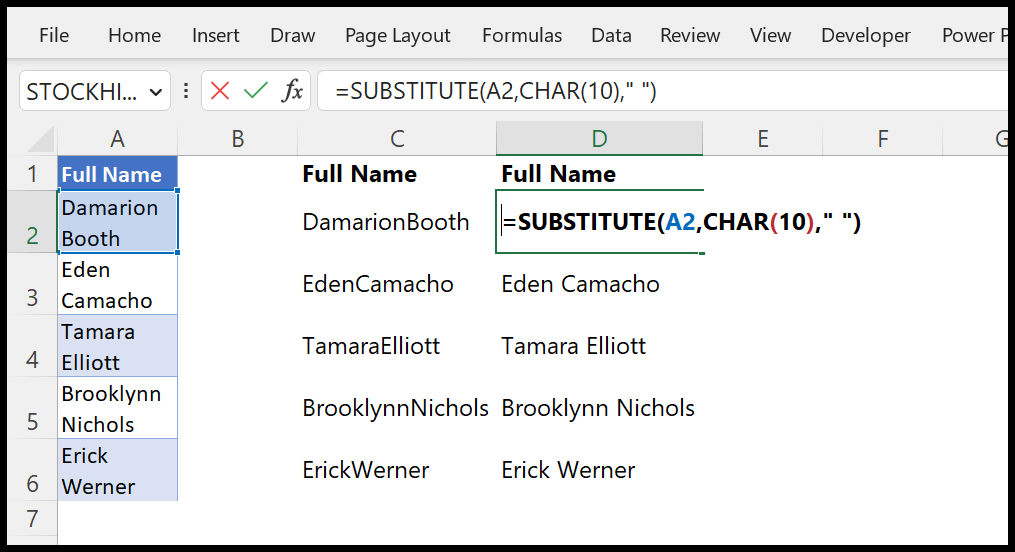
=SUBSTITUTE(A2,CHAR(10),"")
=SUBSTITUTE(A2,CHAR(10)," ")How this Formula Works
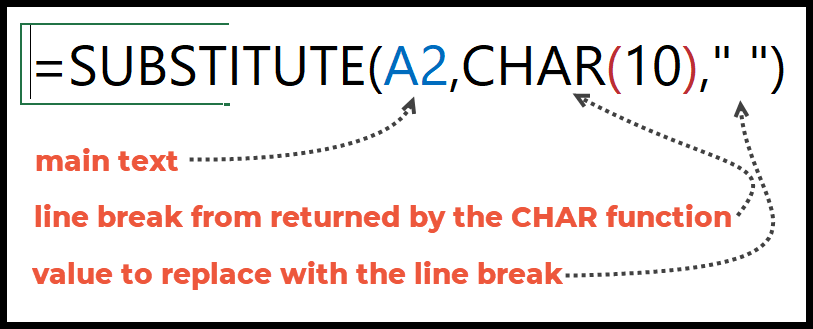
When you use the CHAR function and enter code 10, it returns the line break character in the result.
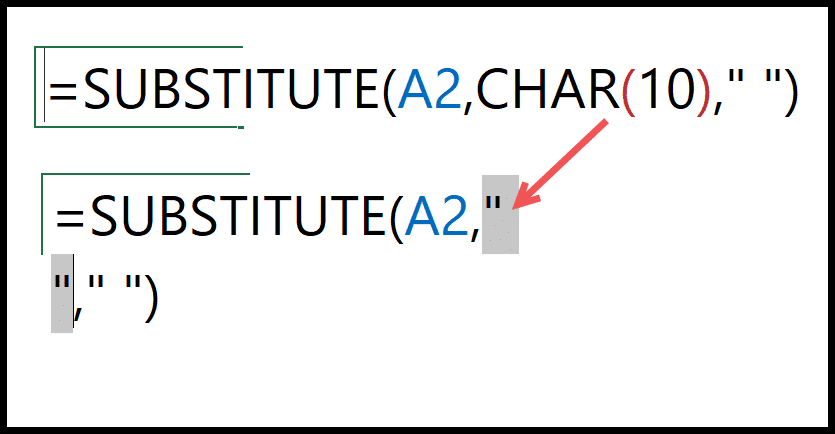
And you have used it in the SUBSTITUTE function’s old_text argument, which means this is the old text you want to replace. And in the new_text, you have a space or a blank value. That means you want to replace or remove a line break from the cell with a new value.
One More Way that You Can Use
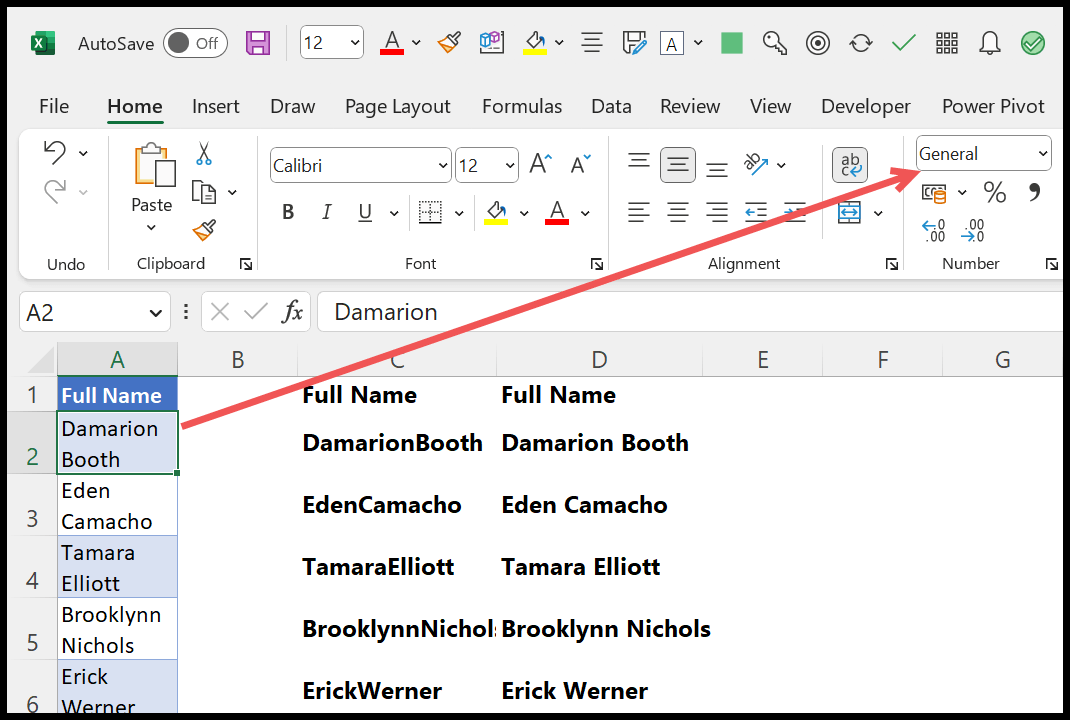
When you apply the line break to a cell, you need to apply wrap text to that value, and if you want to remove the line break from the cell, you can remove the wrap text option.

This formula does not work. The line breaks remain after using it.
See if you have Wrap text applied or not.