

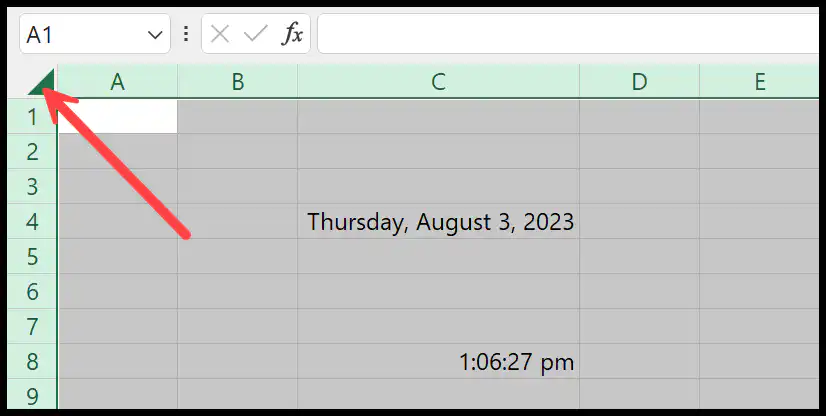
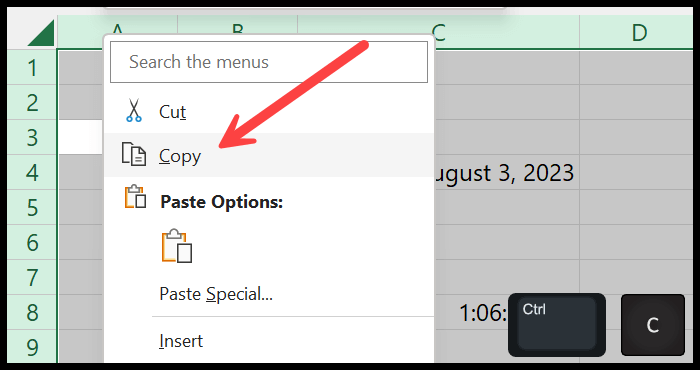
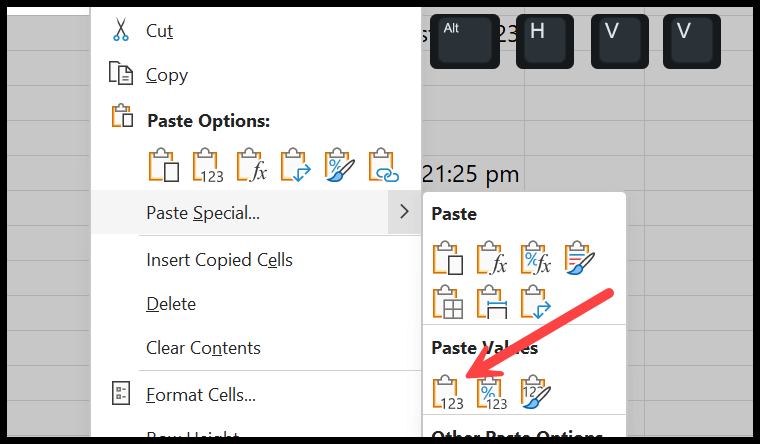
Press F12 and save a copy under a new name first, so the original keeps its formulas. Then, on each sheet, click the Select All button at the top-left corner of the grid, press Ctrl + C, then Ctrl + Alt + V, press V for Values and press Enter. Every formula is replaced by the result it was showing. Press Ctrl + S to save.
Paste Special converts one sheet at a time. For a workbook with many sheets, press Alt + F11, choose Insert → Module, paste this macro and press F5. It converts every worksheet in the active workbook:
Sub Formulas_into_Values()
    Dim ws As Worksheet
    For Each ws In ActiveWorkbook.Worksheets
        ws.UsedRange.Copy
        ws.UsedRange.PasteSpecial Paste:=xlPasteValues
    Next ws
    Application.CutCopyMode = False
End Sub
A macro’s changes can’t be undone with Ctrl + Z, so run it only on the copy. When you save the file as an Excel Workbook (*.xlsx), Excel warns that the VB project can’t be saved in a macro-free workbook. Click Yes and the file is saved with values only and no macro.
If the recipient needs plain data only, File → Save As with CSV (Comma delimited) as the file type also strips formulas. But it saves only the active sheet, drops formatting, charts and every other sheet, and leading zeros or long ID numbers can change when the CSV is reopened in Excel.
Before you copy, clear any filters with Data → Clear, because a copy of a filtered sheet picks up only the visible rows. Afterwards, click a cell on each sheet and check the formula bar: if it still shows a formula starting with =, that sheet was missed.
In Excel, if you want to save a workbook without formulas, you have three different methods that you can use. In this tutorial, we will discuss all these methods in detail and learn them to use step by step.
Alert – I suggest you create a workbook backup before using any of these methods. So that if you want to get the formulas back, you can use that file.
Change All the Formulas from the Workbook into Values (Paste Special)
The following is the easiest method to do that.
- Click on the top left of the rows and columns window to select the entire sheet. Or you can also use the keyboard shortcut Ctrl + A.
- After that, use the keyboard shortcut Ctrl + C to copy all the cells from the worksheet. Or you can also right-click and click on the “Copy” option.
- From here, again, open the right-click option and then go to Paste Special > Value. Or you can also use the keyboard shortcut Alt > H > V > V.
- In the end, select a single cell to de-select the entire worksheet.
With this method, you can convert formulas into values for a single sheet, and if you have more than one worksheet, in that case, you need to go to each worksheet one by one and then change formulas into values.
And once you do that, you can save the workbook.
Use a VBA Code to Save a Workbook without Formulas
You can use the below code:
Sub Formulas_into_Values()
Dim ws As Worksheet
For Each ws In ThisWorkbook.Worksheets
    Cells.Copy
    Cells.PasteSpecial Paste:=xlPasteValues
Next ws
End Sub
The above code will run a loop to all the worksheets in the workbook and convert all the formulas into values. And after that, you can easily save that workbook without the formula.
To use this code:
- Open the Visual Basic Editor.
- Insert a new module.
- Paste the code into the code window.
- Click on the run button to run the code.
Otherwise, you can check other ways from this link.
Save Workbook in CSV Format Without Formulas
Alert – For using this method, creating the file backup is necessary.
- First, click “File Tab”, go to “Save As”, and then ‘Browse.
- From the Save As Dialog box, select “CSV Comma Delimited” from the “Save as type”.
- In the end, click OK.
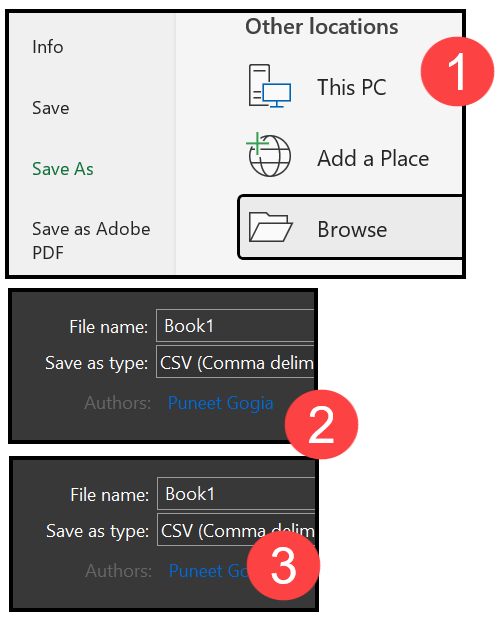
When you save a file in CSV format, it automatically removes formulas and formatting from the workbook.
Alert – When you save a workbook in CSV format, it removes the formula and the formulas when you add them again.
Written by
Puneet Gogia
Microsoft MVP — Excel · Founder, Excel Champs
Twelve years of teaching Excel, and a decade before that using it as a data analyst. Every tutorial here is written from a file I actually built.