

On a new sheet, go to Data → Data Tools → Consolidate. Choose Sum in the Function box, select the first sheet’s data (headers and labels included) in the Reference box and click Add. Repeat for each sheet, tick Top row and Left column, then click OK.
Ticking Top row and Left column makes Excel match the data by its labels, so the sheets can list items in a different order or include extra ones. Leave them unticked and Excel adds cells by position, which gives wrong totals as soon as one sheet’s rows are in a different order.
The result is static: change a source sheet and the totals stay as they were. Tick Create links to source data to get linked formulas with an outline you can expand, or open Consolidate again on the same sheet and click OK to rebuild it from the saved references.
If every sheet has the same layout, a 3D formula is quicker and updates itself: =SUM(North:South!B2) adds B2 from every sheet from the North tab to the South tab. Any sheet you drag between those two tabs is included, and sheet names with spaces need quotes, as in =SUM('North Zone:South Zone'!B2).
To keep each sheet’s rows rather than add them together, append the sheets with Power Query (Data → Get Data, Excel 2016 and later), which can keep the sheet name in its own column. In Excel 365, =VSTACK(North:South!A2:C20) stacks the same range from every sheet into one list.
In my starting days with Excel, I was really bad at consolidating data. If you asked me to capture sales data for four different zones, I would create four different worksheets for that.
Yes, I was that bad. But you always learn from your mistakes. Am I right?
And if you are making the same mistakes as I did, I have an amazing tip for you. One of the best Excel options that I have learned for managing data is to “Consolidate Data From Multiple Worksheets in a Single Worksheet”.
Consolidate Data in Excel from Multiple Worksheets [Steps]
Here you have these four worksheets (DOWNLOAD this file from here) for four different zones, which have the same structure.
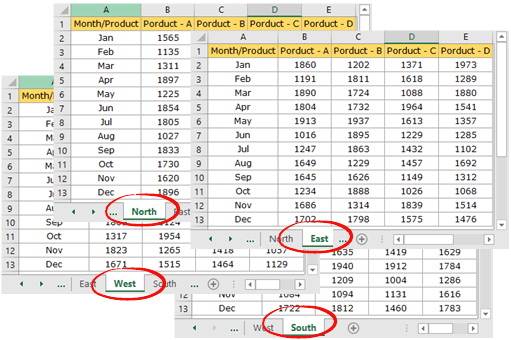
Now here are the steps you need to follow to consolidate data from these multiple tabs.
- First of all, insert a new worksheet, name it “Total” (or whatever you want), and select cell A1 in that worksheet.

- Now, go to Data Tab ➜ Data Tools ➜ Consolidate.

- Once you click on Consolidate, you will get a window like this (just follow the steps for now; I will explain this window in the second part of this post).

- Now, by using the “Reference” input box, select the data range from the first sheet where you have data (north zone).

- After that, click “Add”.

- By using the same method, add references from all four worksheets.

- Now, from the bottom of the window, tick “Top Row” and “Left Column” (as we have labels in the first row and first column).

- Click OK.
Once you click OK, it will instantly give you a consolidated data table with the same structure.

Add a table heading in cell A1, and you can also use the format painter to copy formatting from other worksheets.

Finally, you have a worksheet with consolidated data.
Other Options in Consolidate
Consolidate is a handy tool to consolidate multiple worksheets into a single sheet, but there are a lot of other options in it. Let me explain them one by one.
- Function: You can select a function from this drop-down menu (Sum, Count, Average, Max, Min, Product and more). Sum is the default.
- Reference: Select the data range from the worksheets you want to consolidate.
- Browse: If you want to add a worksheet that is in another workbook, you can use this option.
- Add & Delete: Add or delete selected references in the list of ranges to merge.
- Top Row: Use the top row as labels.
- Left Column: Use the left column as labels.
- Create Links To Source Data: If you want to create links to your source data, tick this option. This is useful if you want to make changes in your source data after creating your consolidated sheet: Excel updates the consolidated data automatically. Without it, you need to run Consolidate again to update the totals. This option doesn’t work when the source data and the consolidated data are on the same sheet.
Consolidate by Position or by Category
Consolidate can match your data in two ways, and it’s the Top Row and Left Column options that decide which one it uses.
- By position: When all the sheets have the same labels in the same order (like sheets made from one template), you can leave Top Row and Left Column unticked. Excel adds up the values that sit in the same cells.
- By category: When the sheets have the same labels but in a different order, or some sheets have extra rows, tick Top Row and Left Column. Excel matches the values by their labels, wherever they are.
Before you consolidate, make sure each range has labels in its first row (and first column), there are no blank rows or columns in the data, and the labels are spelled exactly the same on every sheet. A label that’s spelled differently ends up as a separate row in the result.
Consolidate Data with a 3D Formula
If all your sheets have the same structure, you can also add them up with a formula. A 3D reference refers to the same cell on a range of sheets. For example, if your zone sheets are named North to West and sit next to each other, this formula adds up cell B2 on all of them:
=SUM(North:West!B2)
Enter it in the Total sheet and copy it across your table. Unlike Consolidate, the formula updates as soon as a value in a zone sheet changes. It includes every sheet that sits between North and West in the tab order, so keep the zone sheets together.
Stack Data from Multiple Sheets with VSTACK
Sometimes you don’t want totals; you want all the rows from all the sheets in one list. In Excel for Microsoft 365, the VSTACK function does this, and it also works with a 3D reference:
=VSTACK(North:West!A2:C10)
It returns the rows from all the sheets one below the other, and the list updates when the source data changes. If the ranges include empty rows, they show up as zeros in the result, so select only the rows that have data.
Combine Sheets with Power Query
If you need to combine sheets every month, or the number of rows keeps changing, Power Query is the better option. Convert the data on each sheet into a table (Ctrl + T), and then load each table with Data > From Table/Range. After that, in the Power Query editor, use Home > Append Queries to put them together into one table. Next time, you just click Data > Refresh All to update the combined data.
Which Method to Use
- Consolidate: A quick summary (sum, average, count) of sheets with the same labels, without any formulas.
- 3D formula: Totals that update on their own when the sheets have the same layout.
- VSTACK: One list with all the rows from all the sheets (Microsoft 365 only).
- Power Query: Repeated work with changing data, or data from many sheets or files.
Frequently Asked Questions
Why does Consolidate show wrong or duplicate rows?
The labels don’t match exactly. A label like “North ” with an extra space, or “Product A” in one sheet and “Product-A” in another, is treated as a different category. Fix the labels in the source sheets and run Consolidate again.
How do I update a consolidated sheet?
If you ticked Create Links To Source Data, Excel updates it when the source data changes. If not, select the top-left cell of the consolidated data, go to Data > Consolidate, and click OK again.
Can I consolidate data from different workbooks?
Yes. In the Consolidate window, use Browse to pick the other workbook, or open it and select the range with the Reference box. Keep the source workbooks in the same place, or the links stop working.

NEED TO CLUB ALL SHEETS IN A EXCEL FILE 2007
PL….
All must go to the sites sent thanks
Stumbled on thread to awesome dude!!! Can’t thank you enough glad you put ur picture as well. I hope you do great things and ur life is filled with righteousness.
Basketful thanks
Good shortcut to consolidate multiple sheets data.
Thanks!!
You can also use Sum(‘North:South’!B2) for B2 cell and copy and paste it which way you want to go:)
Very Nice
Thanks, a great useful tip! How can this be done without losing the zones?
Great and very useful article
Great article. Does this also work with named ranges and tables?