

To pull the year out of a date, use =YEAR(A1) — it returns a four-digit number like 2026. For the month, =MONTH(A1) returns 1 to 12.
Both return numbers, so you can sort, filter, and group on them, which is what makes them the right choice for building a year or month column in a data set.
If you want the month as a name rather than a number, use =TEXT(A1,"mmm") for Jan or =TEXT(A1,"mmmm") for January — but remember TEXT returns text, so those columns sort alphabetically (April before January) and won’t group properly in a pivot table. Wrap it in VALUE to convert back: =VALUE(TEXT(A1,"yyyy")).
If you only want the cell to display the year while staying a real date underneath, skip the formula: select the cells, press Ctrl+1 → Custom, and enter yyyy. And if you’re extracting year and month purely to summarise sales by period, a pivot table can group dates by year and month in two clicks without any helper column.
Let’s say you work as a data analyst at a retail company and are tasked with analyzing annual sales data to observe trends over multiple years. Now, you need to create a new column that only contains the year of each transaction.
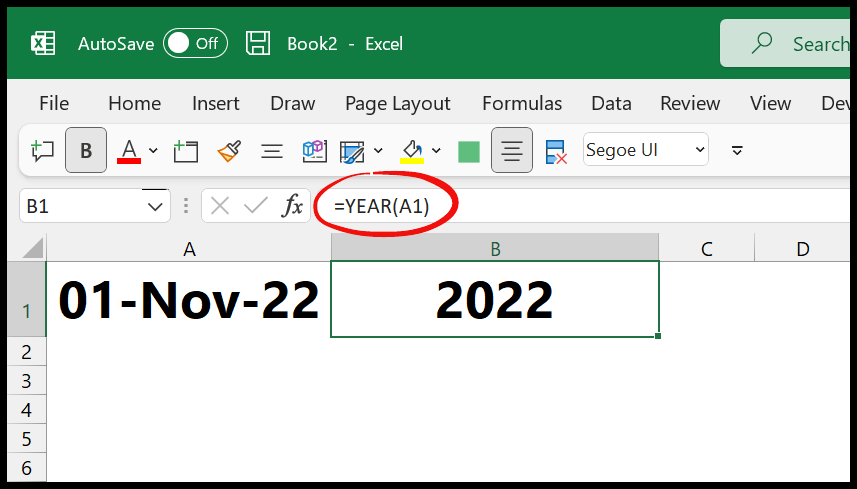
If you work with data a lot, I am sure you know that having a column with the year next to the date column is really helpful in data analysis. This will help summarize and compare annual sales performance to have a yearly sales analysis.
Well, there are multiple ways to write formulas for this. And, in this tutorial, we are going to learn all these formulas. So let’s get started.
Extract Year from a Date with YEAR Function
The YEAR function allows you to extract the year from a given date. It requires a valid date (referred from a cell or entered directly into the function) and returns a four-digit year.

To get the year from the date that you have in cell A1, use the following steps:
- First, edit cell B1, and enter the “=”.
- After that, enter the YEAR function and an opening parenthesis.
- Now, refer to cell A1 where you have the date.
- In the end, enter the closing parenthesis and hit Enter to get the result.
=YEAR(A1)
Insert Date Directly into the Function
When you want to insert a date into the YEAR function directly, enclose it in double quotation marks (“4/15/2023”). For example, if you’re using this date in a formula, you can write:
=YEAR("4/15/2023")
=2023
But if you enter a date like below (without quotation marks) in the YEAR function, it won’t return a valid year result. Excel reads 4/15/2023 as 4 divided by 15 divided by 2023, which is almost 0, and the year of 0 is 1900.
=YEAR(4/15/2023)
=1900
When you use dates in quotation marks, Excel treats them as text, so ensure your system’s date settings match the format you’re entering to avoid errors. “mm/dd/yyyy” works only when your regional settings use month first. The safest way is to use the DATE function, or the yyyy-mm-dd format, which Excel reads the same way in every region:
=YEAR(DATE(2023,4,15))
=YEAR("2023-04-15")
Both formulas return 2023.
Use TEXT Function to Extract Year from Date
Apart from the function that we have discussed above, you can use the TEXT function to get the year and month from a date. In the TEXT function, you have two arguments to define: the first is the date, and the second is the format_text that you want to extract from the date.
In the following example, you have the TEXT function with the format_text “YYYY” that returns the year in four digits.
=TEXT(A1,"YYYY")

If you want to get a year in two digits, you can use the following format_text.
=TEXT(A1,"YY")

In the end, you can use the VALUE function to convert the result into a number instead of text. So the formula would be:
=VALUE(TEXT(A1,"YYYY"))
=VALUE(TEXT(A1,"YY"))
Keep in mind that the format codes of TEXT depend on the language of your Excel. “YYYY” works in English, but in some other languages the letter for the year is different (like “JJJJ” in German).
Must Read – Separate Date and Time in Excel
Combine YEAR + DATE to Return Year from Date
The formula below is useful when the year, month, and day are three different cells. So when you use DATE, you can create a date using those values, and then the YEAR function gets the year from that date.

=YEAR(DATE(A3, A2, A1))
=YEAR(DATE(year, month, day))
This formula allows you to create dates dynamically based on other calculations and then get the year from it. For example, if the year, month, or day parts are results of other formulas or change based on conditions, this formula can create a date first and then extract the year. It also handles overflow: DATE(2023,13,1) becomes January 1, 2024, so YEAR returns 2024.
Display a Date as a Year instead of Getting It
You can also use custom formatting to convert a date into a year or a month. This method shows only the year, or month for a date that you have in the cell.

- Select the cell or range of cells where you have the dates.
- Open the Format Cells dialog box by using the Ctrl + 1.
- Click on the Custom option and then enter “YYYY” in the Type input bar.
- And then click OK.
The moment you click OK, it shows you the year instead of the date. Even though the cell contains a complete date, it will only display the year.

Extract Month from a Date
If you have a date in cell A1 and you want to extract the month from it, use the following steps:
- First, in cell B1, enter “=”.
- After that, enter the MONTH function and an opening parenthesis.
- Now, refer to cell A1 where you have the date.
- In the end, enter the closing parenthesis and hit Enter to get the result.

=MONTH(A1)
MONTH returns the month as a number from 1 (January) to 12 (December).
Using TEXT Function
In the same way, you can use the format_text “MMM” to get the short name of the month (like Apr) from the date.
=TEXT(A1,"MMM")

To get the full name of the month (like April):
=TEXT(A1,"MMMM")

And to get only the number in the result (as text, with a leading zero like 04):
=TEXT(A1,"MM")

Custom Formatting
You can enter the month format in the “Type” input bar to show the month instead of the date.

Extract the Month and Year Together
If you want the month and year in one cell, like Apr-2023, use TEXT with both codes in the format_text. The second formula gives a result like 2023-04, which sorts in the right order:
=TEXT(A1,"mmm-yyyy")
=TEXT(A1,"yyyy-mm")
Year from a Blank Cell or a Text Date
YEAR treats a blank cell as 0, so it returns 1900 for it. To keep the result blank when the date cell is empty, use IF:
=IF(A1="","",YEAR(A1))
And if the date is text that Excel doesn’t recognize as a date, YEAR returns the #VALUE! error. In that case, fix the dates first (for example, with Data ➜ Text to Columns), or build the date with DATE from its parts.
Get the Fiscal Year from a Date
If your fiscal year starts in April and is named after the year it ends in, add 9 months to the date with EDATE and then take the year. A date of 15-Apr-2023 returns 2024, and 31-Mar-2023 returns 2023:
=YEAR(EDATE(A1,9))
For a fiscal year that starts in another month, change the 9 to 13 minus the starting month number (for July, use 6).
Frequently Asked Questions
Why does YEAR return 1900?
Because the cell is blank or has 0, or because you entered a date without quotation marks, like YEAR(4/15/2023), which Excel calculates as a division. Use a real date in the cell, or wrap the formula with IF to skip blank cells.
How do I get the year as text?
Use TEXT with “YYYY”. TEXT always returns text, while YEAR returns a number you can use in calculations.
Can I group dates by year without a formula?
Yes. In a pivot table, right-click any date and use Group, then choose Years. Excel 365 also groups dates automatically when you add a date field to the Rows area.
Written by
Puneet Gogia
Microsoft MVP — Excel · Founder, Excel Champs
Twelve years of teaching Excel, and a decade before that using it as a data analyst. Every tutorial here is written from a file I actually built.