

Tracking your expenses is one of the most important steps to becoming successful. But sometimes it’s really hard to track all of them.
Whenever we spend our money somewhere, we forget it after a few days. And then, at the end of the month, we are totally blank about our spending.
So here’s the deal: As an Excel user, you spend most of your time working on Excel. Right?
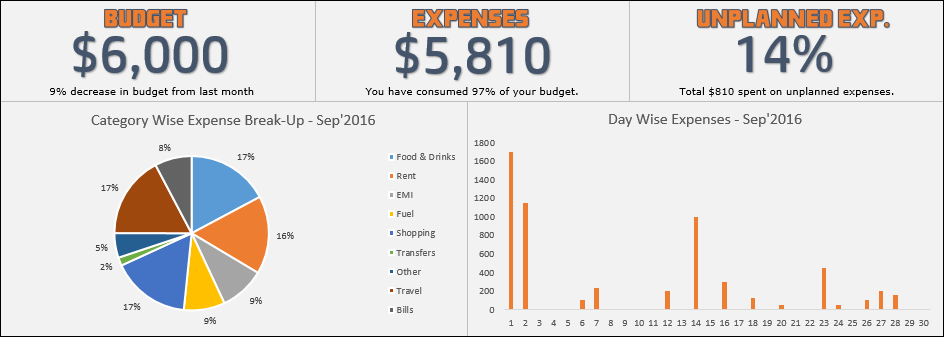
It’s better to have an expense tracker template in Excel so that you can access it in a few clicks. And here I have a one-page expense tracker for you.
The best part is that this template is made specifically for people who want to track their expenses but always find it hard to do.
Hey, wait for a minute, just like this template, here are some more templates that can amaze you:
- Gantt Chart Template for Project Managers
- Compound Interest Calculator
- Daily Sales Report Format
- Ready to Use Excel Inventory Management Template
Features
As I told you, this is a one-page template, but it’s quite powerful for tracking your expenses. Follow me to explore its features.
1. Monthly Budget
In this template, you can enter a monthly budget to use as a benchmark for your monthly expenses.
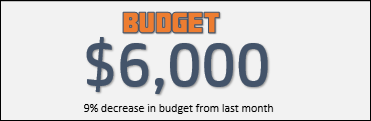
This section will show you the current month’s budget, and along with that, it will show you the change in the current month’s budget from last month’s budget.
2. Actual Expenses
This section will give you a snapshot of the total amount spent on expenses in the current month.

The amount will update instantly after you enter a new expense entry. And below it, there is also a small message about the percentage of the budget you have consumed.
3. Unplanned Expenses
If you face some unplanned expenses sometimes, you can track those expenses in this template.

In this section, you’ll get a quick view of the percentage of unplanned expenses from your total expenses. You also get a small message about the number of unplanned expenses.
4. Category Wise Expenses
Yes, you can track your expenses in categories also.
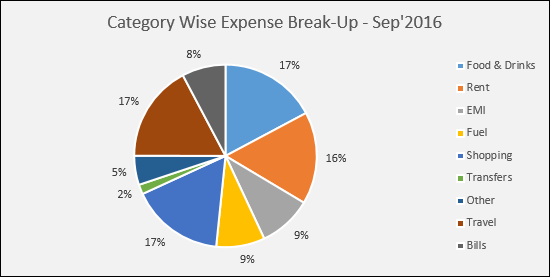
This section will show you a category-wise summary of percentage share.
5. Day Wise Expenses
Here you can check your day-wise expense amount.
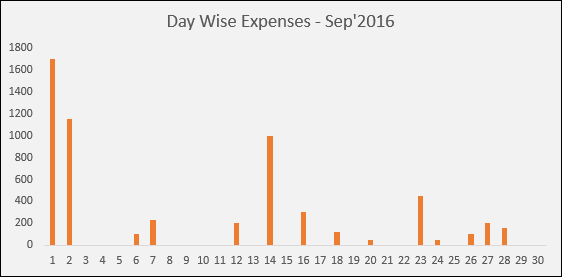
It will show you your day-wise spending on your expenses. This will help you track how often you spend in a month.
How To Use it
Please follow me to learn how to use this template to track your expenses:
1. Enter Expenses
It’s super easy to enter an expense. Here are the steps.
- From your main template sheet, click on the “Data” button.

- It will navigate you to the data entry sheet.

- Now, enter the following things in the datasheet.
- Exp ID [Manual Entry]
- Date of expense [Manual Entry]
- Category of Expense [Drop down list]
- Expense Description [Manual entry]
- Payment Mode [Drop down list]
- Expense Type [Drop down list]
- Amount [Manual Entry]
- Once you have entered your expense data, click on the “Template” button to go back to your main template.

This template is super easy to manage. When you enter an expense, your template will update automatically.
2. Change Month and Year
Let’s say you want to check insights about any previous month. You can use the drop-down list from the main template section to select previous months and years.
Month Drop Down List
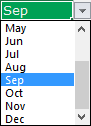
Year Drop-Down List

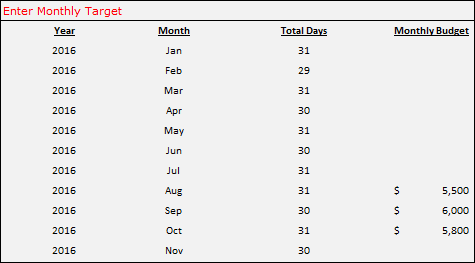
3. Add Monthly Target
If you have a monthly target for your expenses, you can enter that target in your sheet. Use the below table to add your monthly target.
4. Add New Expense Category
I have used some common expense categories in this expense template. And if you want to add any new category, update it in the category table.
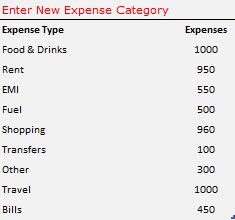
Once you add your new category to the table, it will automatically update the drop-down list in the data entry sheet and category chart.
5. Add New Payment Mode
Just like expense categories, you can update a new payment mode in the following table.

Once you add your new payment mode to the table, it will automatically update the drop-down list in the data entry sheet. Use the “Setting” button from your main template to navigate to the tables mentioned above.
6. Change the Currency
The amounts use a number format, so you can show them in your own currency. Select the amount cells, press Ctrl + 1, go to Currency (or Accounting), pick your currency symbol and click OK. Do the same for the budget and summary cells on the main template.
Tips to Track Your Expenses Better
- Enter expenses the same day: it takes a minute, and you won’t forget the small amounts that add up.
- Use the same categories every time: the category chart is only useful when similar expenses go into the same category.
- Review your unplanned expenses: at the end of each month, check which unplanned expenses can become part of next month’s budget.
- Keep a backup: save a copy of the file in OneDrive or another cloud folder, so you don’t lose your data.
i want learn the excel basic to advance by you .. free of cost in hindi language reply me as how can learn it by u , reply me as soon as possible thanking you
Really helpful Template
Hi Puneet,
Could you please send a copy to
Thanks in advance.
Eric
Wow! Thanks man
If all of the manual entries can be blocked together, downloads from banks and cc companies can be formatted and pasted in, avoiding manual entry and possibly error.
Puneet, I’ve been learning a lot from your site. I appreciate the information very much. As a 70-year-old who grew up on Visicalc and Excel, I’ve never had the time until now to really learn the nitty gritty. I’ve always been what I consider a power user, but learning how to use VBA is great! THANK YOU! George
Seriously love all the content in the website thanks for providing such a valuable content at no cost
Awesome Bro Keep it up
Wow
The knowledge I am gaining from your Excel tips is astronomical
Thank you
how do we change the year? or add a new one, like from 2016 to 2019, 2017 to 2020 or add new ones after 2018 like 2019, 2020..??
Beautiful Work, shrunk to a single page is really worth it.
hello! How to add the year 2019 onwards? I only need the year 2019 onwards. Thank you
HI Puneet,
When i try to change the year and month, i get an error.
Hi! How do I change the currency format on Budget, Expenses, and Unplanned Expenses? Thanks
Drop down list only available till 2018. Can we change it?
Great design! I would add a table of monthly expenses and create a calendar page showing how much is owed on what day.
Hi,
Guide me how to change the Year. in the file it is showing as 2016
Hi,
Where I can download this file
Hello Puneet, thanku for this template
i have just one problem: when i put the Date, it appears automaticallly wrote in my Language changing all the formulas and i can t modify the “A5” setting… how could i do??
Anyone else having a problem downloading this expense template? Still getting not found 404 error page… Please advise.
Updated & corrected, check back in 10 minutes
https://uploads.disquscdn.com/images/33c05311795062a9796c0e6de88783c2692da012927ddc5049e20698d1d510f8.jpg Hi Puneet, Still can not get a download after 15 days. “404” 🙁
Check your email. Sent you a new one.
Hi Puneet,
Could you please send a copy to [email protected]
Wonderful! Got it just now! Thank you so so much!!!
Got it! Thank you so very much! Love it!
Having problem. After entering name and email I get 404 error page: ” Sorry! We can’t find the page you were looking for. Try searching instead!”
hi Puneet
I would be so grateful if you can send a link to download the template to track expenses
as the link gives a 404 error – its a great design and you explanation is easy to understand .Look forward to using the template.
https://excelchamps.com/wp-content/uploads/2019/06/excel-expense-report-template.xlsx