

To calculate compound interest in Excel, use =P*(1+r/n)^(n*t) — where P is the principal, r is the annual rate, n is the number of compounding periods per year, and t is the years. With your principal in A2, rate in B2, and years in C2, monthly compounding is =A2*(1+B2/12)^(C2*12). So $10,000 at 10% for 5 years, compounded monthly, grows to $16,453. You can also get the same result with =FV(B2/12,C2*12,0,-A2).
Compound interest is one of the most useful calculations in finance, and Excel makes it simple once you understand one small idea: interest earns interest.
Compound interest is interest calculated on the initial principal and also on the accumulated interest of previous periods of a deposit or loan.— Investopedia
In this tutorial, I'll show you how to calculate compound interest in Excel for yearly, quarterly, monthly, and daily periods — first with the standard formula, and then with Excel's built-in FV function. There's also a free template you can download at the end.
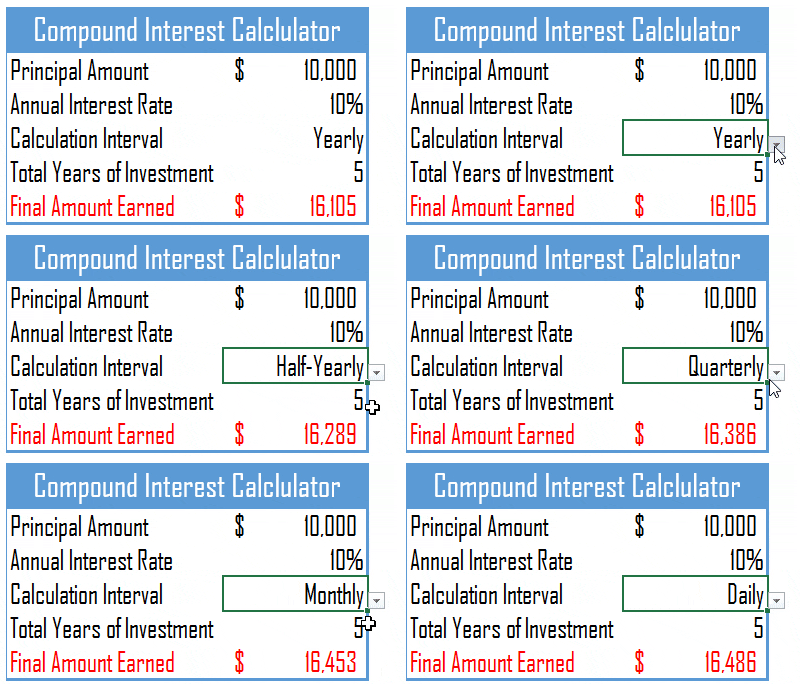
For every example below, I'm using the same setup: principal in A2, annual interest rate in B2, and years in C2.
Yearly Compound Interest Formula
With yearly compounding, each year's interest gets added to the principal, and the next year's interest is calculated on that new, bigger amount.
In plain English, that's =Principal*(1+Rate)^Years.

With $10,000 at 10% for 5 years, you get $16,105. Here's why: in the first year you earn 10000 × 10% = $1,000. In the second year, you earn interest on $11,000, which is $1,100. And so on — each year the base grows.
Quarterly Compound Interest Formula
Quarterly compounding works the same way, but interest is calculated four times a year — so you divide the rate by 4 and multiply the years by 4.

Same $10,000 at 10% for 5 years now gives you $16,386. In the first quarter you earn 10000 × (10%/4) = $250, in the second quarter ($10,250) × 2.5% = $256.25, and the same pattern runs for all 20 quarters.
Monthly Compound Interest Formula
For monthly compounding, divide the annual rate by 12 and multiply the years by 12. This is the one you'll use most often — savings accounts and most loans compound monthly.
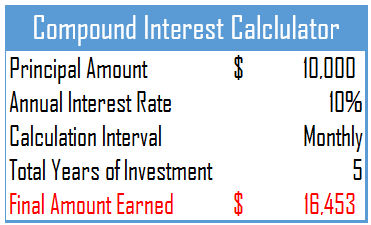
$10,000 at 10% for 5 years, compounded monthly, gives you $16,453. In the first month you earn 10000 × (10%/12) = $83.33, and in the second month ($10,083.33) × 0.833% = $84.03 — and the same for all 60 months.
Daily Compound Interest Formula
Daily compounding follows the same logic — divide the rate by 365 and multiply the years by 365.
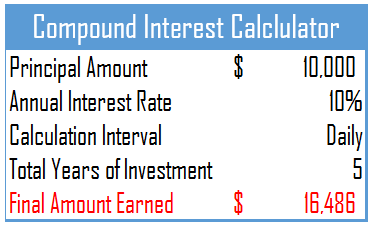
With $10,000 at 10% for 5 years you end up with $16,486. On the first day, you earn 10000 × (10%/365) = $2.74. On the second day, interest is calculated on $10,002.74, and so on for all 1,825 days. Each day adds a tiny bit, but over five years those pennies add up.
How Much Does Compounding Frequency Matter?
Here's the same $10,000 at 10% for 5 years, side by side. The more often interest compounds, the more you earn, but notice how the gains get smaller each step.
Compounding | Formula | Final Value |
|---|---|---|
Yearly | =A2*(1+B2)^C2 | $16,105 |
Quarterly | =A2*(1+B2/4)^(C2*4) | $16,386 |
Monthly | =A2*(1+B2/12)^(C2*12) | $16,453 |
Daily | =A2*(1+B2/365)^(C2*365) | $16,486 |
Use the FV Function Instead (Same Result, Less Typing)
Excel has a built-in function for exactly this: FV, which stands for future value. It gives you the same answer as the manual formula.
- B2/12 — the rate per period (annual rate ÷ periods per year).
- C2*12 — the total number of periods.
- 0 — no regular payments (we'll change this in a moment).
- -A2 — the principal, entered as a negative because it's money you pay in.
Compound Interest With Monthly Contributions
Real savings rarely start with one deposit and stop. If you're adding money every month, FV handles that too — the third argument is your regular payment.
This calculates $10,000 at 10% for 5 years, plus $200 added at the end of every month. The result is $31,940.51 — your original deposit grows to $16,453, and the monthly contributions add another $15,487 on top.
,1 as a fifth argument: =FV(B2/12,C2*12,-200,-A2,1).Sample File
I've put all of the above calculations into a single worksheet — a ready-made compound interest calculator you can play with.
To calculate compound interest in Excel, use =P*(1+r/n)^(n*t) — principal, annual rate, compounding periods per year, and years. With the principal in A2, rate in B2 and years in C2, that’s =A2*(1+B2)^C2 for yearly, =A2*(1+B2/4)^(C2*4) for quarterly, =A2*(1+B2/12)^(C2*12) for monthly, and =A2*(1+B2/365)^(C2*365) for daily.
So $10,000 at 10% for 5 years grows to $16,105 yearly, $16,453 monthly, and $16,486 daily. Excel’s FV function gives the same answer with less typing: =FV(B2/12,C2*12,0,-A2) — the principal goes in negative, because Excel treats money paid out as negative.
To include regular deposits, put them in the third argument: =FV(B2/12,C2*12,-200,-A2) adds $200 at the end of every month.

Thank you so much for this article. It’s very helpful. Can you please share me a guide on how to create that template “sample-files.xlsx”.
Hello,
i love your excel-stuff.
I need a little hint to get my problem solved.
Let me give an example:
my initial deposit is 5000 $
my MONTHLY Interest Rate is 5% (which should be about 70something percent per year)
i invest 300 Bucks every beginning of month
with monthly compounding
i want to know what total i have after 5 Years
I want to do this in excel, completly, no VBA.
Any idea how to accomplish that challenge?
best regards
paul
like this one:
https://www.thecalculatorsite.com/finance/calculators/compoundinterestcalculator.php
Good work Puneet. Helpful.
Puneet, In compound interest calculations, you haven’t made allowance for leap years – in a five-year investment period, there can be either one or two extra days in which interest accrues and may need to be taken into account. One way around this is to count a year as 365.25 days. This won’t be exact, but it’s closer than 365. Another way is to have two variables, Year and Leap_Year. The amount, of course, isn’t going to be vastly different from the simpler calculation. I did calculate the exact formula some years ago (using the amounts earned on a bank deposit to check on the calculations) as an exercise, and was able to follow the interest earned to within a cent over some months. I’ve lost the figures since then (and have also lost the motivation to carry out the exercise again!), but it wasn’t difficult to get exact figures.
Hey Puneet, your sample download file(https://excelchamps.com/wp-content/uploads/2019/06/excel-compound-interest.xlsx) has a the following malware:
Program:Win32/Bitrepeyu.B
Suggest you create another file so that it doesn’t mess up peoples PCs.
Otherwise great job!
Dear Puneet,
These calculations only work if you consider that the interest rate is not recalculated to be equivalent.
https://www.investopedia.com/terms/a/aer.asp
With a aer, the periodicity doesn’t matter for the final capitalisation.
Greetings
Sir, 26th Sep,2019.
Very valuable and easy solution with description you have given and easy to understand too.
A classical work
Thanks.
S. K. Shrivastava
8468045550
Sir, 15th July,2019.
Very valuable and easy sollution you have given and easy to undrstand too.
Thanks.
Kanhaiyalal Newaskar.
Good stuff but … what formula would you use if you wanted simple interest compounded annually for a specific period of days such as 180 or 400 days. I had the idea it would be =Principal Amount*((1+Annual Interest Rate/1)^((Total Number of Days/365)*1)))
Compared to ((Principal Amount * Annual Interest Rate)/365)*Total Number of Days it’s close but only equal at exactly 365 days. That is a math mystery to me.
Wondorful, so easy.. thanks for posting
Another good example, Thanks.
can you do some on using goal seek/solver for things that are not interest rates?
Hi Puneet.
Why did you choose not to use the Excel built in financial functions?
Thanks
Adrian
Hello, Puneet! This is another wonderful article. However, I tried to download the sample file, but the link is not working. Can you check it? Thank you!
Thanks Brenda for pointing me out.
Just updated the link. Now you can download the file.
Excellent, thank you!
Welcome Brenda.