

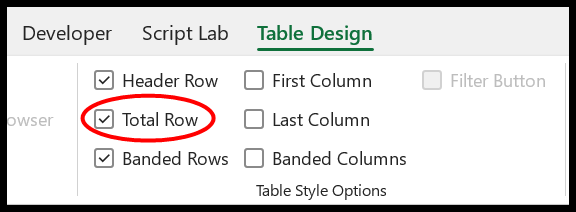
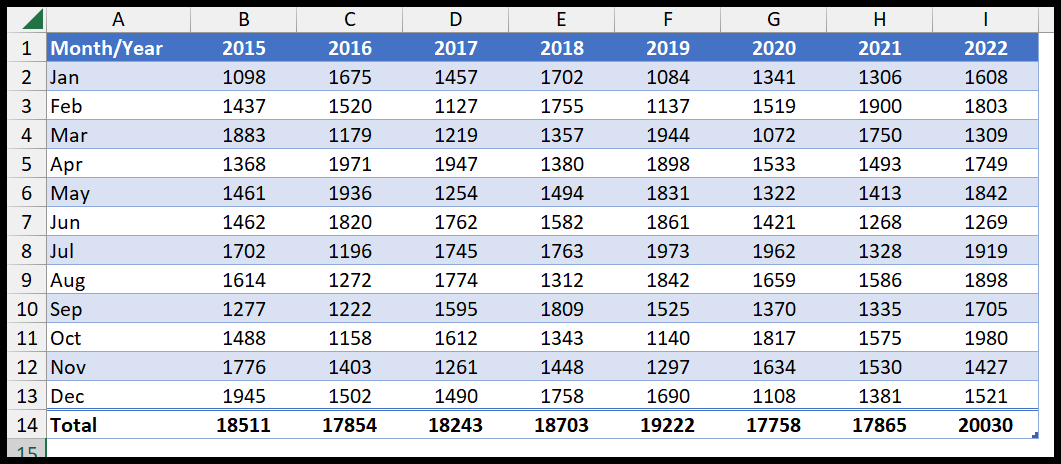
There are two ways to add a total row. If your data is an Excel Table (select any cell and press Ctrl + T), tick Total Row on the Table Design tab, or press Ctrl + Shift + T.
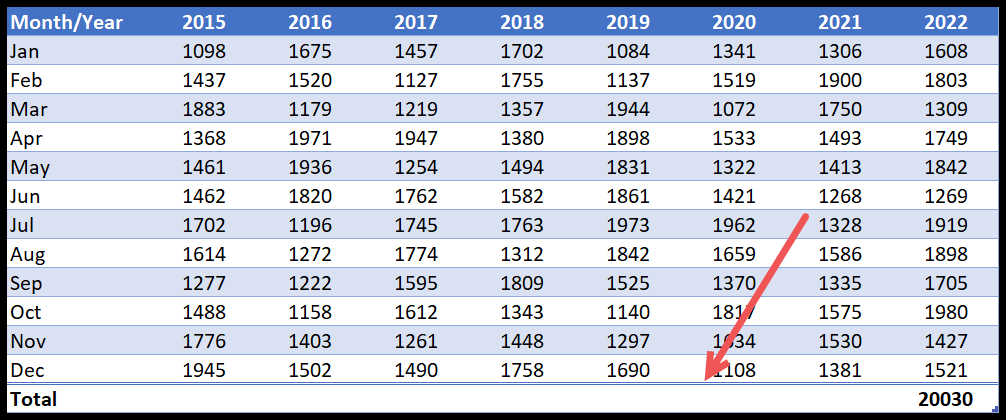
A total row appears at the bottom with a total for the last column only; click any other cell in that row and pick Sum from its dropdown to total that column too. The dropdown also offers Average, Count, Max, Min and StdDev, so each column can show a different calculation.
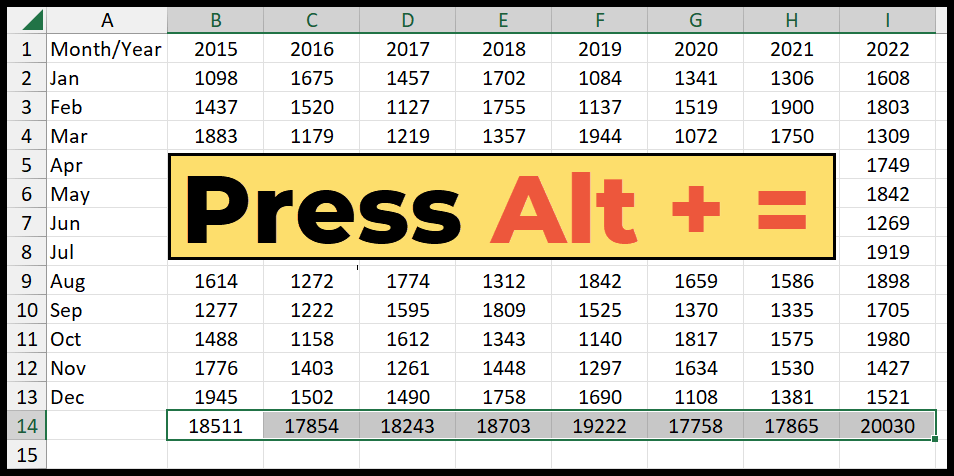
The other route works on any data, table or not: select the empty row below your numbers and press Alt + =, which fills every cell with a SUM. Two things worth knowing. A Table’s total row uses SUBTOTAL rather than SUM, so it automatically ignores filtered-out rows and updates as you filter — the AutoSum version doesn’t.
And a Table’s total row extends itself when you add new rows, while the AutoSum version has to be redone.
In Excel, when you are working with data, you might need to have a total at the bottom to have a sum of all the values that you have in each column.

In this tutorial, we will learn to add a row with the total using two quick methods.
- Total Row in a Table.
- Total with the Auto Sum.
Add a Total Row in Excel in a Table
- First, select any of the cells in the data and press the keyboard shortcut Ctrl + T, and click OK to apply the table.
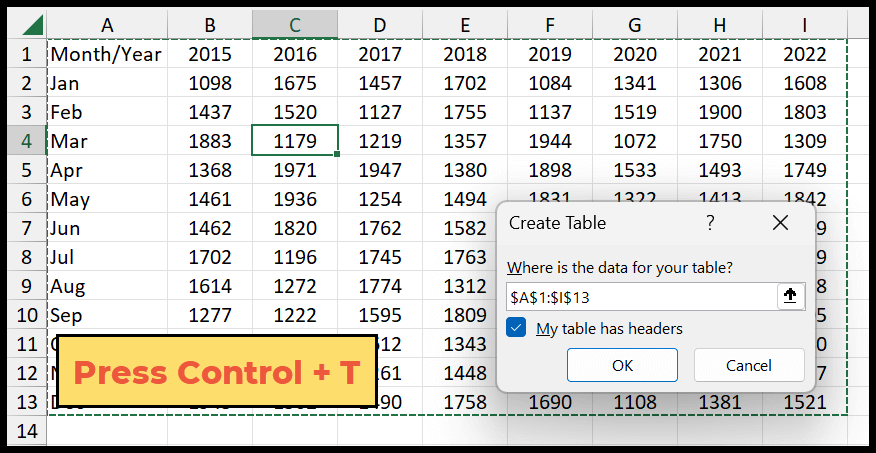
- Next, go to the Table tab, and tick-mark the Total Row checkbox.
- Here you have a total row at the bottom of the table where you have a total only for the last column.
- Now you need to select the sum for each cell of the total row to get the sum of each column.
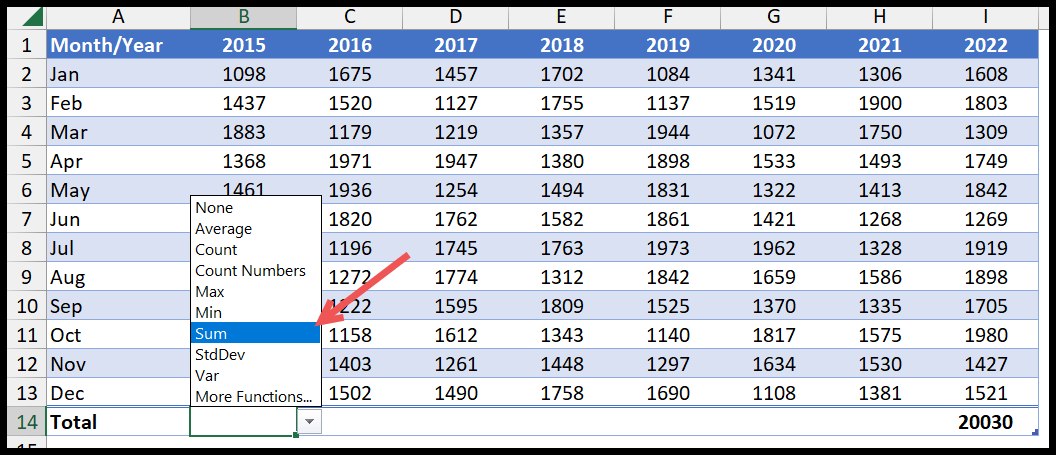
- Once you select SUM from the drop-down for each of the columns that you have on the table, you will have a total row.
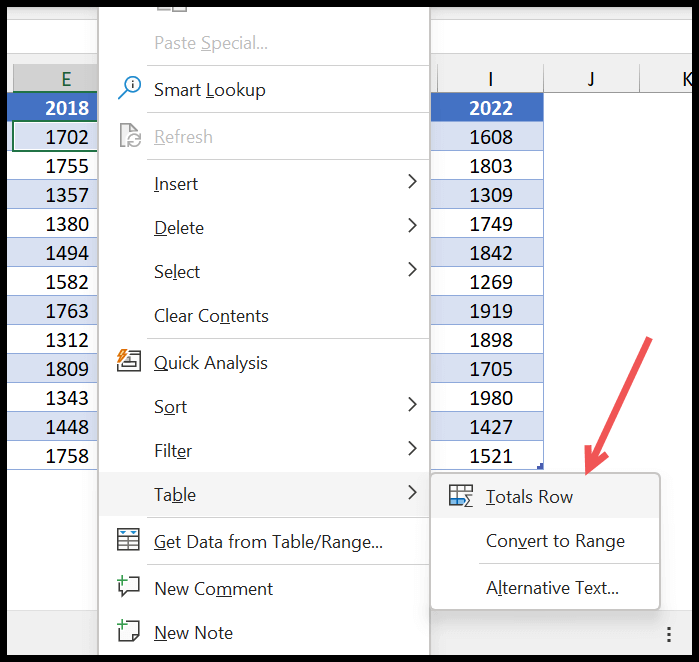
- Once you apply the table to the data, you can right-click on it, then go to the table, and click on the total row from there.
Add a Total Row with the Auto Sum
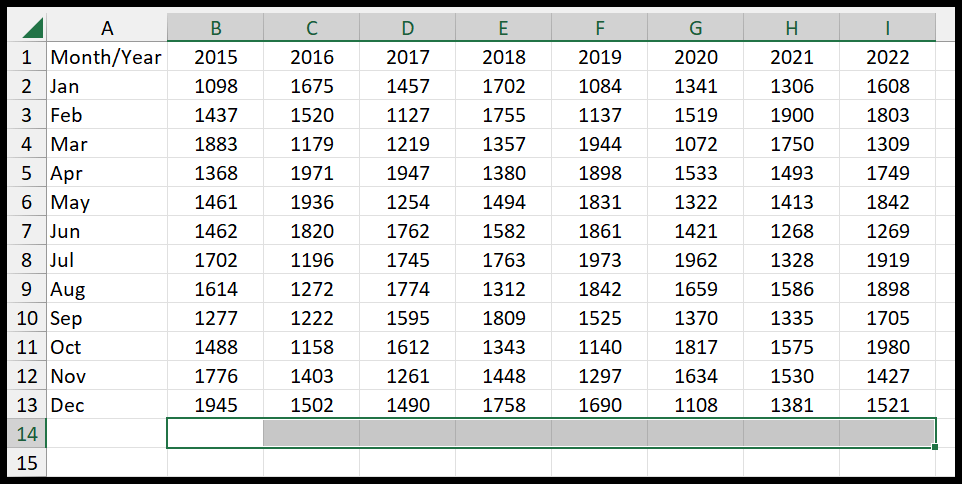
- First, select the row after the last row of the data.
- After that, press that keyboard shortcut Alt + = (AutoSum) to add the sum function in all the cells in the row to make it a total row for the data.
Apart from this, once you select the bottom row, you can go to the Home Tab, Editing Group, and click on the auto sum button to add the sum function in all the cells.
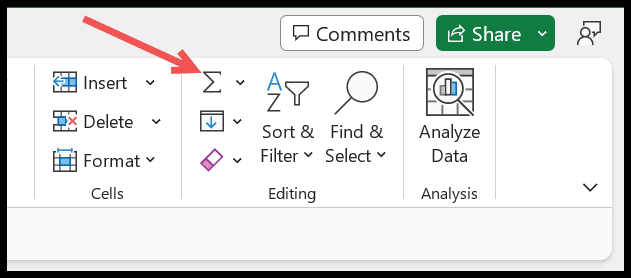
The moment you click on the auto sum button, you get the total values in the row selected.
Written by
Puneet Gogia
Microsoft MVP — Excel · Founder, Excel Champs
Twelve years of teaching Excel, and a decade before that using it as a data analyst. Every tutorial here is written from a file I actually built.