

· Last updated June 2026 · Tested in Excel for Microsoft 365
In Excel, the best way to round numbers is to use the ROUND function. You need to specify the number you want to round and then the number of digits to the right of the decimal point. For example, to round a number to the nearest 1000, 100, or 10, use -3, -2, & -1, respectively.
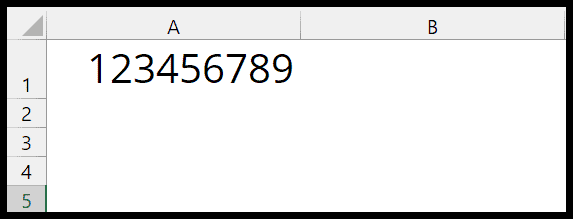
A1 = 123456789
Goal | Formula | Result |
|---|---|---|
NearestNearest 1000 | =ROUND(A1,-3) | 123457000 |
NearestNearest 100 | =ROUND(A1,-2) | 123456800 |
NearestNearest 10 | =ROUND(A1,-1) | 123456790 |
DownRound down to 1000 | =ROUNDDOWN(A1,-3) | 123456000 |
UpRound up to 1000 | =ROUNDUP(A1,-3) | 123457000 |
NearestNearest multiple | =MROUND(A1,1000) | 123457000 |
NearestAny multiple (no MROUND) | =ROUND(A1/1000,0)*1000 | 123457000 |
DownDown to a multiple | =FLOOR(A1,1000) | 123456000 |
UpUp to a multiple | =CEILING(A1,1000) | 123457000 |

Round a Number to the Nearest 1000, 100, 10 with the ROUND Function
In Excel, there’s a function called ROUND that you can use to round a number to the nearest 1000. The ROUND function is useful when you want to round large numbers for simplification, especially in financial summaries, dashboards, or inventory reports. Here I have the number “123456789”, and I want to round it.
You can use the following steps.
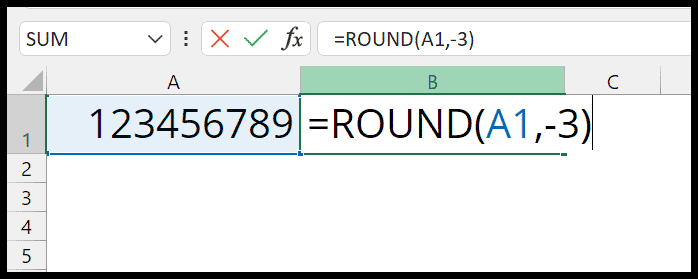
- First, edit cell B1 and start entering the ROUND function “=ROUND(“.
- Now, refer to cell A1, where we have the number that you want to round.
- Next, in the second argument, enter -3.
- In the end, enter the closing parenthesis and hit Enter to get the result.
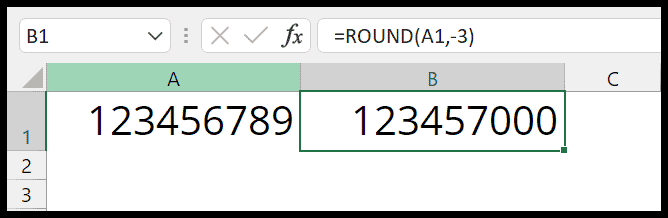
The moment you hit Enter, it returns 123457000, which is then rounded to the 1000 version of 123456789. As you have the last four numbers 6789, it has rounded to 7000.
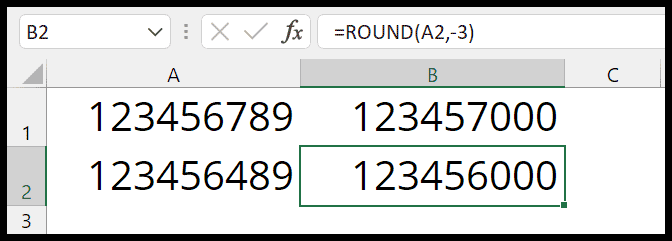
But if you change that number to 123456489, with 6489 at the end, the same function rounds it down to 123456000.
The ROUND function is quite smart at identifying which side the number needs to be rounded to. But there might be a situation where you need to ROUND a number down or up to the nearest 1000.
In the same way, you can use the ROUND function to round a number to the nearest 100. For this, you just need to use -2 in the num_digit argument.
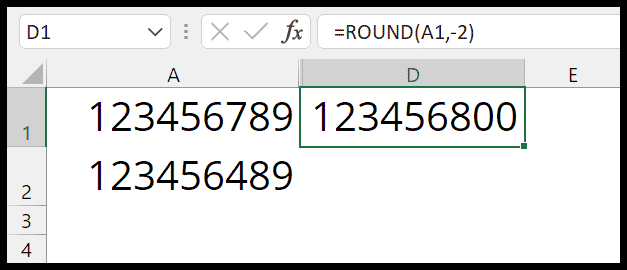
And if you want to round a number to the nearest 10, use the ROUND function as follows.
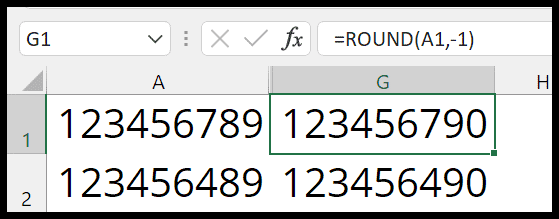
Rounded to the nearest 100.
ROUND function in Excel, you need to remember one thing: in the num_digits argument, negative values always round to the left of the decimal (number part), while positive values are rounded to the right (decimal part). When rounding a number to the nearest 1000, 100, or 10, you always need to specify a negative number as -3, -2, or -1.
Round a Number to Nearest Nth Value
Let me ask: do you want to write a formula that rounds to the nearest Nth value? Isn’t this great?
Here’s a formula that rounds a number to the nearest specified multiple using Excel’s MROUND function.
For example, if you want to round 123456789 to the nearest 100, you would enter the following formula in a cell:
This returns 123456800. And to round to the nearest 1000, you would use:
Different Approach with ROUND and Basic Formula
You can also use basic arithmetic with ROUND to write a formula that allows you to use any multiple to get the number. This formula is perfect if MROUND isn’t suitable (e.g., it’s not available in your version of Excel).
Other Methods to Round a Number to the Nearest 1000
There are a few more ways that you can use it:
- FLOOR Function: FLOOR(123456789,1000) = 123456000
- In this function, you need to use a positive 1000 to round a positive number and a negative -1000 to round a negative number.
- CEILING Function: CEILING(C1,1000) = 123457000
- In this function, you need to use a positive 1000 to round a positive number and a negative -1000 to round a negative number.
Written by
Puneet Gogia
Microsoft MVP — Excel · Founder, Excel Champs
Twelve years of teaching Excel, and a decade before that using it as a data analyst. Every tutorial here is written from a file I actually built.