

To add a space between two values, join them with the ampersand and a space in quotes: =A1&" "&B1. For more than one space, use REPT to repeat it — =A1&REPT(" ",20)&B1 puts twenty spaces between the two values.
To combine a whole range with a space between each item, TEXTJOIN is quicker than chaining ampersands: =TEXTJOIN(" ",TRUE,A1:A5), where TRUE tells it to skip blank cells.
Two things worth knowing: extra spaces added with REPT will look uneven unless the cell uses a monospaced font, and if you’re adding spaces to line values up in a column, column width or indent is the better fix.
To add a space inside existing text — say between a number and a unit — use SUBSTITUTE or REGEXREPLACE instead: =REGEXREPLACE(A1,"(d)([A-Za-z])","$1 $2") puts a space between digits and letters.
When you combine two values in a single cell, it is usually required to add a space between those values. Even sometimes, you need to add more than one space. This tutorial will help you write a formula to add space or multiple spaces in Excel.
Add a Single Space
- First, enter (=) in a cell.
- Refer to the cell with the first value and type an ampersand (&).
- Type (““) to specify the space to add.
- Now, refer to the cell with the second value and type an ampersand (&).
- In the end, hit enter to get the result.

The moment you hit enter, you will get both values in a single cell with a space in between.
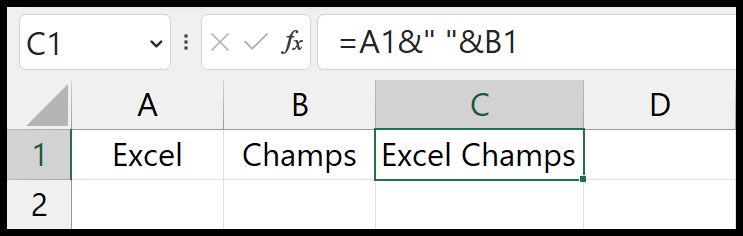
=A1&" "&B1Add Multiple Spaces
Now if you want to add more than one space between two values, in this case, you can use the REPT function.
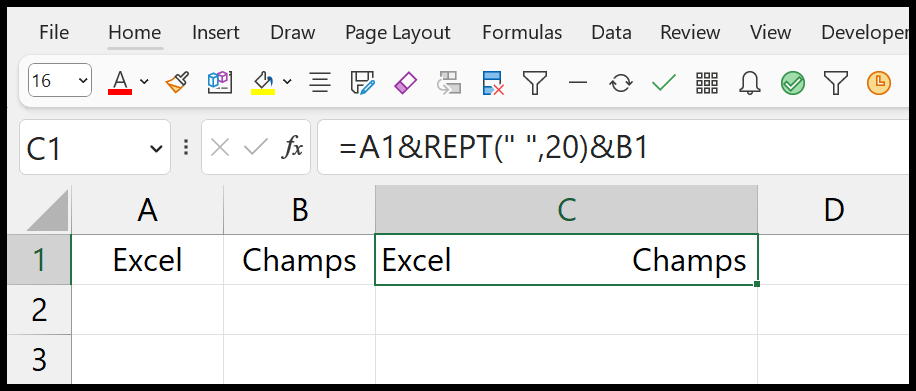
Instead of using a single space in this formula, we have used the REPT. And in the REPT, we have specified the space and the number.
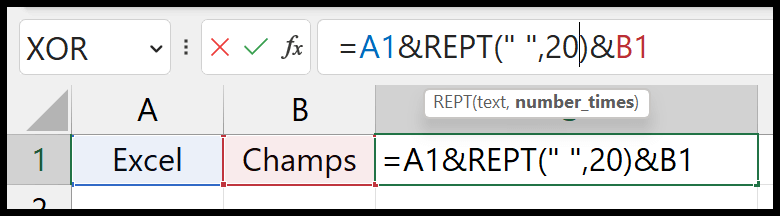
As you can see, we have 20 for the number_times argument, which tells the function to return 20 spaces between both words.
=A1&REPT(" ",20)&B1Add Multiple Spaces for Multiple Value
If you have multiple values and want to add a space between each of the values while combining, you can use the TEXTJOIN function.
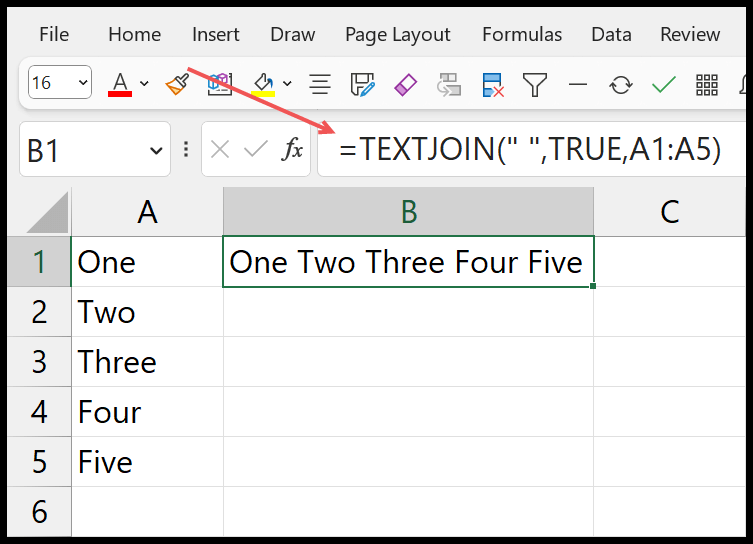
In TEXTJOIN, you need to specify the delimiter which will add between each value, and here we have a space. After that, TRUE to ignore the blank cell, and in the end, range to get the values.
=TEXTJOIN(" ",TRUE,A1:A5)
Thank you!