

Backstage view is the full-screen menu you get when you click the File tab or press Alt → F. It holds the commands that act on the whole file, such as Info, New, Open, Save As, Print, Share, Export and Options. Press Esc or click the back arrow to return to the sheet.
Several shortcuts open a Backstage page directly: Ctrl + O for Open, Ctrl + P for Print and Alt → F → T for Excel Options. F12 skips Backstage and opens the classic Save As dialog.
The Info page is the one to know. Protect Workbook adds a password or marks the file as final, Check for Issues → Inspect Document removes hidden data and personal details before you share, and Manage Workbook → Recover Unsaved Workbooks brings back files closed without saving.
If Options or Account is missing from the left-hand list, the window is too short to show them all. Click More… at the bottom of the list.
Many Excel users who have been using Excel for years might not know it has a backstage view. It is better known as the File tab options. It is the area where you manage your workbooks and settings. You also see the Backstage view when you open the Excel application without opening a file directly: it is the first view you get when you open Excel.
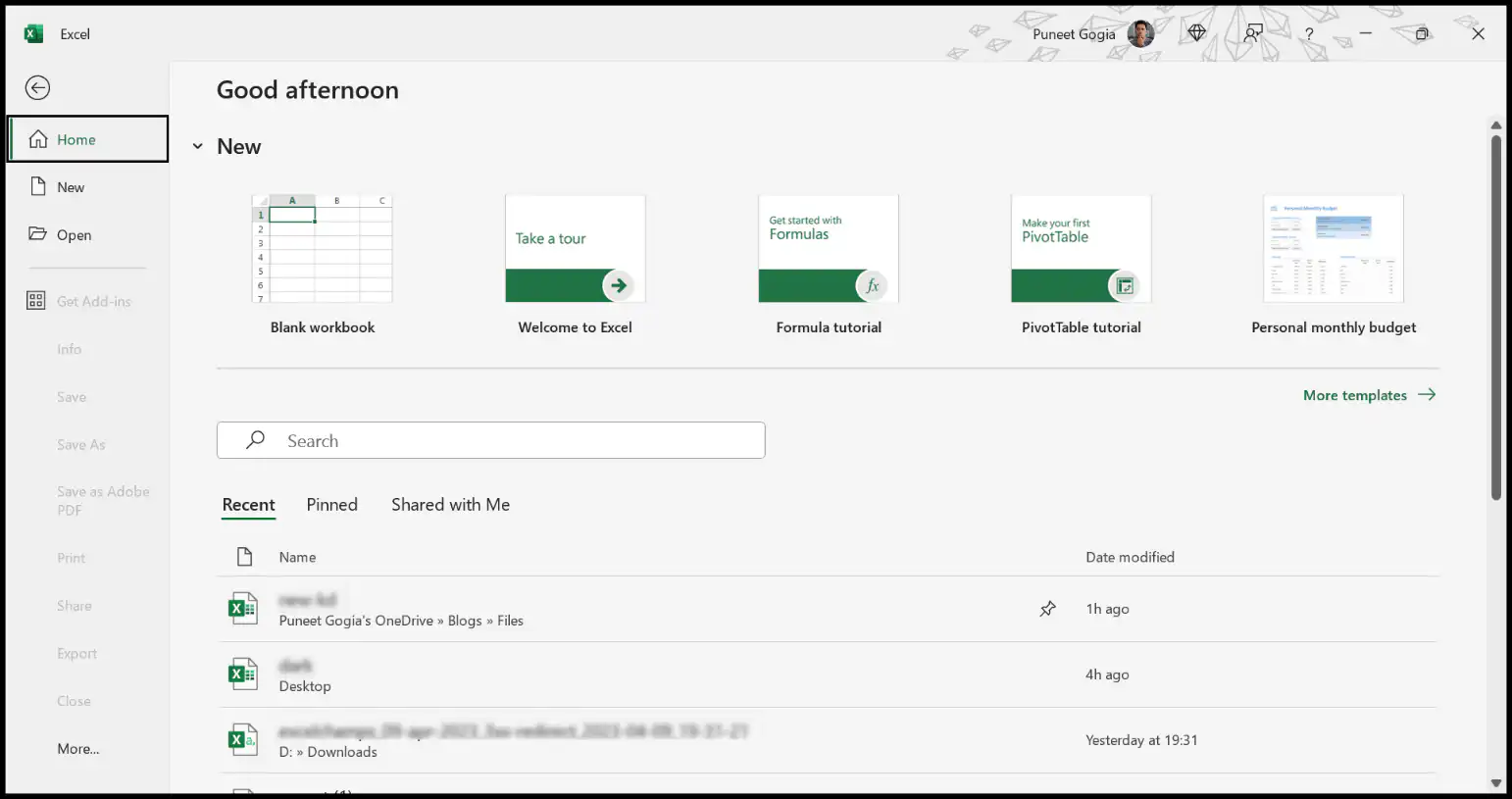
You can see in the above screenshot that this window has the options to start working in Excel. It’s called the Backstage view because it stays behind the worksheet while you work. To open it while working, you need to click on the File tab in your Excel window.
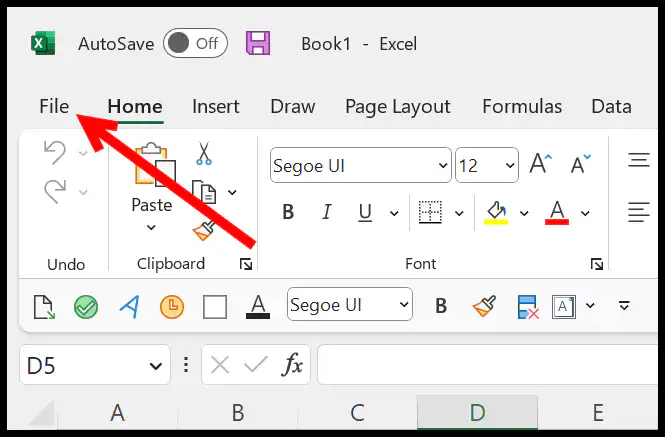
Simply put, this view of Excel stays at the back, and you need to go to it from the File tab.
If you are using Excel on a Mac, there’s no Backstage view. Instead, you use the File menu in the menu bar at the top of the screen to open, save, share and print workbooks, and Excel ➜ Preferences for the settings. When you open Excel without a file, you get a start window to pick a blank workbook, a template or a recent file.
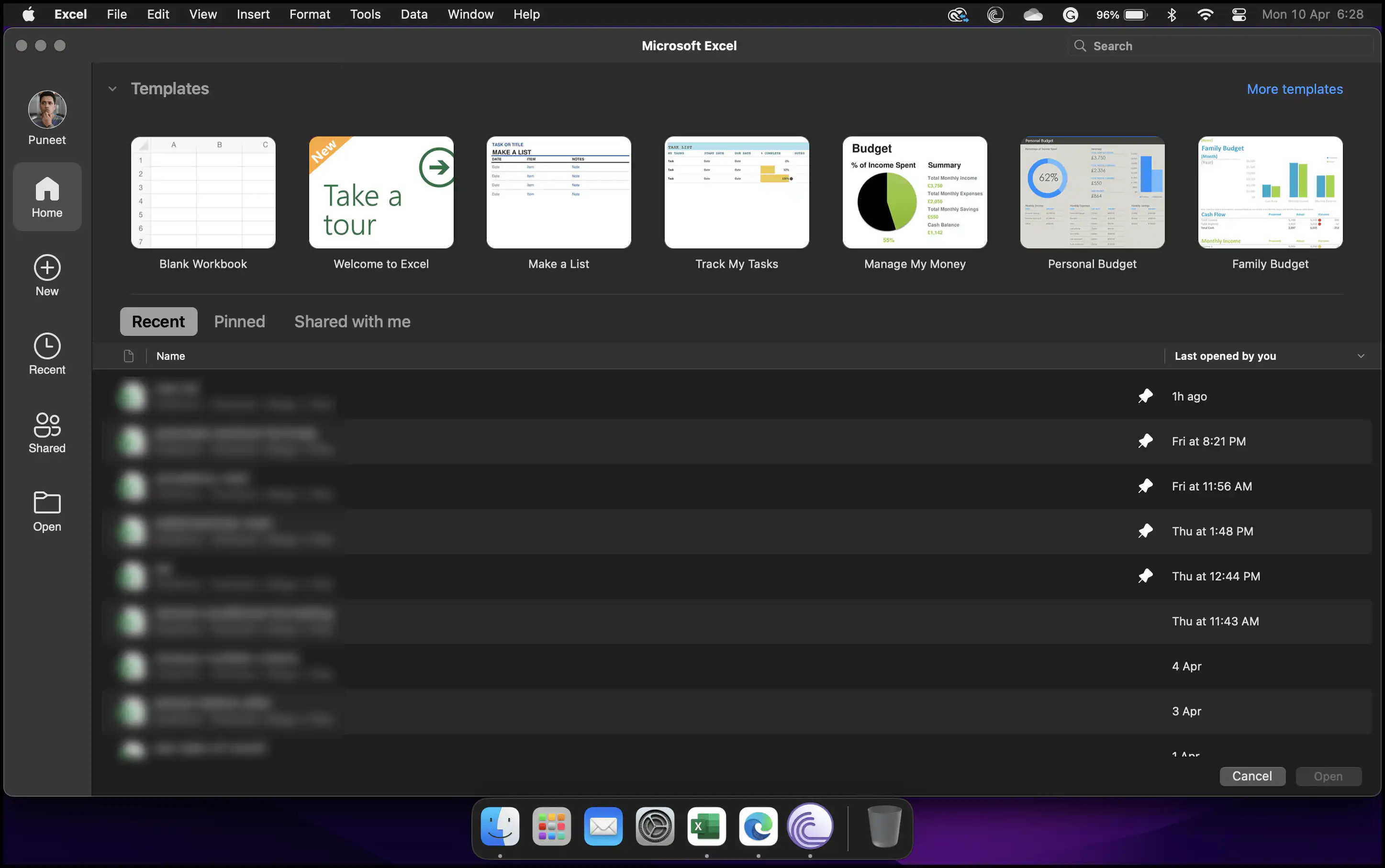
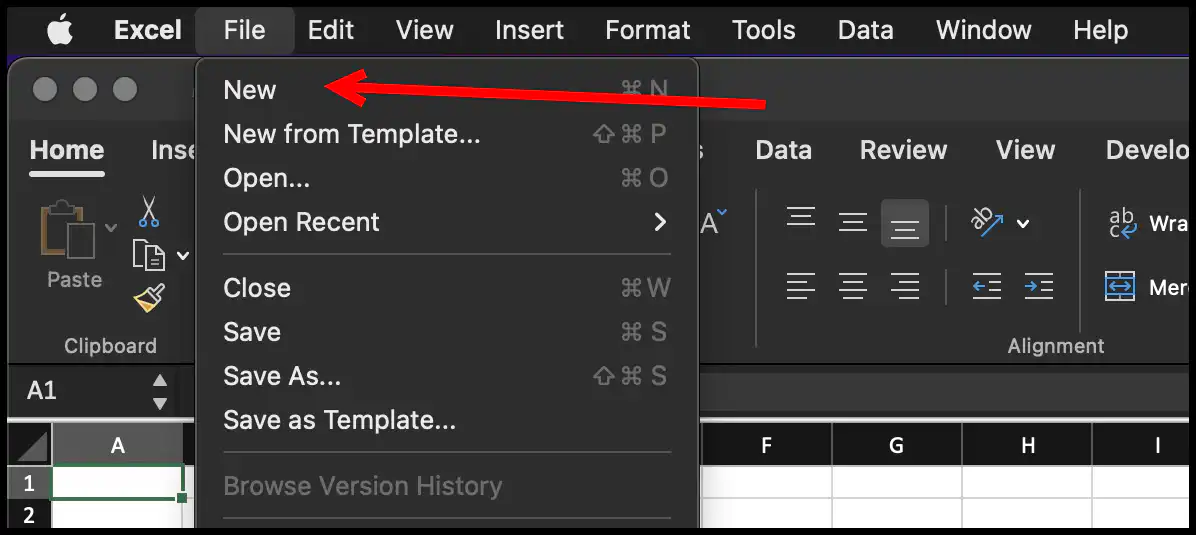
And if you want to open that start window again on a Mac, go to File ➜ New from Template (Shift + Command + P).
Keyboard Shortcut
If you are working in Excel and you want to open the Backstage view, you can use the keyboard shortcut: Alt + F
Close the Backstage View
To close the Backstage view, you just need to press the Esc key on your keyboard, or you can click on the back arrow at the top-left of the window.

Option Available on Backstage View
You might be using it less than other options, but the Backstage view, or the File tab, has many options you can use while working in Excel. It is where you can access the Excel Options or Preferences.
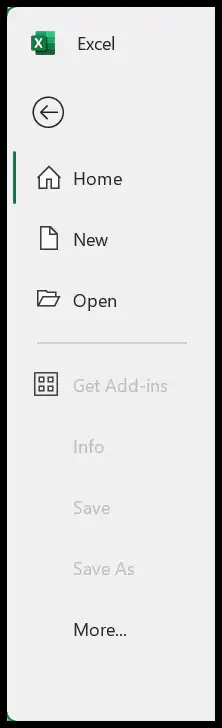
- Info: This shows you information about the current workbook, including properties, permissions, and version history. It also has Protect Workbook, Inspect Workbook and Manage Workbook (to recover unsaved versions).
- New: This option allows you to open a new blank workbook, or you can use one of the available templates to create a new workbook.
- Open: From here, you can open recent workbooks, browse for files on your computer, or access files from locations like OneDrive.
- Save: Saves the current workbook. If it’s a new workbook, it will ask you for a location and file name. Next to it, you have Save As (or Save a Copy for files on OneDrive) to save the workbook with another name, place or format.
- Print: From here, you can open the print preview and then use all the available options for printing your worksheet or the entire workbook.
- Share: This allows you to share your workbook with others through the cloud (OneDrive), by email, or as a PDF file.
- Export: Here you have an option to save your file in PDF or XPS format, or change the file type. This is also a quick way to convert your workbook to a PDF.
- Publish: It has options if you want to publish your workbook to Power BI and share it with other users there.
- More: To open the Excel Options, Account information and Feedback. On a larger screen, these show directly at the bottom of the list, along with Close.
Options That are Super Useful
The above options will remain even if you haven’t opened a workbook. But once you open the workbook, you will get more options.
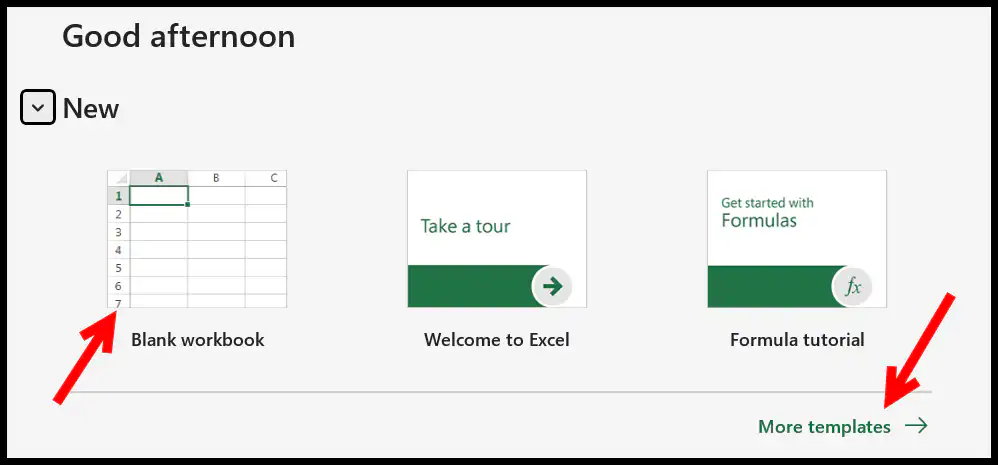
You can open a new blank workbook at the top of the window. You can also use some predefined templates that are available in Excel.
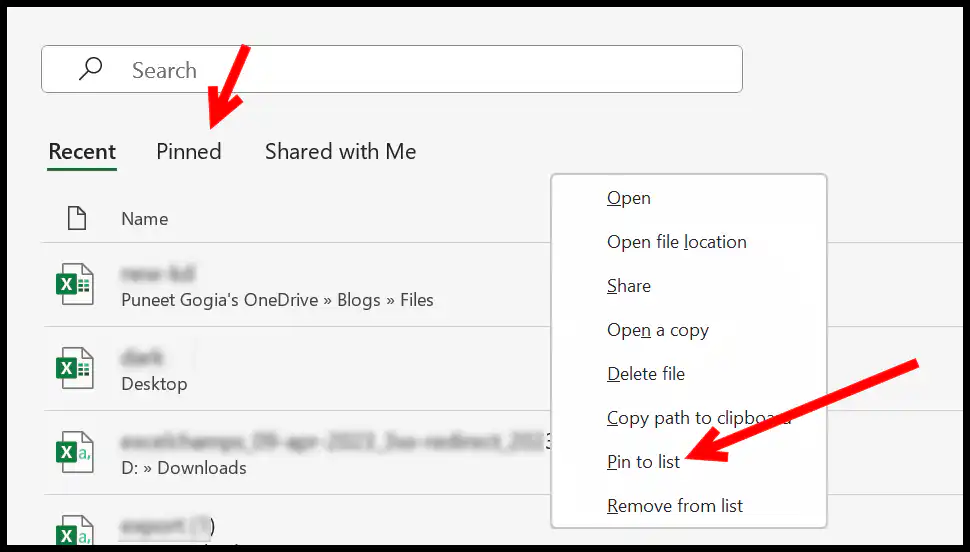
The “Recent” section helps you quickly find and open recently opened files. You can click the File tab and then select Open. You’ll see a list of your recently used workbooks.

You can also pin important files to this list by clicking the pushpin icon next to the file name. This way, they stay at the top so you can open them in a single click.
If you want to remove a file from the list, right-click on it and choose Remove from list.
To save files to OneDrive, open the workbook you want to save, then click the File tab to enter the Backstage view. Select Save As, choose OneDrive from the list of locations, and then pick your OneDrive.
Browse to the folder where you want to save the file or create a new folder, enter a name for your file, and click Save.
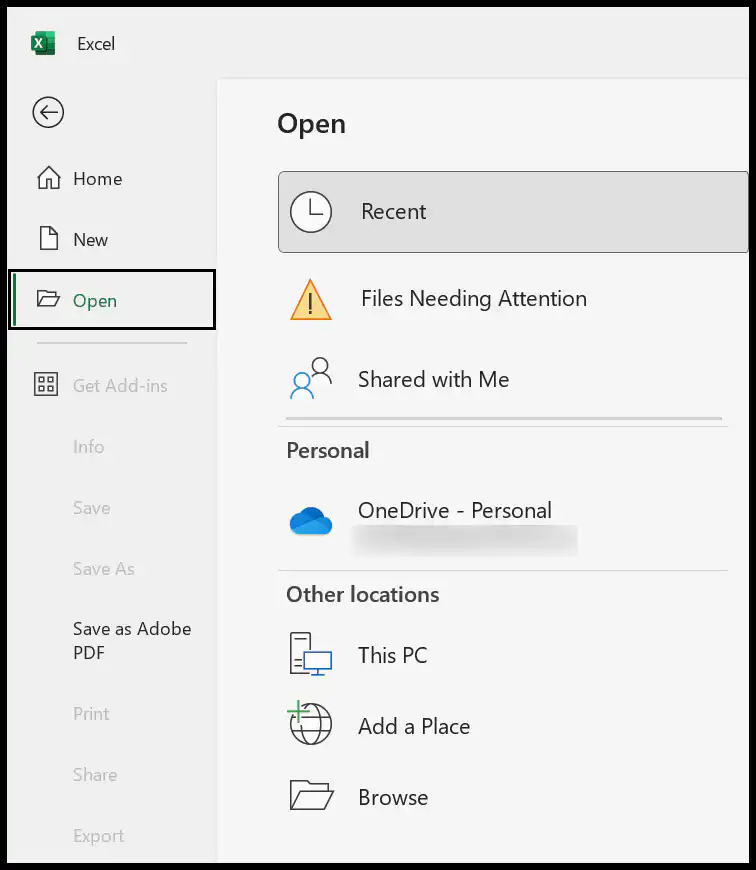
And when you save a file to OneDrive, it turns on AutoSave (which you can turn off if you want) so the changes you make are saved automatically.
From the Backstage view, you can also open File ➜ Options ➜ Save, where the Cache Settings have a Delete cached files button that helps you to clear the cache of the Excel application.
Turn Off the Start Screen
If you don’t want to see the start screen every time you open Excel and would rather go straight to a blank workbook, go to File ➜ Options ➜ General and untick Show the Start screen when this application starts. Click OK, and the next time you open Excel, it opens a blank workbook directly.
Frequently Asked Questions
Why is it called the Backstage view?
Because it shows everything you do to the file (open, save, print, share and settings), while the ribbon shows what you do inside the file. Like a theatre’s backstage, it’s the area behind the main stage.
How do I get back to my worksheet from the Backstage view?
Press Esc or click the back arrow at the top-left of the window.
Is the Backstage view available in Excel for the web?
Yes. In Excel for the web, the File tab opens a similar view with New, Open, Info, Save As, Print, Share and Options, though it has fewer options than the desktop app.

Written by
Puneet Gogia
Microsoft MVP — Excel · Founder, Excel Champs
Twelve years of teaching Excel, and a decade before that using it as a data analyst. Every tutorial here is written from a file I actually built.