

To look up data on another sheet, put the sheet name and an exclamation mark before the range: =VLOOKUP(A2,Sheet2!A2:B100,2,0). Everything else works exactly as it does on one sheet — the sheet reference is the only difference.
The easiest way to write it is to start the formula, then click the other sheet’s tab and drag over the range with the mouse; Excel inserts the reference for you. If the sheet name contains a space or a character like &, Excel wraps it in single quotes automatically: ='Sales Data’!A2:B100.
Two things to lock down. Use absolute references on the table (Sheet2!$A$2:$B$100) before dragging the formula down, or the range shifts row by row and rows drop off the bottom.
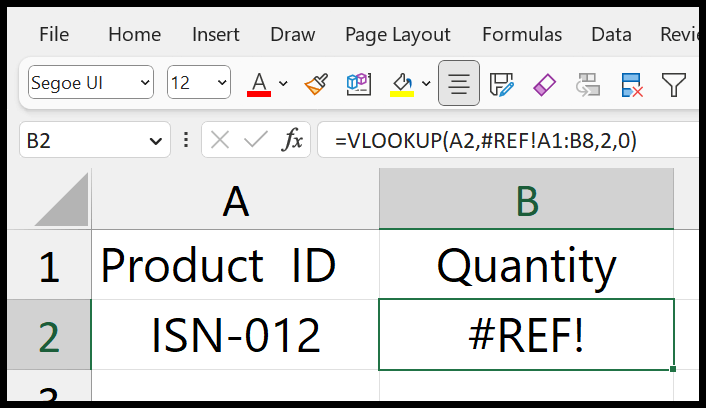
And Excel updates the sheet name in your formulas automatically if you rename the tab, but deleting the sheet gives you #REF! with no way to undo it — so consider converting the source to an Excel Table or a named range. For a different workbook, the same idea applies with the file name in square brackets: =VLOOKUP(A2,'[Data.xlsx]Sheet2'!$A$2:$B$100,2,0).
When you want to find a value from the data in another sheet, you can use VLOOKUP. And this tutorial explains it with an easy-to-follow example.

You can use the below steps to write this formula:
- First, enter VLOOKUP in a cell, and the lookup_value argument refers to the cell where you have the lookup value.
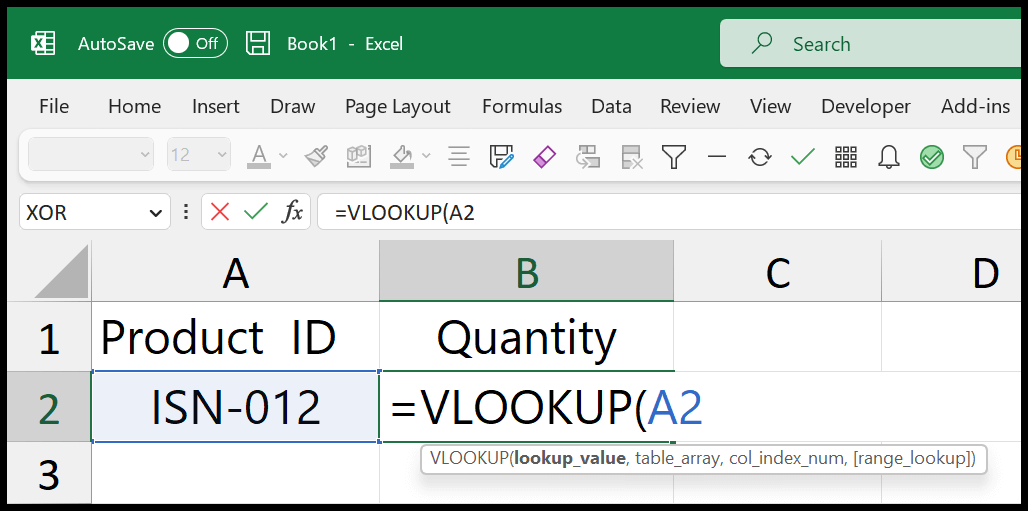
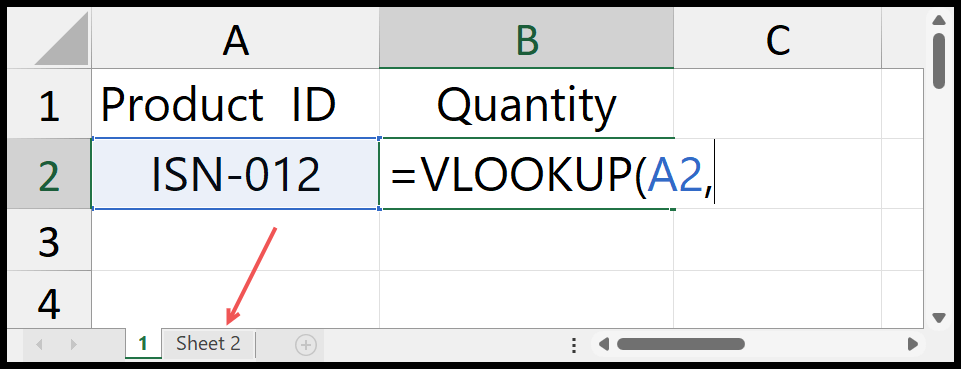
- After that, enter a comma and click “Sheet 2” to open it.
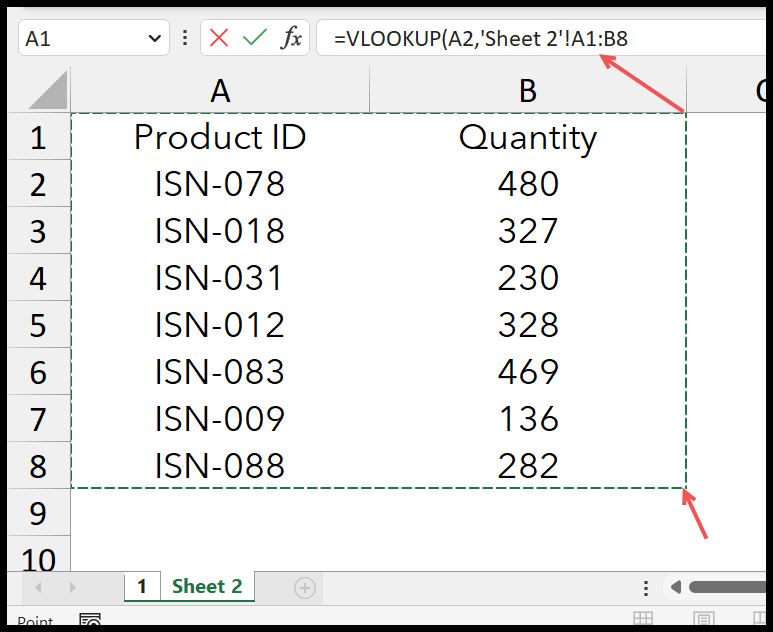
- Now, in “Sheet 2”, select the table where you have the Product ID and Quantity.
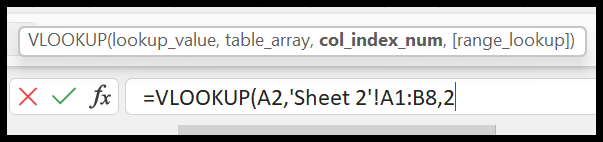
- Next, again enter a comma and specify 2 in the col_index_num argument.
- From here, in the [range_lookup], enter 0 or FALSE for an exact match lookup.
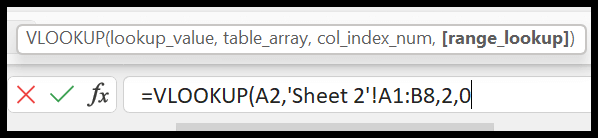
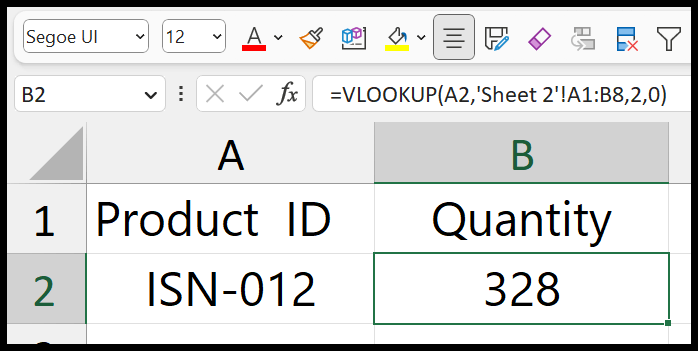
- In the end, close the function and hit enter to get the result in the cell in the sheet “1”.
Important Notes
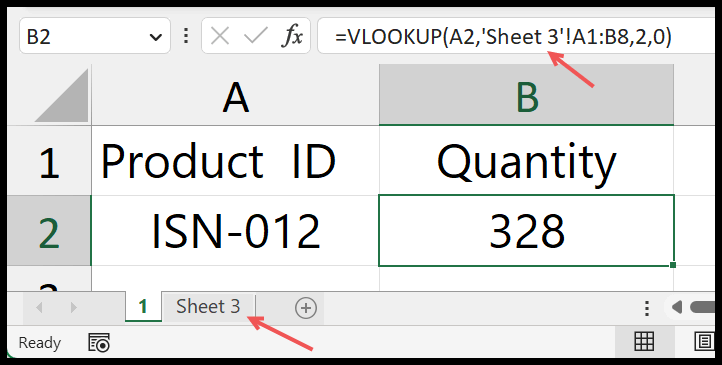
If you change the name of the sheet where you have the data, Excel is also smart enough to change it in your formula.
So, you don’t need to worry before changing the name of the sheets.
But you must ensure that once you delete the datasheet, your formula will show the #REF! Error in the result.
And there’s no way to undo the deletion of a sheet.
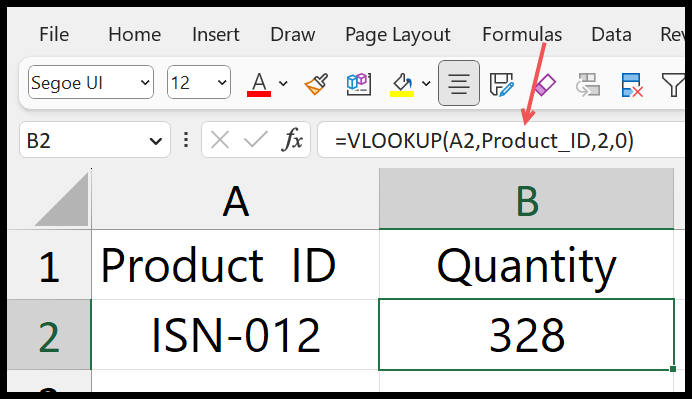
You can also turn the data from another sheet into a named range and refer to it in the VLOOKUP.
With this, you don’t need to open the second sheet while writing the formula. Instead, you can enter the named range, and Excel will refer to the data.
Written by
Puneet Gogia
Microsoft MVP — Excel · Founder, Excel Champs
Twelve years of teaching Excel, and a decade before that using it as a data analyst. Every tutorial here is written from a file I actually built.