

#N/A means “not available” — a lookup function searched for a value and didn’t find it. To replace it with your own message, wrap the formula in IFNA: =IFNA(VLOOKUP(A2,D:E,2,0),"Not found"). IFERROR does the same but catches every error type, so it will also hide a broken reference or a wrong column number — use IFNA when you only want to trap genuine misses.
Before hiding it, though, check why the match failed, because three causes account for nearly all of them. A trailing space in either the lookup value or the list (=TRIM(A2) to test). A number stored as text on one side and a real number on the other — they look identical but never match.
Or the fourth argument left out or set to TRUE, which does an approximate match and needs sorted data. In Excel 365, XLOOKUP has this built in as its fourth argument: =XLOOKUP(A2,D:D,E:E,"Not found").
And note that #N/A is sometimes deliberate — entering =NA() in a chart’s source data makes the line skip that point instead of dropping to zero.
There are two situations when you are dealing with #N/A:
- You don’t want to have the #N/A error.
- You don’t want to show it to the user.
This tutorial will help you to deal with these situations.
#N/A Error – What Does it Mean?
As its name says, “Not Available”. In Excel, when looking for a value by using lookup functions and that value is not in the list or the range, your formula will likely return the result as an #N/A error.

When You Get the #N/A?
In the above example, we have used the VLOOKUP to look up the value 7 in column A. But as you can see, “7” is not in the range, and the formula returns #N/A in the result.
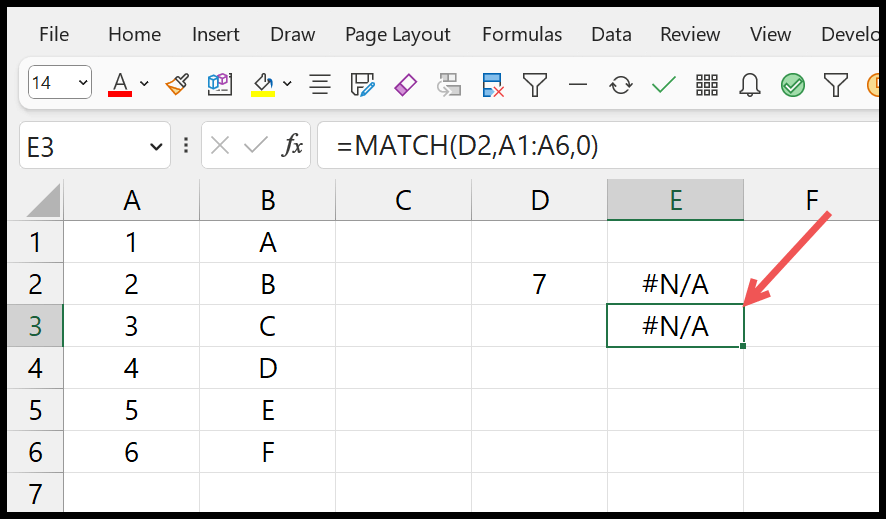
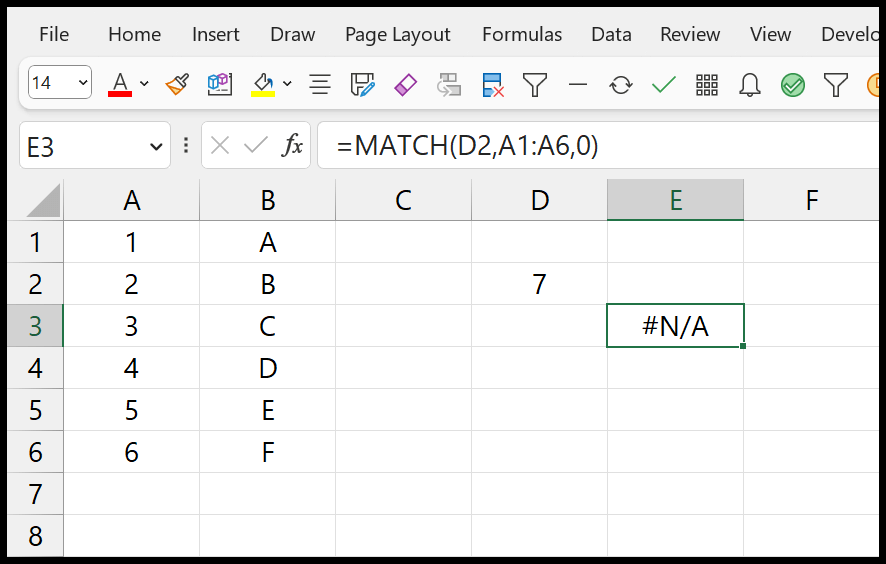
In the same way, when you use the MATCH function and try to get a match for “7”, the formula returns #N/A in the result.
In addition, if you use another LOOKUP formula, such as HLOOKUP, LOOKUP, and INDEX + MATCH, you will also get the same error.
Note: With the XLOOKUP, you have an inbuild argument that allows you to define the values to get if the value you are looking for is not in the lookup range.
[thrive_leads id=’112075′]How to Deal with #N/A?
There are two specific functions that you can use.
IFNA: Only for #N/A Error
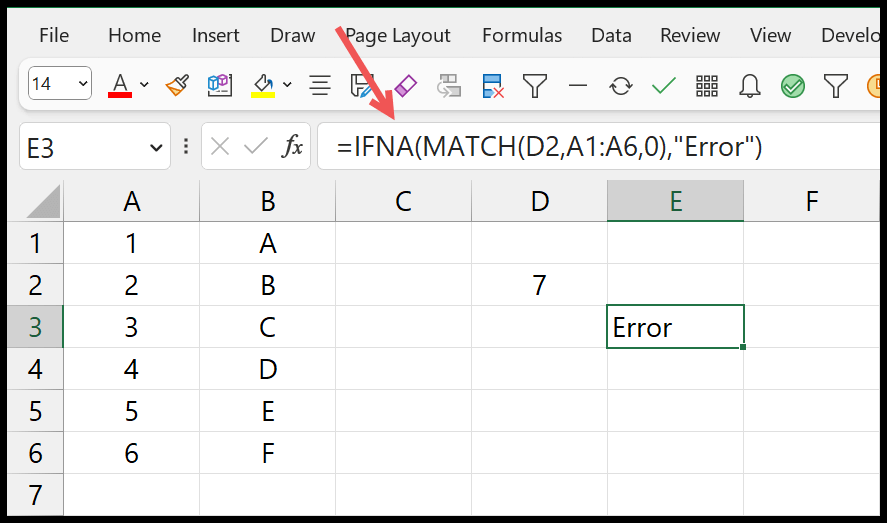
In the example below, we used the MATCH by wrapping it with the IFNA. In the IFNA, the first argument used the MATCH function and a value to return if MATCH returns the #N/A.
IFERROR: For all Errors
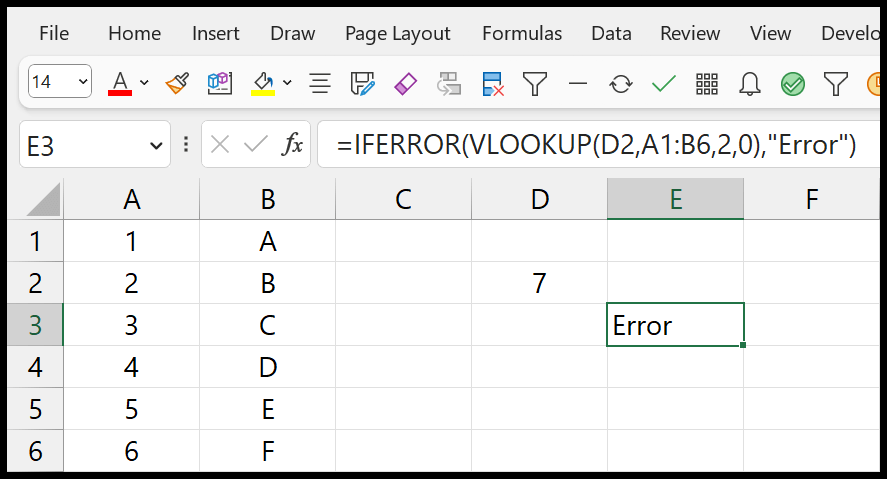
In the below example, we have also used IFERROR with VLOOKUP. We have wrapped VLOOKUP with IFERROR and specified the value to return if the result has an error.
Other Points to Remember
- It’s better to verify the value you are looking for with any lookup function. If you have a misspelled value, but the correct value is there, it will be hard for you to know this.
- Sometimes, you can get the #N/A error when the values you are looking for are in a different format than the ones you have in the lookup range. For example, if you are looking for a number but that number is saved as a text in the lookup range, you will still get the #N/A error.
- Having extra spaces in the lookup value or the values in the lookup table can also result in a #N/A error.
Written by
Puneet Gogia
Microsoft MVP — Excel · Founder, Excel Champs
Twelve years of teaching Excel, and a decade before that using it as a data analyst. Every tutorial here is written from a file I actually built.