

To show numbers with a dollar sign, select the cells and press Ctrl + Shift + $, or choose Currency or Accounting from Home → Number Format. Both use your system’s currency, which is $ in US settings. The value stays a number, so it still adds up and sorts correctly.
If your PC uses another currency, press Ctrl + 1, choose Currency and pick $ English (United States) from the Symbol list, or enter the custom format "$"#,##0.00. Currency puts the $ next to the number; Accounting lines it up at the left edge of the cell.
Avoid adding the $ with a formula such as ="$"&B2 or =TEXT(B2,"$#,##0.00") unless you need it inside a sentence. Both return text, which SUM ignores and which won’t sort as numbers.
If you mean the $ inside a formula like =$A$1*B2, that’s an absolute reference: it locks the column, the row or both when you copy the formula. Click the reference while editing the formula and press F4 to cycle through $A$1, A$1, $A1 and A1.
In Excel, users add the $ dollar sign at the beginning of the value, representing the value as a monetary value. You can also convert standard numeric values into monetary values by adding the $ sign in front of them.
There are multiple ways to add the $ Dollar sign in Excel, like manually adding the $ sign in the cells or changing the cells’ format to currency or accounting format.

This tutorial will show you how to add the $ Dollar sign in the cells in multiple ways.
Add the Dollar Sign by typing the $ Sign
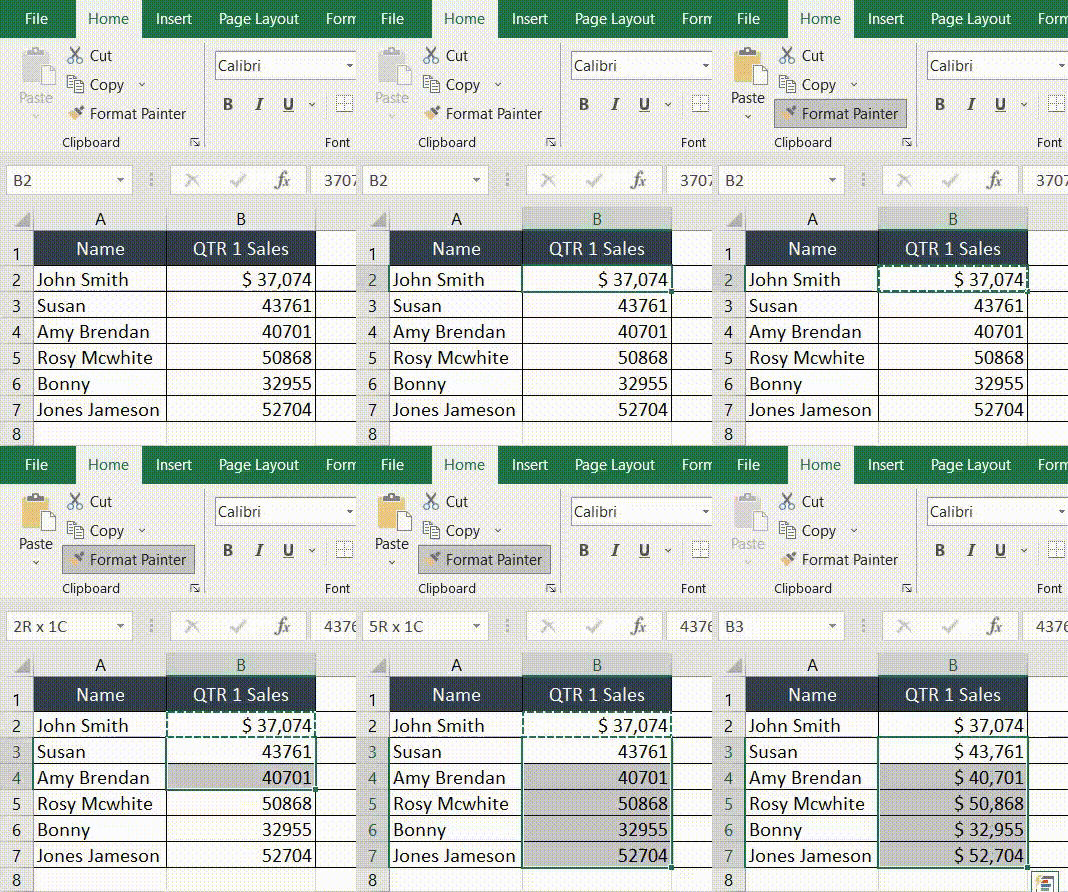
- First, go to the cell and double-click in the cell or press the “F2” key (or “Fn + F2” on some laptops) to put the cell in edit mode.
- After that, move the cursor to the left side in front of the value and press the “Shift + 4” keys together (the $ sign is on the 4 key), and the $ sign will get added in front of the value.

- Once the $ sign is added to the cell, use the Format Painter to copy and paste the formatting into the rest of the cells to auto-add the $ sign into them.
Add Dollar Sign using Concatenate Function
You can use the CONCATENATE function to add the $ sign to the values in the cells by following the below steps:
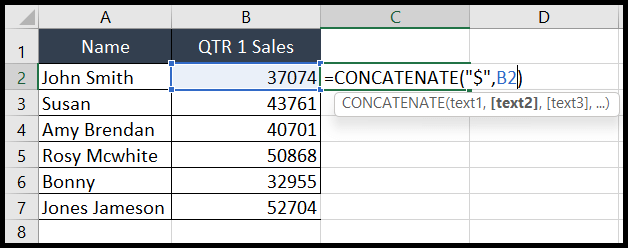
- First, go to the cell and write the “Concatenate” formula.
- In the formula, as shown in the below image, after the open parentheses, enter the dollar sign “$” and enter a comma, then select the cell reference (B2) where you have the value, and then close the parentheses and press Enter.
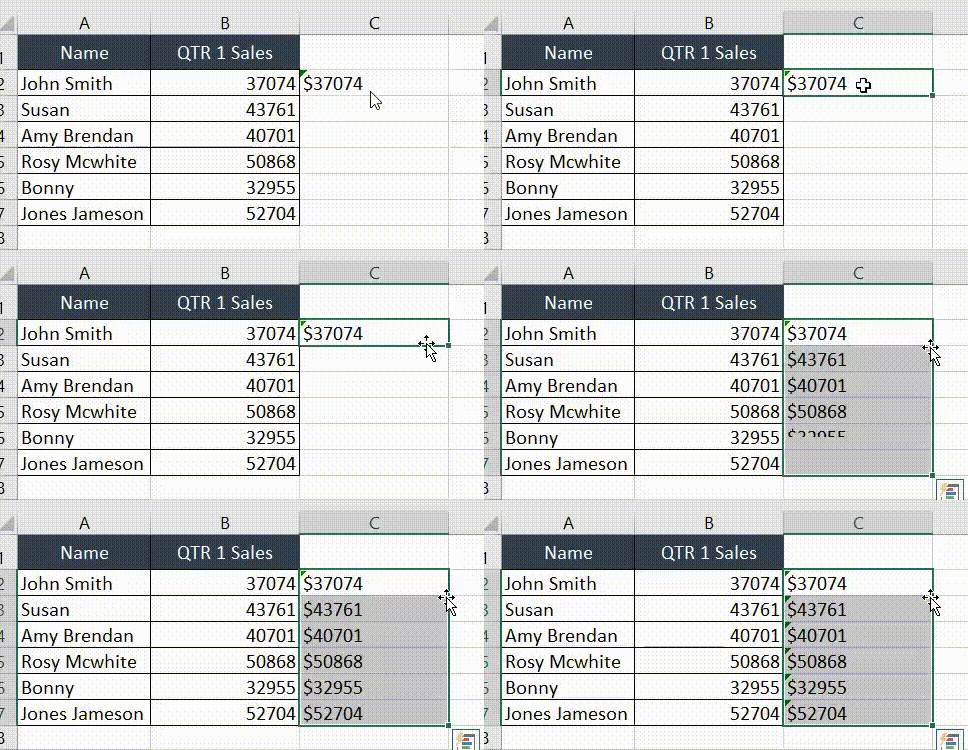
- After that, hover the mouse over the bottom-right corner of the cell, and double-click to copy the formula to the rest of the cells.
- Copy the cells range with the formula and paste special to the cells where you want to have $ sign with values and then convert them to numeric values as shown below in the image.
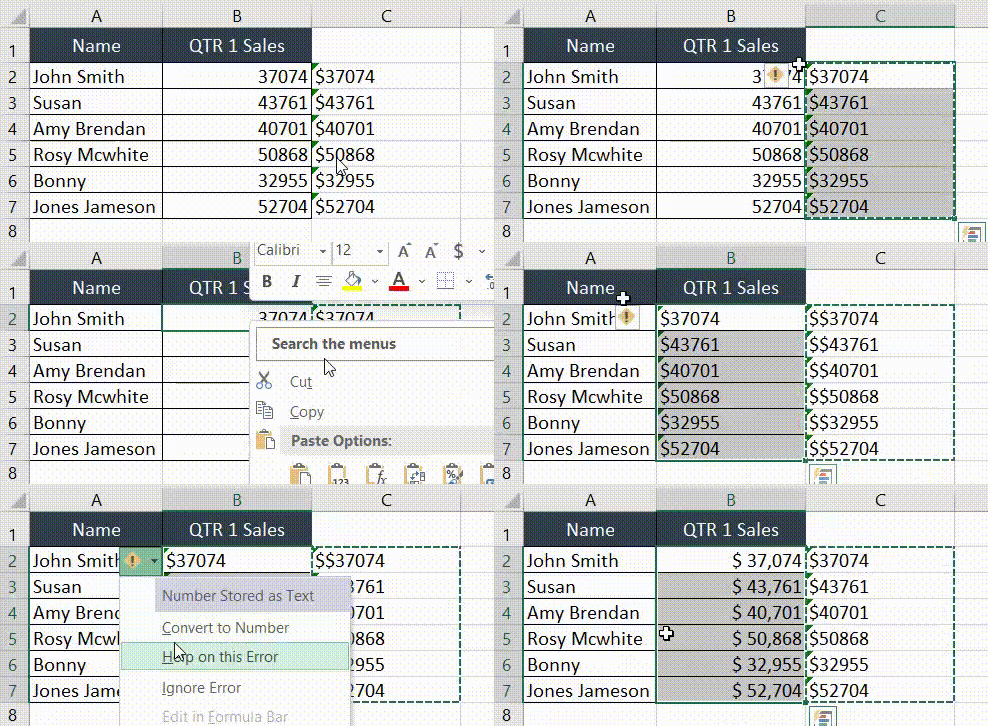
Here’s the formula from the steps. You can also write it with the & operator, like =”$”&B2. Both return the value as text, which is why the last step converts it back to numbers:
=CONCATENATE("$",B2)
Add Dollar Sign using Text Function
You can also use the TEXT function to add the $ sign to the cells by following the below steps:
- First, go to the blank cell and write the “TEXT” formula.
- In the formula, as shown in the below image, after the open parentheses, select the cell reference (B2) where you have the value with which you want to add the $ sign enter a comma, then write “$00” as the format text, close the parentheses and press Enter.
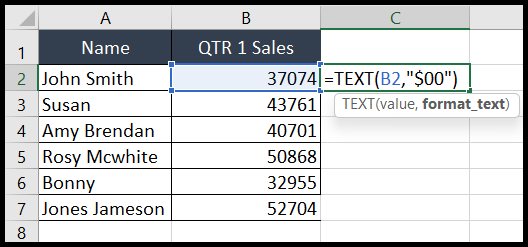
- After that, hover the mouse over the bottom-right corner of the cell, and double-click to copy the formula to the rest of the cells.
- Copy the cells range with the formula and paste special to the cells where you want to have $ sign with values and then convert them to numeric values as shown below in the image.
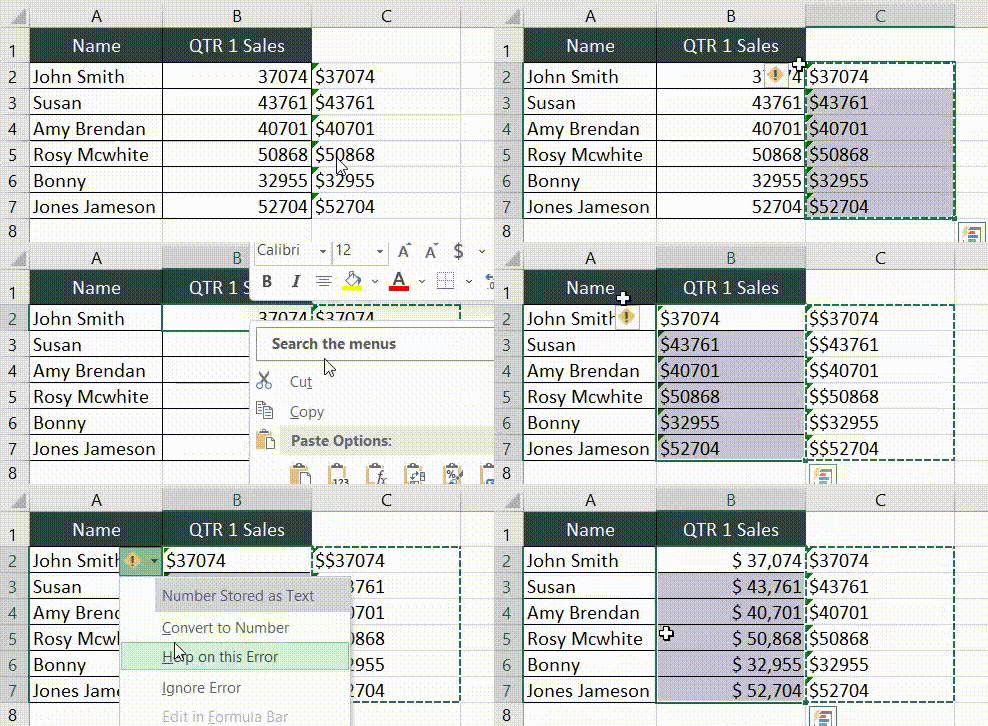
The “$00” format shows at least two digits, so 5 becomes $05, and it drops the decimals. For amounts with a thousands separator and two decimals, use this format instead:
=TEXT(B2,"$#,##0.00")
Add Dollar Sign by Converting the Cells Formatting to Currency or Accounting Format
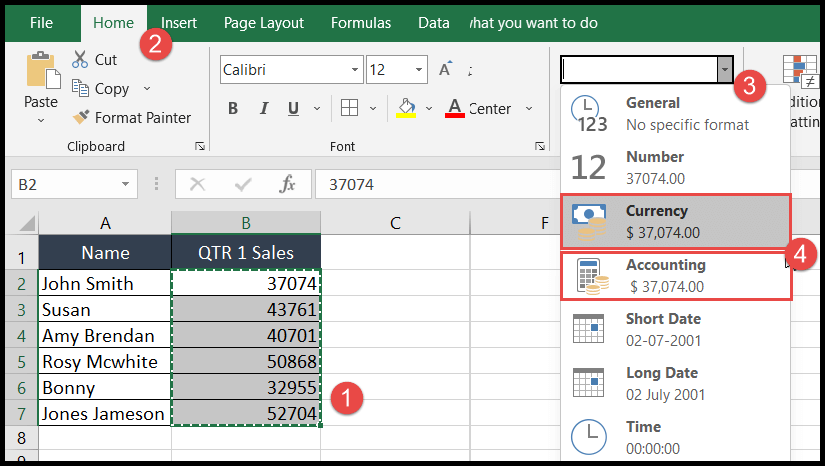
- First, select the cells range and go to the “Home” tab.
- After that, click on the “Number Format” drop-down arrow in the “Number” group and choose the “Currency” or “Accounting” option from the menu.
- Once you choose either of the two formats, it will add a $ sign to the cells in front of the values.
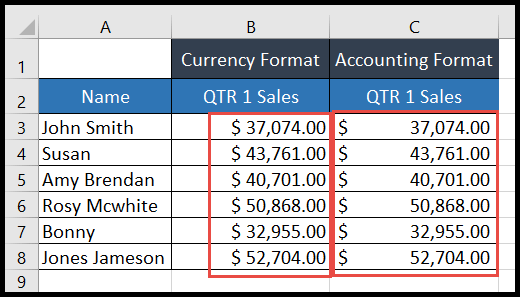
The only difference between the currency and accounting format is that in currency formatting, it places the $ sign at the beginning of the value. In accounting format, it places the $ sign at the extreme left or, you can say, at the beginning of the cell. Accounting format also shows zeros as a dash and negative values in parentheses.
Shortcut to Apply Currency Format to Add Dollar Sign
You can convert the cell formatting to currency formatting using the keyboard shortcut to Currency Format:
Ctrl + Shift + $
It applies the Currency format with two decimal places and shows negative numbers in parentheses. As the value stays a number, you can still use it in calculations, which is the main benefit of formatting over the CONCATENATE and TEXT methods.
Add a Dollar Sign with a Custom Number Format
If you want full control over the look, press Ctrl + 1, go to Number ➜ Custom, and enter a format like $#,##0 (no decimals) or $#,##0.00. The value stays a number, and only the display changes.
Dollar Sign in Excel Formulas
The $ sign has a different job inside a cell reference. In a formula, $A$1 is an absolute reference, which doesn’t change when you copy the formula. $A1 locks only the column, and A$1 locks only the row. Press F4 while the cursor is on a reference to switch between these.
Frequently Asked Questions
Why can’t I sum values with a dollar sign?
They are probably text, made with CONCATENATE or TEXT, or typed with extra characters. SUM ignores text. Use a number format instead, or convert the text with VALUE, like =VALUE(C2).
How do I show a different currency symbol?
In Format Cells (Ctrl + 1) ➜ Currency or Accounting, pick the symbol from the Symbol drop-down. The $ button on the Home tab also has a small arrow with more currencies.
How do I remove the dollar sign?
If it comes from formatting, change the format to Number or General. If it’s text, use Find and Replace (Ctrl + H) to replace $ with nothing, then convert the result to numbers.

Written by
Puneet Gogia
Microsoft MVP — Excel · Founder, Excel Champs
Twelve years of teaching Excel, and a decade before that using it as a data analyst. Every tutorial here is written from a file I actually built.