

Press Windows + R, type excel /safe and press Enter. Excel opens with “Safe Mode” in the title bar.
You can also hold Ctrl while you click the Excel icon or double-click a workbook, then click Yes when Excel asks whether to start in Safe Mode. For a desktop shortcut that always opens in Safe Mode, add a space and /safe after the closing quote in the shortcut’s Target box.
Safe Mode starts Excel without add-ins, without the files in the XLSTART folder (including your Personal Macro Workbook), and without ribbon and toolbar customisations. If Excel works normally in Safe Mode, one of those is causing the problem. Turn add-ins back on one at a time under File ? Options ? Add-ins to find it.
To leave Safe Mode, close Excel and open it again in the usual way. Settings you change while in Safe Mode are not saved.
If Excel opens in Safe Mode on its own, it usually crashed the last time it started and is offering a safer start, or the Ctrl key is stuck. Excel for Mac has no Safe Mode, so turn off add-ins under Tools ? Excel Add-ins instead.
Safe Mode in Excel allows you to start Excel without using some startup programs. It can be beneficial when you need to troubleshoot problems in Excel, such as issues with add-ins or corrupt files.
Starting Excel in Safe Mode bypasses functionality and settings like the alternate startup location, changed toolbars, the xlstart folder, and Excel add-ins.

In this tutorial, we are going to learn all the methods that are available to open the Excel application in Safe Mode.
Steps to Open Excel in Safe Mode
Starting Excel in Safe Mode using the Ctrl key is the quickest way. Here’s how you can do it:
- First, press and hold the Ctrl key.

- Now, while holding the Ctrl key, double-click on the Excel shortcut (or the Excel file) that you want to open in Safe Mode.
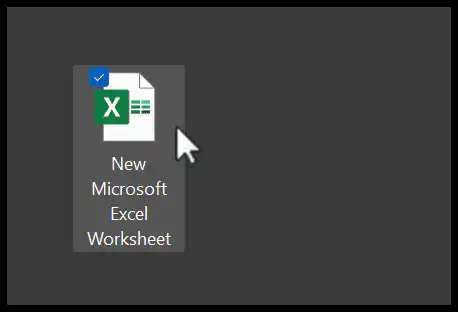
- From here, you’ll get a message from Excel asking if you want to open it in Safe Mode or not. Click Yes.

- In the end, you will have Excel opened in Safe Mode, just like below.
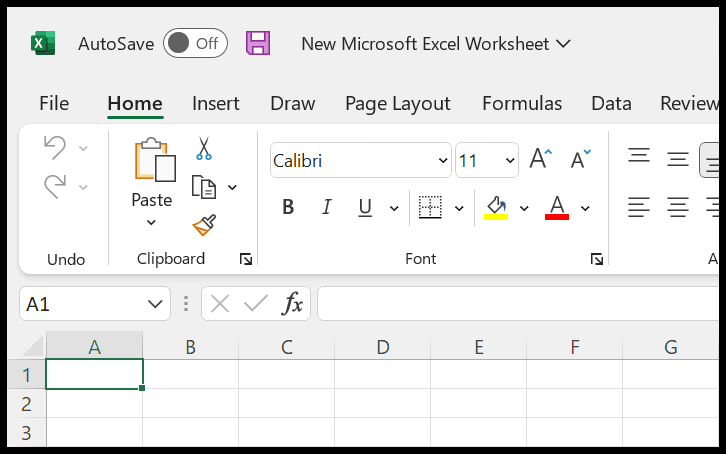
When you open Excel in Safe Mode, as I said, it restricts a lot of options that you have in Excel in the normal mode. You can also see “Safe Mode” in the title bar, so you always know which mode you are in.
Open Excel in Safe Mode using the Run Command
To open Excel in Safe Mode using the Run command, follow these simple steps:
- First, open the Windows search bar, type “run”, and click on Run to open the “Run” dialog box.

- You can also use the keyboard shortcut Windows + R to open “Run”.
- Now, in the “Open” box, enter “excel /safe” (with a space before the slash).

- The moment you click OK, it will open Excel in safe mode.

This command tells your computer to start Excel without extras like add-ins or customized settings, which helps if Excel is not working correctly.
Create a Specific Excel Icon to Open it in the Safe Mode
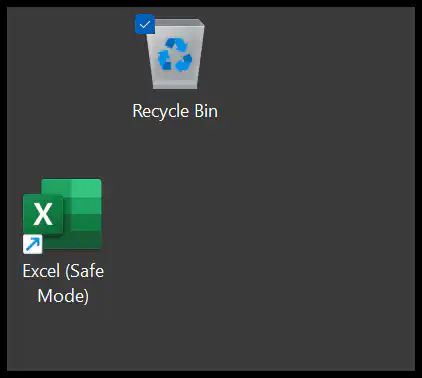
Creating a desktop shortcut (icon) specifically for opening Excel in Safe Mode is handy, especially if you frequently need to troubleshoot or if you prefer having quick access to this mode.
Here are the steps to create a desktop shortcut to open Excel in Safe Mode on a Windows system:
- First, find the Excel application in your Start menu, right-click it, and open the file location (on Windows 11, it’s under More ➜ Open file location).
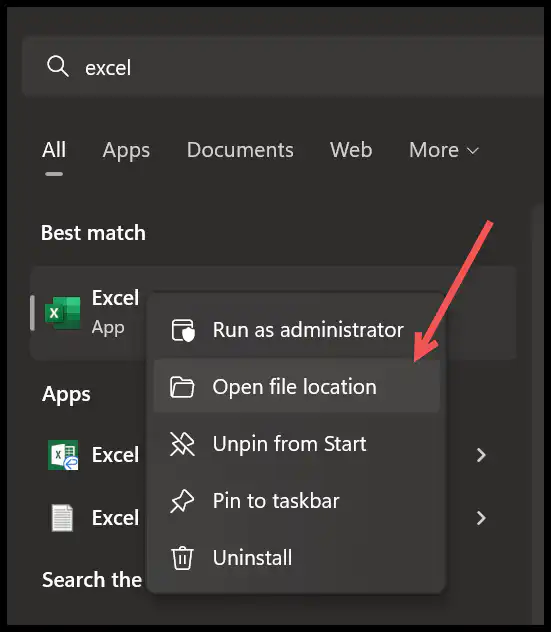
- Now, in the file location, you will find an Icon for the Excel application.

- Copy this icon and paste it on your Desktop.

- Now, right-click on the icon and click on Properties.
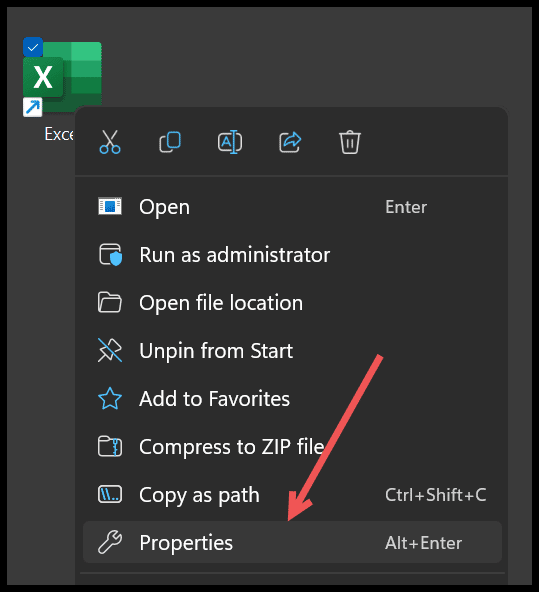
- From here, in the Properties, go to the Shortcut tab and click on the “Target” box.
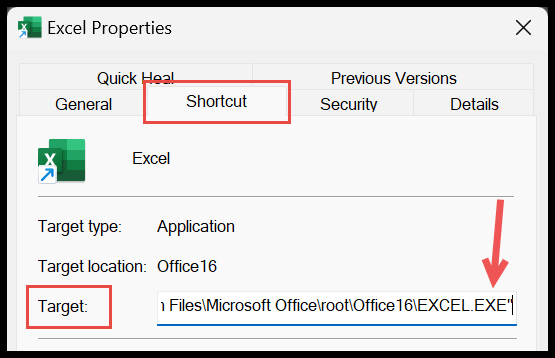
- Now, without changing anything, go to the end of the value, type a space and enter “/safe” (after the closing quotation mark, if the path has one).

- And, from the General tab, you can also change the name for your reference.

- In the end, click OK.
Now you have an icon on your desktop which you can use to open Excel in Safe Mode whenever you want.
Safe Mode in Excel Mac
If you are using a Mac, starting Excel in Safe Mode is different from starting it in Windows, as there isn’t a direct command or shortcut to launch applications in Safe Mode. But you can troubleshoot Excel on a Mac using similar steps by disabling add-ins and customizations manually.
Go to Tools > Excel Add-ins. Then uncheck all the boxes to disable all the add-ins. Restart Excel to see if performance improves without these add-ins.
Excel preferences can sometimes become corrupt. To reset them, remove the Excel preference file. Close Excel and go to ~/Library/Preferences/ (in current versions, the file is inside ~/Library/Containers/com.microsoft.Excel/Data/Library/Preferences/). Find the file named something like com.microsoft.Excel.plist and either delete it or move it to another location. Restart Excel and watch as it creates a new preference file with default settings.
When You Open Excel in Safe Mode
When you start Excel in Safe Mode, many of the usual features and settings are turned off to help you troubleshoot issues. However, this mode comes with several limitations that can impact how you usually use Excel:
- Disabled Add-ins: Excel does not load add-ins while in Safe Mode, including both COM add-ins and Excel add-ins.
- Limited Customization: Customizations such as custom toolbars and the files in the XLSTART folder (like your Personal Macro Workbook) are not loaded. This means you won’t have access to custom shortcuts or the macros stored there. Macros inside the workbook you open are still there.
- No Recovered Files: Recovered documents don’t open automatically in Safe Mode, so don’t rely on AutoSave or AutoRecover there. Save your work often.
Microsoft also lists a few more limits: you can’t save templates or preferences, the AutoCorrect list doesn’t load, and you can’t create or open files with restricted permission.
Exit the Safe Mode in Excel
Click the close “X” at the top-right corner of the Excel window to close it. If you have unsaved work, Excel will ask if you want to save it.
After closing, open Excel again normally by clicking its icon or from the start menu. Excel will start in its regular mode with all features and settings back to normal.
Find the Add-in That Causes the Problem
If Excel works fine in Safe Mode, an add-in is the most likely cause of the problem. Here’s how to find it:
- First of all, open Excel normally and go to File ➜ Options ➜ Add-ins.
- After that, select COM Add-ins in the Manage box at the bottom and click Go.
- Next, uncheck one add-in, click OK, and restart Excel.
- In the end, repeat this for each add-in until the problem goes away. The last add-in you turned off is the one that causes it.
Do the same for Excel Add-ins in the Manage box. And if Excel has a problem when it starts, it may offer to start in Safe Mode on its own the next time you open it.
Frequently Asked Questions
How do I know if Excel is in Safe Mode?
Look at the title bar at the top of the window. When Excel is in Safe Mode, it shows “Safe Mode” next to the file name.
Does Safe Mode delete my add-ins or settings?
No. Safe Mode only skips them for that session. When you close Excel and open it normally, everything loads again.
Why does Excel keep opening in Safe Mode?
Check that you aren’t holding the Ctrl key while opening it and that your shortcut doesn’t have /safe at the end of its Target. If neither is the case, Excel found a problem when starting, so check your add-ins as shown above, or repair Office.
As an Excel enthusiast, once you learn to open Excel in safe mode, make sure to learn about clearing the Excel cache, sometimes while troubleshooting for slow workbooks you can clear the cache. You can also clear formatting from the workbook; sometimes, having a lot of formatting makes a workbook slow.