

To combine a date and a time into one cell, simply add them: =A2+B2. Excel stores a date as a whole number and a time as a decimal fraction of a day, so adding them produces a single value holding both — then format the cell with Ctrl+1 → Custom → dd-mmm-yyyy hh:mm to see it properly.
This is the method to use in almost every case, because the result stays a real date-time you can sort, filter, and subtract to get durations. The alternative is =TEXT(A2,"dd-mmm-yyyy")&" "&TEXT(B2,"hh:mm AM/PM"), which gives you exact control over how it reads but returns text, so it can’t be used in any further calculation.
Two things that go wrong: if the result shows only the date, the cell format is date-only rather than the formula being wrong, and if either cell holds a date or time stored as text, addition returns #VALUE! — convert with =DATEVALUE(A2)+TIMEVALUE(B2) first.
If your time cell already contains a full date-time, adding will double-count the date; strip it with =A2+MOD(B2,1).
How Excel Stores Date and Time
Excel stores dates as serial numbers and times as decimal fractions because time is considered a portion of the day. Therefore, 12:00 PM is stored as 0.5, representing half a day. When you combine date and time, the date is the integer portion of the serial number, and the time is the decimal portion. For example, 9:00 AM on January 1, 1900, is stored as 1.375.

There could be a situation when you need to combine the date and time from two different cells into one.
In this tutorial, you are going to learn two easy-to-follow methods:
- Use the plus sign (+) to add the date and time.
- Using the TEXT function to concatenate both.
Combine Date and Time in a Single Cell with Addition
As I said, a date is an integer in Excel, and time is a decimal. When you add both in a single cell, you get one number with the date before the decimal point and the time after it.
Excel usually applies a date and time format to the result on its own; if it doesn’t, you can apply it yourself (steps below).

- First, edit the cell and enter “=” in it.
- After that, refer to the cell with the date (A2). You can also refer to the cell with the date in your data.
- Next, enter the addition sign (+). You need it to add the date value and the time value.
- Now, refer to the cell with time (B2). You can also refer to the cell with the time in your data.
- In the end, hit enter to get the combined date and time.
=A2+B2
This is because the date and time are combined in a single cell, and Excel has applied custom formatting for this.
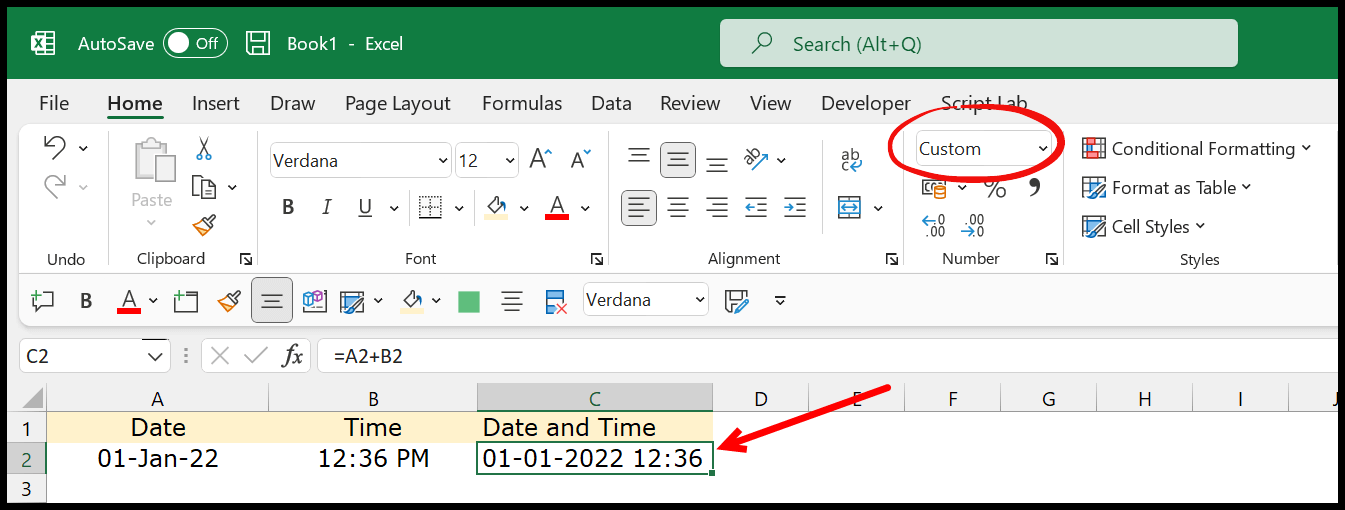
When you hit enter, a date and time value will appear in the cell, just like the one in the above example.
Note – If the date and time you want to combine are stored as text, you might get the #VALUE! error in the result.
You can see you have a custom format in the formatting dropdown.
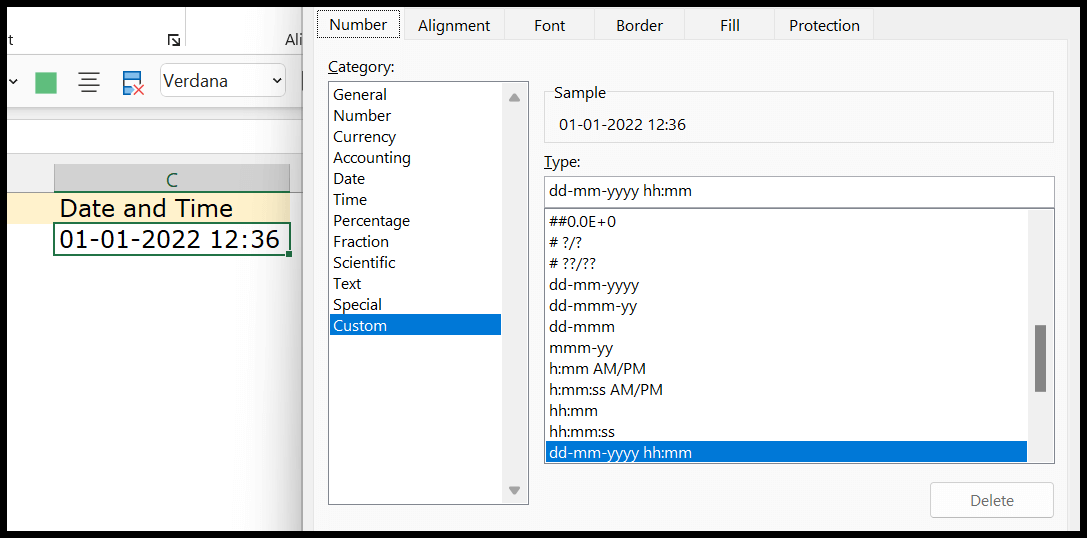
If you want to change the date and time format, you can use the below steps:
- Click on the cell that contains the combined date and time. Then, go to the ‘Home’ tab on the ribbon.
- Look for the ‘Number Format’ drop-down menu in the Number group and click on it. Select the ‘More Number Formats’ option at the very bottom of the list (or press Ctrl + 1).
- After clicking on ‘More Number Formats’, a new dialog box called “Format Cells” will appear on your screen. Select the “Custom” category here.
- Upon selecting ‘Custom’, you’ll see a ‘Type’ input field. Here, you’ll specify the format you wish to use for your combined date and time. A commonly used format that displays both date and time is ‘m/d/yyyy h:mm’. Input this into the field.
- Confirm your changes by clicking ‘OK’.
TEXT Function to Concatenate Date and Time
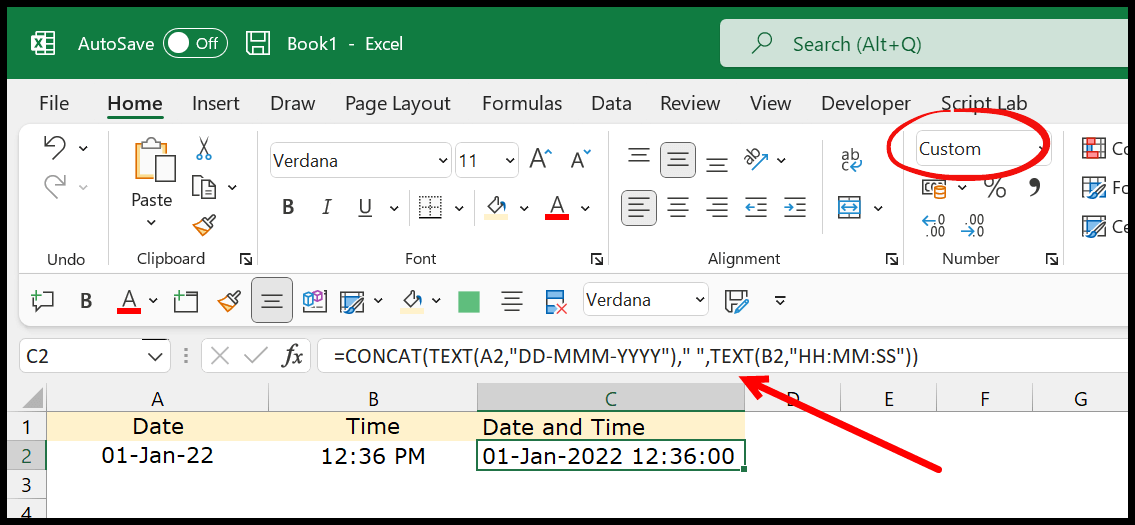
In the earlier method, we used mathematical ways to combine date and time. Now, you can use the TEXT + CONCAT method to combine the date with the time:
=CONCAT(TEXT(A2,"DD-MMM-YYYY")," ",TEXT(B2,"HH:MM"))
With 18-Mar-2024 in A2 and 3:54 PM in B2, it returns 18-Mar-2024 15:54. CONCAT is available in Excel 2019 and later (and Microsoft 365). In older versions, use CONCATENATE or the & operator with the same TEXT parts.
- In the first part, we used the TEXT function, which takes the date from cell A2, and applied the format you defined in the second argument, “DD-MMM-YYYY”.
- In the second part, we have a simple space between the date and the time.
- In the third part, we again have the TEXT function to get the time from cell B2 and then apply the specified format.
- In the fourth part, we used the CONCAT function to combine all three values (Date, Space, and Time) as a single value.
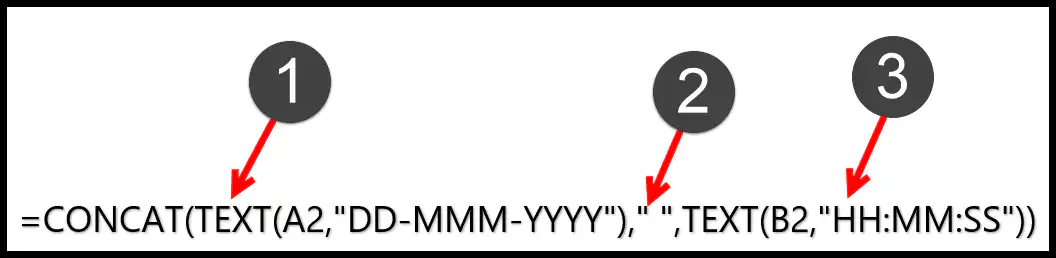
When you use CONCAT, you must specify the values in the arguments you want to combine.
And you have the three values to combine here.
- Date
- Space
- Time
If you want to change the date and time format, you can change the format from the TEXT function. Using the TEXT function, you can use different date formats, like mmm-dd-yyyy and hh:mm:ss.
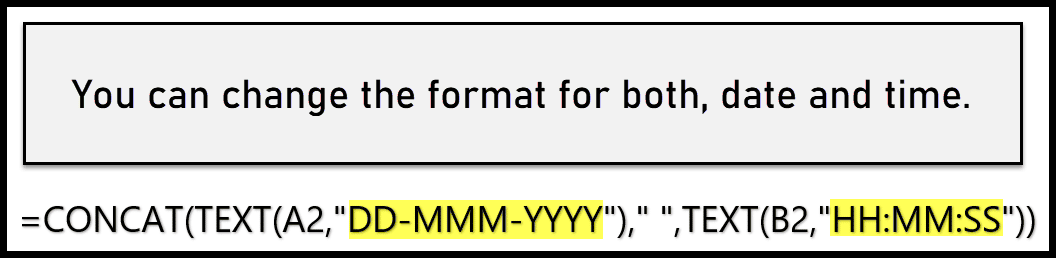
But make sure to enclose the format in the double quotation marks.
Note: With this formula, the combined date and time are always in the text format. If you want to use that value in a calculation, use the addition method from above instead, which keeps a real date and time.
Must Reads – Separate Date and Time in Excel
Other Methods
If the date and the time you have in Excel are already saved as text in the cells, you can combine them with the simple formulas mentioned below:
Using an Ampersand (&)
The (&) operator in Excel is commonly used to join two or more text strings into a single string. It can also combine date and time values in Excel.
For instance, let’s say you have a date value in cell A1 (e.g., “March 18, 2024”) and a time value in cell B1 (e.g., “3:54 PM”). To combine these two values into a single cell (C1), you need to enter the following formula into cell C1:
=A1&" "&B1
This formula combines the date from cell A1, a space ( ” ” ), and the time from cell B1. The outcome is a cell C1 that now displays ‘March 18, 2024 3:54 PM’.
Using the CONCATENATE Function
As an alternative to using the & operator, Excel also provides a CONCATENATE function. This function joins two or more text strings into a single text string, making it another handy tool for combining date and time values.
Like an ampersand, this formula combines the date from cell A1, a space ( ” ” ), and the time from cell B1 using the CONCATENATE function. As a result, cell C1 will display “March 18, 2024 3:54 PM”.
=CONCATENATE(A1," ",B1)
These two formulas only work when the date and time are text. If A1 and B1 hold a real date and time, & and CONCATENATE show their serial numbers instead (like 45369 0.6625), so use the TEXT function as shown above. And to turn text like this back into a real date and time, add DATEVALUE and TIMEVALUE:
=DATEVALUE(A1)+TIMEVALUE(B1)
Tips and Tricks for Combining Date and Time in Excel
- Check your Regional Settings: Excel may interpret date and time values differently depending on your computer’s regional settings.
- Be aware of Excel’s Date System: Excel stores dates as serial numbers, with 1 representing January 1, 1900. Workbooks that use the 1904 date system (an option for older Mac files) start from January 1, 1904 instead.
- Use Helper Columns: If you want to combine a large amount of data, it might be easier to use helper columns. This allows you to break the process into smaller, more manageable steps.
Frequently Asked Questions
Why do I get a number instead of a date and time?
The cell has the General or Number format. The value is right; apply a date and time format like m/d/yyyy h:mm from Format Cells (Ctrl + 1) to see it as a date and time.
Why is my combined date a day off?
The time cell probably holds a date as well (like 1/1/1900 3:54 PM, which is more than 1). Use only its time part with MOD, as in the formula below:
=A2+MOD(B2,1)
Can I sort and filter the combined values?
Yes, when you combine them with the plus sign, because the result is a real date and time. The TEXT, & and CONCATENATE results are text, so they sort as text, not by date.

Great post! I always struggled with combining date and time in Excel, but your formula breakdown made it so much clearer. I especially appreciated the examples you provided. Thanks for the helpful tips!