

If a date is stored as text, the quickest fix is =DATEVALUE(A1), which returns the date serial number — then format the cell as Date (Ctrl+1) to see it properly. You can spot text dates because they sit left-aligned in the cell and don’t respond to date arithmetic.
DATEVALUE only works when the text is in a layout Excel recognises, so for anything unusual you pull the parts out yourself with the DATE function: =DATE(RIGHT(A1,4),MID(A1,4,2),LEFT(A1,2)) rebuilds a date from a string like 15.01.2026 by taking the year from the right, the month from the middle, and the day from the left. Adjust the character positions to match your own layout.
For a whole column at once with no formula, the fastest route is Data → Text to Columns → Next → Next → Date (DMY) → Finish, which converts the values in place. Power Query’s Change Type → Using Locale handles it too, and is the better choice for imported data you’ll refresh.
Dates play an important role when we need to analyze trends. This is one of the most important things that you need to capture in the right way. Apart from the basic date format that Excel uses to store dates, there are some other date formats that are acceptable.
Now the thing is: when we capture a date in the wrong format, Excel treats that date as text, and then we can’t use that date in any calculation.
When it comes to text date formats, there is no one particular format. It depends on the person who is entering those dates. The bottom line is: We do need some methods which we can use to convert a text to an actual date with the right format.
So today, in this post, I’d like to share with you the methods that we can use to convert text to a date in Excel: DATEVALUE, and then 10 formulas for the most common irregular formats. For converting text to a date, we need to use a combination of different functions.
So let’s get started.
1. Convert a Text to a Date
Using the DATEVALUE function is the basic method to convert a date stored as text into an actual date.
Let’s say you have a list of dates in your worksheet and all the cells where dates are entered have text format but all those dates are in the correct date format.
In the below example, we have a date in a cell but when I try to add a number to that date I’m getting an error, even though the date is written correctly.

But if you look at the cell format, it’s text. So here, the best way is to use the DATEVALUE function. You just need to refer to that cell in the function, and it will convert that text into an actual date (a date serial number).

And then you can change its format to date.
=DATEVALUE(A1)
DATEVALUE reads the text using the date settings of your computer. So, a text like 06/05/2019 becomes 6 May on a computer with day-month-year settings and 5 June on one with month-day-year settings. When DATEVALUE can’t read the text at all, it returns #VALUE!.
Note: There are some situations where DATEVALUE can’t help us to get a date from a text. There are many irregular date formats, and to deal with them, we need to create a custom formula using different functions.
In the next 10 examples, I will share with you how we can use these different functions.

2. Date with Back Slashes
The Excel date system supports dates with forward slashes. And if we have a date with backslashes, it will treat it as text.

To solve this problem, we can use the below formula (for a date like 15\06\2019, day first).
=DATE(RIGHT(A2,4),MID(A2,4,2),LEFT(A2,2))

3. Date with Month Name
Now, we have a date format where the month is entered with its name. For Excel, this is not a date anymore, even if it’s presenting a date clearly.

The below formula can help us with this.
=DATEVALUE(RIGHT(A3,2)&"-"&TEXT(MID(A3,6,3),"MMM")&"-"&LEFT(A3,4))

4. Date with Dots
It’s a common kind of problem where we get dots inside a date. This is a kind of format used by people who are not aware that this is not a proper date format.

And, this is the formula to correct it.
=DATE(RIGHT(A4,4),MID(A4,4,2),LEFT(A4,2))

5. Date with the Month Name and a Comma
This format is almost the same as the format we discussed in point 3.

And, we can correct it with the below formula.
=DATEVALUE(LEFT(A5,2)&"-"&TEXT(MID(A5,4,3),"MMM")&"-"&RIGHT(A5,4))

6. Date with the Day Name
Sometimes people store a date with the day’s name. And if that date is not in a proper format, Excel will treat it as text.

Use this formula for this type of text date.
=DATEVALUE(MID(A6,FIND(",",A6)+6,2)&"-"&MID(A6,FIND(",",A6)+2,3)&"-"&RIGHT(A6,4))

7. Date with a Day Name in the End
Here we have a date with the day name at the end. Now, the problem with this format is it has a comma between the date and day name.

But, we can get the valid date using the below formula.
=DATEVALUE(MID(A7,10,2)&"-"&MID(A7,6,3)&"-"&LEFT(A7,4))

8. Date Having a Suffix with Day
We have a “th” suffix with the day number and it makes it a text instead of a date as Excel is not able to recognize it.
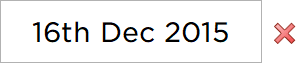
The below formula will help you to get the real date.
=DATEVALUE(LEFT(A8,FIND("th",A8)-1)&"-"&MID(A8,FIND(" ",A8)+1,3)&"-"&RIGHT(A8,4))
This formula only works with “th”. For days like 1st, 2nd, 3rd or 22nd, FIND can’t find “th” and the formula returns #VALUE!. As all these suffixes are two letters long, the following formula works for all of them by removing the two characters before the first space:
=DATEVALUE(LEFT(A8,FIND(" ",A8)-3)&"-"&MID(A8,FIND(" ",A8)+1,3)&"-"&RIGHT(A8,4))

9. Date with Space Between Day, Month, and Year
When we have a date format with spaces between the day, month, and year, we can use the below formula to correct the date format.

=DATE(RIGHT(A9,4),MID(A9,4,2),LEFT(A9,2))

10. Date with Short Month Name
Here we have a date format with a short month name at the start of the date.

We can use the following formula to convert it to a valid date format.
=DATEVALUE(MID(A10,5,2)&"-"&LEFT(A10,3)&"-"&RIGHT(A10,4))

11. Date Without Any Space Between Day, Month, and Year
And here’s a date where there is no space between the day, month, and year (like 150619 for 15-Jun-2019).

The below formula will help us to get the correct date format.
=DATE(2000+RIGHT(A11,2),MID(A11,3,2),LEFT(A11,2))

Here, I have added 2000 to the two-digit year. Without it, DATE treats a year like 19 as 1919, because Excel adds any year from 0 to 1899 to 1900.
Convert Text to Date with Text to Columns
If you have a whole column of text dates in one format, you don’t need a formula. Text to Columns can convert them in place:
- First of all, select the column with the text dates.
- After that, go to Data ➜ Text to Columns, select Delimited, and click Next twice.
- In step 3, select Date and pick the order of your text, like DMY for 15.06.2019.
- In the end, click Finish.
This works for dates with dots, dashes, slashes or spaces, as long as all of them are in the same order.
Convert Text to Date with VALUE or Paste Special
When the text is already in a format your computer understands, and only the cell holds it as text (like a date with an apostrophe in front), you can also use VALUE, or add zero to the cell:
=VALUE(A1)
=A1+0
And to convert the cells in place, type 1 in an empty cell, copy it, select the text dates, go to Paste Special, choose Multiply, and click OK. Then apply a date format to the cells.
Frequently Asked Questions
Why does my converted date show as a number?
Excel stores dates as serial numbers, like 43631 for 15-Jun-2019. The formula has worked; just change the cell format to a date format (Home ➜ Number Format ➜ Short Date).
Why does DATEVALUE return #VALUE!?
The text isn’t in a format that matches your computer’s date settings, or it has extra characters like spaces or suffixes. Use one of the formulas above to rebuild the date, or TRIM the text first.
How do I know if a date is stored as text?
A text date is usually aligned to the left of the cell, while a real date is aligned to the right. You can also check with ISTEXT, which returns TRUE for a text date.

I need some quick help please. I have a huge reference data file that has the date available as
“Jun 27, 2022” and the master file that I am using has dates as “21-Feb-22″. How to get the dates in the reference data file in the same format (Master File date format can’t be changed as there are linkages and formulas”
Help – the suffix date format only considers the case of “th” suffix – not working in case of suffixed dates like “st” (as in 1st, 21st, 31st), “rd” (as 2nd, 22nd) and “rd” (as in 3rd, 23rd)
HELP! There is nothing to convert TEXT date of “2022-Jan” to an actual date. I have many reports with charts and I am always needing to retype dates for each. Its hundreds of text dates for about 20-30 charts. There doesn’t seem to be any solution found online. I would love to know how to fix this with a simple formula. But all the date help assumes there is a month, day, and year. I only have text showing year-month. I’d love suggestions, as I am required to get this done so fast, retyping is taking too long.
George, do you want to convert 2022-Jan into 1-Jan-2022?
Hi, thanks for you sharing.
But when I use it, it shows “Function DATE parameter 2 expects number values. But ‘4/’ is a text and cannot be coerced to a number.” I don’t know why.
11. Date Without Any Space Between Day, Month and Year
it doesn’t work at all, if the month is October. like 16102015, this is not working.
if some data is 16.12.15, how can we convert to 16/12/2015? Please help I struggle with this.
Hi Puneet
I have data in a cell in the format: EDM 101, POL 102, POL 301 and I want it this way:
EDM 101
POL 102
POL 301 That means I want them in a separate cells and not a single cell.
How to calculate the number of days between two dates.
Thank you for your response.
What formula would I use if my data is in this format: 20170913 (its the reverse of #11).
Hello Puneet ,
This tip is really helped me .
Now i can do my work easily ,
Thanks for sharing and keep posting these things.
Good article, I needed same, but including hours….
I have this value in excel “7/31/2019 1:57:00 AM” cell. I need the number of hours elapsed from that time to today().
any help is greatly appreciated
HI
Would you please tell me how to convert the Excel dates below to the Russian Format YYYY.MM.DD
NOTE with dots between YYYY MM DD
The format seems different
when the Month number is greater than 12 !!
thank you in advance
best regards
Derek
========================================
04/01/2019
04/02/2019
04/03/2019
04/04/2019
04/05/2019
04/08/2019
04/09/2019
04/10/2019
04/11/2019
04/12/2019
04/15/2019
04/16/2019
04/17/2019
04/18/2019
04/23/2019
04/24/2019
04/25/2019
04/26/2019
04/29/2019
04/30/2019
05/01/2019
05/02/2019
05/03/2019
05/07/2019
05/08/2019
05/09/2019
05/10/2019
05/13/2019
05/14/2019
05/15/2019
05/16/2019
05/17/2019
05/20/2019
05/21/2019
05/22/2019
05/23/2019
05/24/2019
05/28/2019
05/29/2019
05/30/2019
05/31/2019
06/03/2019
06/04/2019
06/05/2019
06/06/2019
06/07/2019
06/10/2019
06/11/2019
06/12/2019
06/13/2019
06/14/2019
06/17/2019
06/18/2019
06/19/2019
06/20/2019
06/21/2019
06/24/2019
06/25/2019
06/26/2019
06/27/2019
06/28/2019
07/01/2019
07/02/2019
07/03/2019
07/04/2019
07/05/2019
07/08/2019
07/09/2019
07/10/2019
07/11/2019
07/12/2019
07/15/2019
07/16/2019
07/17/2019
07/18/2019
07/19/2019
07/22/2019
07/23/2019
07/24/2019
07/25/2019
07/26/2019
07/29/2019
07/30/2019
07/31/2019
08/01/2019
08/02/2019
08/05/2019
08/06/2019
08/07/2019
08/08/2019
08/09/2019
Would you please tell me how to convert the dates below to the Russian Format YYYY.MM.DD
thank you in advance
best regards
Derek
5 wasn’t working for me with single digit dates either, so I modified the formula to check if the third character of the cell was blank and if so use an appropriate version of the formula, and if not, assume it’s double digit as normal and use the original.
=IF(MID(H10,3,1)” “,DATEVALUE(LEFT(H10,1)&”-“&TEXT(MID(H10,3,3),”MMM”)&”-“&RIGHT(H10,4)),DATEVALUE(LEFT(H10,2)&”-“&TEXT(MID(H10,4,3),”MMM”)&”-“&RIGHT(H10,4)))
That should read
=IF(MID(H10,3,1)” “,DATEVALUE(LEFT(H10,1)&”-“&TEXT(MID(H10,3,3),”MMM”)&”-“&RIGHT(H10,4)),DATEVALUE(LEFT(H10,2)&”-“&TEXT(MID(H10,4,3),”MMM”)&”-“&RIGHT(H10,4)))
Tap
Hi, I need to cut and paste rows on same worksheet to the last row but before that I need to have 2 criteria met. For example, a value in col B and a range of numbers like from 300 to 500 in any cell of col E. Could anyone help me please.. Thanks a lot!!
Sir, 13th may,2019.
Very useful tips and tricks you have given.
Hope to receive such tips in future too.
thanking you.
I remain.
I create a column of 1’s and then use copy / paste special / multiply to convert text to a real date.
Dear all,
Does anyone know how to solve the problem of converting or formatting the long date (NOT a date format) to date format? I tried using text-to-column but it doesn’t help. I also tried applying your given formula as below, but this is good for 2-digit day e.g. Tuesday, Dec 16, 2015. What about for single-digit day e.g. Monday, Mar 4, 2019? I could just change the “…+6,2 to …+6,1 or….+5,2” but I can only use 1 formula in the same column which contains many dates. Sorry, I am seeking for help as I am very new to excel. I guess somewhere within the formula below I could add in something but don’t know how. Thank you!
=DATEVALUE(MID(A6,FIND(“,”,A6)+6,2)&”-“&MID(A6,FIND(“,”,A6)+2,3)&”-“&RIGHT(A6,4))
Hi,
I tried to copy your formula on Point-6 regarding Date with Day Name. However, this seems to work only for 2-digit day. As a file I received contains text format date with combination of single and double digit day. Could you pls advise how to include 1-digit day? e.g. Friday, Mar 8, 2019
=DATEVALUE(MID(A6,FIND(“,”,A6)+6,2)&”-“&MID(A6,FIND(“,”,A6)+2,3)&”-“&RIGHT(A6,4))
Thank you in advance!!
🙂 Thanks
My favourite method for getting excel to recognize a date is found within the Text to Column function. If you click through delimited, etc you can then choose ‘Date’ and tell excel to recognize the numbers as a date. Especially useful if you get data with all of the dates in D/M/Y as if you choose that, excel will recognize the first number as the day, and then the dates will be in appropriate M/D/Y structure.
Selecting problem dates (using the wrong symbol such as or . as a separator) and using Text to Columns (on the Data tab) will often sort out date problems.
In the first step, choose delimited, in the next step choose a symbol that’s not being used in the date, in the third step choose Date and the order of day, month, year for your dates. Change the destination if you don’t want to overwrite the original entries and click Finish
Thanks Paul
Excellent tip. Saved my day!