

To remove an unwanted character from a cell, use =SUBSTITUTE(A1,"@","") — the empty quotes at the end mean “replace it with nothing”. For two or three characters, nest SUBSTITUTE inside itself: =SUBSTITUTE(SUBSTITUTE(SUBSTITUTE(A1,"@",""),"!",""),"-","").
Once the list gets longer than that, the nesting becomes unmanageable, and Excel 365 gives you two better options. To strip everything except a set of characters, use REGEXREPLACE — =REGEXREPLACE(A1,"[^A-Za-z0-9 ]","") removes every symbol and leaves letters, numbers and spaces, and =REGEXREPLACE(A1,"[^0-9]","")+0 keeps only the digits and turns the result back into a number.
To remove non-printing characters that came from a web page or PDF, use =TRIM(CLEAN(A1)), since those are invisible and won’t match anything you type into SUBSTITUTE. Remember SUBSTITUTE is case-sensitive — a rule written for “A” won’t touch a lowercase “a”.
In Excel, while working with data, you might need to face some characters you don’t want. In this case, you can write a formula by using the SUBSTITUTE that can remove these unwanted characters. And in this tutorial, we will learn to write this formula.
Formula to Remove Unwanted Characters
Follow these steps to write this formula:
- First, in a cell, enter the SUBSTITUTE function.
- Next, refer to the cell where you have the original text.
- After that, enter the character you want to remove (use the double quotation marks).
- Now, enter a blank character using double quotation marks.
- In the end, hit enter to get the result.
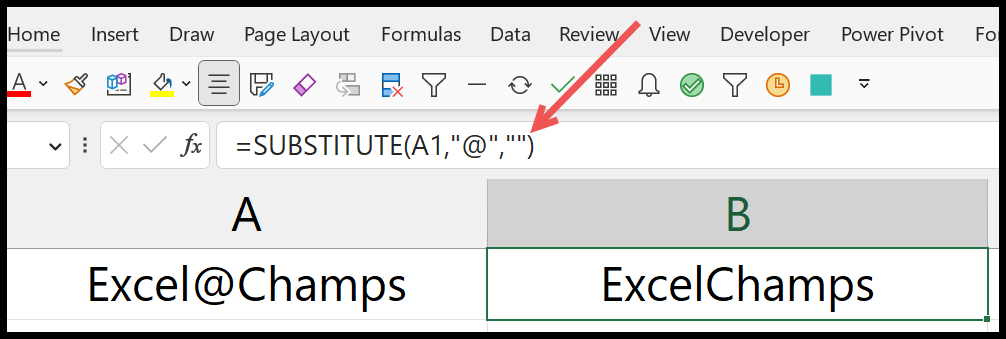
=SUBSTITUTE(A1,"@"," ")This formula removes the “@” character from the value in cell A1 and replaces it with no character. Instead of replacing it with nothing, you can also use a blank space.
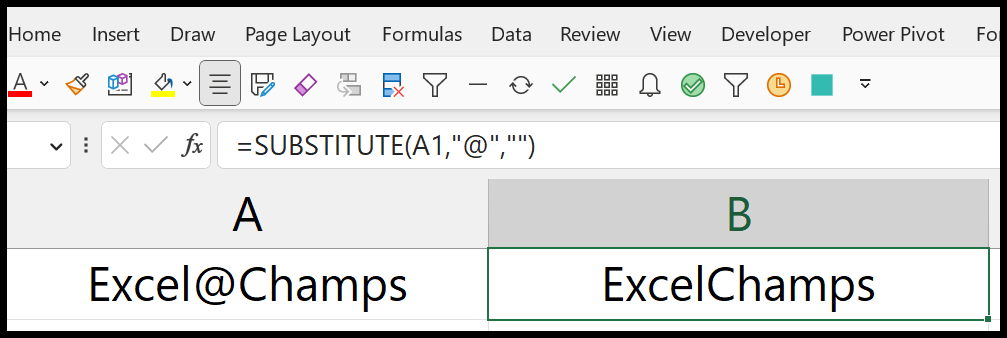
=SUBSTITUTE(A1,"@","")Using the SUBSTITUTE function is the quickest way to remove unwanted characters from a string. And if you want to remove two or more characters from a single cell, then you need to use the SUBSTITUTE function twice.
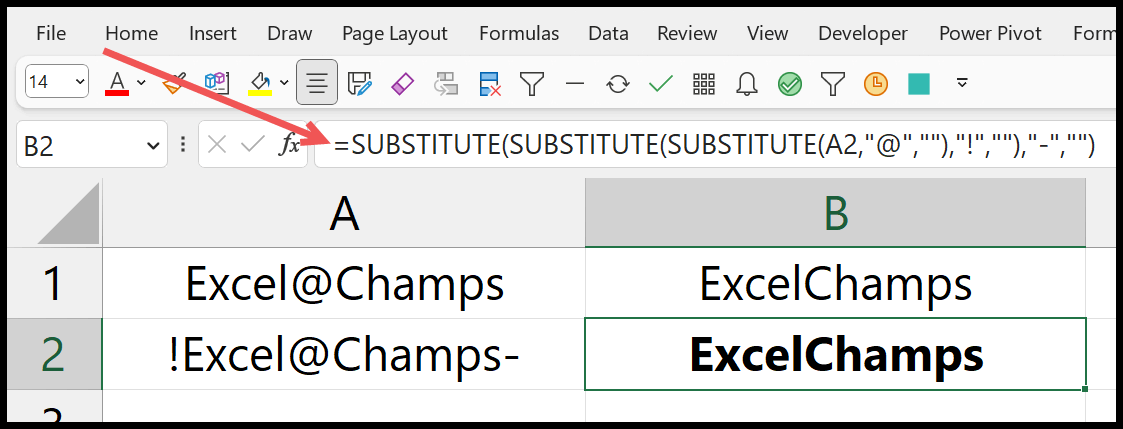
In the above example, you have three different characters that we don’t want to have in the text string. So now, you need to use a nested SUBSTITUTE to eliminate these characters.
=SUBSTITUTE(SUBSTITUTE(SUBSTITUTE(A2,"@",""),"!",""),"-","")You have three SUBSTITUTE functions; the formula removes one unwanted character with each function.
Written by
Puneet Gogia
Microsoft MVP — Excel · Founder, Excel Champs
Twelve years of teaching Excel, and a decade before that using it as a data analyst. Every tutorial here is written from a file I actually built.