

To strip parentheses out of a cell, nest two SUBSTITUTE functions — one for each bracket: =SUBSTITUTE(SUBSTITUTE(A1,"(",""),")",""). The inner one removes the opening bracket and the outer one works on that result to remove the closing bracket.
For a one-off cleanup with no formula, select the range, press Ctrl+H, put ( in “Find what”, leave “Replace with” empty, click Replace All, then repeat for ). Two things to be careful of.
Find and Replace changes the cells permanently, so work on a copy if you might need the originals — and if you leave the range unselected it runs across the whole sheet, including any formulas that contain brackets.
If you also want to remove the text inside the brackets rather than just the brackets themselves, SUBSTITUTE won’t do it: use =TRIM(LEFT(A1,FIND("(",A1)-1)&MID(A1,FIND(")",A1)+1,LEN(A1))), or in Excel 365, =REGEXREPLACE(A1,"s*([^)]*)","").
You can use the find and replace dialog box to remove brackets from a range of cells or even from a single cell in Excel. You can specify the bracket that you want to replace and blank values to replace with.

In this tutorial, we will look at a few ways to remove brackets from values in Excel.
Steps to Remove Brackets in Excel (Find and Replace)
You can use the following steps:
- First, select the range of cells from where you want to remove the brackets.
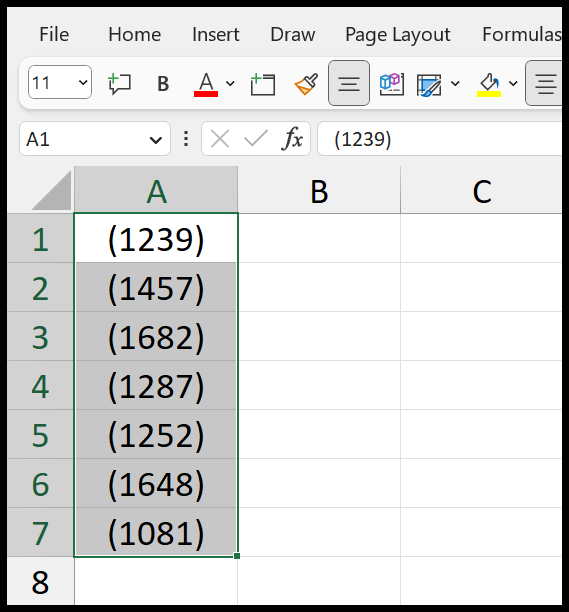
- After that, use the keyboard shortcut Ctrl + H to open the find and replace option.
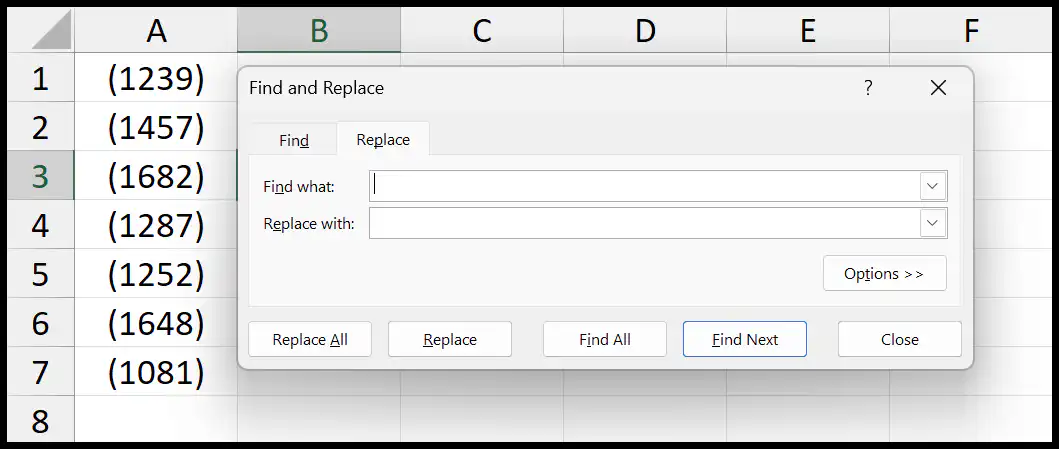
- Now, enter the starting parentheses “(” in the Find what input bar, left the Replace with input bar blank, and then click Replace All.
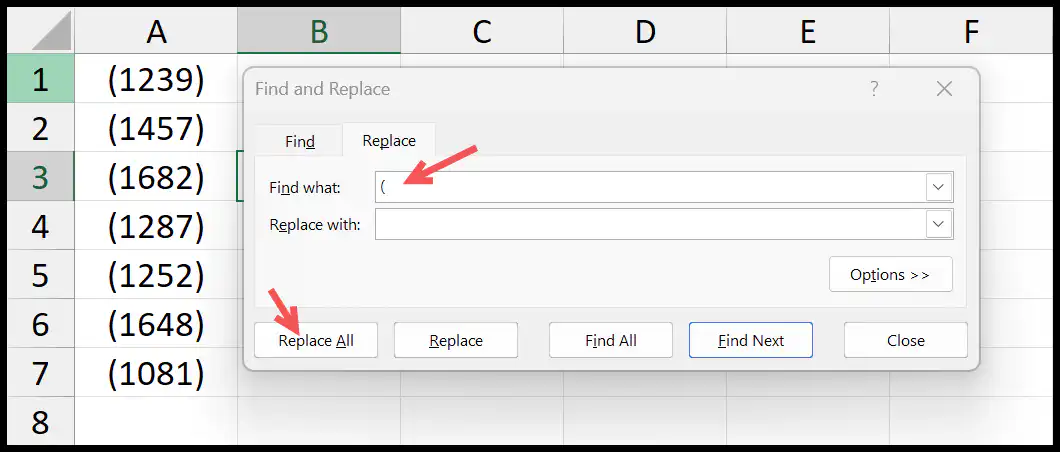
- This will replace starting parentheses with a blank value.
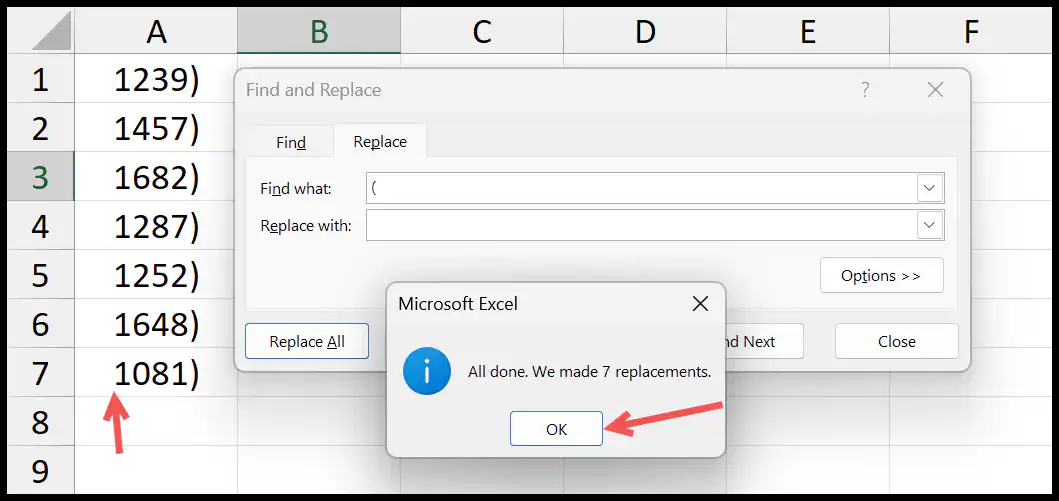
- From here, you need to remove the ending parentheses as well. So enter the ending parentheses in the Find what input bar, left Replace with input bar blank.
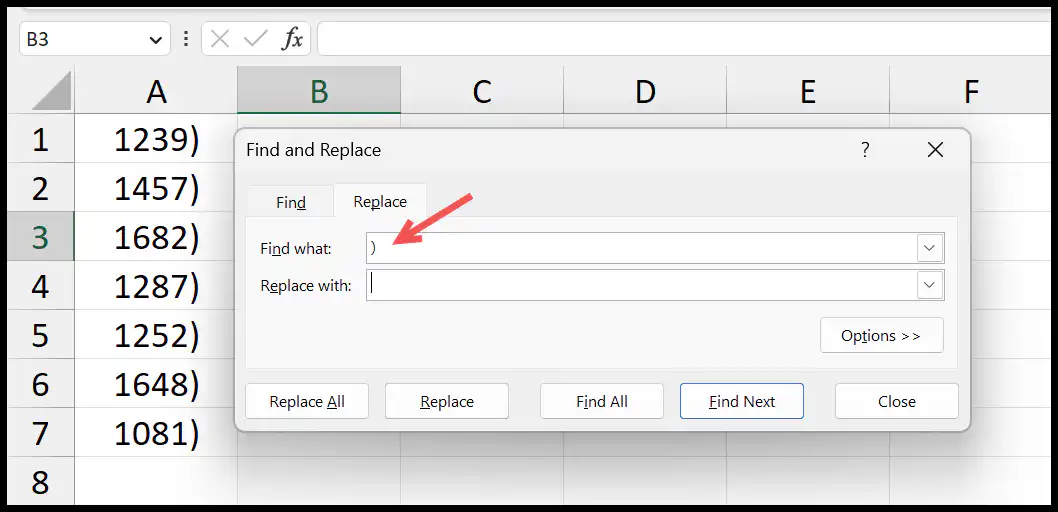
- In the end, click Replace All to replace it.
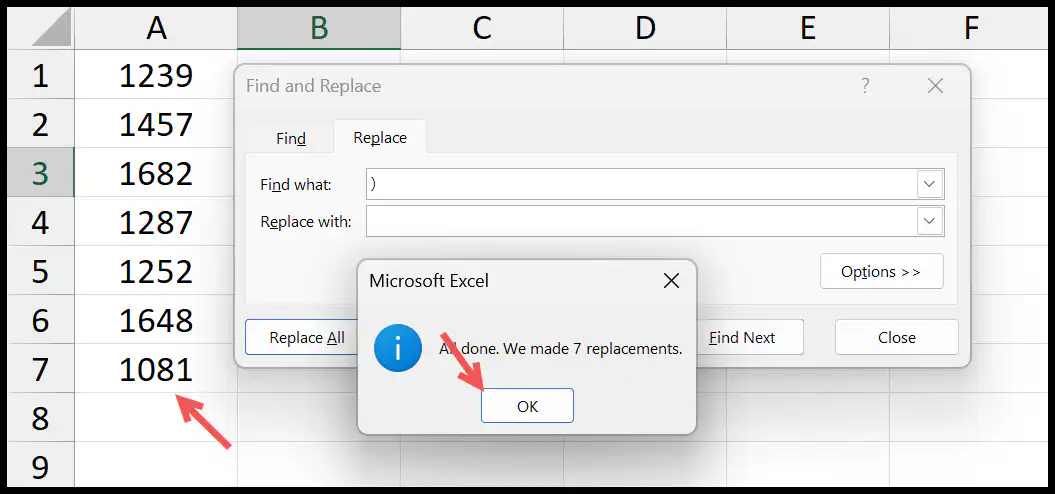
This is a two-step method where you remove the starting bracket and the ending bracket.
[thrive_leads id=’112075′]Formula to Remove Brackets in Excel
You can also use the formula to remove brackets from a cell or a range of cells. And for this, you need to use the Excel SUBSTITUTE function.
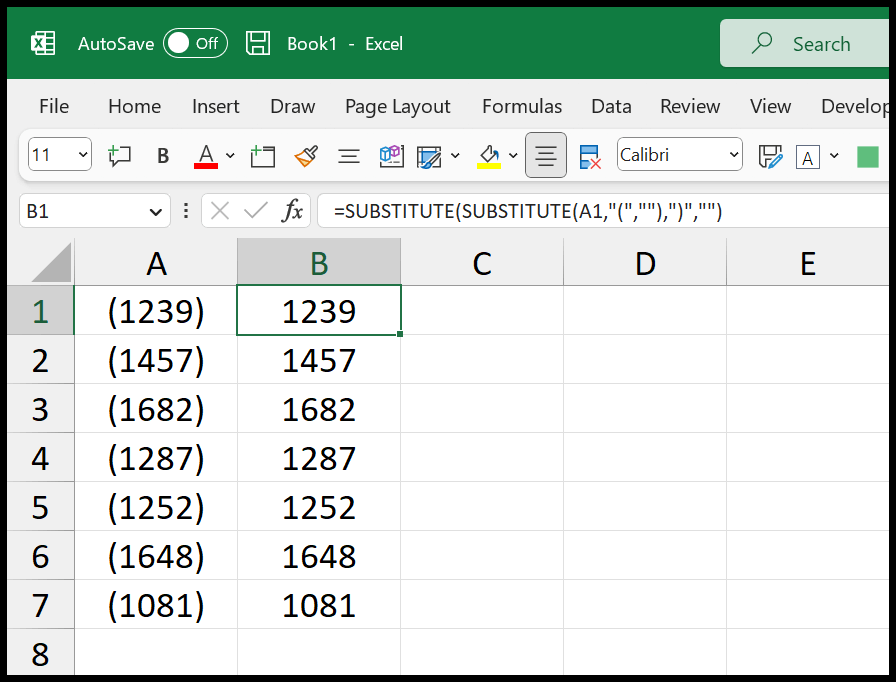
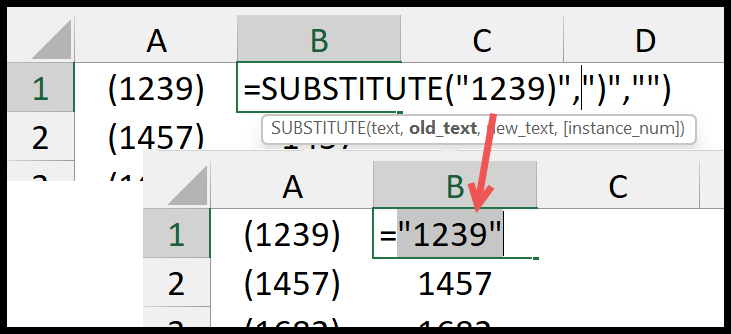
=SUBSTITUTE(SUBSTITUTE(A1,”(“,””),”)”,””)
With SUBSTITUTE, you can refer to a cell, specify a value you want to replace, and a new value to replace. Here you have two SUBSTITUTE functions; one is wrapping another. The first removes the starting bracket:
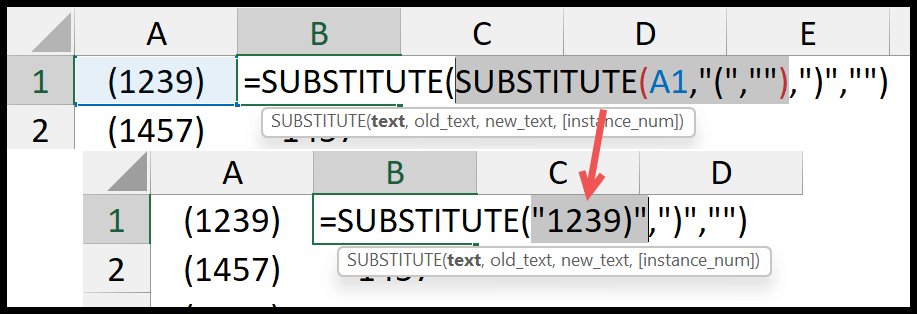
And then, the second SUBSTITUTE removes the ending bracket using the value returned by the first SUBSTITUTE.
VBA Code
You can also use a VBA code to remove the parentheses from the selected cells.
Sub remove_parenthese()
'this will replace the starting parentheses.
Selection.Replace What:="(", Replacement:="", LookAt:=xlPart, _
SearchOrder:=xlByRows, MatchCase:=False, SearchFormat:=False, _
ReplaceFormat:=False
'this will replace the ending parentheses.
Selection.Replace What:=")", Replacement:="", LookAt:=xlPart, _
SearchOrder:=xlByRows, MatchCase:=False, SearchFormat:=False, _
ReplaceFormat:=False
End Sub
You need to select the cells and then just run this code.
Written by
Puneet Gogia
Microsoft MVP — Excel · Founder, Excel Champs
Twelve years of teaching Excel, and a decade before that using it as a data analyst. Every tutorial here is written from a file I actually built.