

Excel allows you to add comments and notes in a sheet to specify your comments or additional information. When you print your data, Excel lets you print those comments and notes along with the primary data.
In this tutorial, we are going to learn to do this. So, let’s get started.
Note: Comments and Notes are two different things, but both serve nearly the same purpose. In Microsoft 365, comments are threaded (people can reply to them), and notes are the older yellow pop-up boxes.
There are two major options to print notes and one to print comments while printing a sheet.
Print Notes and Comments at the End (Last Page)
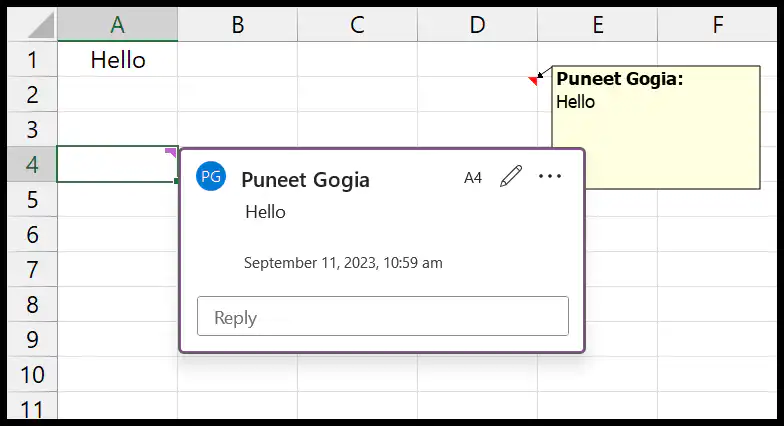
This is the most helpful way to print comments and notes. In the example below, you have one comment and one note, and you want to print them at the end of the print (last page).
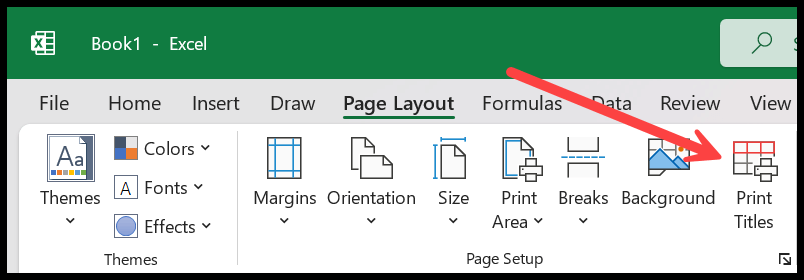
- First, go to the Page Layout tab and then click on the “Print Titles” option to open the Page Setup dialog box on the Sheet tab.
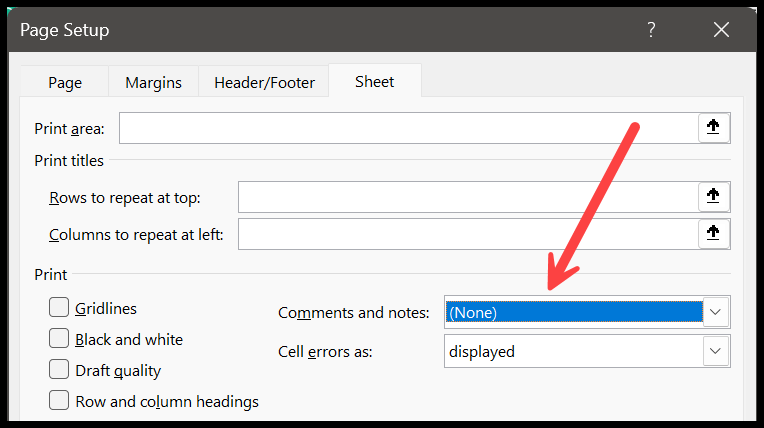
- After that, click on the Comments and Notes drop-down to open it.
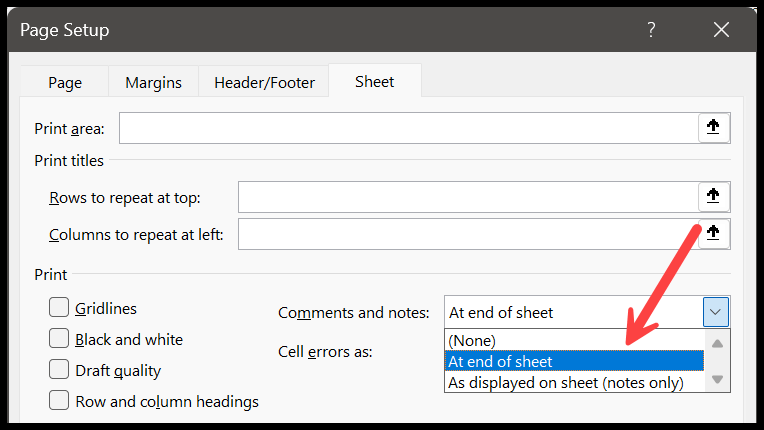
- Select “At end of sheet” from that drop-down. It tells Excel to print all the comments and the notes at the end of the print (last page).
- In the end, click OK to save the settings.
Now, when you open the print preview option, you can see that there’s an extra page with comments and notes at the end.
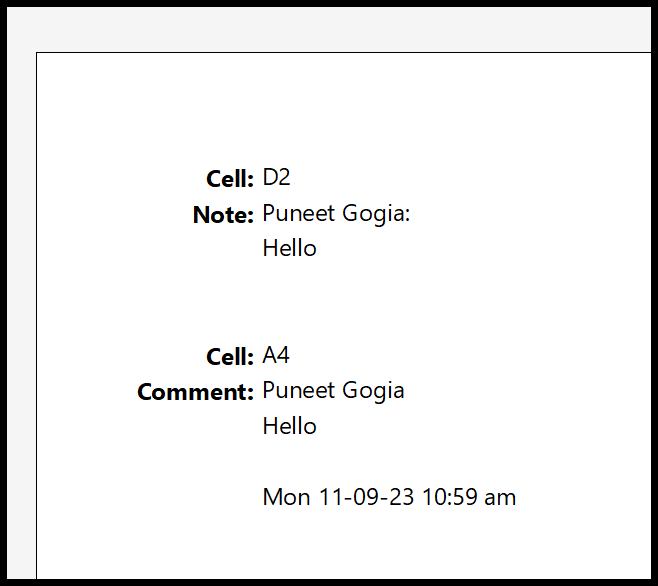
As I said, this option is the best as it prints comments and notes to a separate page for the user to refer to without interrupting the main data.
Note: This setting is part of the Page Setup of the active sheet, so it applies only to that sheet. To use it on several sheets, select them all (Ctrl + click the sheet tabs) before you open Page Setup.
Print Notes Directly on the Main Sheet
This option is good when you have only a few notes on a sheet. You can print them directly with the data on the sheet.
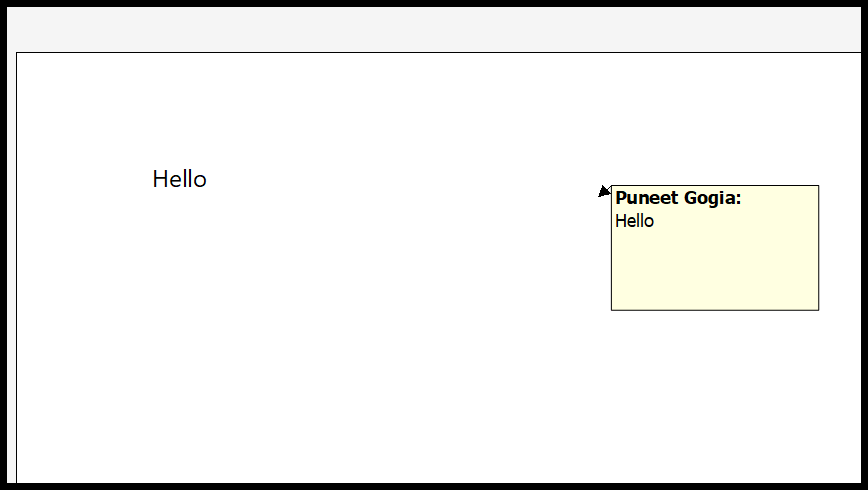
For this, you need to change two settings:
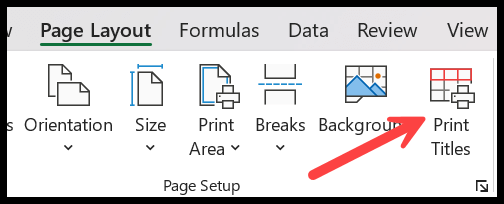
- Go to the Page Layout tab and click on Print Titles.
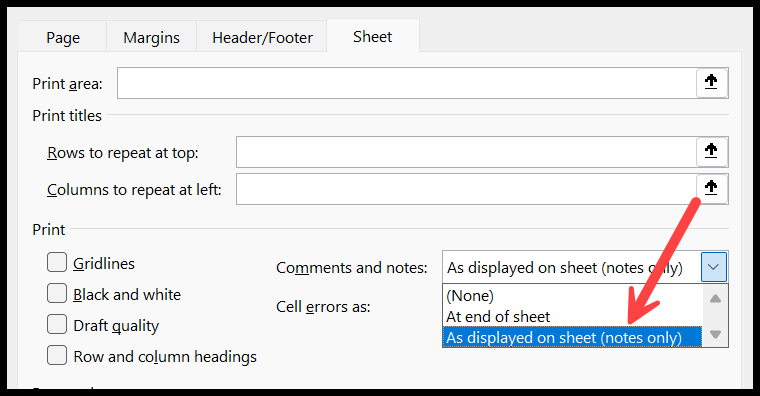
- After that, from the Comments and Notes drop-down, select “As displayed on sheet” (it works for notes only). Click OK.
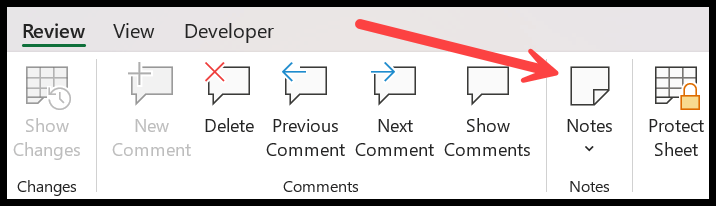
- Go to the Review tab and click the “Notes” drop-down.
- From the drop-down, select “Show All Notes”.
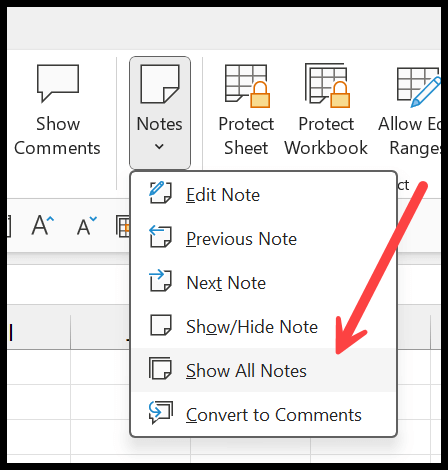
When you open the print preview, this will show you all the notes straight on the sheet while printing.
Only the notes that are visible on the sheet get printed with this option. If a note covers your data, drag it to a better place or resize it before you print. Threaded comments can’t be printed this way; for them, use the “At end of sheet” option.
Print Comments and Notes with VBA
If you need this setting often, you can apply it with a small macro. The following code sets the active sheet to print its comments and notes at the end:
Sub print_comments_at_end()
    ActiveSheet.PageSetup.PrintComments = xlPrintSheetEnd
End Sub
Use xlPrintInPlace to print the notes as displayed on the sheet, and xlPrintNoComments to turn it off again.
Frequently Asked Questions
Why are my comments not printing?
The Comments and Notes option is set to “(None)” by default, and it’s saved for each sheet separately. Check Page Layout ➜ Print Titles ➜ Sheet tab for the sheet you are printing.
Can I print only the comments without the data?
Not directly. Use “At end of sheet” and then print only the last page(s) from the Pages box in the Print screen.
What does the comments page show?
For each comment or note, it shows the cell address, the author and the text, so the reader can match each one with its cell.
Written by
Puneet Gogia
Microsoft MVP — Excel · Founder, Excel Champs
Twelve years of teaching Excel, and a decade before that using it as a data analyst. Every tutorial here is written from a file I actually built.