I see this error most often when clients send me spreadsheets with merged header rows, you try to sort the data and Excel stops you with: "To do this, all the merged cells need to be the same size." It looks like a formatting complaint, but the real fix has nothing to do with sizes.
In this tutorial, I'll show you exactly why this happens and 5 ways to fix it — whether you're sorting data, copying formulas down, or looking to avoid merged cells altogether.
Why I'm Getting this Error of "all the merged cells need to be the same size"
In Excel, when you have merged cells in the data and need to sort it, you will face an error that says, "To do this, all the merged cells need to be the same size."
This error might sound like you need to adjust all the merged cells' sizes (height and width). But the real problem here is the merged cells, not their size.
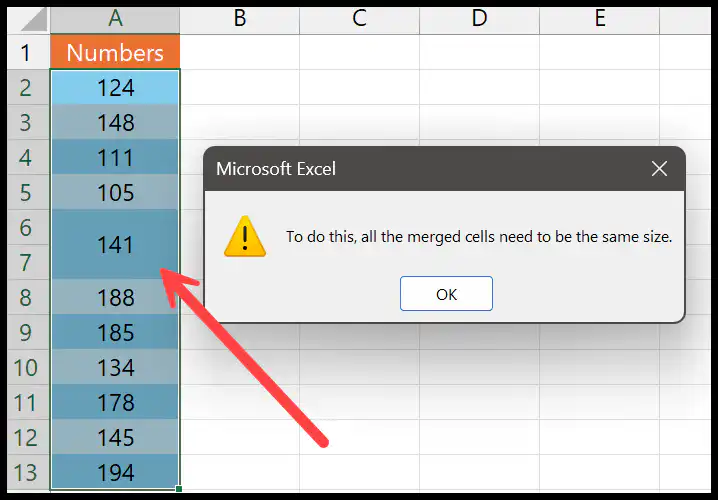
The above example shows that the third value is in a merged cell. The error in the message box says that merged cells must be the same size.
Apart from this, you will get the same error when you have a formula in a merged cell and try to copy that formula to the cell downwards.
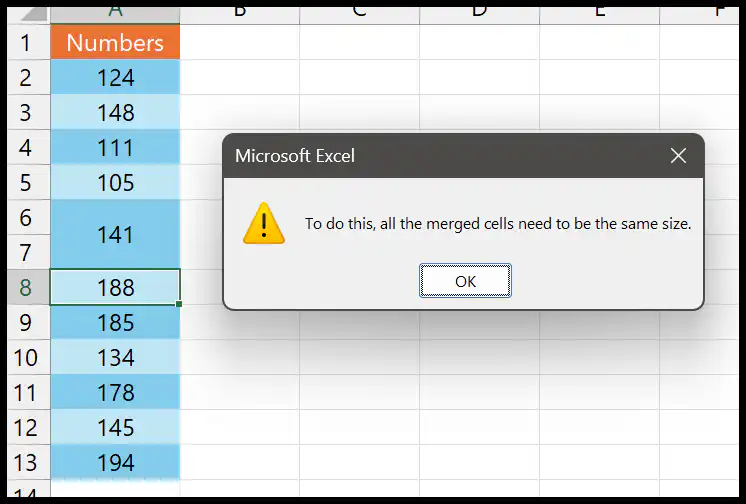
If you try to use the fill handle to drag down the formula to the next cell, it will copy the formula and merge the next cell(s).
Microsoft documents this behaviour officiallyHow to Fix this Problem of "all the merged cells need to be the same size"
The only way to fix this error of "To do this, all the merged cells need to be the same size" is to fix the merged cells in the data.
1. Fix the Sorting Problem
As I said, to sort this problem, you need to fix the merge cells that merged in the data. So for this, all you need to do is:
- First, you need to select the merged cells from the data. And if you have multiple merged cells in the data, you can select the entire data.
- After that, go to the "Home" tab > and in the merged cells drop-down, select the "Unmerge Cells" option.
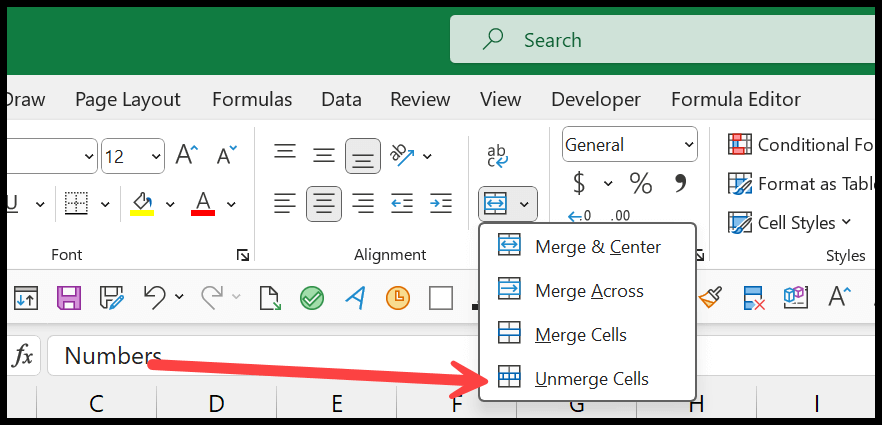
- This will unmerge the cells, and you can sort the data now. But there is one thing that you need to do: remove the blank cells. You can delete all those blank cells, one by one (if you have less), but if there are multiple blank cells left, select the data, and then go to the Home Tab > Find and Select > Go To Special.
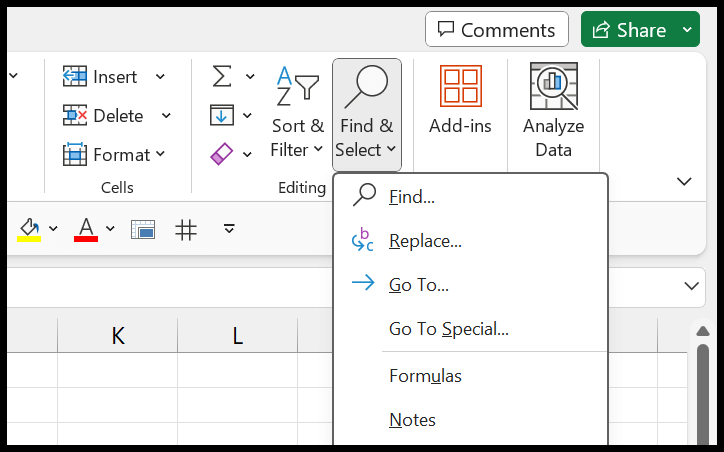
- Now, when you click on the option, select blank in the dialog box and click OK. This will select all the blank cells from the data.
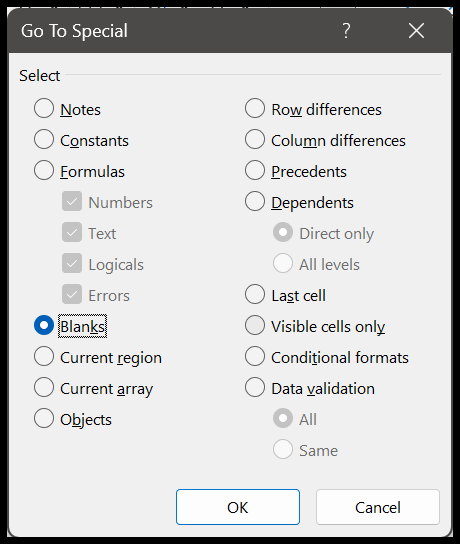
- In the end, right-click and delete all the blank cells in one go.

After that, you can sort the data the way you want. You won't get the error this time.
2. Fixing the Copy Formula Problem
The fix to this problem is the same as we have done with the sorting problem. You must unmerge the merged cells first, then manually remove the blank cells or use the Go To Special option.
Or, if you don't need to remove the blank cells, you can copy your formula or value to the cells downward using the Ctrl + D or the fill handle.
3. Fix with a VBA Macro (Unmerge and Fill in One Click)
If you have a large dataset with many merged cells spread across it, unmerging them one by one is slow. This VBA macro unmerges every merged cell in your selection and automatically fills the blank cells left behind — all in one click.
To use it, press Alt + F11 to open the VBA editor, go to Insert → Module, paste the code below, and run it with F5 after selecting your data.
After running the macro, your data will have no merged cells and no blank gaps — you can sort immediately.
4. Use "Center Across Selection" Instead of Merging
This is the best long-term fix. Center Across Selection looks exactly like a merged cell — the text is centred across multiple columns — but each cell stays independent, so sorting and formulas work without any errors.
- Select the cells you want to centre across (e.g. A1:C1).
- Press Ctrl + 1 to open Format Cells.
- Go to the Alignment tab.
- In the Horizontal drop-down, select Center Across Selection.
- Click OK.
5. Fix on Excel for Mac
The error appears in Excel for Mac too. The fix is the same — unmerge the cells — but the path through the ribbon is slightly different on Mac.
- Select the merged cells or the entire data range.
- Go to the Format menu at the top of your screen.
- Click Cells.
- Open the Alignment tab.
- Uncheck the Merge cells checkbox and click OK.