

In VBA, “not equal to” is <>: If Range("A1").Value <> "" Then runs the next line when A1 isn’t empty. The comparison returns True when the two values differ and False when they’re the same, so MsgBox 5 <> 3 shows True.
Text comparisons are case-sensitive by default, so "East" <> "east" is True. To ignore case, compare LCase(Range("A1").Value) <> "east", or put Option Compare Text at the top of the module.
With more than one value, join the tests with And, not Or. If x <> "A" Or x <> "B" Then is always True, because any value differs from at least one of them. If x <> "A" And x <> "B" Then runs only for values other than A and B.
A cell holding only a space isn’t empty, so <> "" treats it as filled. Use Trim(Range("A1").Value) <> "" to treat it as blank. To reverse any condition, wrap it in Not: If Not IsEmpty(Range("A1")) Then.
In VBA, just like Excel, you can use the Not Equal operator to test a condition. The not equal operator combines greater than and less than operators. And it returns a Boolean value (TRUE and FALSE).
In this tutorial, we are going to learn to use it.
Use Not Equal Operator to Test Two Values
- Enter the first value or specify the range where you have the value.
- Type the “<” greater than operator using your keyboard.
- Now, type “>” less than operator using your keyboard.
- In the end, specify the second value.
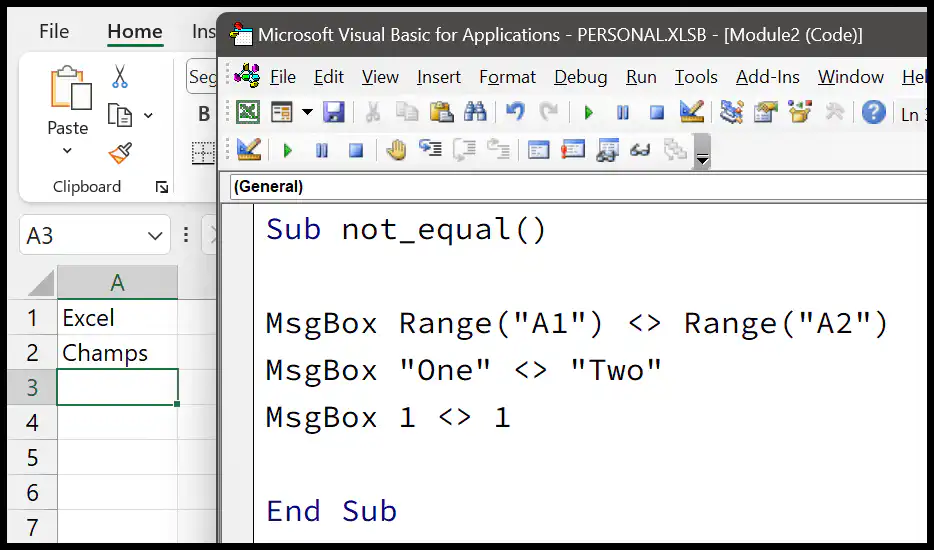
In the above example, you can see that we have used the not equal operator to test three different conditions.
- Cell A1 with the cell A2.
- The value “One” with the value “Two”.
- The number 1 with 2.
We have used the message box to get the result of the conditions.
Sub not_equal()
MsgBox Range("A1") <> Range("A2")
MsgBox "One" <> "Two"
MsgBox 1 <> 1
End Sub
Using NOT EQUAL with in IF Statement in VBA
The best use case of the not equal operator is with the IF statement. You can see in the example below that we use it with IF to test whether cell A1 has a value.
Sub not_equal()
If Range("A1").Value <> "" Then
   MsgBox "Yes"
Else
MsgBox "No"
End If
End Sub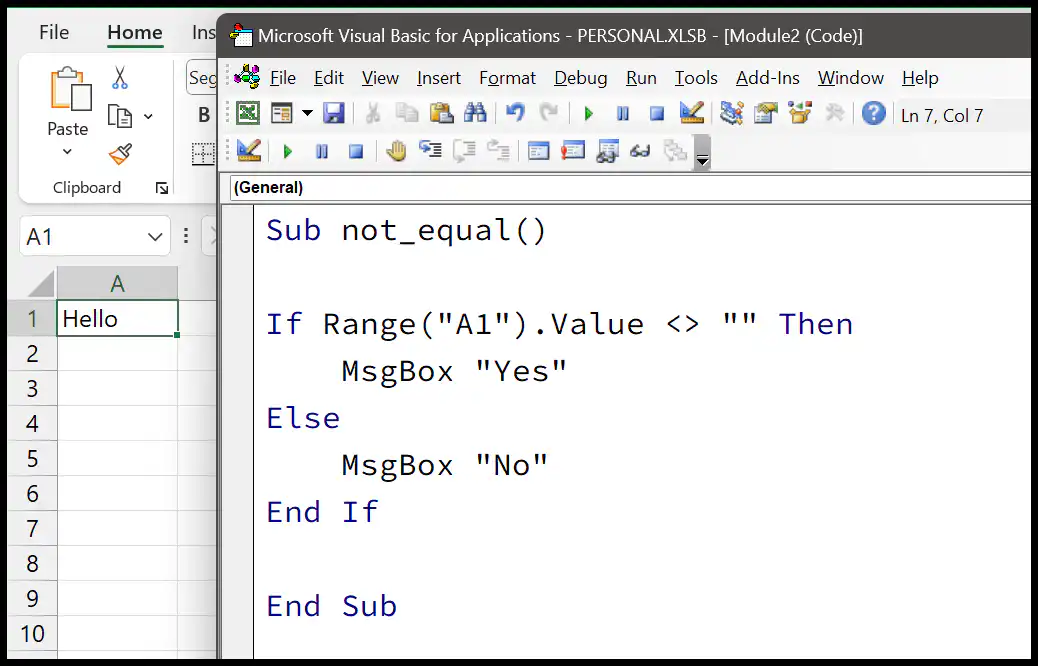
When you run this code, the IF statement tests if the values in cell A1 are not equal to a blank value. If the statement is true, it shows a message box with “Yes”.
And if there is a value in cell A1, the not equal condition returns a FALSE, and the IF statement shows a message box with “No”.
Written by
Puneet Gogia
Microsoft MVP — Excel · Founder, Excel Champs
Twelve years of teaching Excel, and a decade before that using it as a data analyst. Every tutorial here is written from a file I actually built.