

Excel stores time as a fraction of a day, so converting seconds means dividing by 86400 — the number of seconds in a day — then formatting the result. Enter =A1/86400, press Ctrl+1 → Custom, and type [hh]:mm:ss.
The square brackets are essential: without them anything past 24 hours wraps around, so 100,000 seconds shows as 3:46:40 instead of 27:46:40. Use [mm]:ss to see the whole thing as minutes and seconds instead.
If you’d rather have a plain number you can calculate with, skip the time format and just divide: =A1/3600 gives decimal hours (2.78), =A1/60 gives decimal minutes — format those cells as Number, not Time. The TEXT function does both jobs in one step without changing the cell format: =TEXT(A1/86400,"[hh]:mm:ss"), though the result is text and can’t be summed.
And to break the total into separate columns, use =INT(A1/3600) for hours, =INT(MOD(A1,3600)/60) for minutes, and =MOD(A1,60) for seconds.
To convert seconds into hours or minutes in Excel, you need to divide the seconds by the total number of seconds in a day (86400). After that, you need to change the format to hours and minutes.

In this tutorial, you will learn to write and understand these formulas in detail. For your reference, in the below example, you have 10000 seconds in cell A1.
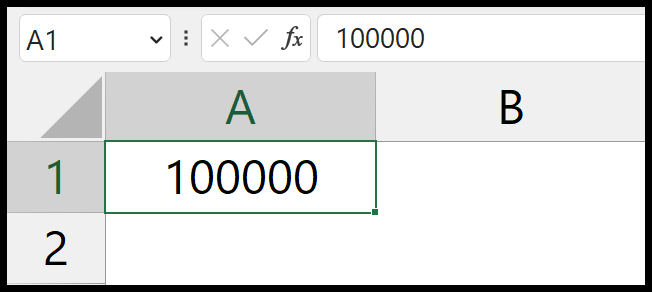
Convert Seconds into Hours (hh:mm:ss)
Below are the steps to write this formula:
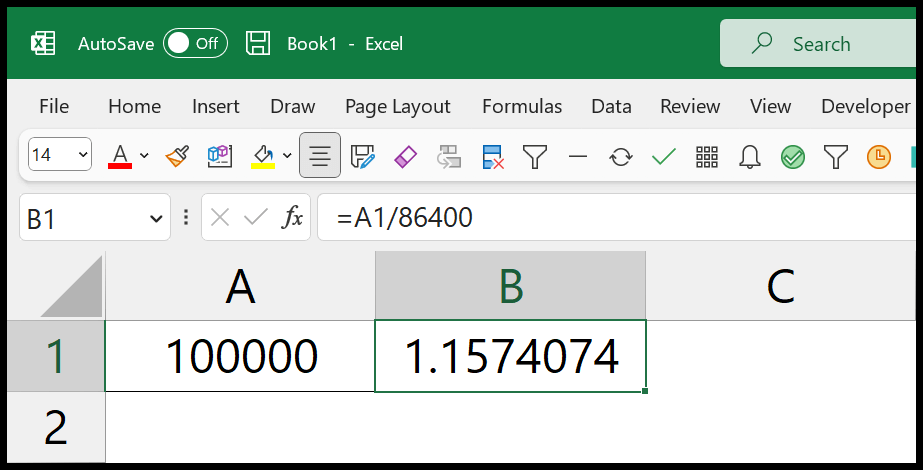
- First, in a cell enter the formula to divide seconds by 86400 (the total number of seconds in a day).
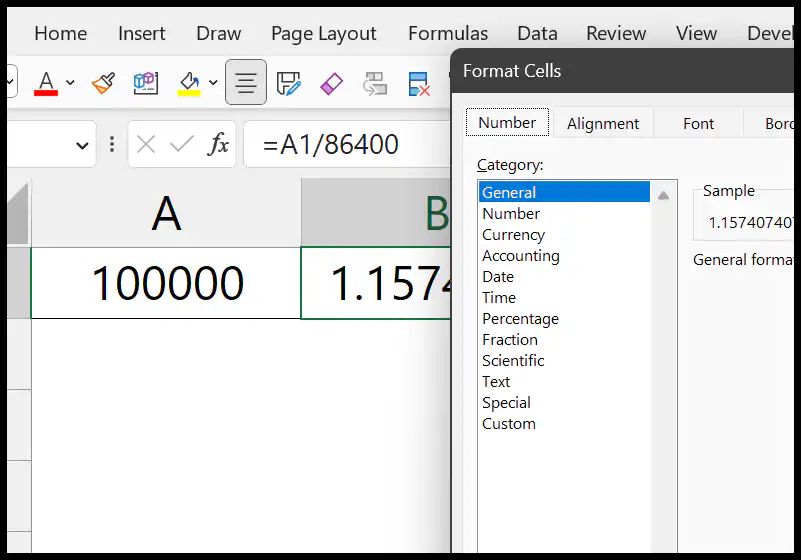
- After that, open the format options (Ctrl + 1).
- Now, from the list of categories, click on “Custom”.
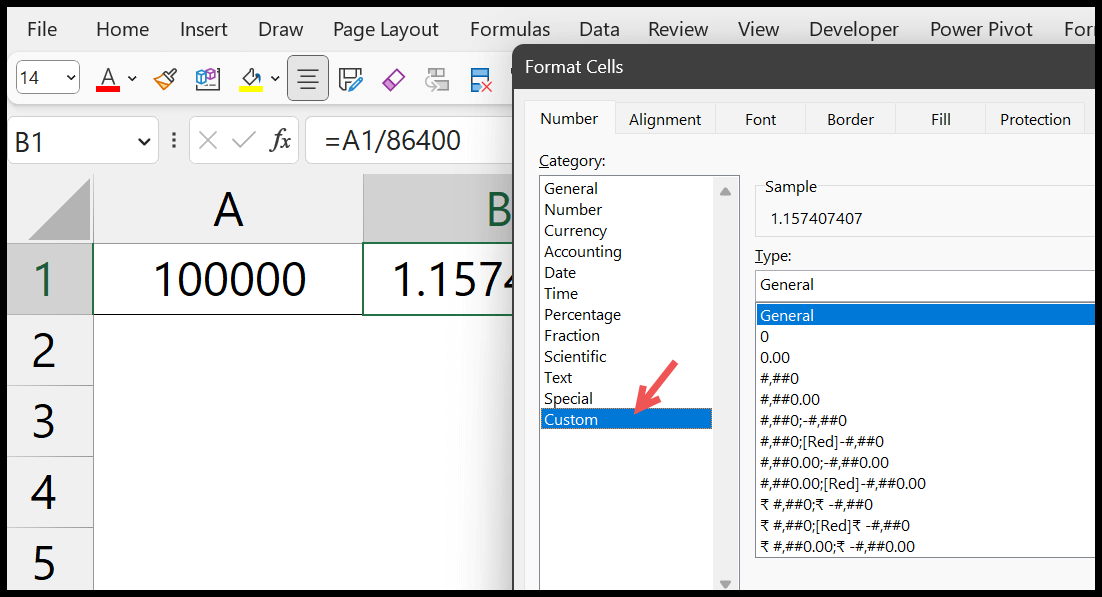
- Next, in the Type box, enter [hh]:mm or [hh]:mm:ss.
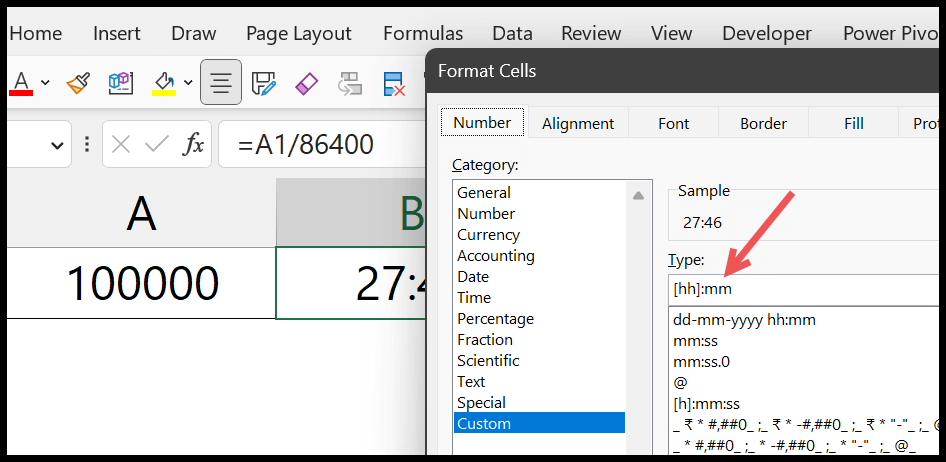
- In the end, click OK to apply the formatting.
When you hit OK, it gives you the total number of hours and minutes. For 10000 seconds, you get 02:46:40 (2 hours, 46 minutes and 40 seconds). Here’s the formula used in step 1:
=A1/86400
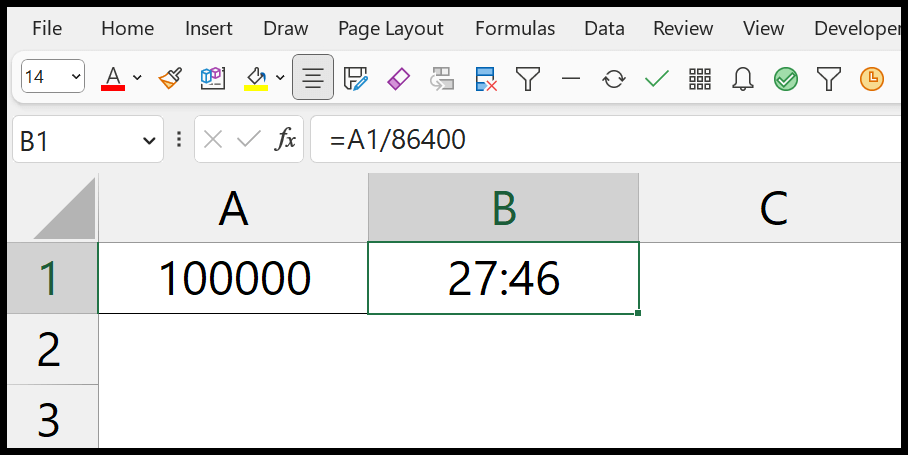
Instead of using hh:mm:ss, we are using [hh]:mm or [hh]:mm:ss here.
Because when you use hh:mm and you have more seconds than a day has, you will get the wrong result.
If you have 27 hours, it will show you only 3 hours, as it skips the full 24 hours of the day. That’s why you should use [hh]:mm:ss and [hh]:mm.
Convert Seconds into Minutes
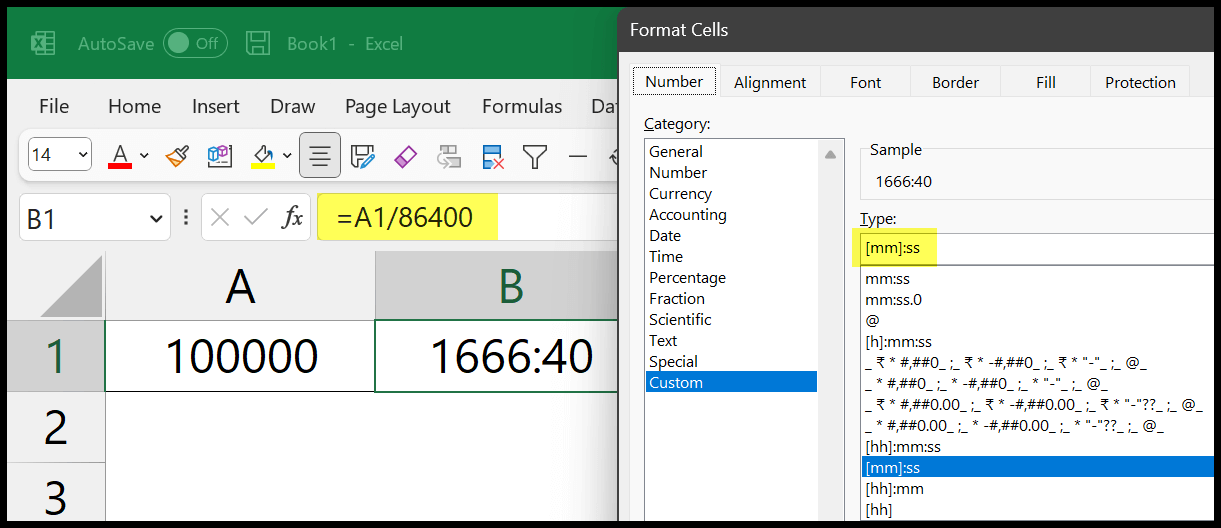
In the same way, you can convert seconds into minutes. You need to use the same steps, but with a different custom format. Once you enter the formula in the cell, change the format to [mm]:ss and click OK. For 10000 seconds, you get 166:40.
Using Text Function to Convert Seconds into Hours and Minutes
You can also use the TEXT function. It converts the seconds into the desired result without changing the format of the cell. In the TEXT function, you can specify the format inside the function.
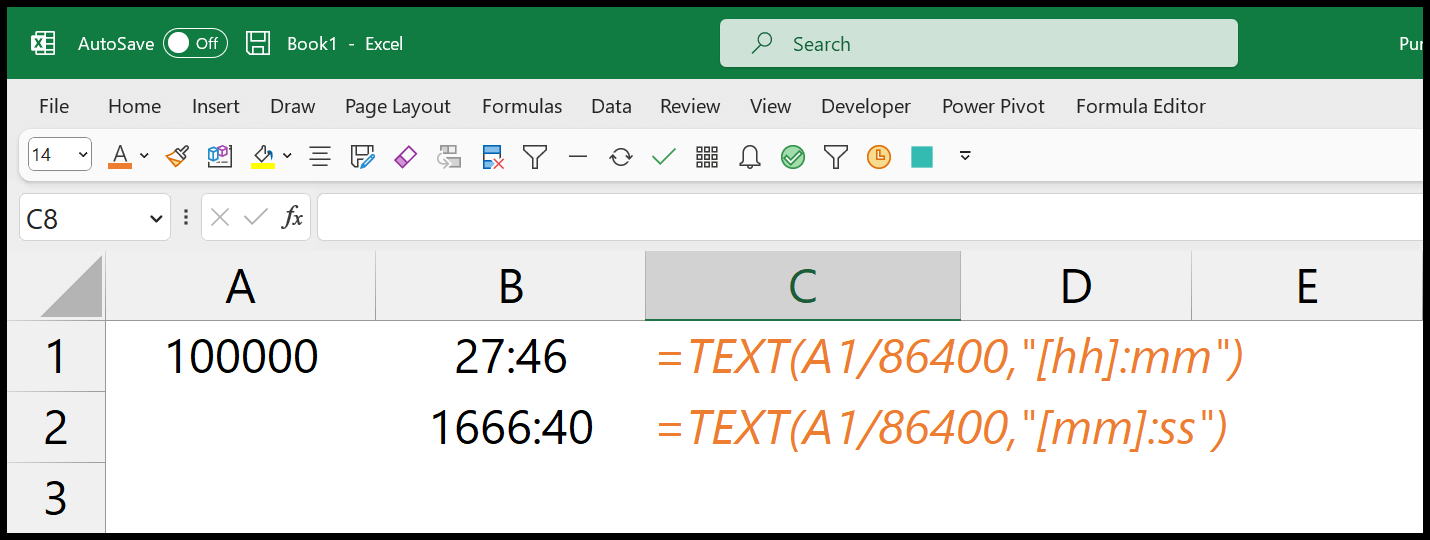
In the first argument of TEXT, you need to enter the same formula (seconds divided by the number of seconds in a day). After that, in the second argument (format_text), enter the format you want to give.
=TEXT(A1/86400,"[hh]:mm")
=TEXT(A1/86400,"[mm]:ss")
Keep in mind that TEXT returns text, not a number, so you can’t use its result in further time calculations. Use the formatting method when you need to add or compare the times later.
Convert Seconds into Decimal Hours or Minutes
Sometimes you need a plain number instead of a time, like for a timesheet or a pay calculation. Divide by 3600 to get hours, or by 60 to get minutes. For 10000 seconds, the first formula gives 2.78 hours and the second gives 166.67 minutes:
=A1/3600
=A1/60
Show Days, Hours, Minutes and Seconds
When you have a large number of seconds, you can show the days separately. For 100000 seconds, the following formula returns “1 days 03:46:40”:
=INT(A1/86400)&" days "&TEXT(MOD(A1/86400,1),"hh:mm:ss")
INT gives the full days, and MOD gives the part of the day that is left, which TEXT shows as hours, minutes and seconds.
Frequently Asked Questions
Why do I get a date instead of hours?
The cell has a date format. The result of =A1/86400 is a fraction of a day, so change the cell format to the custom time format from the steps above to show it as time.
How do I convert hours and minutes back to seconds?
Multiply the time by 86400, like =A1*86400, and format the result as General or Number.
Why is 86400 used?
Excel stores time as a fraction of a day, and a day has 24 × 60 × 60 = 86400 seconds. Dividing by 86400 turns seconds into that fraction.
Written by
Puneet Gogia
Microsoft MVP — Excel · Founder, Excel Champs
Twelve years of teaching Excel, and a decade before that using it as a data analyst. Every tutorial here is written from a file I actually built.