

Select the cells and press Delete. Excel clears the values and formulas from every selected cell and leaves the cells empty; nothing around them moves.
To remove the cells themselves, press Ctrl + – (the minus key). With a range selected, Excel opens the Delete dialog so you can pick Shift cells left, Shift cells up, Entire row or Entire column. Select whole rows first with Shift + Space, or whole columns with Ctrl + Space, and Ctrl + – deletes them without the dialog.
To delete part of a value, press F2 to edit the cell, move the cursor, then press Delete to remove the character to the right of the cursor or Backspace to remove the one to the left. On a laptop where the top row controls volume and brightness, you may need Fn + F2.
Backspace is not the same as Delete on a selection: it clears only the active cell and opens it for editing, so the rest of the range keeps its values. Excel for Mac uses different keys for these actions.
Delete clears contents only. Number formats, fill colours, borders, notes and data validation stay, so a cell that was formatted as a date turns the next number you type into a date. To wipe everything, use Home → Clear → Clear All (Alt, H, E, A), and press Ctrl + Z straight away if you clear the wrong cells.
Latest Video Tutorial – 10 Excel Keyboard Shortcuts (Probably YOU are NOT Using)
The quickest way to delete the cell values is using the “Delete” key from the keyboard. Users can delete the values entered in the cells completely using the “Delete” key and make the cells empty.
Or sometimes users find that the value entered in the cell is misspelled or has some additional characters, and to delete those additional characters, they can use the “Delete” key to correct the value.
Keyboard Shortcut to Delete in Excel
The keyboard shortcut to delete values is mentioned below:
Delete
Steps to Delete Values Using Keyboard Shortcut
- First, select the cell or cells whose values you want to delete.

- Once selected, just press the “Delete” key on the keyboard, and the values will be removed and the cells will become empty.
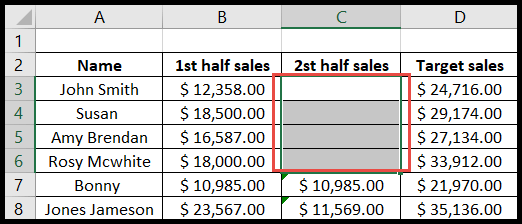
- Or open the cell in edit mode using the “F2” key (“Fn + F2” on some laptops) and move the cursor to the left of the character which you want to remove.
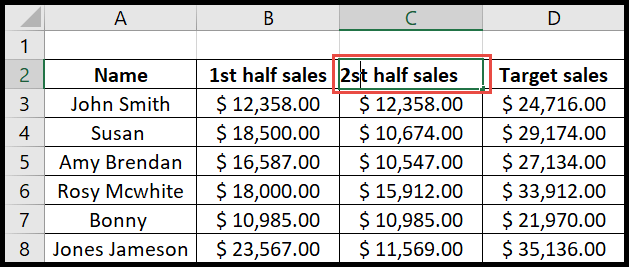
- Once done, press the “Delete” key, and it will remove a single character to the right of the cursor.
- Press the “Delete” key multiple times to remove multiple characters.
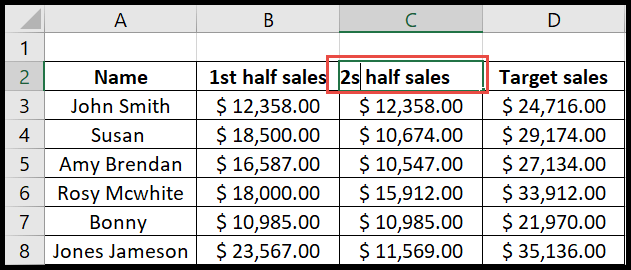
In the above image, you can see, when we pressed the “Delete” key, Excel removed the character “t”, which was on the right side of the cursor.
Delete vs Backspace
- Delete: clears the values from all the selected cells and keeps you out of edit mode.
- Backspace: clears only the active cell, even when you have selected more cells, and opens it in edit mode, so you can type a new value straight away.
- In edit mode: Delete removes the character to the right of the cursor, Backspace removes the one to the left, and Ctrl + Delete removes all the text from the cursor to the end of the line.
Delete Values and Formatting Together
The Delete key only removes the values and formulas. The formatting of the cells, like fill color, borders and number format, stays as it is. To remove everything from the cells, go to Home ➜ Editing ➜ Clear ➜ Clear All, or press Alt → H → E → A one key after another.
And if you want to remove the cells themselves and shift the other cells, use Ctrl + Minus Sign (-) instead, which opens the Delete dialog box.
Frequently Asked Questions
Why doesn’t the Delete key remove the cell color?
Because Delete only clears the contents of the cells. Use Clear All (Alt → H → E → A) or Clear Formats (Alt → H → E → F) to remove the formatting as well.
Can I undo a delete in Excel?
Yes. Press Ctrl + Z right after you delete the values to get them back.
Why can’t I delete values from some cells?
The sheet may be protected, or the cells may be part of an array or spill range. You can only clear a spill range from its first cell, and you need to unprotect a protected sheet first.