

Select the cells and press Ctrl + Shift + @ (Ctrl + Shift + 2 on a US keyboard). Excel applies the h:mm AM/PM format, so 0.75 displays as 6:00 PM. This is the Windows shortcut; check it on a Mac before relying on it.
For a 24-hour clock or seconds, press Ctrl + 1, go to Number → Custom and type hh:mm or hh:mm:ss. For durations that can pass 24 hours, such as total hours worked, use [h]:mm; with an ordinary time format, 26 hours shows as 2:00 AM.
Excel stores a time as a fraction of a day, and the whole-number part is the date. A whole number formatted with this shortcut shows 12:00 AM, and a value such as 45435.75 shows 6:00 PM in the cell while the formula bar still shows the date as well.
The format does not convert text, and it misreads decimal hours. If 9.5 means nine and a half hours, divide by 24 first with =A2/24 and format the result; otherwise Excel reads it as nine days and 12 hours and shows 12:00 PM. Times imported as text (often left-aligned) need =TIMEVALUE(A2) or Data → Text to Columns → Finish before any format will change them.
Latest Video Tutorial – 10 Excel Keyboard Shortcuts (Probably YOU are NOT Using)
In Excel, many times when you work with data that has date and time as values in the cells, you might find those values as decimal numbers or in formats that aren’t uniform.
To make those values into a standard time format, you can apply the time format with a quick keyboard shortcut.
Keyboard Shortcut to Apply Time Format in Excel
The keyboard shortcut to apply the time format is mentioned below (on a Mac, it’s Control + Shift + @):
Ctrl + Shift + @
Steps to Apply Time Format Using Keyboard Shortcut
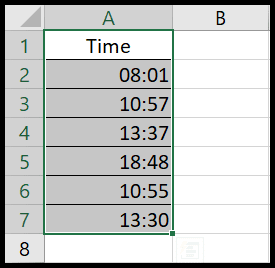
- First, select the cells or the column that have time as values.

- After that, simply press the “Ctrl + Shift + @” keys together, and your values will be shown in a uniform time format (hours and minutes with AM or PM).
Points to Remember
- Numeric values without decimal places represent a date only, so if you have a whole number in the cell, it will show the time as 12:00 AM (midnight).
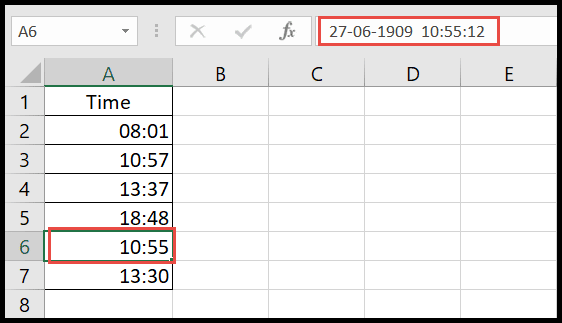
- Numeric values with decimal places represent a date and time, so if you have a number with decimals, the cell shows the time, but the formula bar shows both the date and the time.
- The shortcut only changes how the value looks. If the time is stored as text (for example, imported from another system), it won’t change; convert it to a real time first with the TIMEVALUE function (formula below this list).
=TIMEVALUE(A1)
Use a Different Time Format
The shortcut always applies the hours and minutes with AM or PM. For any other format, press Ctrl + 1 to open Format Cells, go to Number ➜ Time, and pick the format you want, or go to Custom and type your own code:
- hh:mm: 24-hour time, like 14:30.
- hh:mm:ss: 24-hour time with seconds.
- [h]:mm: total hours that go over 24, like 27:15, which is useful when you add up times.
And if you need the time as text in a specific format, for example, to join it with other text, use the TEXT function:
=TEXT(A1,"hh:mm AM/PM")
Frequently Asked Questions
Why does the shortcut not change my time values?
Your values are most likely text, not numbers. Number formats don’t change text, so convert the values with TIMEVALUE or Text to Columns first, and then apply the time format.
How do I show time in 24-hour format?
Use the custom format hh:mm (or hh:mm:ss) in Format Cells. Without AM/PM in the code, Excel shows the hours from 00 to 23.
What is the shortcut for the date format?
Ctrl + Shift + # applies the date format with the day, month and year. And to enter the current time as a fixed value, press Ctrl + Shift + ; (semicolon).