

Select the cells, then press Alt, H, H one key after another to open the Fill Color palette on the Home tab. Move to a colour with the arrow keys and press Enter.
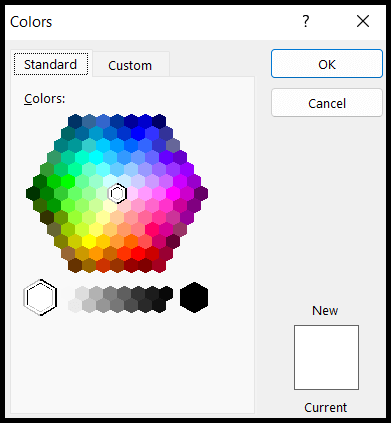
To remove a fill, press Alt, H, H, N for No Fill. For a colour that isn’t in the palette, press Alt, H, H, M to open More Colors, where the Custom tab lets you enter exact RGB values.
After you fill one range, select the next range and press F4 (or Ctrl + Y) to repeat the same fill without opening the palette again. This works only while the fill is the last thing you did.
For pattern or gradient fills, press Ctrl + 1 to open Format Cells and go to the Fill tab. The Alt sequences above are for Excel on Windows; on a Mac and in Excel for the web the keys differ, so test there before relying on them.
If a fill seems to have no effect, a conditional formatting rule on those cells is usually the cause, because conditional formats show on top of a manual fill. Check Home → Conditional Formatting → Manage Rules, and use conditional formatting yourself when the colour should change with the cell’s value.
Latest Video Tutorial – 10 Excel Keyboard Shortcuts (Probably YOU are NOT Using)
Many times, users want to make some cells easily visible to everyone, and for this, they prefer to highlight those cells by adding color to them using the fill color option. Fill color in Excel is used to fill the color in the cells. Users can choose any color from the available ones and fill in the cells.
Keyboard Shortcut to Fill Color in the Excel
Alt → H → H
There is no direct keyboard shortcut to choose, select, and fill the color to the cell but still, the user can save some time by directly going to the color selection menu and can select the required color from there.
Steps to Fill Color Using Keyboard Shortcut
- First, select the cells where you want to fill the color.
- After that, press the Alt → H → H keys in sequence and you will get the “Theme Colors” menu opened to choose the color.
- Now, using the keyboard “Left, Right, Up and down” arrow keys, move the selection to the color which you want to fill and then press enter.

- Once you press enter, you will get the selected cells filled with that color.
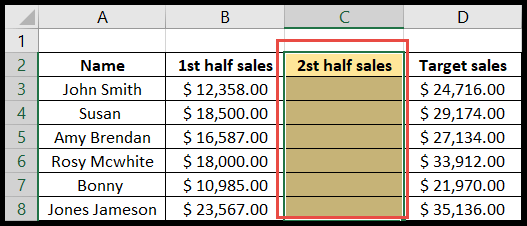
Points to Remember
- The color you added using the “Fill Color” option will not get changed/removed unless you intentionally change/remove the color so if you want the color to be changed with the change in value, you have to use the “Conditional Formatting” option to fill the color.
- To remove the color from any cell, select the cell and press Alt → H → H → N and the color will get removed.
- To find more color options to choose press Alt → H → H → M and you will get the “Colors” dialog box opened.
After following all the steps, the colour is not visible on the online screen.