

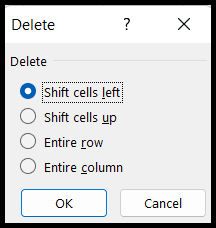
Select the cell or range and press Ctrl + – (the minus key on the main keyboard or the numeric keypad). In the Delete dialog choose Shift cells left or Shift cells up, then press Enter. The cells are removed and their neighbours move in to fill the gap.
The same dialog offers Entire row and Entire column. To skip the dialog, select the whole row with Shift + Space or the whole column with Ctrl + Space first; Ctrl + – then deletes it straight away.
The Delete key is different: it clears the contents but leaves the cell, and its formatting, where it is. Use it when you want an empty cell, and Ctrl + – when you want the cell gone. The mouse route is Home → Delete → Delete Cells.
Inside an Excel Table, Ctrl + – removes the table row instead of offering to shift cells. Cells outside the table on the same sheet row are not touched.
Watch what shifting does to a list. Deleting one cell with Shift cells up moves every value below it up a row in that column only, so records stop lining up across the row; delete the entire row instead when the data is a list. Formulas that pointed at a deleted cell show #REF!, so check them afterwards.
Latest Video Tutorial – 10 Excel Keyboard Shortcuts (Probably YOU are NOT Using)
As the name suggests, delete cell refers to the deletion of the cell.
Excel also has the option to delete the specific cell or range of cells instead of deleting the entire row or column.
So, whenever you want to delete or remove any cell from the spreadsheet, you can delete that specific cell and adjust the data.
Keyboard Shortcut to Delete Cell in Excel
The keyboard shortcut to delete the specific cell or range of cells is as mentioned below:
Ctrl + -
Steps to Delete Cell Using Keyboard Shortcut
- First, select the cell(s) that you want to delete or remove from the spreadsheet.
- After that, simply press the Ctrl + - keys together, and the “Delete” dialog box opens.
- Now, choose the direction in which you want to move the rest of the cells to replace the selected cell: Shift cells left or Shift cells up (or Entire row or Entire column).
- Once selected, press Enter, and your selected cell will be removed and the data will be adjusted.
Note: If you have your data in the table range format and you select any specific cell and press the Ctrl + - keys, then it will delete that entire row of the table, not only that specific cell.
In the Delete dialog box, you can also press the underlined letter of an option instead of clicking it: L for Shift cells left, U for Shift cells up, R for Entire row and C for Entire column. And if you have selected an entire row or column, Ctrl + Minus Sign (-) deletes it straight away without the dialog box.
Delete Cells from the Ribbon
You can also go to Home ➜ Cells ➜ Delete ➜ Delete Cells, or press Alt → H → D → D one key after another. Both open the same Delete dialog box.
Delete Cells vs Clear Contents
Deleting a cell removes the cell itself, and the cells around it move to fill the gap. If you only want to remove the value and keep the cell where it is, press the Delete key instead, which clears the contents.
Be careful with formulas: a formula that refers to a deleted cell shows the #REF! error, as the cell it was using no longer exists. Formulas that refer to the cells that moved are updated automatically.
Frequently Asked Questions
Why is the Delete option grayed out?
The sheet is probably protected, or you’re in edit mode. Press Esc to leave edit mode, or unprotect the sheet from Review ➜ Unprotect Sheet.
Can I delete cells in a table without deleting the row?
Not with Ctrl + Minus Sign (-), which deletes the table row. To remove only values inside a table, select the cells and press the Delete key.
How do I undo deleting a cell?
Press Ctrl + Z right after deleting the cell, and Excel puts the cell and its value back in place.