

Select the cells with the drop-down, go to Data ? Data Validation (or press Alt, A, V, V), click Clear All and then OK. The arrow goes, and the values already in the cells stay.
To find every drop-down on the sheet, press Ctrl + G, click Special, choose Data validation and All, then click OK. With those cells selected, open Data Validation and click Clear All. If Excel says the selection has more than one type of validation and asks whether to erase the current settings, click OK.
Clear All removes every validation rule in the selection, including number and date limits, not only drop-down lists. To remove one list and leave other rules alone, click a cell with that list first and choose Same instead of All in Go To Special.
Home ? Clear ? Clear All also removes the drop-down, but it deletes the values and formatting as well.
With VBA, one line removes all data validation from a sheet: ActiveSheet.Cells.Validation.Delete. For a range, use Range("B2:B100").Validation.Delete.
For example, you’re managing a project at work, and you have an Excel sheet with a list of tasks. Each task has a drop-down list assigned to it for assigning team members. Now that the project is over, you need to send this sheet to the finance department for budget review.
They only need to see the tasks and costs, not the team member assignments. So, you decide to remove the drop-down lists from the sheet to make it clearer and more relevant for the finance team.
We will learn three methods in this tutorial:
- The first method only removes the drop-down list, not the value that you have in the cell.
- The second method clears the drop-down list as well as the value from the cell.
- The third method deletes the cell entirely.
The quickest way to remove the drop-down list is to use the keyboard shortcut Alt ⇢ H ⇢ E ⇢ A (it clears the value and the formatting as well).
Steps to Remove a Drop-Down List
To get rid of a drop-down list, use the following steps:
- First, select the cell or range of cells where you have the data validation drop-down list.

- After that, go to the Data tab ⇢ Data Tools ⇢ Data Validation ⇢ Data Validation (you can also use the keyboard shortcut Alt ⇢ A ⇢ V ⇢ V).
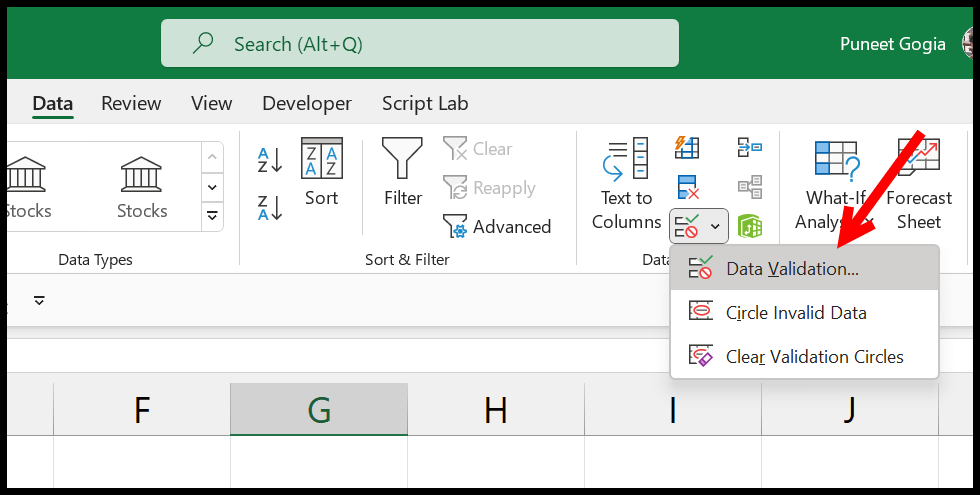
- Now, you have the Data Validation dialog box, and you need to click the “Clear All” button.

- In the end, click OK to close the data validation dialog box.

As you can see, the value which you have in the cell is still there, not deleted.
Get Rid of Drop-Down List with Clear All Option
- First, select the cell with the drop-down list.

- After that, go to the Home tab ⇢ Editing ⇢ Clear.

- Now, click on the “Clear All” option from here.
The moment you click on the option, it clears everything from the cell including the drop-down list that you have in the cell.

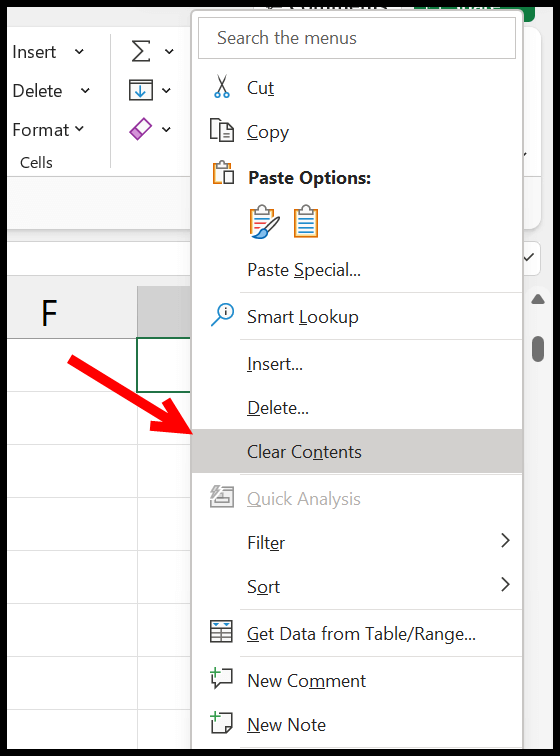
You can also use the shortcut key Alt ⇢ H ⇢ E ⇢ A to clear everything from the cell, including the drop-down list. But note that the clear content option (the Delete key, or Clear Contents in the right-click menu) only removes the value and leaves the drop-down list in the cell.
Delete Cell Entirely to Remove the Drop-Down List
There could be a situation when you want to delete the cell to delete the drop-down list.
- First, select the cell and right-click on it.
- And, from the right-click menu, click on the “Delete” option.

- Now, here you have the dialog box to delete the cell.

- From here, choose “Shift cells left” or “Shift cells up” and click OK to delete the cell.
This will delete the selected cell, and the data validation will also be gone with it.
Remove All the Drop-Down Lists with Go To Special
Using the “Go To Special” to delete drop-down lists in Excel is easy because it selects all cells that contain data validation rules, including drop-down lists, with just a few clicks.

Here are the steps you need to follow:
- Once you open the worksheet where you have drop-down lists, make sure that you want to delete all the lists from the sheet.
- Then, go to the “Home” tab, then in the Editing group, click on “Find & Select” and choose “Go To Special” from the dropdown (or press F5 and click Special).
- In the Go To Special dialog box, select “Data Validation” and then choose “All” to highlight all cells that have data validation. This will select all the cells with the data validation in the sheet.
- Now, with these cells selected, go to the “Data” tab and click “Data Validation”. Click “Clear All” and then click “OK” to remove all the drop-down lists.
Remove All Drop-Down Lists in the Worksheet (Data Validation)
You can also use a VBA code that deletes all the drop-down lists from a worksheet in one go. It iterates through every cell in the sheet’s used range and clears any data validation rules that might be applied.
Sub RemoveDropDowns()
    Dim cell As Range
    Dim ws As Worksheet

    ' Set the worksheet object to the active worksheet
    Set ws = ActiveSheet

    ' Loop through each cell in the used range of the worksheet
    For Each cell In ws.UsedRange
        ' Check if the cell has data validation applied
        If Not cell.Validation Is Nothing Then
            ' Remove data validation from the cell
            cell.Validation.Delete
        End If
    Next cell

    ' Inform the user that all drop-downs have been removed
    MsgBox "All drop-down lists have been removed from the active sheet.", vbInformation
End Sub
You can do the same with one line of code, as the Validation object of a range covers all its cells. The following code removes all the drop-down lists (and other data validation rules) from the active sheet without a loop:
Sub RemoveAllDropDowns()
    ActiveSheet.Cells.Validation.Delete
End Sub
Only Delete Drop-Down Lists That Aren’t Referred to in Formulas
There might be a situation when you have multiple drop-down lists in your worksheet. Some of these drop-downs are referred to in some formulas within the worksheet. Now, you only want to delete drop-down lists that are not linked or referred to in any formulas.
The best way for this is to use a VBA code, as we have used in the above example:
Sub RemoveIsolatedDropDowns()
    Dim cell As Range
    Dim ws As Worksheet
    Dim hasDependents As Boolean

    ' Set the worksheet object to the active worksheet
    Set ws = ActiveSheet

    ' Loop through each cell in the used range of the worksheet
    For Each cell In ws.UsedRange
        ' Check if the cell has data validation applied
        If Not cell.Validation Is Nothing Then
            ' Check if the cell has dependents
            hasDependents = False ' Reset for each cell
            On Error Resume Next ' Use error handling to manage cells with no dependents
            hasDependents = Not cell.Dependents Is Nothing
            On Error GoTo 0 ' Turn off error handling

            ' If the cell has no dependents, delete the data validation
            If Not hasDependents Then
                cell.Validation.Delete
            End If
        End If
    Next cell

    ' Inform the user that the process is complete
    MsgBox "Isolated drop-down lists have been removed.", vbInformation
End Sub
The code resets hasDependents for each cell, because cell.Dependents gives an error when a cell has no dependents, and the variable would otherwise keep the value from the previous cell. Also note that Dependents only finds formulas on the same worksheet, so drop-downs used by formulas on other sheets are treated as not referred to.
Points to Take Care Of
With all the methods we have learned here, there are a few points you need to take care of.
- Before removing drop-down lists, verify that no formulas or other workbook functions depend on the drop-down. That’s why we have shared a specific code to delete only the lists that no formula depends on.
- Ensure that removing the drop-down does not delete or remove the existing values in the cells.
- Always make a backup of your Excel file before removing drop-down lists.
Frequently Asked Questions
Why can’t I remove a drop-down list?
The sheet may be protected, so unprotect it first (Review ➜ Unprotect Sheet). Or the drop-down isn’t data validation at all: it could be a combo box (a form control or an ActiveX control) that you delete like a shape, or the filter arrows of a table, which you turn off with Data ➜ Filter.
Does removing the drop-down delete the source list?
No. Removing the data validation only removes the arrow and the rule from the cell. The list of items that the drop-down used stays where it is.
How do I remove a drop-down list but keep the value?
Use the first method: Data ➜ Data Validation ➜ Clear All. It removes only the drop-down list, and the value in the cell stays as it is.