

Press Alt, W, F, F (one key after another) to freeze panes at the active cell. Excel locks every row above that cell and every column to its left, so select B2 to keep row 1 and column A in view, or C3 to keep the top two rows and the first two columns.
For the two common cases, press Alt, W, F, R to freeze the top row or Alt, W, F, C to freeze the first column. Both work from any cell. On a Mac there are no key tips; use the same commands on the View tab.
To freeze rows only, select the cell in column A directly below them (A4 freezes rows 1 to 3). To freeze columns only, select the cell in row 1 directly to their right (D1 freezes columns A to C). Use this when your headers sit under a title instead of in row 1.
To unfreeze, press Alt, W, F, F again: once panes are frozen, that menu item becomes Unfreeze Panes. To move the freeze to a different cell, unfreeze first, select the new cell, then freeze again.
Scroll to the top of the sheet before you freeze. Excel freezes what is on screen above the active cell, so any rows scrolled out of view above the window stay out of reach until you unfreeze. If the command is greyed out, you are probably in Page Layout view; switch to View → Normal first.
Latest Video Tutorial – 10 Excel Keyboard Shortcuts (Probably YOU are NOT Using)
In Excel, Freeze Panes is a feature used to lock rows or columns, so they stay visible while you scroll anywhere in the sheet.
When you work with huge data sets, you can freeze the header or some specific rows and columns to keep them visible all the time when you scroll to any part of the sheet.
With Freeze Panes, you can freeze the top row only, the first column only, or a combination of specific rows and columns, based on your requirements.
Keyboard Shortcut to Freeze Panes in Excel
Alt → W → F → R (To freeze the top row only)
Alt → W → F → C (To freeze the first column only)
Alt → W → F → F (To freeze the combination of rows and columns, or unfreeze the already frozen pane)
Steps to Freeze Pane Using Keyboard Shortcut
- To freeze only the header row (first row), just click anywhere in the sheet and press “Alt → W → F → R” in sequence, and your header row will freeze and be visible all the time, even when you scroll anywhere in the sheet.
- If you want to scroll towards the right side and want to freeze the first column instead of the row, just click anywhere in the sheet and press “Alt → W → F → C” in sequence, and your first column will freeze.
- To freeze a combination of specific rows and columns, select the cell just below the rows and just to the right of the columns you want to freeze, and then press “Alt → W → F → F”. The rows above and the columns to the left of that cell get frozen together.
- To unfreeze the panes, simply press “Alt → W → F → F” again (the first option changes to Unfreeze Panes when the sheet has frozen panes).
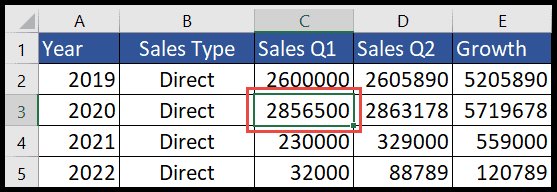
In the above image, we first went to cell C3 and then pressed Alt → W → F → F, which froze the rows above that cell and the columns to the left of it. Now, if we scroll down, the top two rows will be visible all the time, and if we scroll towards the right, the first two columns will be visible all the time.
Things to Know About Freeze Panes
- Only one freeze at a time: freezing the top row replaces any rows and columns you froze before, and the other way round.
- Scroll to the top first: Freeze Panes keeps the rows that are visible above the selected cell. If you have scrolled down, the frozen area may not be what you expect, so press Ctrl + Home first.
- Mac: on a Mac, go to View ➜ Freeze Panes, Freeze Top Row or Freeze First Column.
- Excel tables: in a table, the column headers replace the column letters when you scroll down, so you may not need to freeze the header row.
Frequently Asked Questions
Why is Freeze Panes greyed out?
You are probably editing a cell, the sheet is protected, or you are in Page Layout view. Press Esc to stop editing, unprotect the sheet, or switch to Normal view.
How do I freeze the first two rows?
Select cell A3 (the first cell below those rows) and press Alt → W → F → F.
Does Freeze Panes work when printing?
No. It only applies on the screen. To repeat rows on every printed page, use Page Layout ➜ Print Titles.