

Select the cell and press F2. The cursor appears at the end of the cell’s contents, ready for editing; press Enter to confirm or Esc to cancel and keep the original. On a Mac, press Control + U.
On many laptops the top row controls brightness or volume by default, so F2 does nothing in Excel. Press Fn + F2 instead, or turn on Fn Lock so F2 works on its own (the Fn Lock key varies by laptop).
While editing, Home and End jump to the start and end of the entry, Ctrl + Left Arrow and Ctrl + Right Arrow move a word at a time, and Alt + Enter adds a line break inside the cell. Press Ctrl + Enter to confirm without moving the selection down.
If the arrow keys jump to another cell or insert a cell reference instead of moving the cursor, you are in Enter or Point mode, not Edit mode. Press F2 again to switch; the status bar at the bottom left shows Edit, Enter or Point.
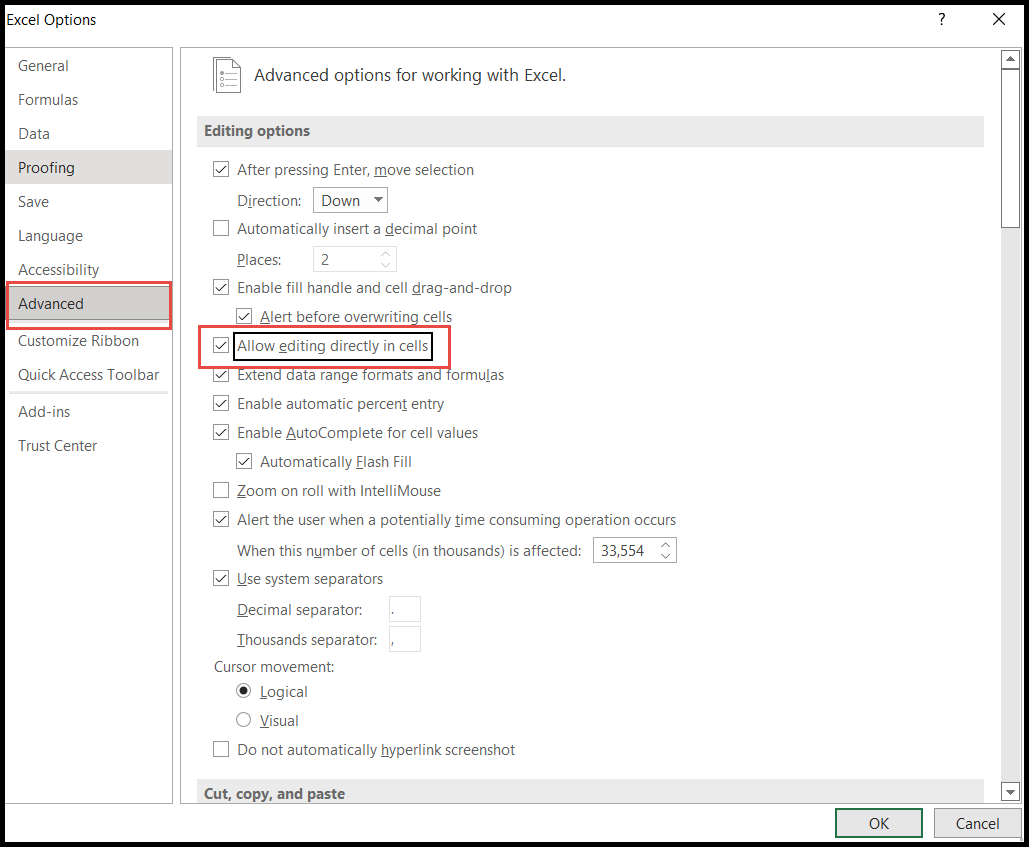
If F2 sends the cursor to the formula bar instead of the cell, in-cell editing is switched off. Turn it back on in File → Options → Advanced → Allow editing directly in cells.
Latest Video Tutorial – 10 Excel Keyboard Shortcuts (Probably YOU are NOT Using)
In Excel, editing a cell is a very common task, whenever you need to change a value or formula entered in a cell.
You can edit the cell at any point by double-clicking on it or by using the keyboard shortcut. When the active cell is in edit mode, you will notice a blinking cursor (a straight line) within the cell.

Keyboard Shortcut to Edit Cell in Excel
Fn (Function key) + F2 on most laptops, or just F2 on a keyboard where the F keys work without Fn. On a Mac, press Control + U.
Steps to Edit Cell Using Keyboard Shortcut
- First, go to the cell which you want to edit.
- After that, simply press F2 (or “Fn + F2” on a laptop), and your active cell will change into edit mode. You will see the blinking cursor at the end of the value or formula in the cell.
- Now, with the help of the Left and Right Arrow keys, you can move the cursor to the character that you want to edit. Home and End take you to the start and end of the cell.
- Once you are done with editing, just press Enter to save the change (or Esc to cancel it).
Points to Remember
- You can edit one cell at a time. To enter the same edit in several selected cells, type it and press Ctrl + Enter.
- By default, editing happens in the cell, but you can change this by unchecking “Allow editing directly in cells” (File ➜ Options ➜ Advanced ➜ Editing options) to make the editing happen in the formula bar.
Useful Keys While Editing a Cell
- Alt + Enter: adds a line break inside the cell (Option + Return on a Mac).
- Ctrl + Shift + Left/Right Arrow: selects a word at a time while editing.
- F4: switches a cell reference between relative and absolute while editing a formula.
- F2 again: switches between Edit mode and Enter mode, so the arrow keys select cells for a formula instead of moving the cursor.
Frequently Asked Questions
Why does F2 not edit the cell?
On many laptops, the F keys control brightness or volume, so you need Fn + F2 (or turn on Fn Lock). If it still doesn’t work, check that “Allow editing directly in cells” is on, or look for the cursor in the formula bar instead.
Why can’t I edit a cell?
The sheet is probably protected, the cell is part of an array or spill range (you can only edit its first cell), or the workbook is open as read-only.
How do I cancel an edit?
Press Esc before you press Enter, and the cell goes back to what it was. After pressing Enter, use Ctrl + Z to undo the change.