

Click any cell in the column that should sit to the right of the new one, press Ctrl + Space to select the whole column, then press Ctrl + Shift + +. Excel inserts a blank column to the left of your selection.
To add several columns at once, select that many columns first (for three, press Ctrl + Space, then Shift + → twice) and press Ctrl + Shift + +. You get the same number of new columns, all to the left.
If only a cell is selected when you press Ctrl + Shift + +, Excel opens the Insert dialog instead. Choose Entire column and press Enter. On a full-size keyboard, Ctrl + + on the numeric keypad does the same job.
To skip selecting the column, use the Ribbon key tips Alt, H, I, C (Home → Insert → Insert Sheet Columns) or the older menu sequence Alt, I, C, pressing the keys one after another rather than together. Press F4 or Ctrl + Y afterwards to repeat the insert (Fn + F4 on some laptops).
If Excel refuses with a message that it cannot shift nonblank cells off the worksheet, something sits in the last column of the sheet, usually stray data or formatting. Press Ctrl + End to find the real end of the used range, delete the unused columns beyond your data, save, and try again.
Latest Video Tutorial – 10 Excel Keyboard Shortcuts (Probably YOU are NOT Using)
Adding a new column in Excel is a very easy task. Many times, while working with data, users want to add or insert a new column, and they can do it using keyboard shortcuts instead of going to the “Insert” icon under the “Home” tab.
Keyboard Shortcuts to Add Column in the Excel
Alt → I → C
Ctrl + Shift + +
Steps to Add Column Using Keyboard Shortcut
1. Using keyboard shortcut Alt → I → C
- First, click on any cell to the left of which you want to add the new blank column.

- After that, simply press “Alt → I → C” and you will get the new column inserted to the left of the selected cell.
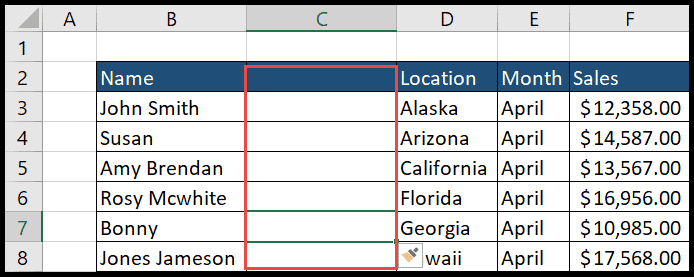
2. Using keyboard shortcut Ctrl + Shift + Plus Sign (+)
- First, select the whole column to the left of which you want to add the new blank column, using the keyboard shortcut “Ctrl + Spacebar”.
- After that, press the shortcut keys Ctrl + Shift + + and you will get the new blank column inserted to the left of your selected column.
Points to Remember
- Excel always adds the column(s) to the left of your selected cell or column; you can’t change this default setting.
- Once you have added a column, you can just press the Fn+F4 keys for Excel to repeat the task to add more blank columns. On a keyboard where F4 works without Fn, press F4 alone, or use Ctrl + Y.
Insert Multiple Columns at Once
To add more than one column in one go, select as many columns as you want to add. For example, click a column header, hold Shift and press the Right Arrow key twice to select three columns, and then press Ctrl + Shift + Plus Sign (+). Excel inserts three blank columns to the left of your selection.
Ribbon Shortcut for Newer Excel Versions
Alt → I → C is an old menu shortcut from Excel 2003 that still works. The ribbon shortcut in current versions is Alt → H → I → C, which runs Home ➜ Insert ➜ Insert Sheet Columns. It also inserts the column to the left of the active cell.
And if you select a single cell and press Ctrl + Shift + Plus Sign (+) without selecting the whole column, Excel opens the Insert dialog box. Press C to choose Entire column, and then press Enter.
Frequently Asked Questions
Why can’t I insert a column in Excel?
The most common reason is that there’s data or formatting in the last column of the sheet (XFD), which Excel can’t push off the end of the worksheet. Clear those cells, or check if the sheet is protected.
How do I insert a column to the right of a column?
Excel always inserts to the left. So, select the column that’s on the right of the place where you want the new column, and then use the shortcut.
Does inserting a column break my formulas?
No. Excel adjusts the cell references in your formulas to the new positions. Only references written as text, like in INDIRECT, don’t change.