

To count how many times a character appears in a cell, measure the text, remove that character, and measure it again: =LEN(A1)-LEN(SUBSTITUTE(A1,"e","")). The difference is your count. SUBSTITUTE is case-sensitive, so this counts lowercase “e” only — to count both cases, wrap the cell in UPPER: =LEN(A1)-LEN(SUBSTITUTE(UPPER(A1),"E","")).
For a word or a multi-character string rather than a single letter, divide by its length: =(LEN(A1)-LEN(SUBSTITUTE(A1,"the","")))/LEN("the"). To count across a whole column, wrap it in SUMPRODUCT: =SUMPRODUCT(LEN(A1:A10)-LEN(SUBSTITUTE(A1:A10,"e",""))). And to point at a cell instead of typing the character in, drop the quotes: =LEN(A1)-LEN(SUBSTITUTE(A1,C1,"")).
In Excel, to count a specific character, you need to use a combination of SUBSTITUTE and LEN functions.
LEN counts the total characters and then the Substitute function removes the character that you want to count from the main value.
After that, you can again count the total characters and compare them with the original count to get the count of that specific character.
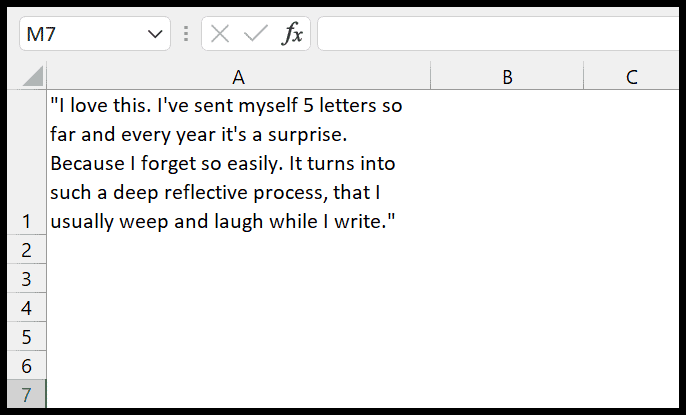
In the following example, you have a long sentence in cell A1, and now, from the sentence, you need to count how many times the letter “e” occurred. We will write this formula in cell B1.
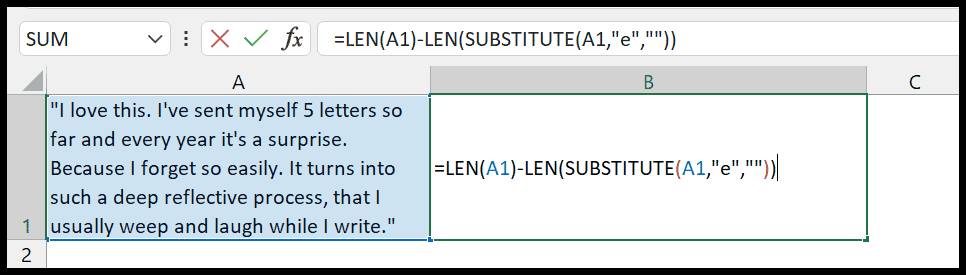
You can use the following steps to write this formula:
- First, in cell B1, enter the LEN function and refer to cell A1.
- After that, enter a minus sign and enter the LEN function again.
- Next, you need to enter the SUBSTITUTE function within the LEN function.
- Now, enter the substitute function and refer to cell A1 again.
- From here, you need to specify the character you want to replace in the second argument
- Then, there is a blank character in the third argument of the SUBSTITUTE function.
- In the end, hit enter the closing parentheses and hit enter.
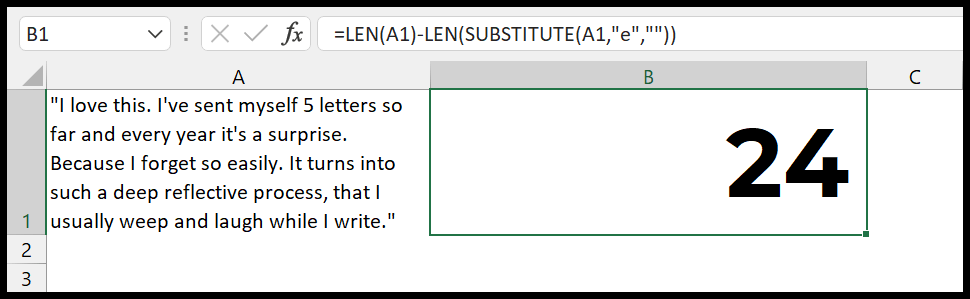
The moment you hit enter, it returns the count character “e” in the result, which is twenty-four.
=LEN(A1)-LEN(SUBSTITUTE(A1,"e",""))
To verify this formula, I ran the following code in a loop through all the characters in cell A1.
Sub LoopString()

Dim Counter As Integer
Dim MyString As String
Dim i As Integer

MyString = Range("A1").Value

For Counter = 1 To Len(MyString)
If Mid(MyString, Counter, 1) = "e" Then
i = i + 1
End If
Next

MsgBox i

End Sub
Read Also – Count Cells by Color in Excel
How this formula works
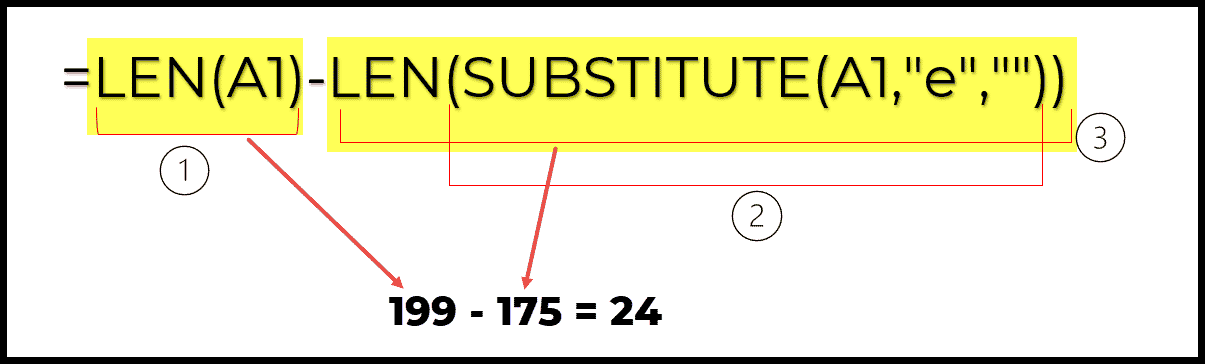
Now it is time to understand how this formula works, and for this, we need to split this formula into three parts.
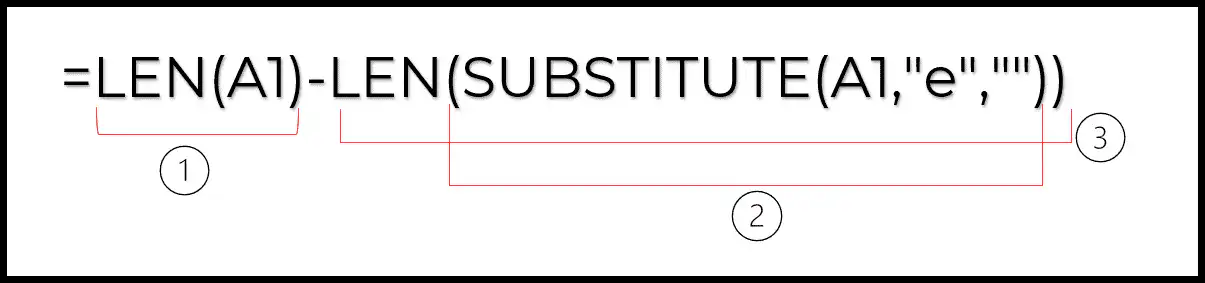
- In the first part, the LEN function counts the total number of characters from cell A1 and returns 199 in the result.
- In the second part, we used a substitute function to replace “e” with a no value.
- In the third part, we have rapped substitute function to count the characters from the for value where character “e” is not there.
Written by
Puneet Gogia
Microsoft MVP — Excel · Founder, Excel Champs
Twelve years of teaching Excel, and a decade before that using it as a data analyst. Every tutorial here is written from a file I actually built.