

To check whether a value exists in a range, count it and test the count: =IF(COUNTIF(A1:A10,"Glen")>0,"Yes","No"). COUNTIF returns how many times the value appears, and IF turns any number above zero into your own message.
To check against a value in a cell rather than typed text, drop the quotes: =IF(COUNTIF(A1:A10,C1)>0,"Yes","No"). For a partial match, wrap the value in asterisks so it matches anywhere inside the cell: =IF(COUNTIF(A1:A10,"*Glen*")>0,"Yes","No") finds “Glen Smith” as well as “Glen”.
Two alternatives worth knowing: =IF(ISNUMBER(MATCH(C1,A1:A10,0)),"Yes","No") does the same job and is faster on large ranges, and =COUNTIF(A1:A10,C1)>0 on its own returns a plain TRUE or FALSE if you don’t need custom text. If it returns “No” when the value is clearly there, the cause is almost always a trailing space or a number stored as text — check with =COUNTIF(A1:A10,TRIM(C1)).
In Excel, to check if a value exists in a range or not, you can use the COUNTIF function with the IF function. With COUNTIF, you can check for the value, and with IF, you can return a result value to show to the user. i.e., Yes or No, Found or Not Found.

Check for a Value in a Range
In the following example, you have a list of names that only includes first names, and now you need to check if “GLEN” is there.

You can use the following steps:
- First, you need to enter the IF function in cell B1.
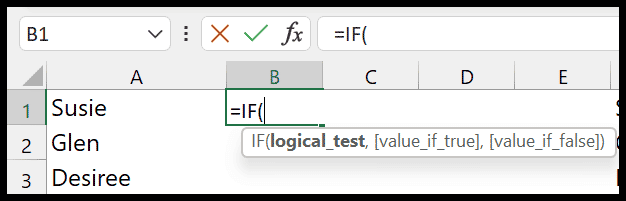
- After that, in the first argument (logical test), you need to enter the COUNTIF function there.
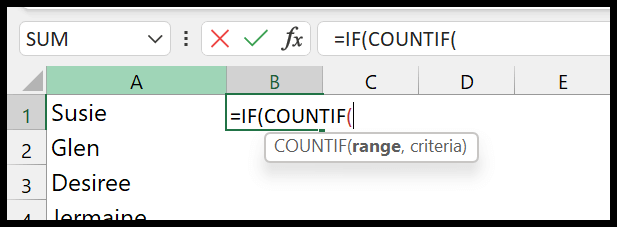
- Now, in the COUNTIF function, refer to the range A1:A10.
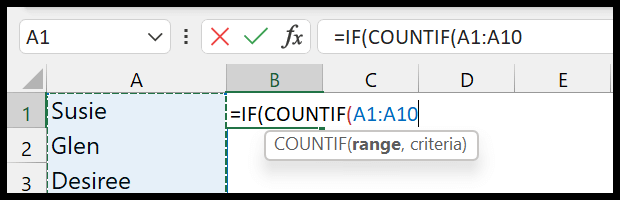
- Next, in the criteria argument, enter “Glen” and close the parentheses for the COUNTIF Function.

- Additionally, use a greater than sign and enter a zero.
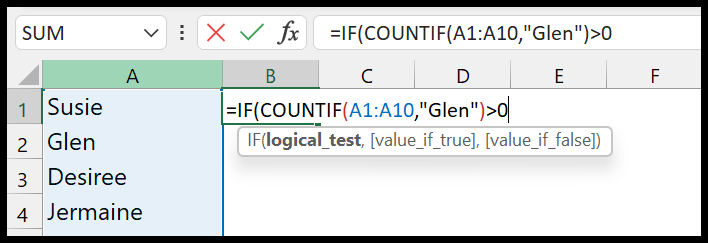
- From here, enter a comma to go to the next argument in the IF, and enter “Yes” in the second argument.
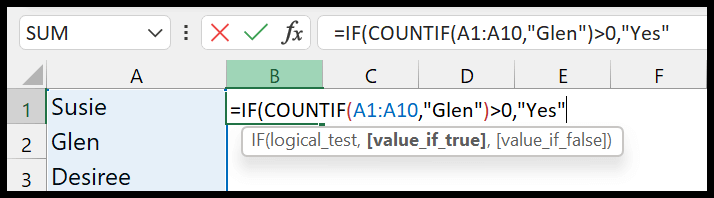
- In the end, enter a comma and enter “No” in the third argument and type the closing parentheses.
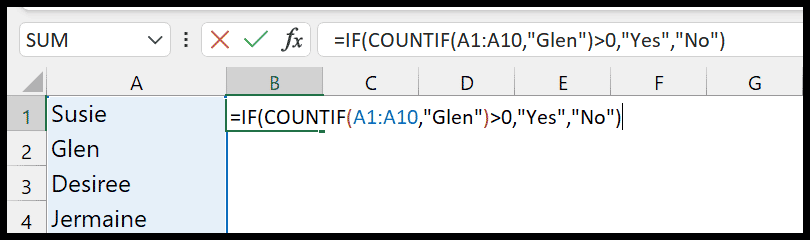
The moment you hit enter it returns “Yes”, as you have the value in the range that you have searched for.

=IF(COUNTIF(A1:A10,"Glen")>0,"Yes","No")How this Formula Works
This formula has two parts.
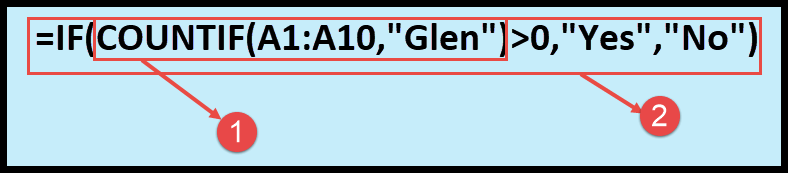
In the first part, we have COUNTIF, which counts the occurrence of the value in the range. In the second part, you have the IF function that takes the values from the COUNTIF function.
So, if COUNTIF returns any value greater than that, it means the value is in the range IF returns Yes. If COUNTIF returns 0, it means the value is not in the range, and it returns No.
Check for a Value in a Range Partially
There counts to be a situation where you want to check for partial value from a range. In that case, you must use wildcard characters (asterisk *).
In the following example, we have the same list of names, but here is the full name. We still need to look for the name “Glen.”

The value you want to search for must be enclosed with an asterisk, which we have used in the above example. This tells Excel to check for the value “Glen” regardless of what is before and after it.

Great info, thank you. It is just my excel uses “;” as a separator instead of “,” , so copying the code didn’t worked, I had to write it and autocomplete showed ;
You start the problem statement with searching for Arlene, but then move to Glen. Slightly confusing…
Thanks for your correction.